How to fix
Your Connection Is Not Private Error in Google Chrome
on Windows
Resolve the "Your connection is not private" error in Chrome on Windows 10 or 11 quickly and efficiently. Expert-tested solutions await you!

What causes How to Fix Your Connection Is Not Private Error in Google Chrome?
- Firewall feature blocking access
- Anti-virus interference
- Malicious payload injection
- Unknown or expired SSL certificate
- Insecure connection between PC and server
Repairs Windows system files, removes malware, and restores a clean OS state — without reinstalling.
Hi guys. I wonder what has happened with Chrome as it has started delivering an error message saying “Your Connection is Not Private.” I’m a bit scared having in mind how hackers are rampaging online. Could you please tell me what should be done to fix this?
While Your Connection is Not Private is a warning that shouldn't be ignored in most cases, some legitimate websites like PayPal can be blocked due to the outside factors, such as a feature in the firewall[ref en-3] or anti-virus. However, if you receive such message on an unknown site, it is highly likely that it is indeed dangerous and you should get out of it as soon as possible.
Cybercriminals are clever people who are capable of injecting malicious payload onto a hacked or file-sharing site. That is why visiting such domains is not recommended (especially those which are blocked by Google with the While Your Connection is Not Private warning). Your Connection is Not Private might be a way to lure you in some malware[ref en-1] attack.
However, it does not matter why the warning note has been sent to you, certain actions need to be taken nevermind if they are for malware prevention or some issue fixing in your computer. If you ever run into an error that includes the Your Connection is Not Private message, you will probably be provided with this type of text"
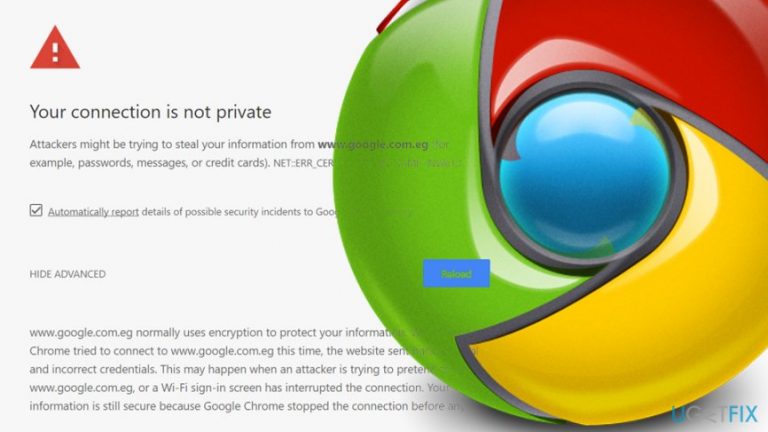
YOUR CONNECTION IS NOT PRIVATE
Attackers might be trying to steal your information from XXX (may be a password, IP address, messages, bank information or credit cards). NET::ER_CERT_COMMON_NAME_INVALID
If not because of malicious attacks, Your Connection is Not Private (also known as net::err_cert_common_name_invalid) error appears on Google Chrome due to the fact that there are issues with the SSL connection, which is why Chrome can’t verify and confirm SSL certificate.[ref en-2] SSL connection ensures data encryption and safe data transference to the servers.
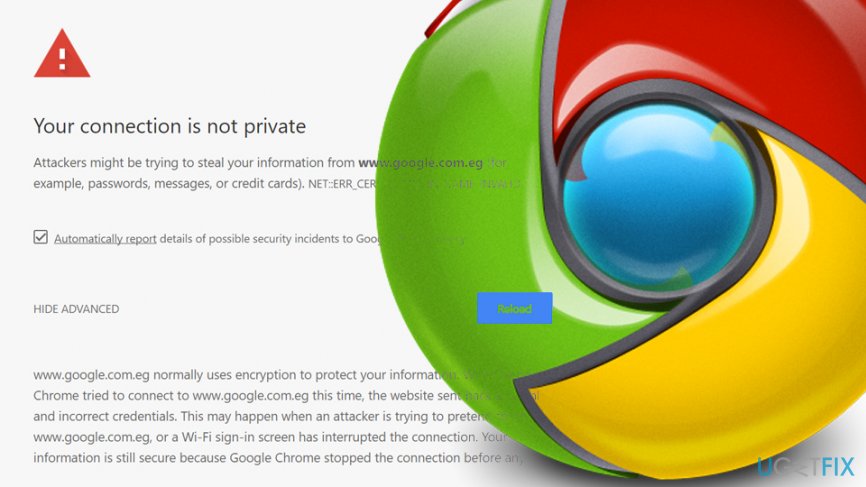
Thus, Your Connection is Not Private means that for the time being, Google Chrome can’t load the website you want to access using secure method due to unknown/expired SSL certificate or insecure connection between your PC and server. Luckily, there are several troubleshooting steps that can be performed easily to fix Your Connection is Not Private on Google Chrome.
How to Fix Your Connection Is Not Private Error in Google Chrome?
Fix 1. Correct Date and Time Settings
Although this may seem a very unexpected solution, you should try checking Date and Time settings in the first place. That’s because incorrectly set Date & Time may be the reason why Google Chrome can’t verify the SSL certificate. Thus, perform these simple steps:
- Right-click on the Date and time located at the bottom right of your screen and pick Adjust date/time
- In Settings, turn off the function Set time automatically
- Wait a few moments and turn it back on
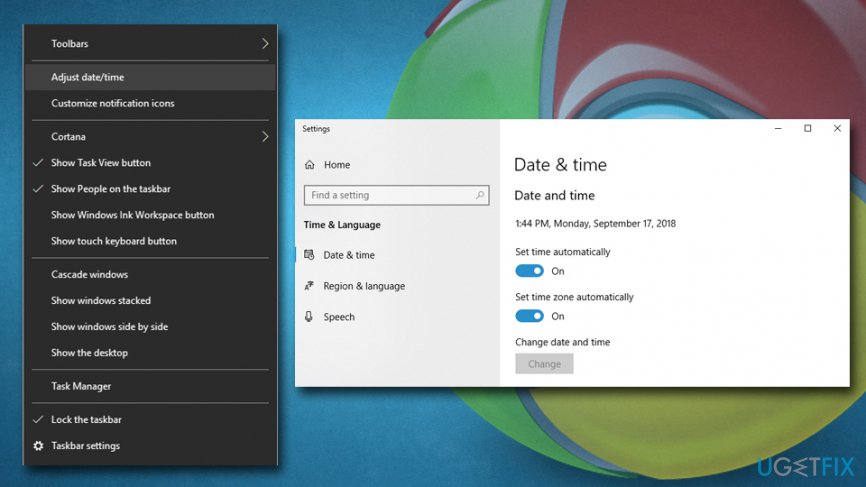
Your connection is not private error set date and time
As soon as you update Date and Time, the SSL error on Chrome should be fixed. If not, then go to the next fix.
Fix 2. Check your Antivirus/Firewall
Antivirus may also trigger Your Connection is Not Private on Google Chrome because a tendency of antivirus/firewall blocking suspicious SSL certificates has been observed. Thus, try to disable HTTP scan on your anti-virus and then try to access the website that you were trying before.
For this purpose, open your antivirus and look for SSL scanning option or Real-time protection feature, which, most probably, is check with a tick. If you find it, uncheck it and check if the error message appears. In case, you can’t find such an option, then we would recommend removing this anti-virus and installing a more advanced one.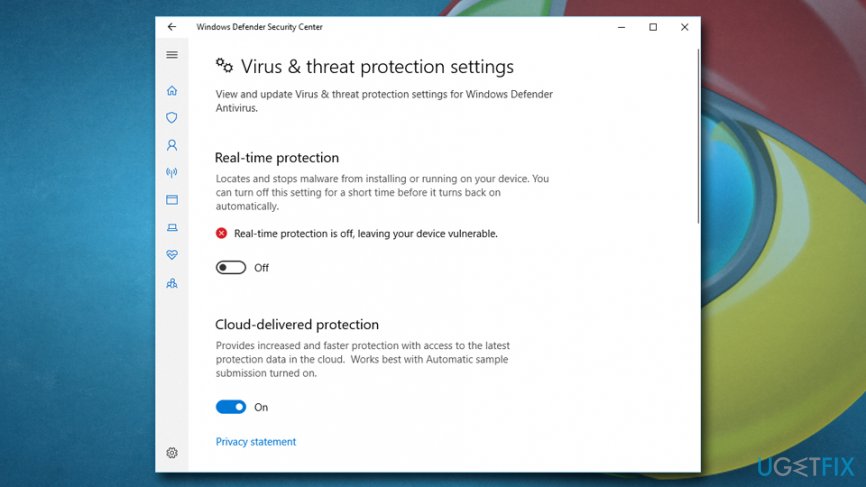
Fix 3. Clear browsing data
In case you never heard of it, browsing data is stored on your computer, and sometimes might become overwhelmingly large if never emptied. Additionally, it can cause the Your Connection is Not Private on Google Chrome error.
- Open Settings on Google Chrome, and scroll down to find Show advanced settings
- Go to Privacy and click on Clear browsing data
- Select everything on the list and pick Clear browsing data
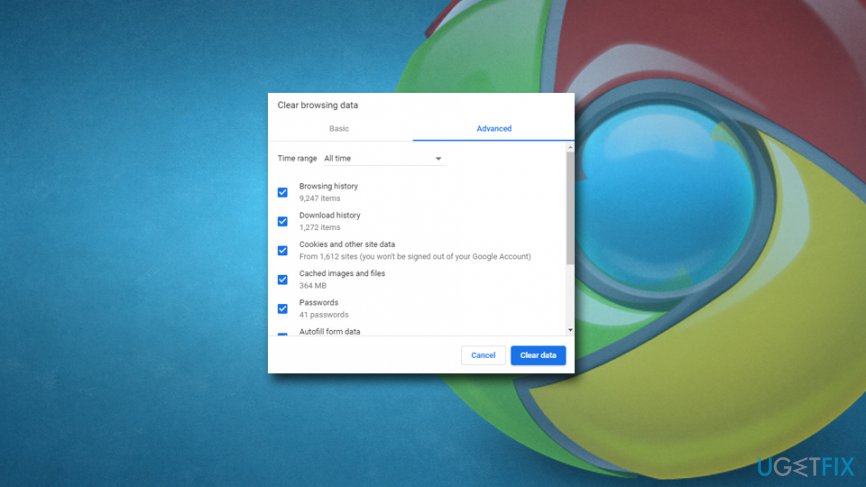
Your connection is not private error clear browsing data
Fix 4. Go Incognito
- Go to your web browser and click on the three dots that are located on your upper right corner.
- Click on the option that says "New Incognito Window".
- After that, select Settings in the same location (three dots).
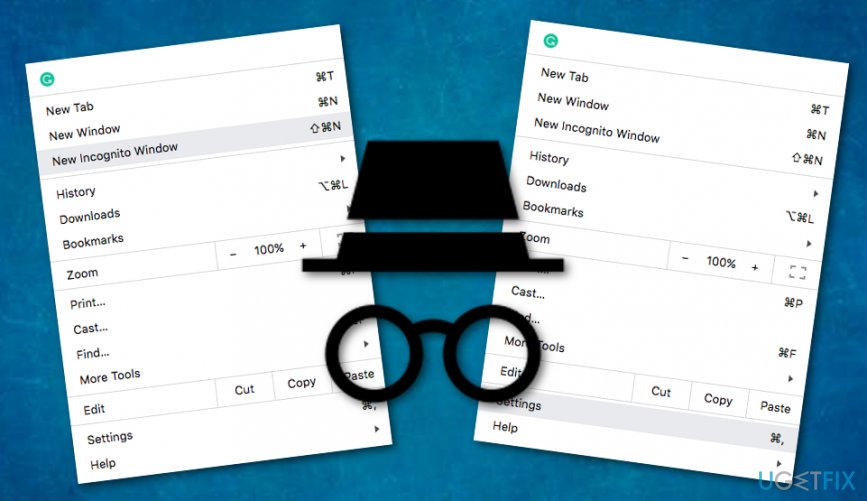
Go incognito - Locate the Extensions option.
- Un-check and click unable for any extension that has been interfering with your SSL connection.
We hope that this method helped you to solve Your Connection is Not Private error on your Google Chrome web browser. However, if this technique did not give you any positive results, you should continue with the following fix.
Fix 5. Update the DNS settings on Windows
If you have ever made any changes to your DNS, you should reverse these modifications as they might be the problem why you are seeing the Your Connection is Not Private messages. In order to do that, complete the following:
- Go to your Control Panel.
- Access Network --> Sharing Center --> Change Adapter Settings.
- Right-click on the network that you are using and select the Properties option.
- When a new window shows up, continue with the Networking tab.
- Select Internet Protocol Version 4 (TCP/IPv4) or Internet Protocol Version 6 (TCP/IPv6).
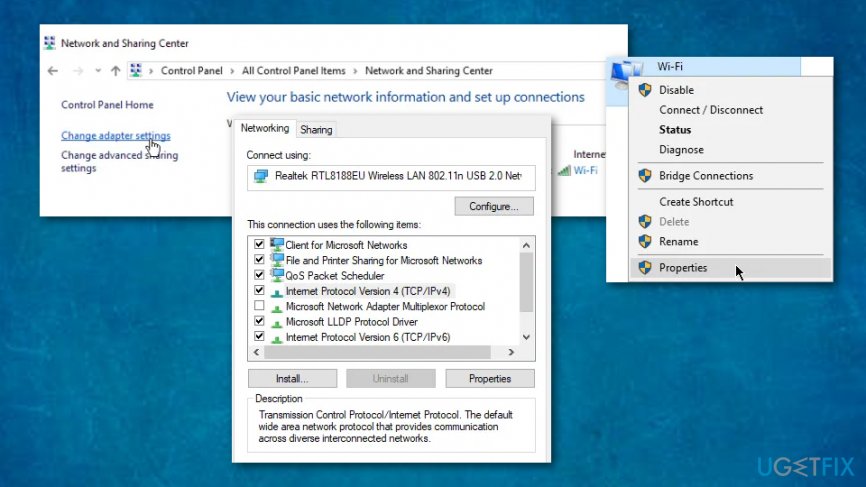
Change dns settings - Afterward, go to Properties.
- When another window pops up, select Obtain DNS Server Address Automatically (this can be found beneath the General tab).
Fix 6. Ignore the error with a specific Google Chrome shortcut
If you have run a few malware scans and nothing malicious has been spotted, and if you have been trying to get rid of the error but Your Connection is Not Private message still shows up out of nowhere, you can try to ignore it by manually placing a specific shortcut that activates the ignore function on Google Chrome. Here is how to do it:
- Right-click on the Google Chrome shortcut.
- Select Properties.
- Find the Target section and type this line: "-ignore-certificate-errors".
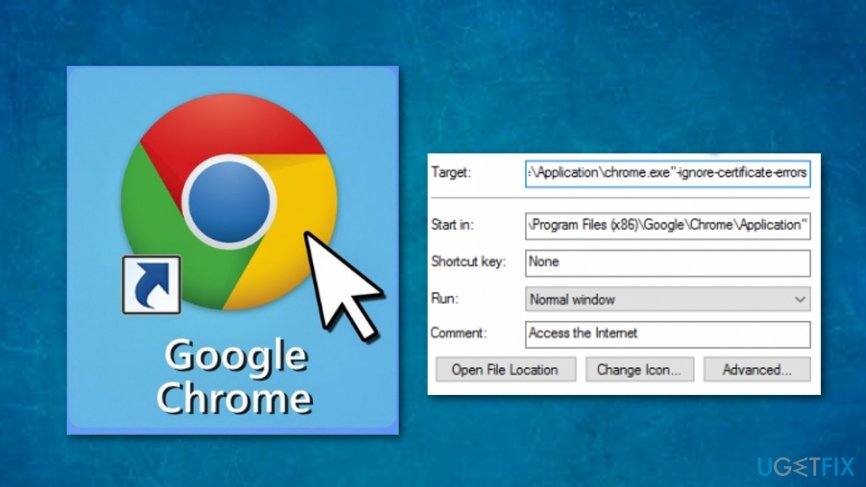
Create shortcut - Afterward, click Apply and OK.
Fix 7. Use a PC optimization tool
In some of the cases, some minor PC bugs trigger errors like Your Connection is Not Private. However, the problem sometimes might not be able to detect or investigate by the user himself. Therefore, you can try installing and running a scan with a PC optimization tool, for example, [d1].
Bottom line
To fix the 'Your Connection is Not Private' error, you can check your firewall and anti-virus settings, ensure the SSL certificate is valid, or try accessing the site using a different network. If these solutions do not work, consider avoiding the site altogether and ensuring your system is secure.
Frequently asked questions
You can try clearing your browser's cache and cookies, then restart Chrome to see if the error resolves. If not, check your date and time settings to ensure they are correct.
Updating your network driver may help resolve this issue; go to Device Manager, find your network adapter, and check for updates. Additionally, consider disabling any VPN or proxy settings that could interfere with your connection.
You can click on 'Advanced' and then select 'Proceed to [website]' to bypass the warning, but be cautious as this may expose you to security risks.




Report an issue
What's wrong with this guide? We review every report and update or remove content.
Report received — thank you. We'll review and fix it.
You need a free account to submit a report.
Be the first to comment