How to fix
“Switch user” missing
on Windows
Restore the "Switch user" feature in Windows 10 with easy troubleshooting tips. Get back to seamless navigation today—expert-tested solutions await!

What causes How to fix “Switch user” missing in Windows 10?
- User account settings may restrict the option
- Computer is part of a domain where the administrator disabled the function
- Different versions of Windows 10 may display features differently
- User preferences or settings may not allow for multiple accounts
- The system may require updates or configuration changes
Repairs Windows system files, removes malware, and restores a clean OS state — without reinstalling.
Hello, I have recently bought a new Windows 10 laptop - I upgraded from Windows 8. Unlike in my previous PC, I do not see the "Switch User" option when I press Start > user icon. The only options available are "Shut down,” “Sign out," "Sleep," and "Restart." Is there a solution for this available? I'd very much appreciate the help, as I need to switch users relatively often for work. At the moment, I have to log out every single time, which makes it a rather annoying experience.
Windows is an intricate operating system, as it holds so much information, applications, and files on it. Each of the machines differs, however, as each has a different set of hardware, user preferences, and other features. Over the years, Microsoft added new features to the operating system, including user accounts. This made the experience more personalized and also allowed several people to use the same machine without disclosing personal files or other personal information.
Most commonly, users can simply log out, and then another user can log in by picking the correct account and then type a unique password in. Also, some users use multiple accounts themselves for various reasons. This is when it becomes important to make a quick change using the "Switch user" function.
Multiple users have reported that, once they click the "Start" button and want to switch users quickly, they are unable to do so, as the "Switch user" option is simply missing.[ref en-2] While users can run different versions of Windows 10 systems, this feature might look quite a bit different.
In most cases, users who wanted to fix "Switch user" missing in Windows 10 were a part of a domain - it means that the administrator can turn off the function completely if they desire so. However, others claimed that their computers were not connected to a server or a network, and they were the sole users of the PC at home, and not at the workplace.
In any case, there are a few simple ways to return the "Switch user" feature by using various built-in Windows tools, such as the registry[ref en-3] or group policy. Note: if you are suffering from constant Windows crashes, errors, BSODs,[ref en-1] and other issues, we recommend using [d1] repair software as a quick remedy.
Fix 1. Click on your account icon and see if other users are visible
To attempt to switch to another user, perform the following steps:
- Click the Start button
- If you see an icon of your account - click on it
- You should be able to see other users listed under the Sign out option.
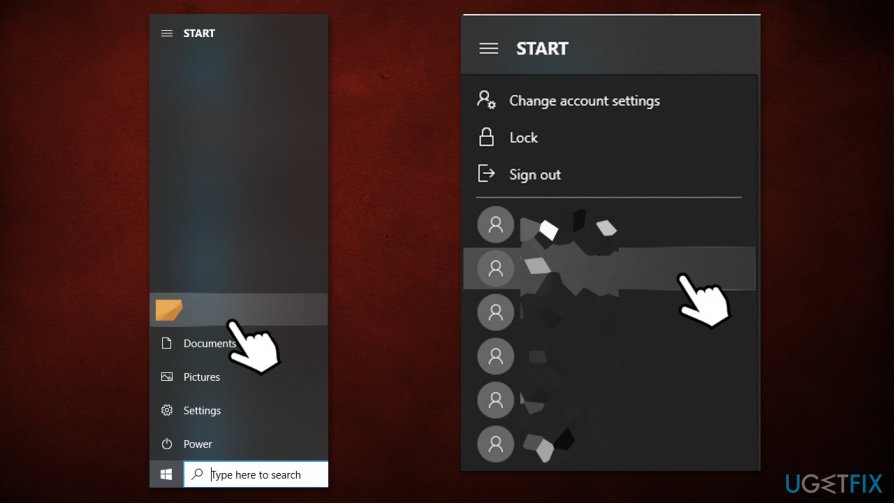
How to fix switch user missing in windows 10 switch users via start
If you do not see any other users, it means that the feature is simply disabled. To fix the "Switch user" missing issue, proceed with the solutions provided below.
Fix 2. Edit Group Policy settings
- Type in Group Policy in Windows search
- Press Enter or click on Edit Group Policy
- Click on the following:
Computer Configuration > Administrative Templates > System > Logon
- On the right side, find and double-click the Hide entry points for Fast User Switching
- Select Disabled
- Click Apply and OK
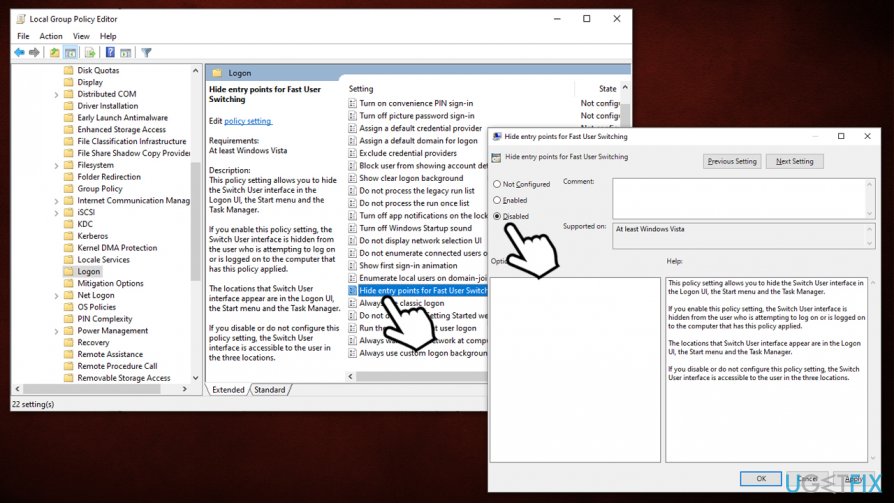
How to fix switch user missing in windows 10 edit group policy - Close down the Group Policy Editor
Fix 3. Modify Windows registry
If the previous fix did not help you, you should employ the Registry Editor. Note that modifying the registry incorrectly might damage your system, so you should back it up first.
- Type in regedit in Windows search
- Right-click the Registry Editor search result and select Run as administrator
- When User Account Control window shows up, pick Yes
- Click File > Export
- Select the location where you would like to store the backup of you Registry
- Make sure Export range is set to All and then click Save
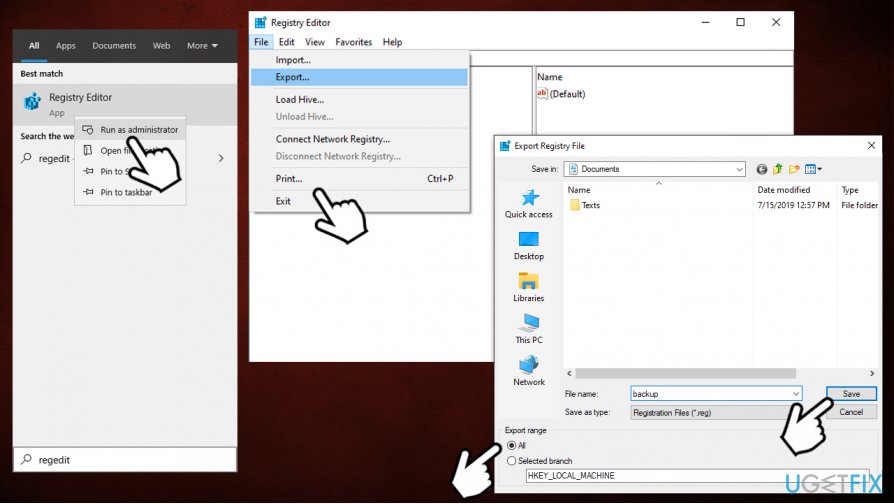
How to fix switch user missing in windows 10 backup registry
Next, perform the following steps:
- Open Registry Editor once again as explained above
- Navigate to the following location:
Computer\\HKEY_LOCAL_MACHINE\\SOFTWARE\\Microsoft\\Windows\\CurrentVersion\\Policies\\System
- On the right side, right-click on the HideFastUserSwitching key and select Edit
- Set its value to 0.
Bottom line
To restore the 'Switch user' feature, users can check their account settings, ensure they are not part of a domain restricting the function, or explore system updates. If none of these solutions work, consider reaching out to Microsoft support for further assistance.
Frequently asked questions
The 'Switch user' option may be missing due to Group Policy settings, registry changes, or user account configurations. Checking these settings can help restore the feature.
You can restore the 'Switch user' option by modifying the Group Policy Editor or the Windows Registry to enable the feature again. Ensure that you have administrative rights to make these changes.
Yes, the 'Switch user' feature operates similarly in Windows 11, but the settings may differ slightly due to the updated interface. If it's missing in Windows 11, the same troubleshooting steps can be applied.




Report an issue
What's wrong with this guide? We review every report and update or remove content.
Report received — thank you. We'll review and fix it.
You need a free account to submit a report.
Be the first to comment