How to fix
VCRUNTIME140_1.dll missing or not found error
on Windows
Resolve the VCRUNTIME140_1.dll missing error in Windows 10 or 11 effortlessly. Follow our expert-tested guide for quick fixes and hassle-free solutions.


What causes How to fix VCRUNTIME140_1.dll missing or not found error in Windows?
- Missing VCRUNTIME140_1.dll file
- VCRUNTIME140_1.dll file replaced or deleted
- Corrupted VCRUNTIME140_1.dll file
- Missing Microsoft Visual C++ Redistributable package
- Issues with specific applications relying on the DLL
Repairs Windows system files, removes malware, and restores a clean OS state — without reinstalling.
Hi, every time I try to open Firefox, I receive an error message instead - it states that VCRUNTIME140_1.dll was not found. Any idea on how to fix this? Help would be much appreciated.
VCRUNTIME140_1.dll was not found error is usually encountered by users when trying to run a particular program on Windows 10, as well as other versions of the OS.
Similar to VCRUNTIME140.dll, VCRUNTIME140_1.dll is a Dynamic Link Library[ref en-2] file that is used by several applications to launch specific commands or run a particular code. The file is not a part of the Windows operating system but is generally needed by third-party applications to run smoothly.
In particular, users encounter the error when the file is missing from the system - it consequently prevents the launch and operation of a program that relies on this file to function properly. Unfortunately, missing DLL files is not news to some Windows users (other examples include MSVCP140.dll and MSVCP100.dll), and such errors can create a very frustrating user experience when using a Windows device.
People reported that they encountered VCRUNTIME140_1.dll not found error when trying to launch various programs, including game modding[ref en-1] software[ref en-3] or personally created apps. Now, most commonly, users try to look for the missing file on their computers by using the search function, and they claim that such a file was not able to be located - unsurprisingly.
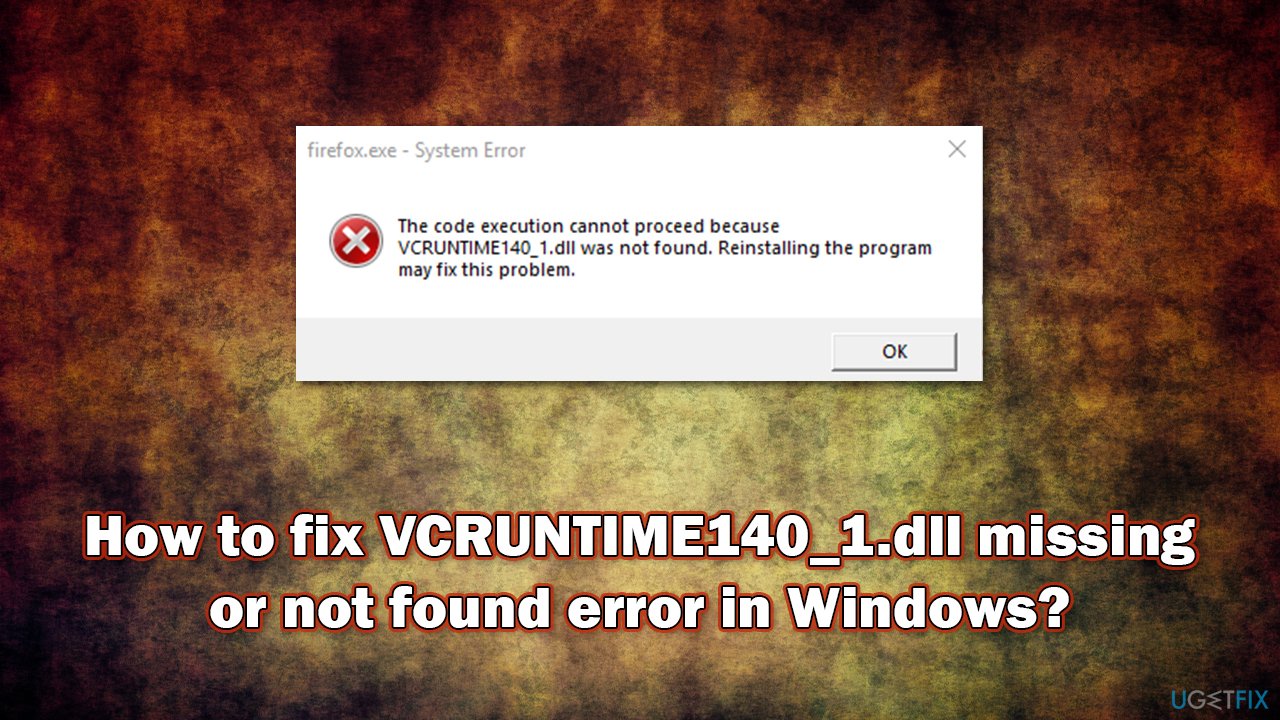
The error states the following:
The code execution cannot proceed because VCRUNTIME140_1.dll was not found. Reinstalling the program may fix this problem
VCRUNTIME140_1.dll element indicates that the missing DLL comes from the Microsoft Visual C++ Redistributable package and initially should be installed on the system. However, due to several reasons, these files might be replaced, deleted, or corrupted. As a result, users are unable to launch programs that rely on that particular environment to be present on Windows.
Many users who tried to fix VCRUNTIME140_1.dll is missing error, considered reinstalling the app, as suggested by the message within the error. After doing so several times, the issue persisted.
Below you will find methods that should help you resolve the issue. If you want to try a quick fix, we highly recommend you run a scan with [d1] repair software that is capable of finding and replacing damaged Windows system files automatically.
Solution 1. Install all available Windows updates
- Type in Updates in Windows search and press Enter
- On the right-side, click Check for updates
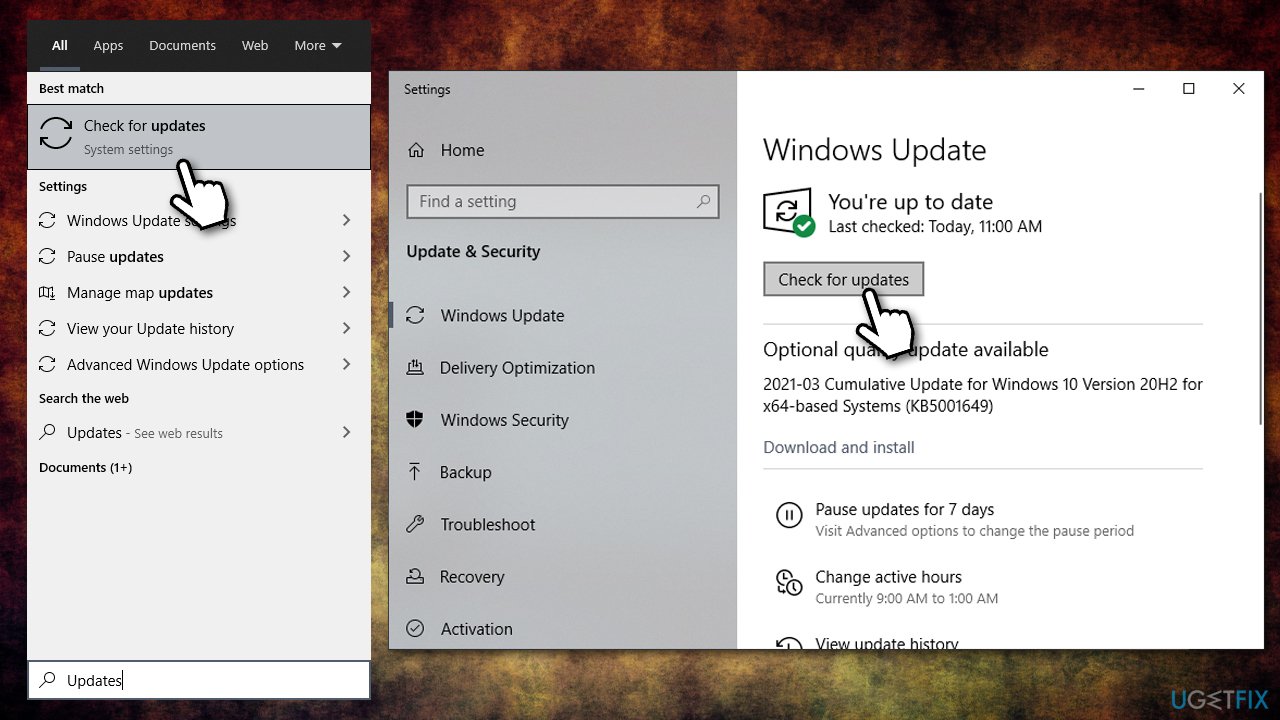
How to fix vcruntime140 1 dll missing or not found error in windows install all updates - Wait till Windows installs everything
- Remember to install all the optional updates
- Reboot your system.
Solution 2. Install Microsoft Visual C++ Redistributable package
Some components within the Visual C++ libraries might get corrupt, resulting in missing or not found DLL errors. Thus, installing the latest package could help you fix the problem.
- Visit the official Microsoft website that offers the latest installers of Visual C++
- Download and install both vc_redist.x86.exe (32-bit) and vc_redist.x64.exe (64-bit) versions
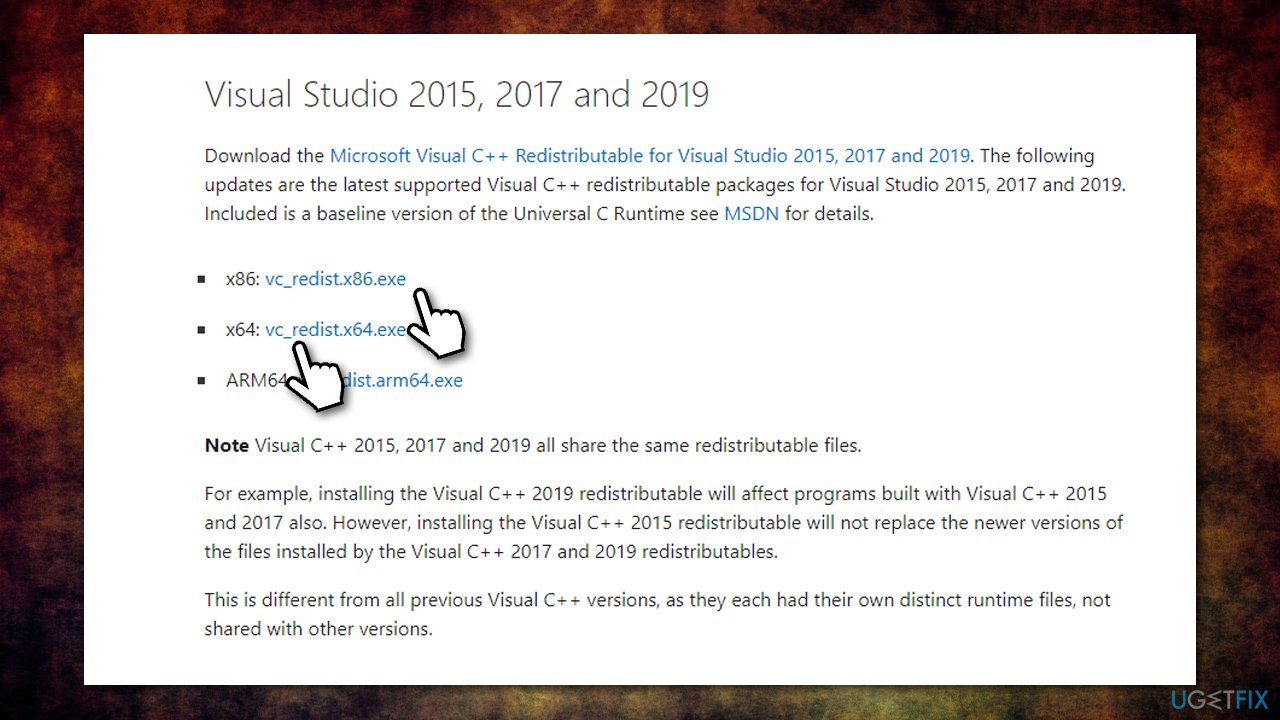
How to fix vcruntime140 1 dll missing or not found error in windows install visual c plusplus - Once finished, reboot the system.
Note: if you have all the Visual C++ Redistributable packages already installed, uninstall them before installing the new ones - here's how:
- Type in Control Panel in Windows search and press Enter
- Go to Programs > Uninstall a program
- From the list, locate Visual C++ Redistributable packages
- Right-click on each of them and select Uninstall
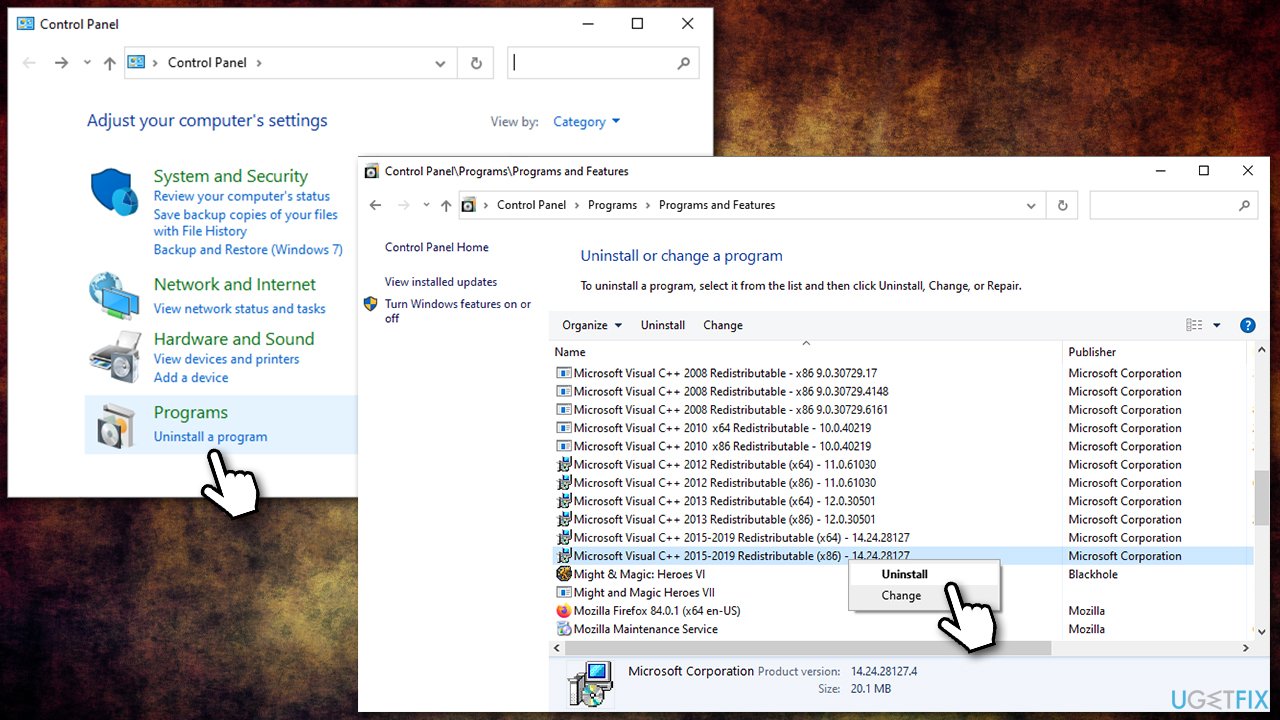
How to fix vcruntime140 1 dll missing or not found error in windows uninstall visual c plusplus - Now reinstall the packages as explained above.
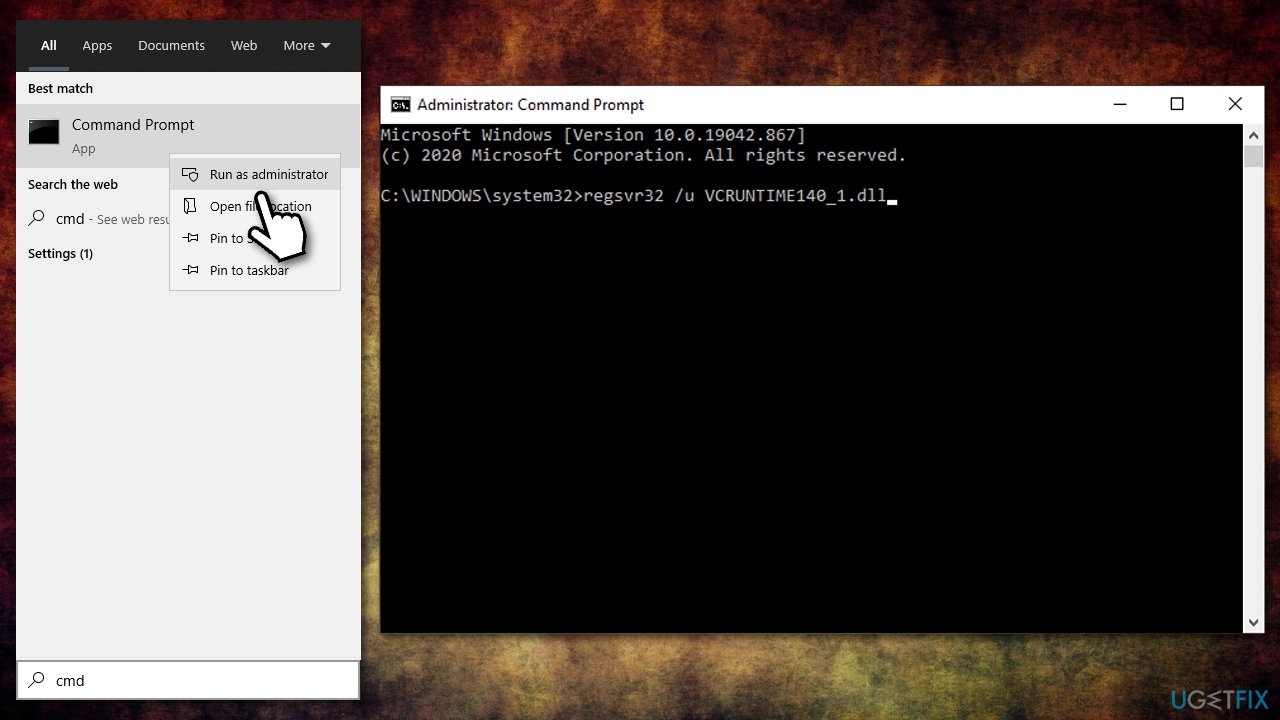
Solution 3. Manually re-register the missing VCRUNTIME140_1.dll
- Type cmd in Windows search
- Right-click on Command Prompt and select Run as administrator
- In this window, copy and paste the following commands, pressing Enter after each:
regsvr32 /u VCRUNTIME140_1.dll
regsvr32 VCRUNTIME140_1.dll - Restart the PC and check if the problem is solved.
How to fix vcruntime140 1 dll missing or not found error in windows reregister the file manually
Solution 4. Copy the missing DLL from another location
Since VCRUNTIME140_1.dll is used by several applications and is a part of the Microsoft Visual C++ Redistributable package, it can be replicated easily. Here's what you need to do:
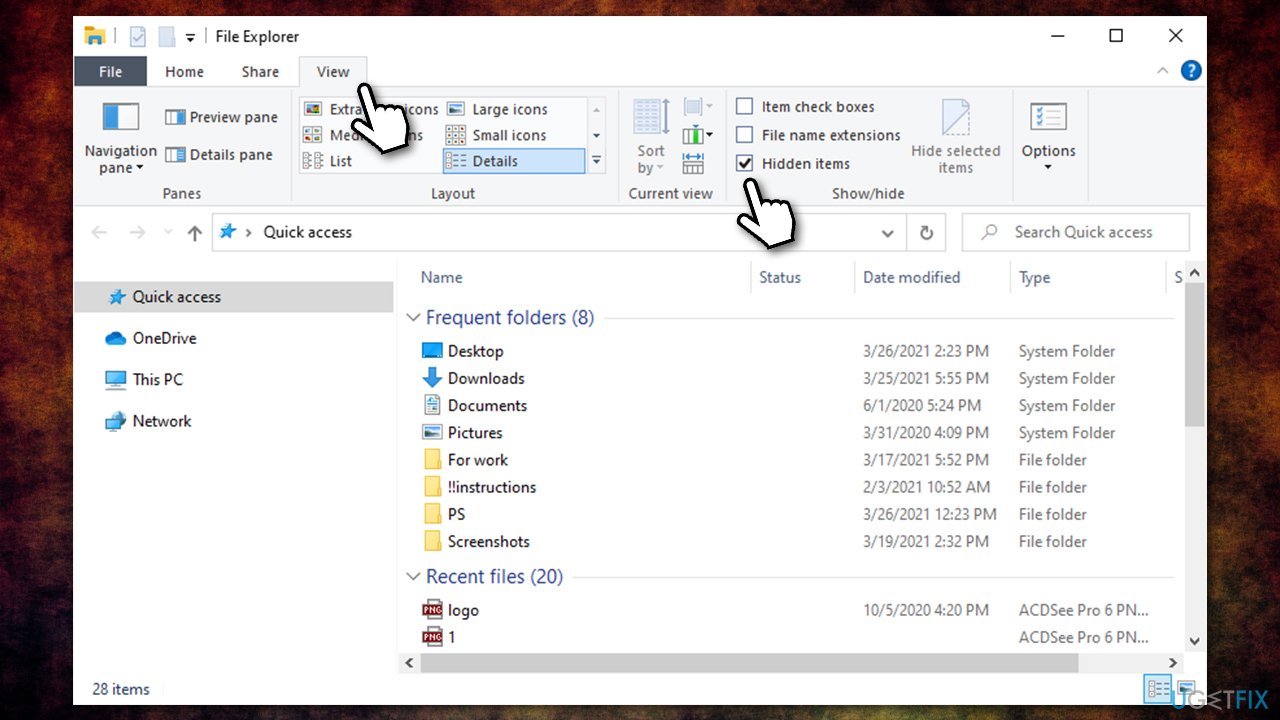
- Press Win + E to open File Explorer
- Go to View tab and make sure Hidden items box is checked
How to fix vcruntime140 1 dll missing or not found error in windows view hidden files - Now navigate to the following location:
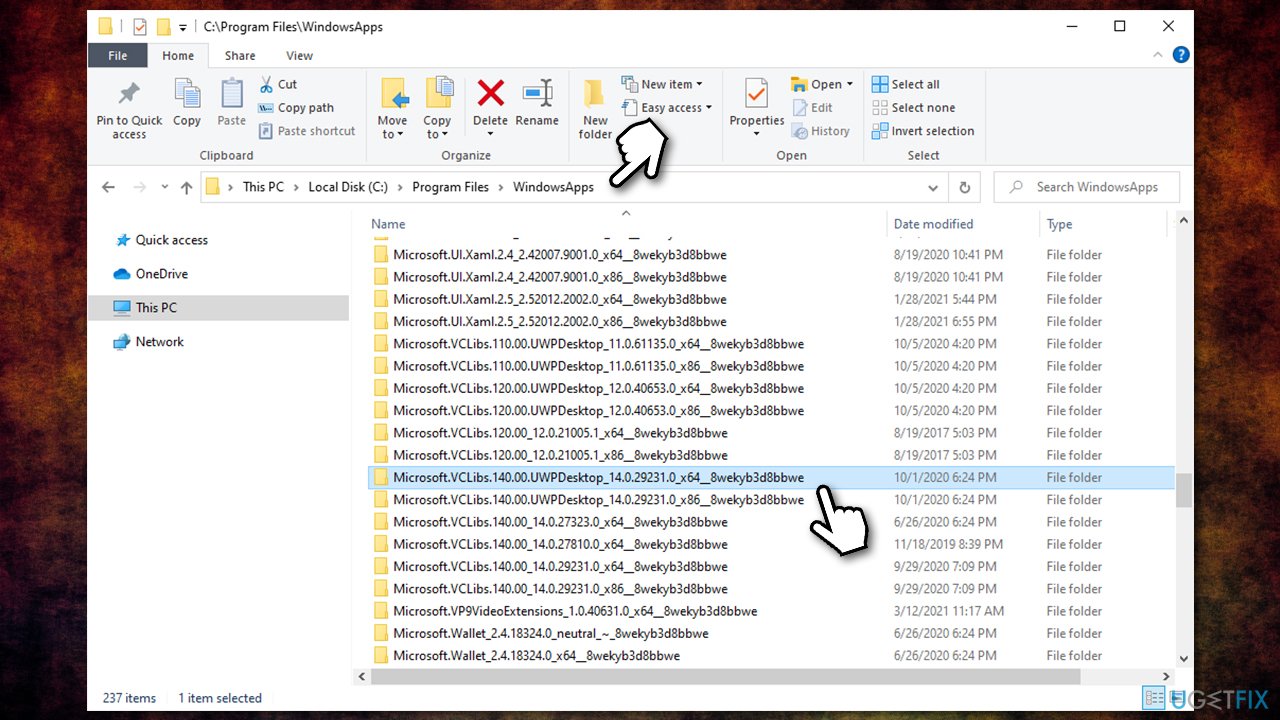
C:\\Program Files\\WindowsApps
- In here, you should be looking for a folder titled as as follows (note that 14.0.29231.0_x64__ is a variable that changes depending on a version):
Microsoft.VCLibs.140.00.UWPDesktop_14.0.29231.0_x64__8wekyb3d8bbwe
How to fix vcruntime140 1 dll missing or not found error in windows access program files folder - In here, scroll down and locate the VCRUNTIME140_1.dll file - press Ctrl + C to copy it
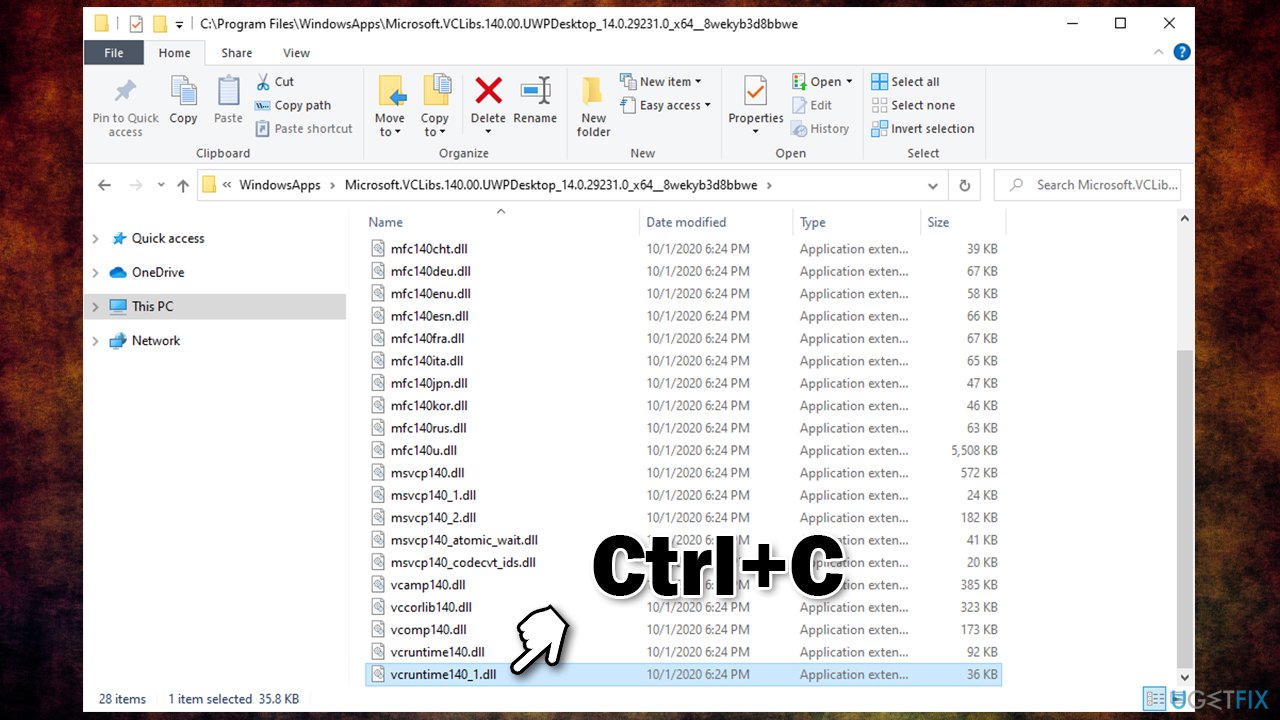
How to fix vcruntime140 1 dll missing or not found error in windows copy dll file - Now head to the folder of the program you are experiencing issues with, e.g., C:\\Program Files\\Mozilla Firefox and paste the file with Ctrl + V.
Bottom line
To fix the VCRUNTIME140_1.dll missing error, users can try reinstalling the affected application or installing the Microsoft Visual C++ Redistributable package. If these methods do not resolve the issue, further troubleshooting may be necessary.
Frequently asked questions
The VCRUNTIME140_1.dll missing error typically occurs due to a corrupted or missing Microsoft Visual C++ Redistributable package. It can also happen if the application that requires the DLL is incorrectly installed or updated.
To restore the VCRUNTIME140_1.dll file in Windows 11, reinstall the Microsoft Visual C++ Redistributable for Visual Studio 2015, 2017, and 2019 from the official Microsoft website. This process often replaces the missing file and resolves the error.
No, it is not safe to download VCRUNTIME140_1.dll from third-party websites, as these files may be outdated or contain malware. Always obtain the DLL by reinstalling the necessary Microsoft Visual C++ Redistributable package.




Report an issue
What's wrong with this guide? We review every report and update or remove content.
Report received — thank you. We'll review and fix it.
You need a free account to submit a report.
Be the first to comment