How to fix
Fix: Network adapter error code 10 (This device cannot start)
on Windows
Resolve the Network adapter error code 10 on Windows 10 and Windows 11 effortlessly. Follow our expert-tested methods for a quick fix.


What causes Fix: Network adapter error code 10 (This device cannot start)?
- Driver software failing to load
- Communication failure between devices and drivers
- Unspecific issues with hardware or drivers
- Recent updates causing system errors
- Affected or damaged files
Repairs Windows system files, removes malware, and restores a clean OS state — without reinstalling.
Hello. I have an issue whit the Error that comes with a shortcode 10. This is the network adapter issue, and I get this error often. I tried to reset processes, the network, reinstall some pieces and troubleshoot, but no results. Can you help?
Network adapter error code 10 is the problem that occurs when the particular device cannot start. The error code indicates that the driver is to blame for this issue because a specific device requires a piece of driver software that is failing to load and launch. A computer requires various hardware and software devices, so the machine can properly work.
The particular error can occur as a message with an indication that the operation failed or the request is unsuccessful or with the full - the device cannot start message and the error code 10. These all indications mean the same thing - the communication between devices and drivers cannot happen. This is one of many Device Manager error codes.[ref en-1]
Users report that this issue occurs a few times, and the fix is not easily found. [ref en-2] Network adapter error code 10. This device cannot start is a more generic message, so some unspecific issues with hardware or drivers might trigger this issue, so troubleshooting is important.
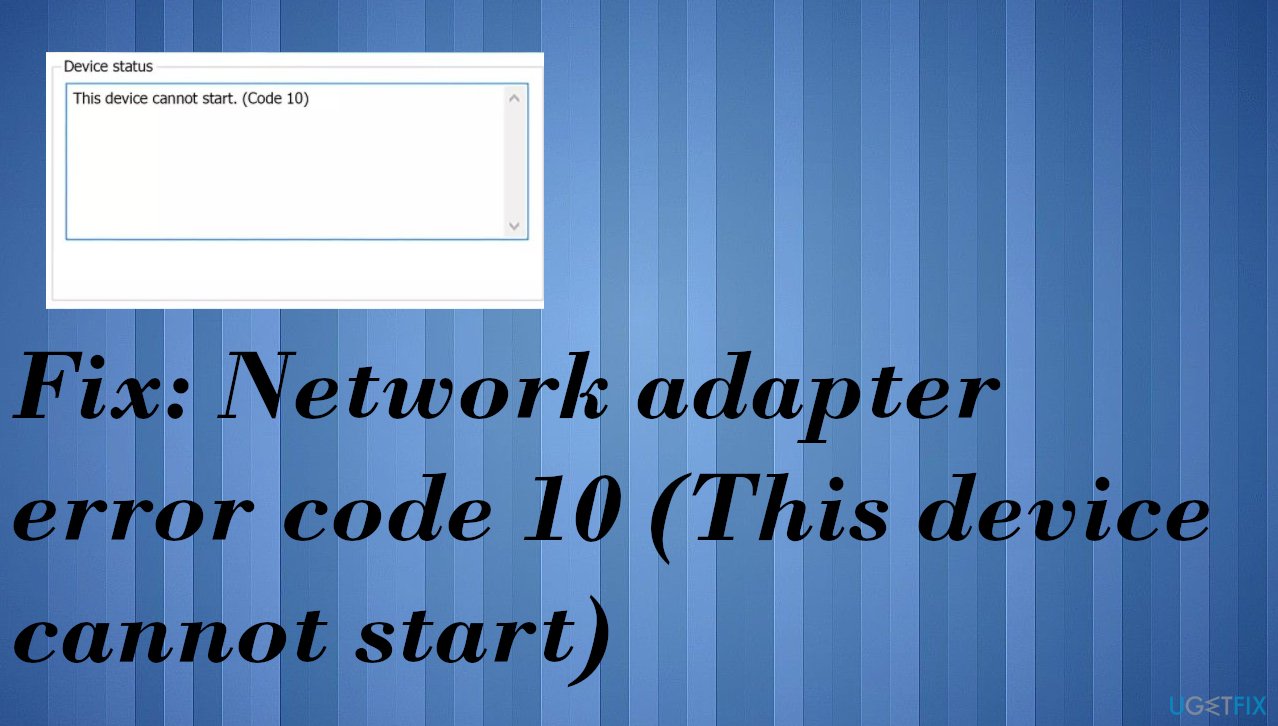
We also list a few methods for the Network adapter error code 10 solutions because of this reason. The problem mainly occurs as a pop-up window with the status of the device, and it delivers the information that the device cannot starts. It might look something like:
This device cannot start. (code 10) {operation failed} the requested operation was unsuccessful.
How to fix Network adapter error code 10 (This device cannot start)
These Device manager errors are exclusive to the device manager, so when you see the error in Windows, it might be related to a system error that requires in-depth fixes. If so, you might need to reinstall or update the operating system, since issues can be triggered by recent updates and bugs.[ref en-3] Also, when the system is performing poorly, affected or even damaged files might be responsible, so before doing anything else, check the system using [d1], so problems with the OS files get fixed.
The quick check and a solution for Network adapter error code 10 could be the restart of the computer. Suppose you haven't tried to already, reboot the machine and look if the problem was temporary. You might also want to check if you have made any Device Manager changes before the issue occurred. Your alterations can trigger the error. Other solutions require a bit more manual interference.
#1. Rollback drivers
- Go to the Device Manager.
- Expand the Mice and other pointing devices section.
- Right-click on Mouse Bluetooth driver and select Properties.
- Go to Driver tab.
- Click on Roll Back Driver.
- Select the reason why you are rolling back and then pick Yes.
- Reboot your system.
#2. Reinstall drivers to fix Network adapter error code 10 (This device cannot start)
- Press Win and R to open Run box.
- Type devmgmt.msc.
- Hit OK.
- Expand network adapters and disable the first device.
- Right-click and choose Uninstall driver.
- Delete all driver files.
- Uninstall IntelPROSet/Wireless Software.
- Press Win and X keys.
- Then press F.
- Find the software and uninstall it.
- Reinstall the app.
- Restart the PC.
- Go to Device Manager again and right-click the empty space.
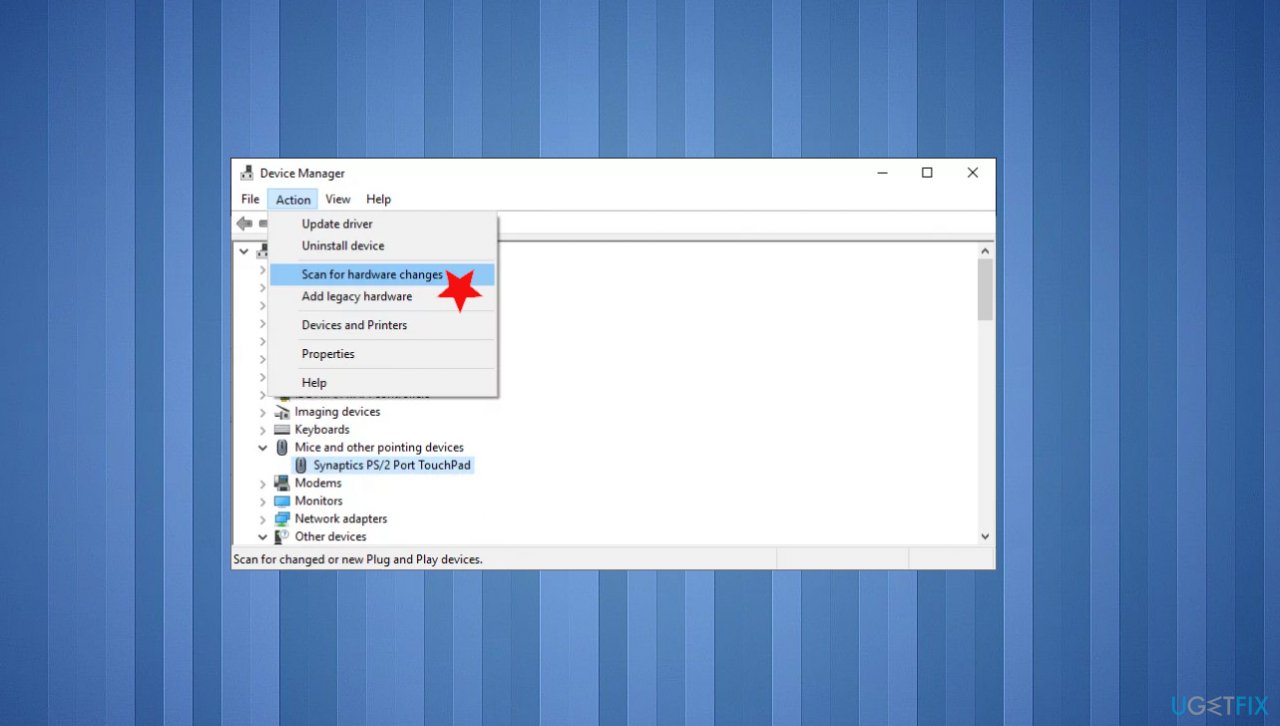
Fix network adapter error code 10 check hardware - Choose Scan for hardware changes.
#3. Update drivers for the device
- Press the Win and R keys to open the Run window.
- Enter devmgmt.msc.
- Hit Enter and open Device Manager.
- Double-click Wireless Network Adapter and right-click the display adapter.
- Choose to Update driver.
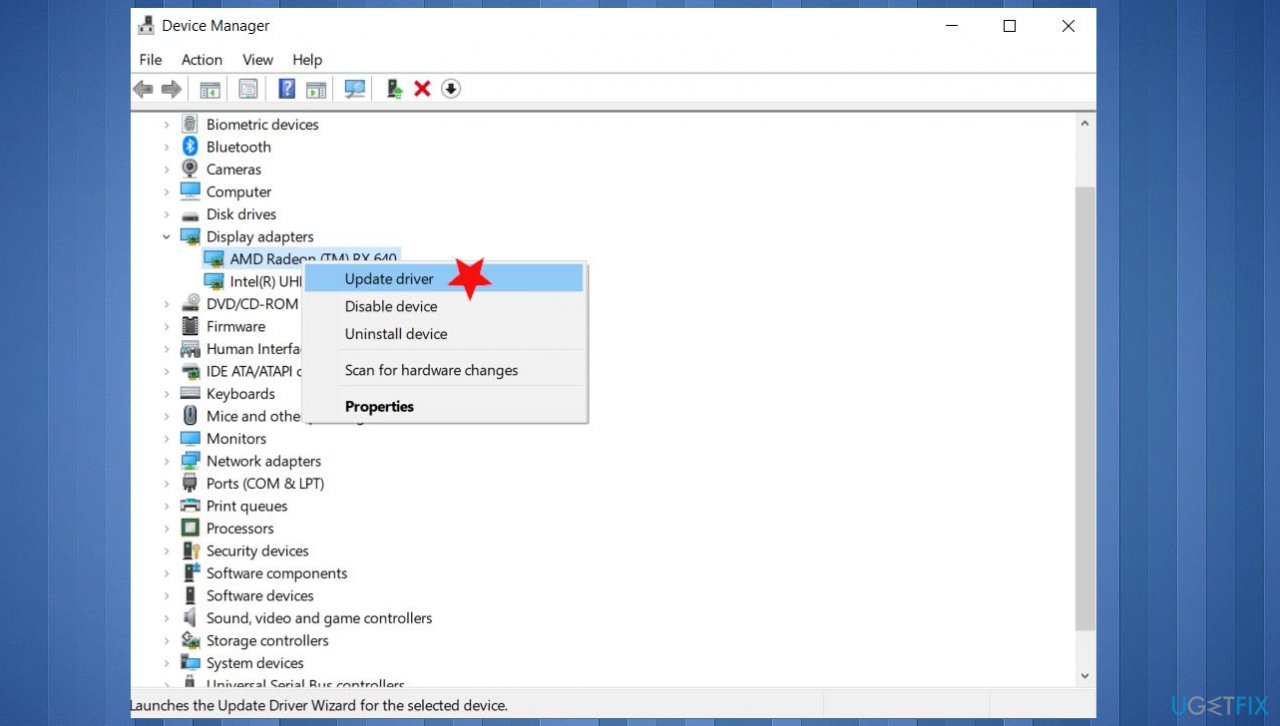
Fix network adapter error code 10 update driver - Select to search automatically and find drivers online if you don't want to download drivers yourself.
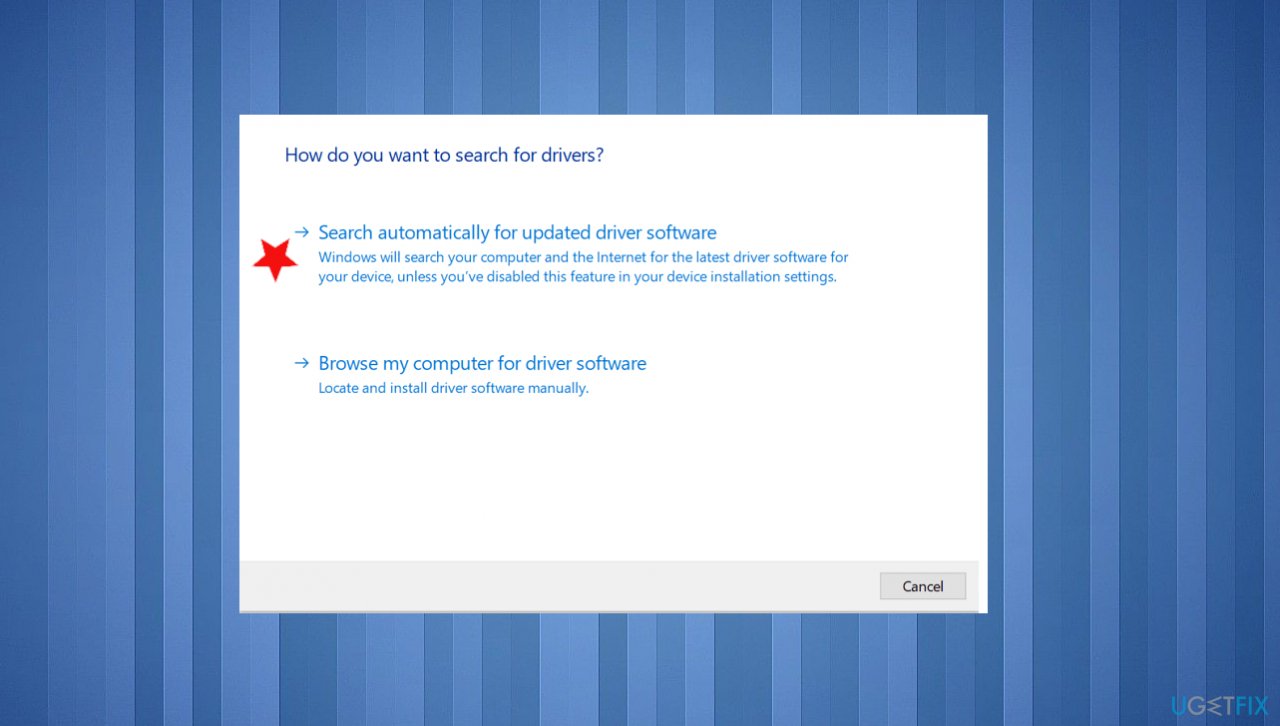
Fix network adapter error code 10 search auto - You can also run [rev id="DriverFix"] to do this entirely automatically when the tool is checking and installing drivers for you.
#4. Install recent OS updates to fix Network adapter error code 10
- Right-click on Start and select Settings.
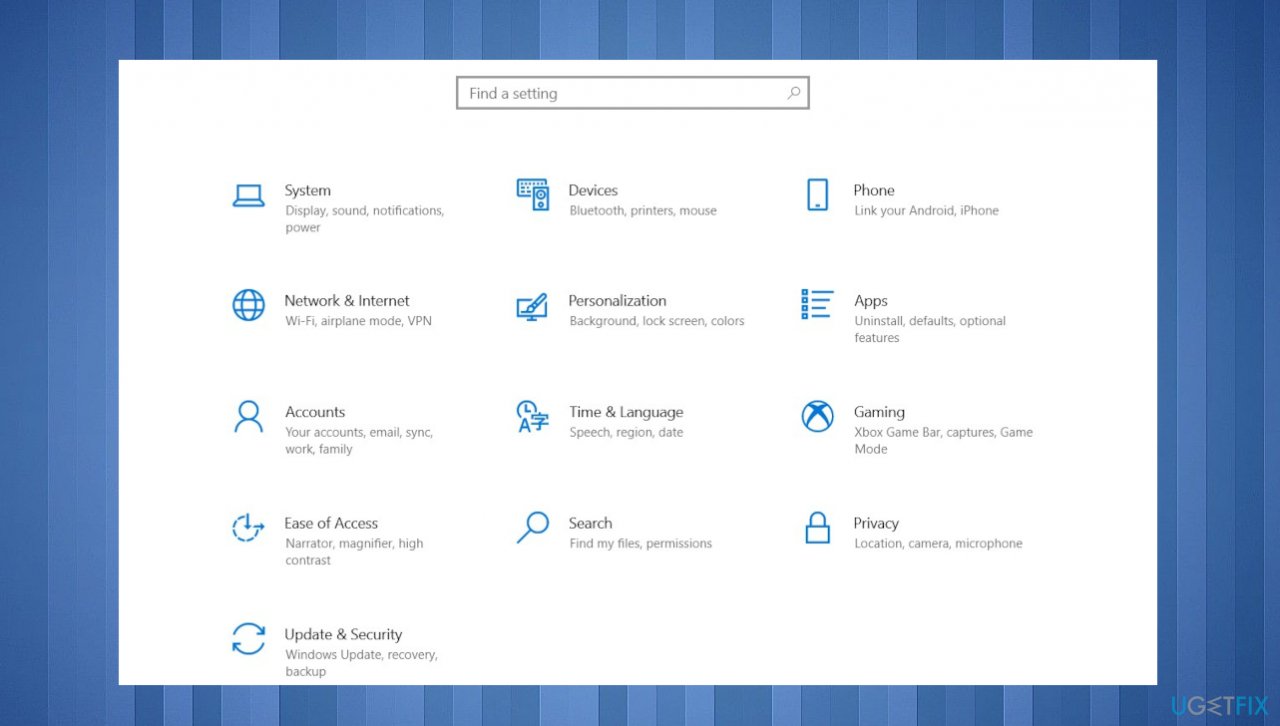
Fix network adapter error code 10 settings - Go to Update & Security.
- On the right side, click Check for updates.
- Install update.
- Wait till Windows downloads and installs updates.
- Reboot your system.
Bottom line
To fix Network adapter error code 10, you can try reinstalling or updating the driver software, troubleshooting the device, or even reinstalling the operating system if necessary. If these solutions do not resolve the issue, consider seeking professional assistance.
Frequently asked questions
The network adapter error code 10 typically occurs due to driver issues, hardware conflicts, or problems with the device settings that prevent the network adapter from starting properly.
To fix this error on Windows 11, you can try updating the network adapter drivers through Device Manager, or uninstalling and then reinstalling the device.
Yes, you can troubleshoot this error on Windows 10 by running the built-in Network Troubleshooter, checking for Windows updates, and ensuring that the network adapter is enabled in Device Manager.




Report an issue
What's wrong with this guide? We review every report and update or remove content.
Report received — thank you. We'll review and fix it.
You need a free account to submit a report.
Be the first to comment