How to fix
Error 5: Access is denied
on Windows
Resolve Error 5: Access is denied in Windows 10 effortlessly with our expert-tested solutions. Get back to smooth operation in minutes!


What causes How to fix Error 5: Access is denied in Windows 10?
- Insufficient permissions on the system
- Corrupted system files
- Issues with the Software Protection service
- Registry issues or missing DLLs
- User account control settings
Repairs Windows system files, removes malware, and restores a clean OS state — without reinstalling.
Hello. Whenever I try to install an application (regardless of where) or Update Windows, I always receive Error 5: Access is denied error. This is very strange because I use an administrator's account on a Windows 10 computer, so why is access denied? Any ideas?
Error 5: Access is denied is an error that may show up under different circumstances, although most commonly happen when trying to install new programs or apps[ref en-1] on the system. While this issue is most common on Windows 10, users of older versions of the operating system, such as Windows 8 or Windows 7, can also encounter it.
When trying to install an app or launch a Windows update, users can not proceed, as the process is interrupted due to an error that reads:
Unable to execute file in the temporarily directory. Setup aborted
Error 5: Access is denied
As evident from the error itself, the access to the action (Windows update/application install) was denied. This typically occurs due to insufficient permissions on the system. Therefore, many people can fix Error 5: Access is denied error by simply trying to run the command or launch an installer with administrator's rights. However, some users claimed that they are already using the administrator's account, which makes little sense as to why this error occurs in the first place.
There are also other variations of this error, for example, "Windows could not start the Software Protection service on Local Computer" (also, the server that might not be able to start can differ from user to user). In this case, for example, the Software Protection service checks the software status of the installed programs on the system.
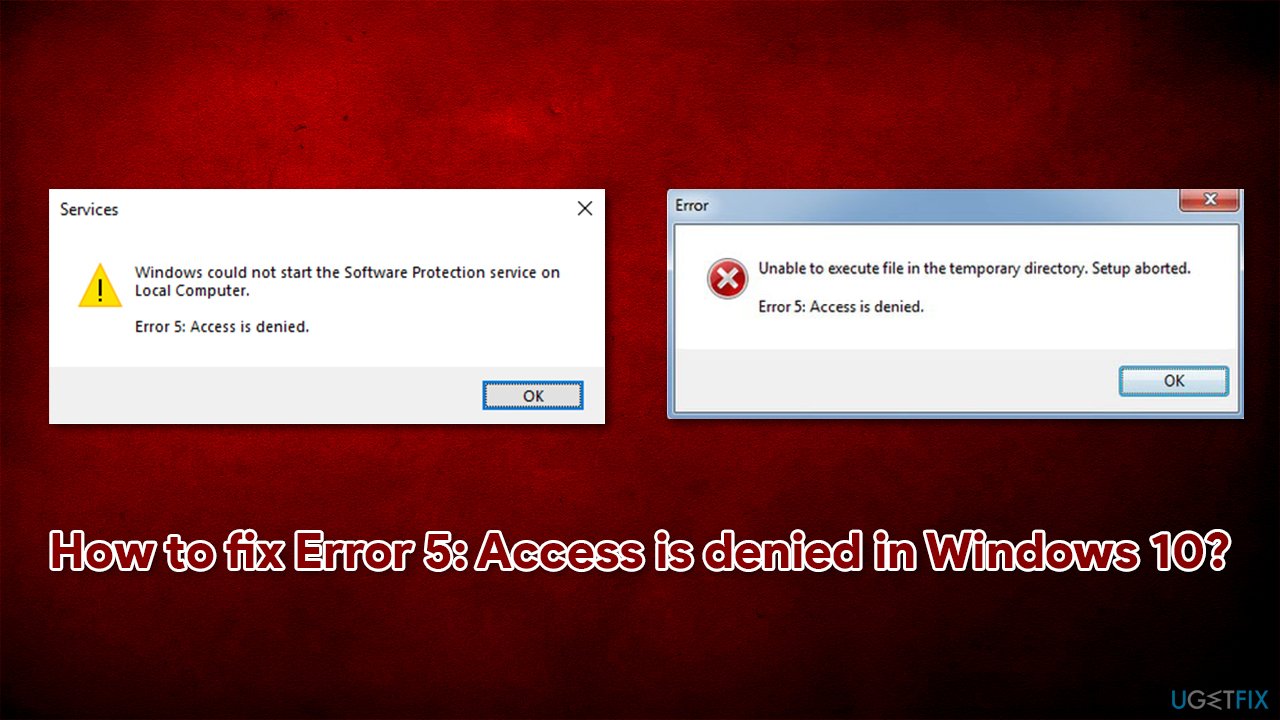
In such cases, the Error 5: Access is denied fix can lie within corrupted system files. While you could run commands in Command Prompt, we recommend you try [d1] to repair the damaged files automatically. Besides, this tool can also resolve registry issues or missing DLLs,[ref en-2], as well as fix underlying issues that cause Blue Screen of Death[ref en-3] errors.
Note: Error 5: Access is denied is not to be confused with System error 5 has occurred, which is similar when it comes to its root cause (lack of permissions), but it typically occurs under different circumstances in Command Prompt.
Fixes for Error 5: Access is denied "Unable to execute file in the temporarily directory"
1. Run the installer as administrator
As already mentioned, the first fix should be running the app or program installer that you want to install as an administrator. If you have already done so, skip this step. Here's how:
- Right-click on the installer
- Select Run as administrator
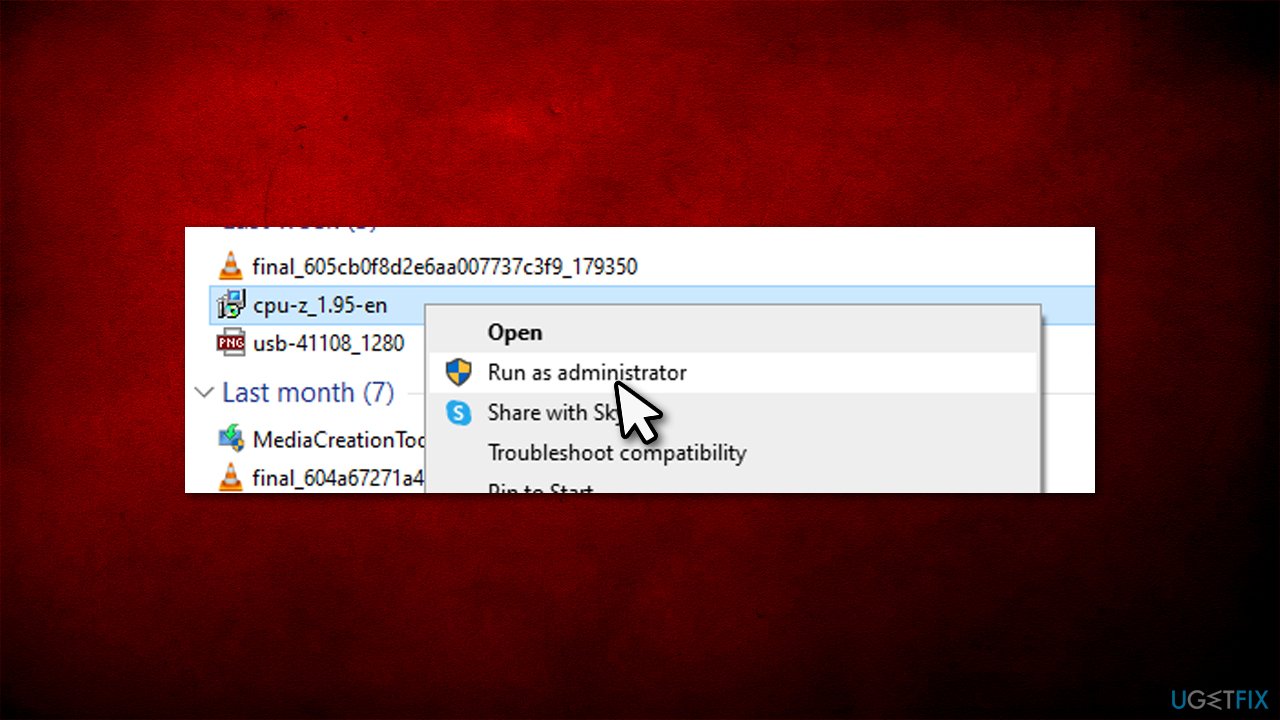
How to fix error 5 access is denied in windows 10 run installer as administrator - When User Account Control (UAC) pops up, click Yes
- See if that fixes your problem.
2. Make your account an administrator
If running the app as admin did not help, you should try switching your user account to admin one. Here's how:
- Type netplwiz in Windows search and hit Enter
- Here, select your user account by clicking it once and then click on Properties
- Select Group Membership tab and pick Administrator
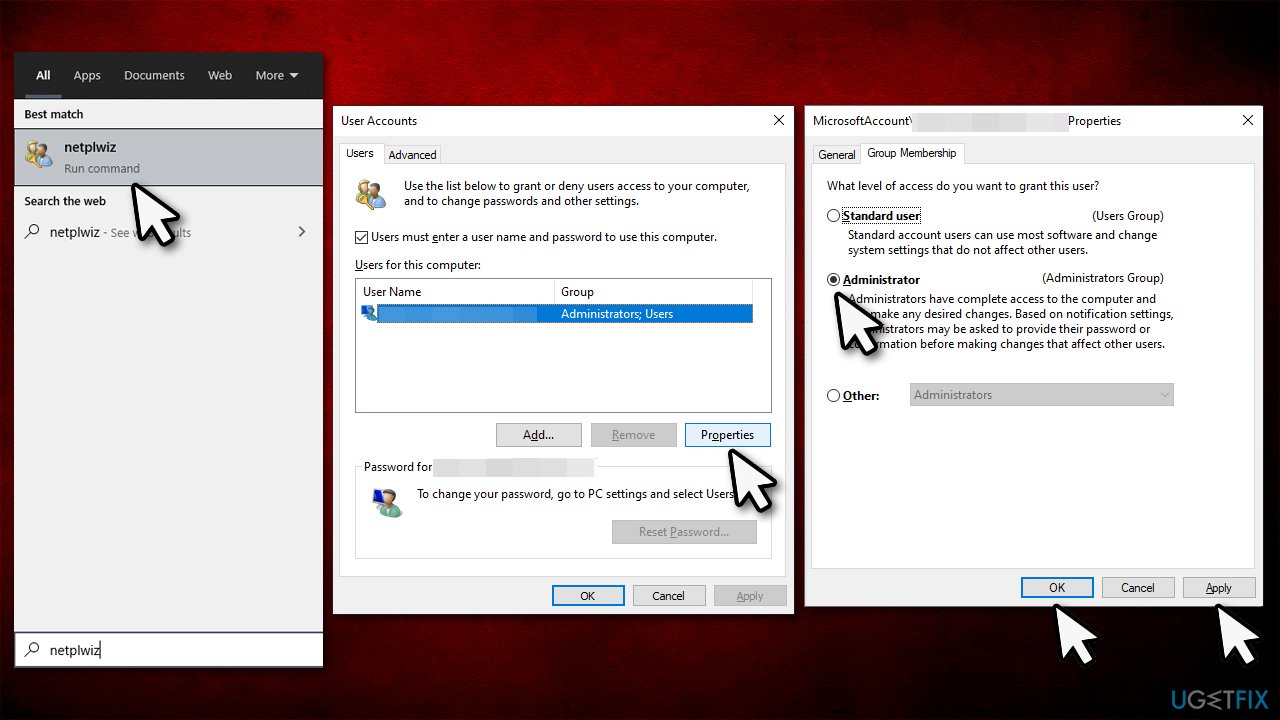
How to fix error 5 access is denied in windows 10 make user account as administrator - Click Apply and OK
- Try running the program installer once again.
3. Run a troubleshooter
Windows initially have many troubleshooters included - they can be launched via the Control Panel or Windows Settings panel. Some of them, however, need to be downloaded from the official Microsoft website:
- Visit the official Microsoft website
- Click Download troubleshooter
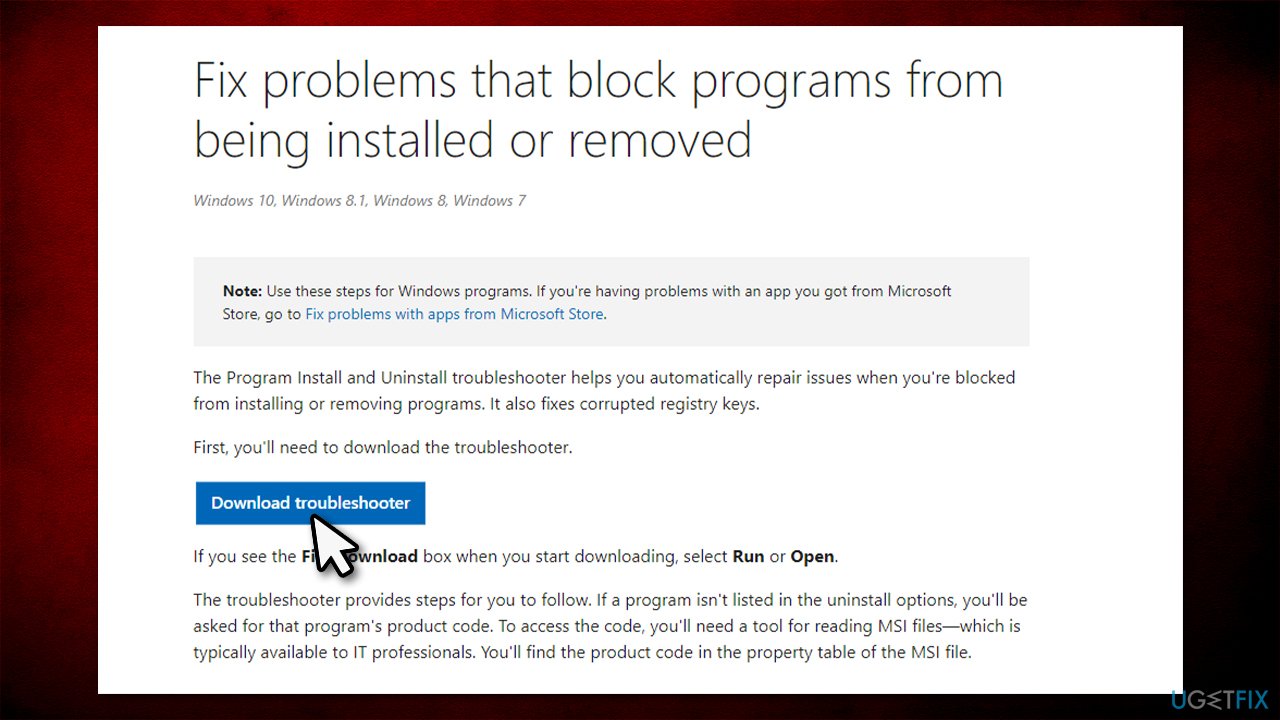
How to fix error 5 access is denied in windows 10 run troubleshooter - Click the downloaded file to launch it
- Select Next and then pick Installing
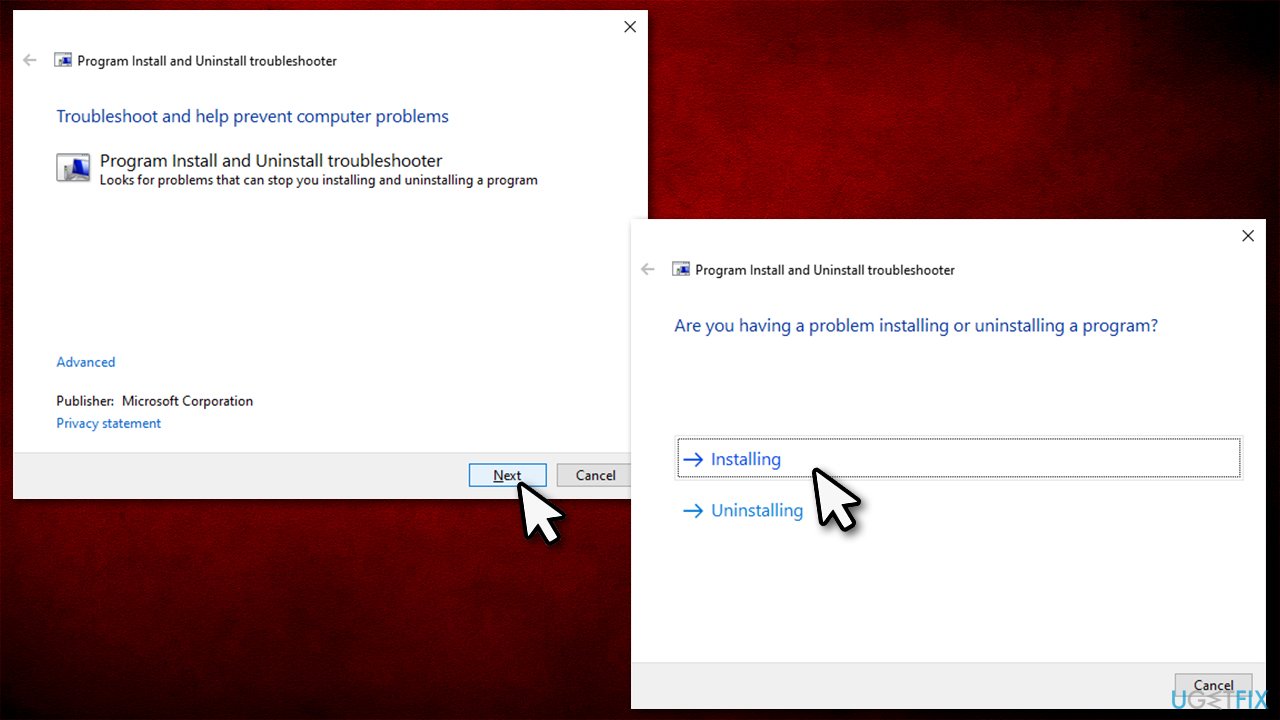
How to fix error 5 access is denied in windows 10 run troubleshooter2 - Wai till the troubleshooter finishes its scan.
4. Temporarily change the permissions of User Profile
- Press Win + E to open Windows Explorer
- On the left side of the window, click This PC and then select your C: drive (or whichever you used for Windows)
- Go to Users folder
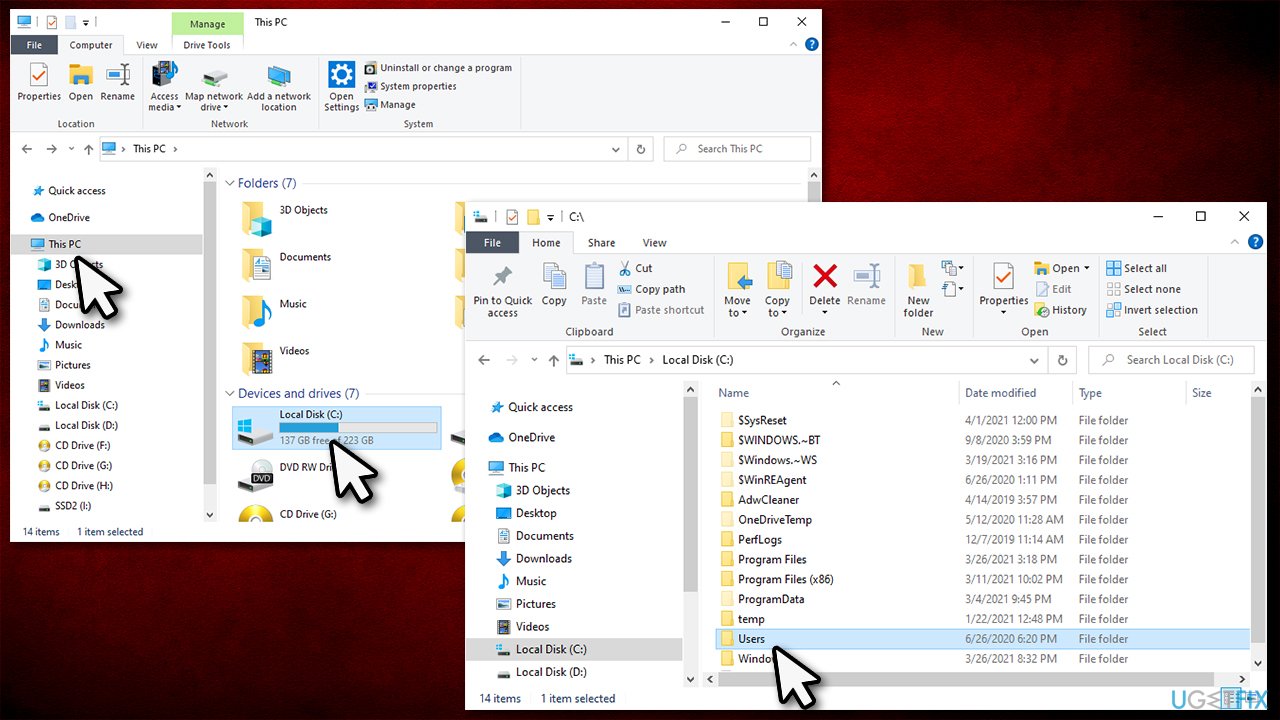
How to fix error 5 access is denied in windows 10 change permission of user profile - Right-click on your username and select Properties
- Go to Security tab and pick Advanced
- Mark the Replace all child object permissions with inheritable permissions from this object option at the bottom and click OK
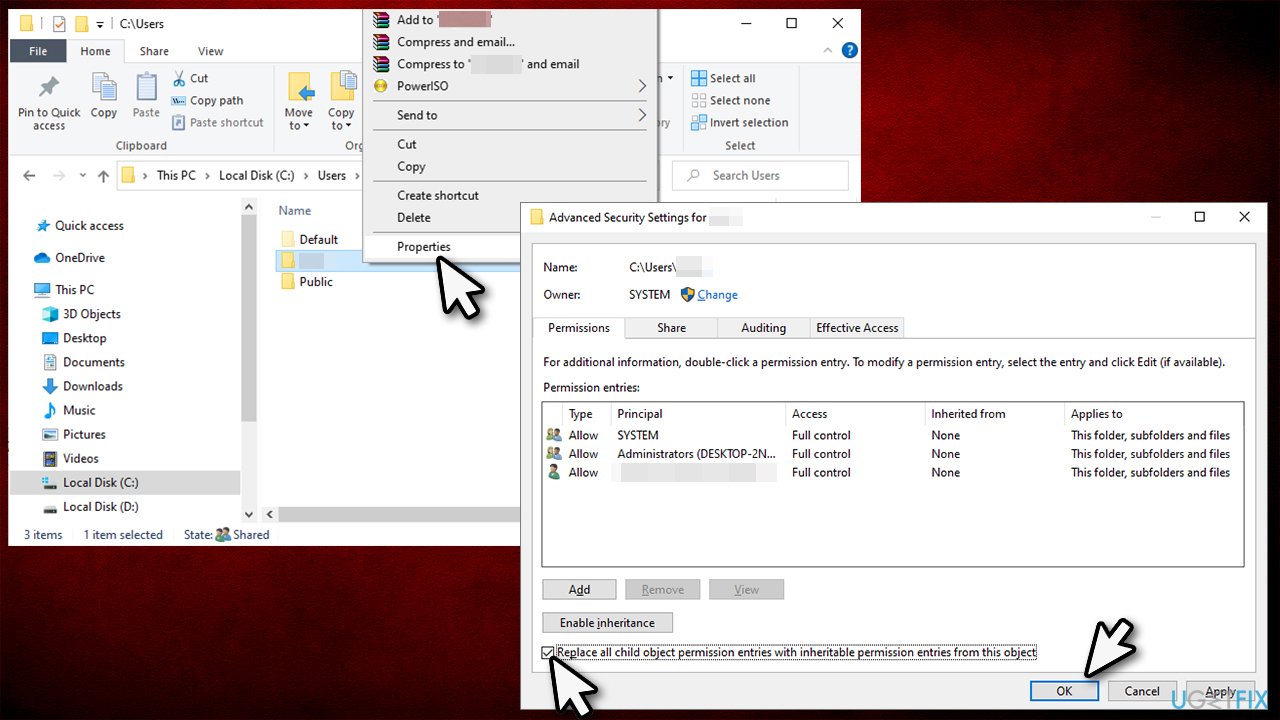
How to fix error 5 access is denied in windows 10 change permission of user profile2 - Try installing the program again.
Fixes for Error 5: Access is denied Windows could not start the [name] service on Local Computer
1. Check your system for file corruption
Corrupted system files can cause services not to work as intended. Thus, you can try repairing them by running a set of commands in Command Prompt:
- Type cmd in Windows search
- Right-click on Command Prompt and select Run as administrator
- Here, paste the following command and press Enter:
sfc /scannow
- Be patient and let the scan complete
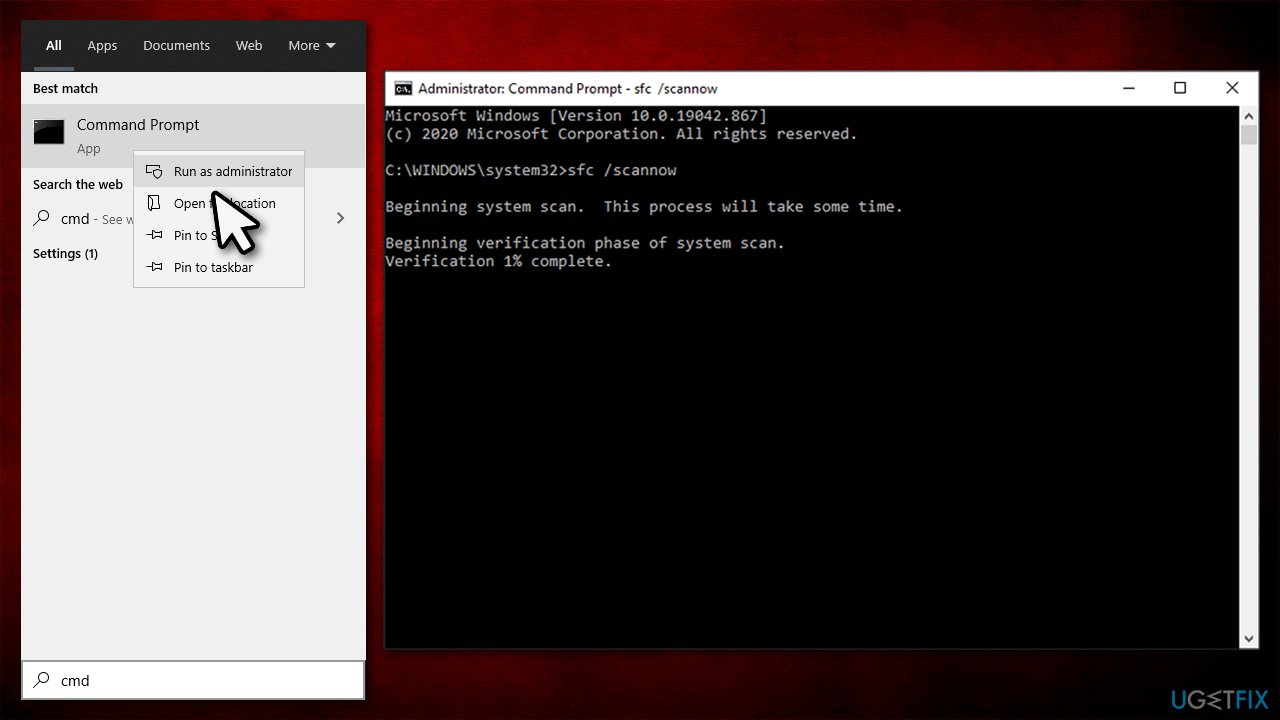
How to fix error 5 access is denied in windows 10 run sfc scan - Once done, paste next set of commands, pressing Enter after each:
DISM /Online /Cleanup-Image /CheckHealth
DISM /Online /Cleanup-Image /ScanHealth
DISM /Online /Cleanup-Image /RestoreHealth - Restart your computer.
2. Check if the service has access to files
- Type Services in Windows search and press Enter
- Find the Service that can not be started, and double-click it
- Go to Log on tab
- Mark the Local System Account option
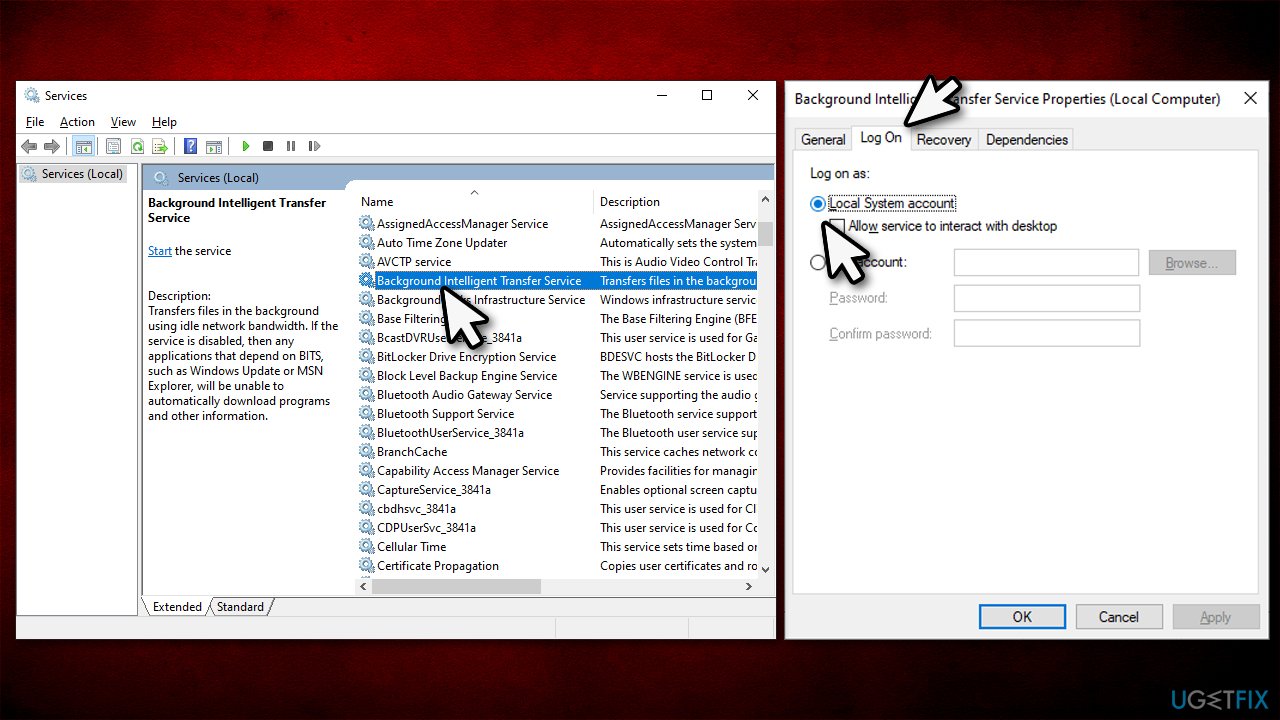
How to fix error 5 access is denied in windows 10 set service to local account - Click Apply and OK.
3. Reset your PC
If none of the above heled you solve the problem, you could try resetting your PC. You will not lose personal files, although you might have to reinstall some drivers or apps after.
- Right-click on Start and select Settings
- Here, pick Update & Security section
- Click on Recovery
- Under Reset this PC, click on Get started
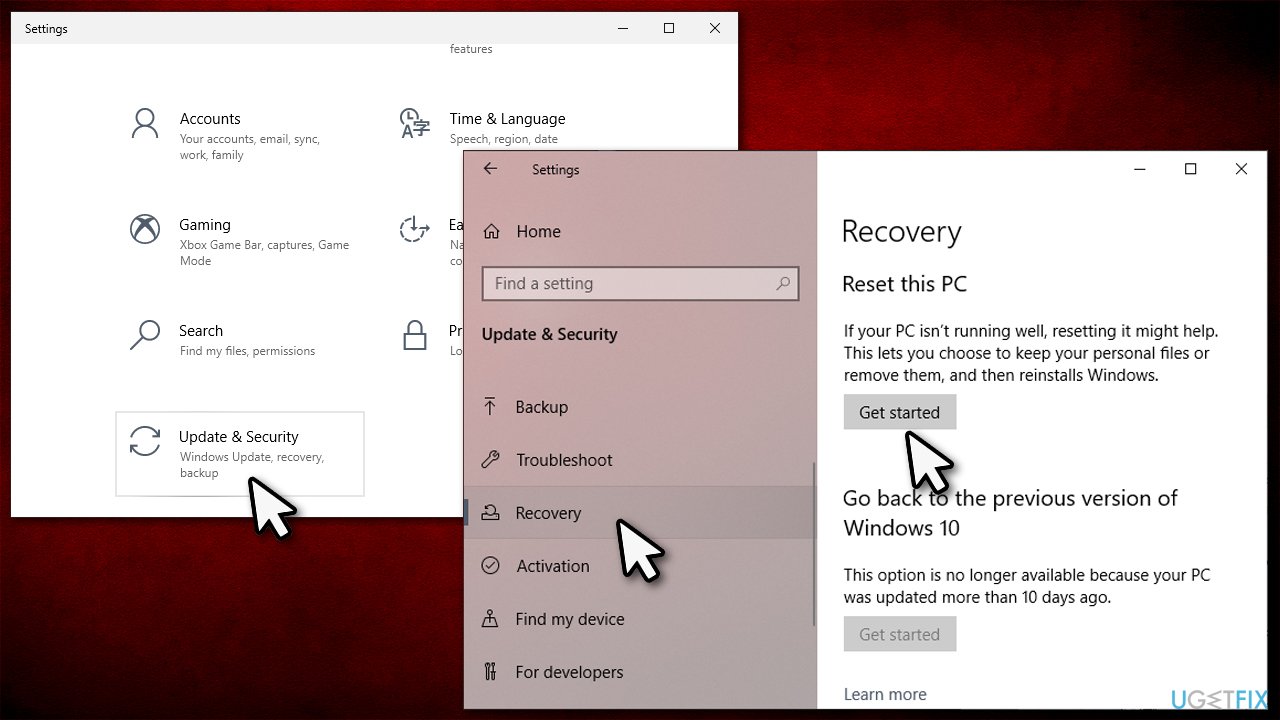
How to fix error 5 access is denied in windows 10 reset your pc - Select Keep my files and then pick Cloud download.
Bottom line
To fix Error 5: Access is denied, try running the installer or command with administrator's rights, and consider using a tool to repair damaged files automatically. If these solutions do not resolve the issue, further investigation into user account control settings or system integrity may be necessary.
Frequently asked questions
Error 5: Access is denied indicates that your account does not have the necessary permissions to access a file or perform an action in Windows 10.
To resolve this error on Windows 11, try running the installer as an administrator by right-clicking on the setup file and selecting 'Run as administrator'.
If you encounter this error when accessing a folder in Windows 10, check the folder's properties for permissions and make sure your user account has the appropriate access rights.




Report an issue
What's wrong with this guide? We review every report and update or remove content.
Report received — thank you. We'll review and fix it.
You need a free account to submit a report.
Be the first to comment