How to fix
“The Instruction at 0x00*** referenced memory at 0x00***. The memory could not be written” error
on Windows
Resolve the "Instruction at 0x00***" memory error on Windows 10 and 11 quickly and effectively. Expert-tested solutions for lasting fixes!


What causes How to fix “The Instruction at 0x00*** referenced memory at 0x00***. The memory could not be written” error?
- Interference between the application running in the background and a problematic program
- Problems with BIOS
- Problems with motherboard
- Outdated or corrupted graphics/sound drivers
- Incorrect Nvidia settings
- Corrupted system files
- Virus infections
Repairs Windows system files, removes malware, and restores a clean OS state — without reinstalling.
When I try to launch Chrome, the message appears saying that “The Instruction at 0x472v8d791 referenced memory at 0x472v8d791. The memory could not be written.” Because of this message, I can’t browse normally; I can access the Internet by right-clicking on Chrome and selecting “Open New Tab.” The same happens when I try to run a game or any application requiring Internet access. Any ideas on how to solve the issue?
"The Instruction at 0x00*** referenced memory at 0x00*** The memory could not be written" errors are met relatively often, affect various programs, and first started bugging users since Windows 7 times. However, this problem still persists in Windows today, and we prepared a detailed guide on how to fix "The Instruction at 0x00*** referenced memory at 0x00*** The memory could not be written" error once and for all.
The issue can occur after users are attempting to launch an application that is connected to the internet (game, graphical design app, etc.) and there is a variety of reasons for “The Instruction at 0x00*** referenced memory at 0x00**** The memory could not be written” error to appear. This includes, but is not limited to:
- Due to the interference between the application running in the background and a problematic program you intend to run;
- Problems with BIOS;[ref en-1]
- Problems with motherboard;
- Outdated or corrupted graphics/sound drivers;[ref en-2]
- Incorrect Nvidia settings;
- Corrupted system files;
- Virus infections, etc.
The reason is highly dependant on system configuration, installed programs and drivers, and similar. Therefore, follow each step carefully in order to fix “The Instruction at 0x00*** referenced memory at 0x00**** The memory could not be written” error. You will find all the instructions below.
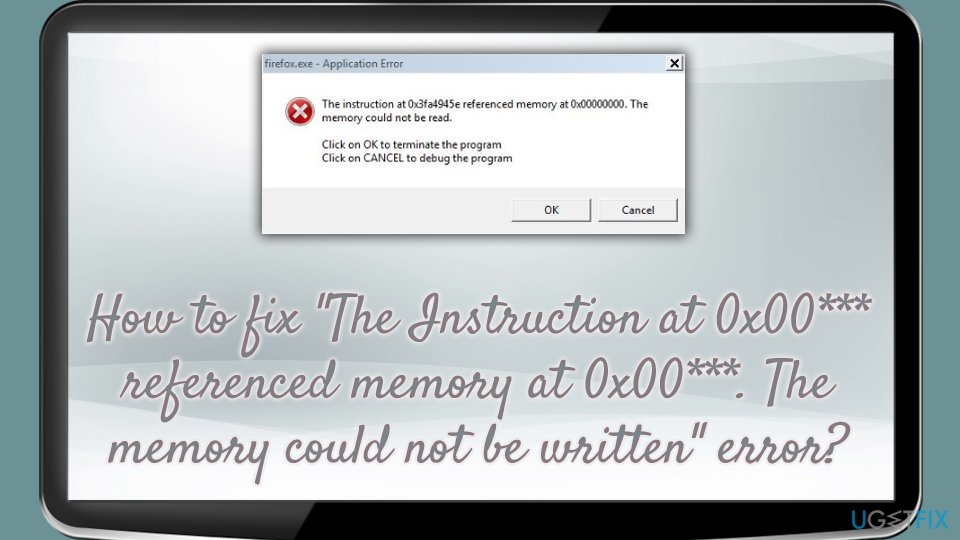
How to fix "The Instruction at 0x00*** referenced memory at 0x00***. The memory could not be written" error
If you experience any problems with your operating system besides the error in particular, it is highly advisable to scan your machine with security software, as malware[ref en-3] infections could be causing these issues. We recommend using [d1] too, as it serves as a PC repair software, so it might automatically fix “The Instruction at 0x00*** referenced memory at 0x00**** The memory could not be written” error. This program runs and checks system files that can get damaged, corrupted, affected.
You can also rely on tools like [rev id="DriverFix"] that update your device drivers and can improve the performance of the machine by keeping all the pieces compatible, running smoothly. It saves you some time and frustration by finding needed pieces automatically.
Run clean boot of the system
In case the problem is caused by a damaged file in the registry or boot folders, you can initiate a clean system boot procedure. Here are the instructions on how to do that in Windows 10:
- Press Windows button and type System Configuration.
- Afterward, navigate to Services tab. Mark Hide all Microsoft services and click Disable all.
- Move on to Startup section.
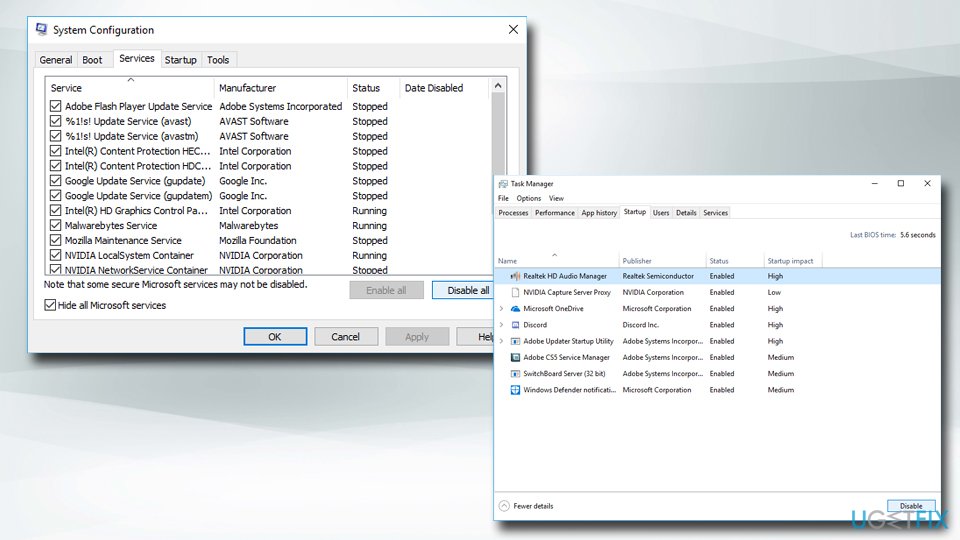
The instruction at 0x00 referenced memory at 0x00 the memory could not be written error run clean boot - Click Open Task Manager.
- In the newly opened window, select all the entries and click Disable.
- Exit Task Manager.
- Return to Startup section and end the process by clicking OK.
Change Nvidia Control Panel settings
- Open Nvidia Control Panel and go to Manage 3D settings (Under 3D Settings).
- Pick the Program Settings tab and select the application you are having trouble with.
- Underneath, you will see select the preferred graphics processor for this program.
- In the drop-down menu, choose Integrated graphics card and apply changes.
Note that if the problematic application is a video game, this solution method will not be valid, as graphics-intensive tasks might not be able to run properly on integrated graphics.
Download and update Microsoft .NET Framework
Reinstalling Microsoft .NET Framework[ref en-4] might fix “The Instruction at 0x00*** referenced memory at 0x00**** The memory could not be written” error. Therefore, you should go to the official Microsoft site and download it from there. Then, follow the instructions to complete the installation.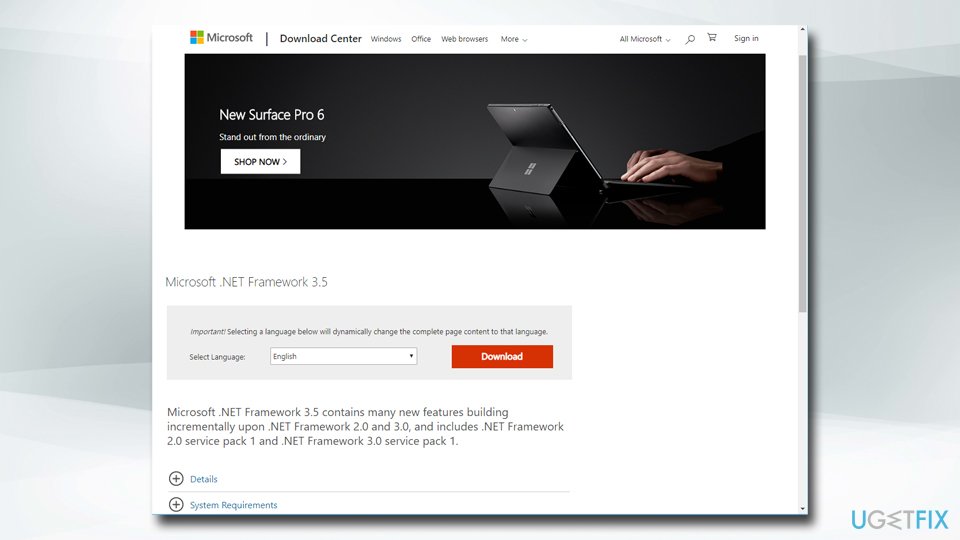
Update graphics drivers to fix "The Instruction at 0x00*** referenced memory at 0x00***. The memory could not be written" error
Outdated drivers can lead to multiple problems on the PC. Therefore, making sure that your machine is running the latest drivers is a must. Please follow these instructions:
- Right-click on Start button and select Device Manager.
- Expand the Display adapters section, right-click on your graphics card and pick Update Driver.
- Then, select Search automatically for updated driver software and install the updates if any available.
- Restart your computer.
Check BIOS settings and motherboard hardware
Modified BIOS settings or expired CMOS battery might be at fault. As a result, some of the functions might not function properly and show the “The Instruction at 0x00*** referenced memory at 0x00**** The memory could not be written” error. Visit the homepage of your motherboard manufacturer for more explicit information on hardware renewal and drivers' update.
Run System File Checker to fix "The Instruction at 0x00*** error
System File Checker is a great tool that can fix system errors. To run it, follow these steps:
- Type in Command Prompt or cmd into the search box.
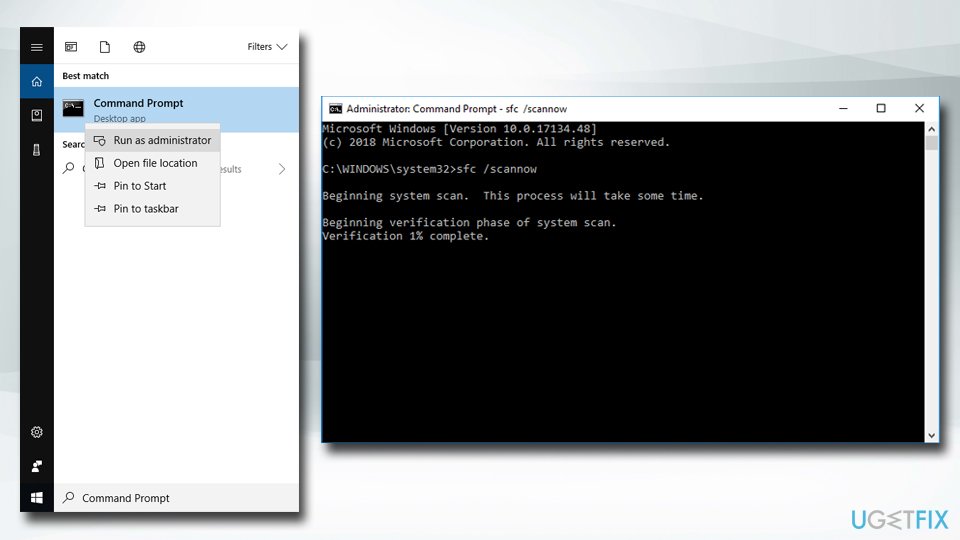
The instruction at 0x00 referenced memory at 0x00 the memory could not be written error run system file checker - Right-click on it and choose Run as administrator.
- Next, type in sfc /scannow and press Enter.
- Let the scan run. If Windows finds anything wrong with system files, it will fix it automatically.
Uninstall recently downloaded applications
Legitimate applications might often contain bugs which trouble the performance of other programs. If you installed a new application, whether it is Skype or Adobe Flash Player, from secondary programs, they might contain several bugs. However, there is also a probability of running into a buggy program by downloading content from legitimate domains as well.
Uninstall it in order to identify whether the app causes “The Instruction at 0x00*** referenced memory at 0x00***. The memory could not be written” error.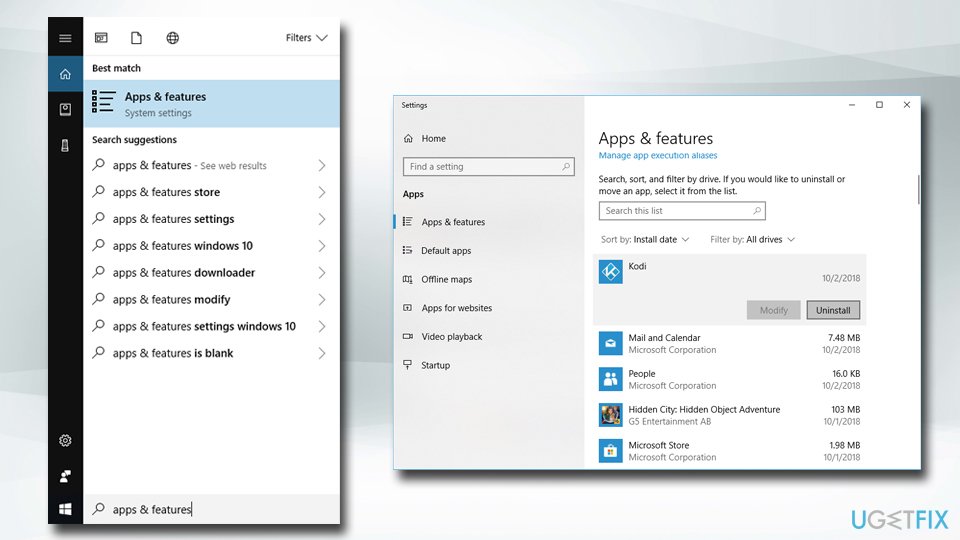
Perform a System Reset
As for the final solution, you may reset your system. You can easily access the function by typing System Reset in the File Explorer or after clicking the Start button. In the Recovery tab, you will see an additional option of System Recovery and Advanced startup settings.
Bottom line
To fix the error, it is advisable to scan your machine for malware, update your drivers, and check your BIOS settings. If these steps do not resolve the issue, consider using PC repair software for further assistance.
Frequently asked questions
You can start by running the Windows Memory Diagnostic tool to check for memory issues and updating your drivers through Device Manager.
In Windows 11, you can try disabling hardware acceleration in applications that are causing the error and check for any recent updates that might resolve the issue.
Running the System File Checker (sfc /scannow) in Windows can help identify and repair corrupted system files that may be causing the 'memory could not be written' error.




Report an issue
What's wrong with this guide? We review every report and update or remove content.
Report received — thank you. We'll review and fix it.
You need a free account to submit a report.
Be the first to comment