How to fix
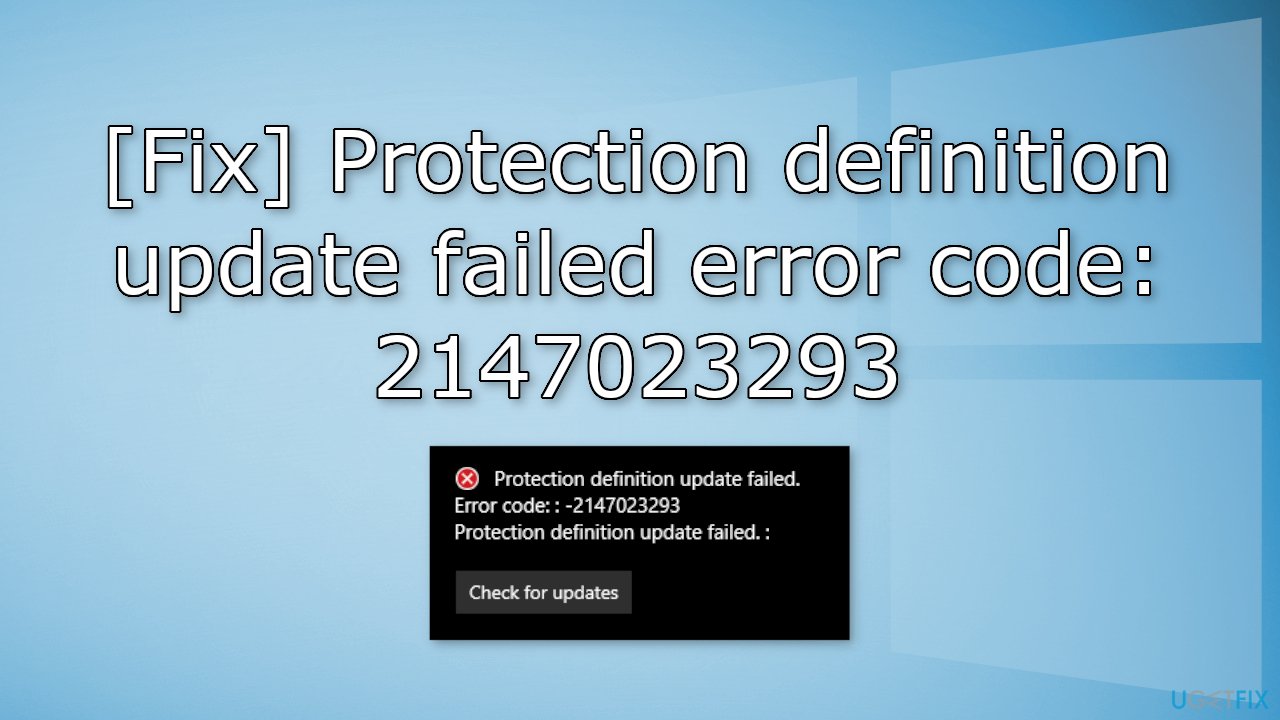
Protection definition update failed error code: 2147023293
on Windows
Resolve the Protection definition update failed error code 2147023293 on Windows 10/11 effortlessly. Get expert-tested solutions and fix it in minutes.

![[Fix] Protection definition update failed error code: 2147023293](https://ugetfix.com/wp-content/uploads/articles/askit/fix-protection-definition-update-failed-error-code-2147023293_en-768x432.jpg)
What causes [Fix] Protection definition update failed error code: 2147023293?
- Corrupted files
- Memory issues
- Windows service malfunction
- Issues with Microsoft Defender
Repairs Windows system files, removes malware, and restores a clean OS state — without reinstalling.
Hello. I have tried to install Windows updates but the process fails and I receive this message - "Protection definition update failed error code: 2147023293." How do I fix this?
Windows is certainly the most operating system in the world. People love it for its user friecly interface, customization abilities, and built-in troubleshooters that make fixing minor system issues easy. Microsoft also often releases updates that keep the system secure, and running smoothly.
However, for whatever reasons sometimes the updates fail to install. Recently, users encountered the "Protection definition update failed error code: 2147023293" message when trying to download the latest updates. The issue seems to be caused by Microsoft Defender, a security system for Windows.[ref en-1]
Sometimes, the updates fail to install because of corrupted files, memory issues, or Windows service malfunction. In this guide, you will find 6 steps that could help you fix the Protection definition update failed error code: 2147023293 so you can install the needed updates.
Manual troubleshooting can be a lengthy process, so you can use a maintenance tool like [d1] that can fix most system errors, BSODs,[ref en-2] corrupted files, and registry[ref en-3] issues. This powerful software can also clear cookies and cache automatically, which are often the culprits of many malfunctions. Otherwise, follow the steps in the guide below carefully.
Method 1. Fix Corrupted System Files
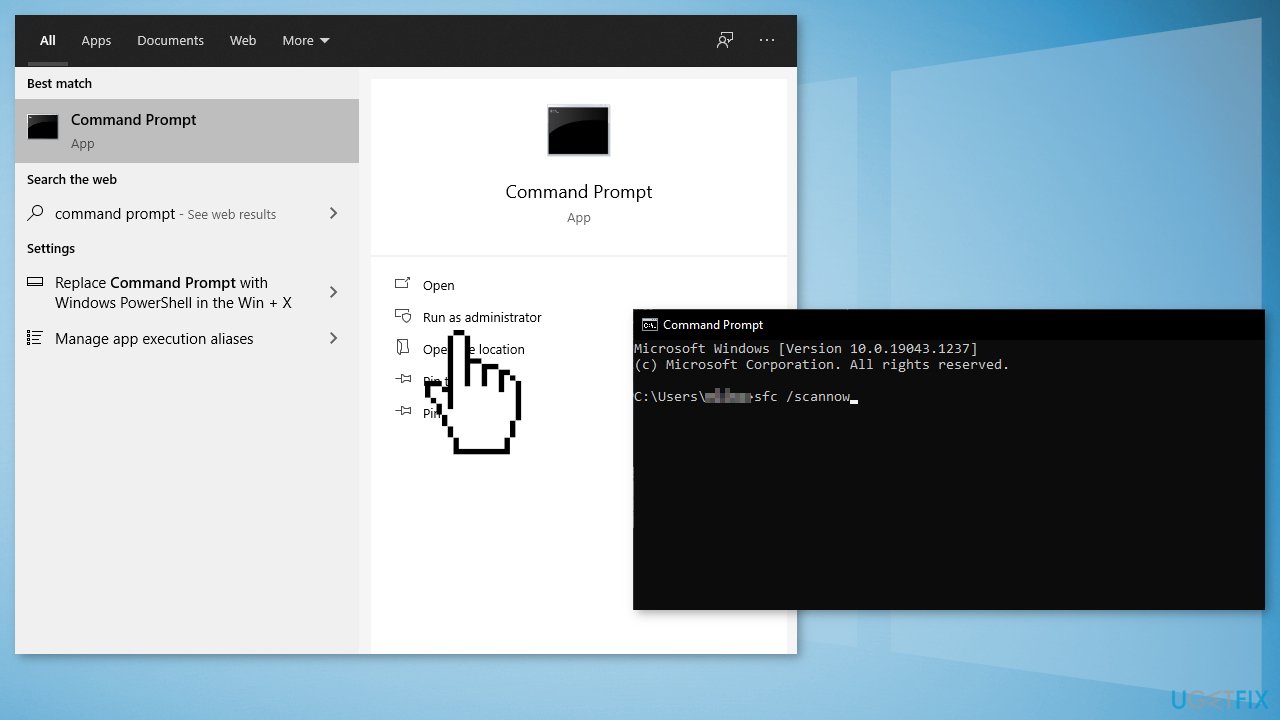
Use Command Prompt commands to repair system file corruption:
- Open Command Prompt as administrator
- Use the following command and press Enter:
sfc /scannow
- Reboot your system
- If SFC returned an error, then use the following command lines, pressing Enter after each:
DISM /Online /Cleanup-Image /CheckHealth
DISM /Online /Cleanup-Image /ScanHealth
DISM /Online /Cleanup-Image /RestoreHealth
Method 2. Restart Windows Defender Services
- Press Windows + R to open the Run dialog box
- Type services.msc and press Enter
- Navigate to the Windows Defender individual services
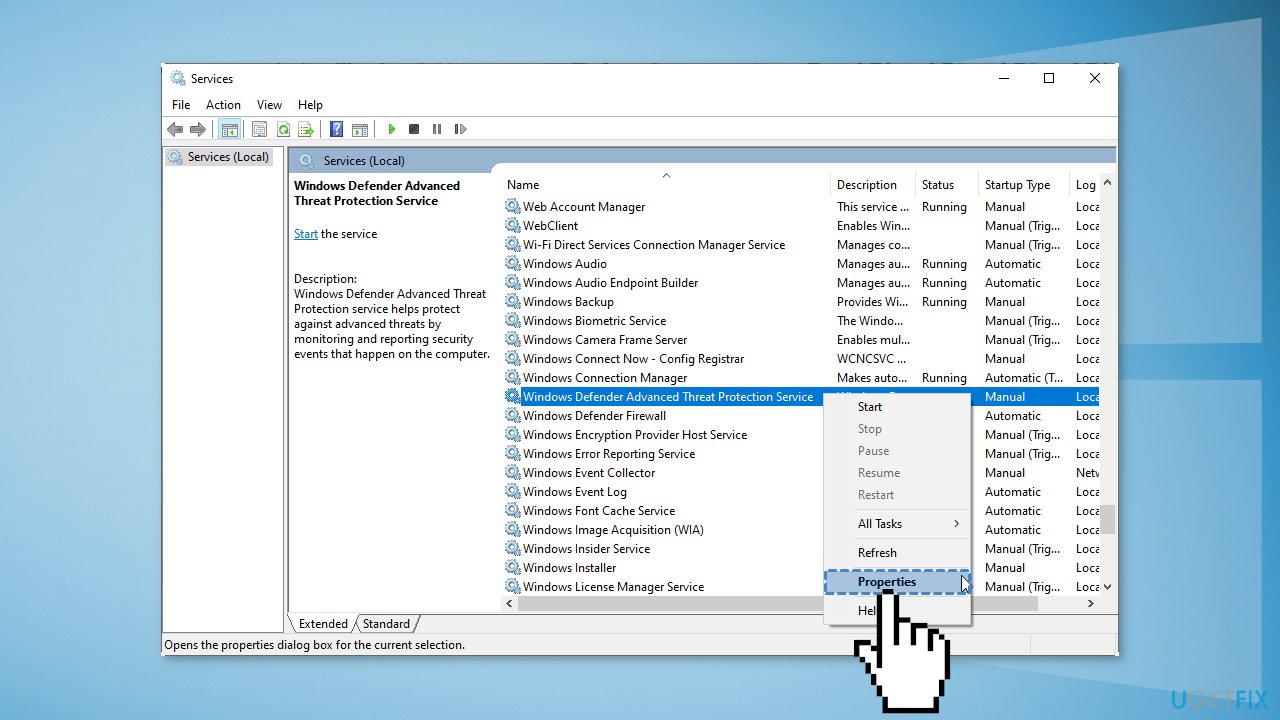
- Right-click on each service and open the Properties of each service separately
- Verify that the startup type for the services is set to Automatic
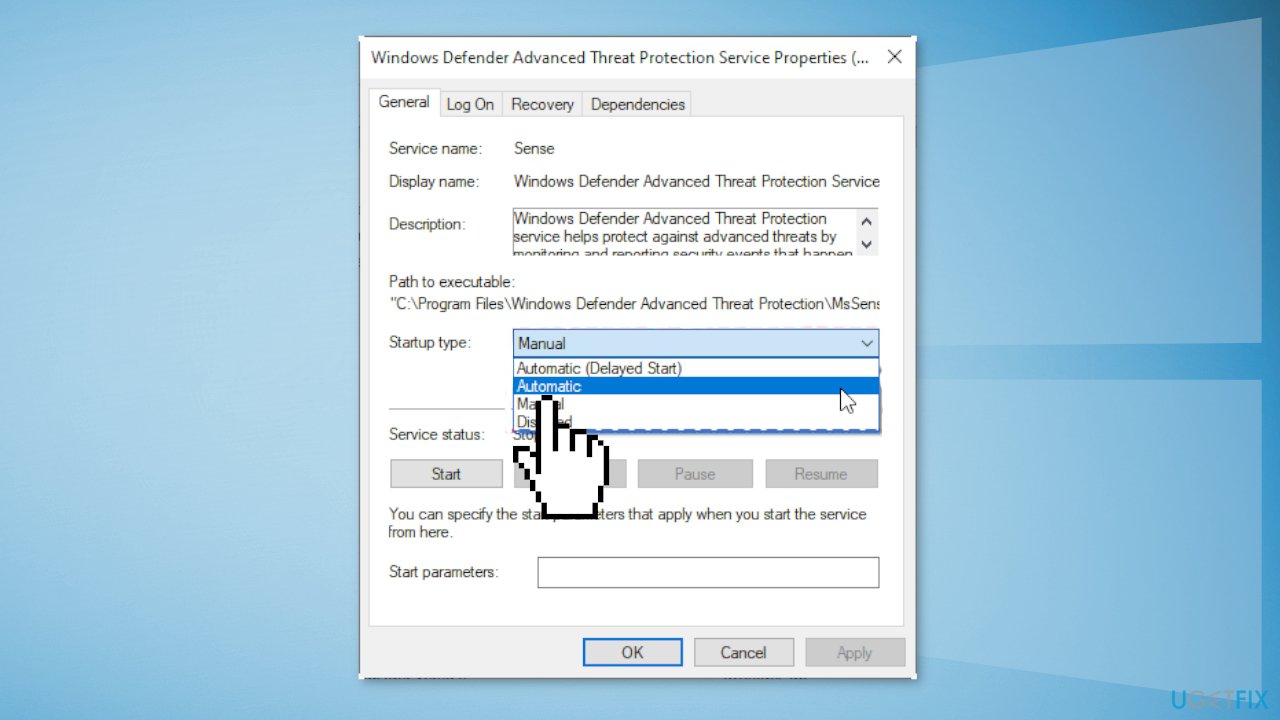
- If any service is stopped, start it
- Restart your computer
Method 3. Repair Windows Defender
- Open Windows PowerShell (Admin)
- Copy-paste the below command and hit Enter:
Get-AppxPackage *SecHealthUI* -allusers | foreach {Add-AppxPackage -DisableDevelopmentMode -Register "$($_.InstallLocation)\\AppxManifest.xml"}
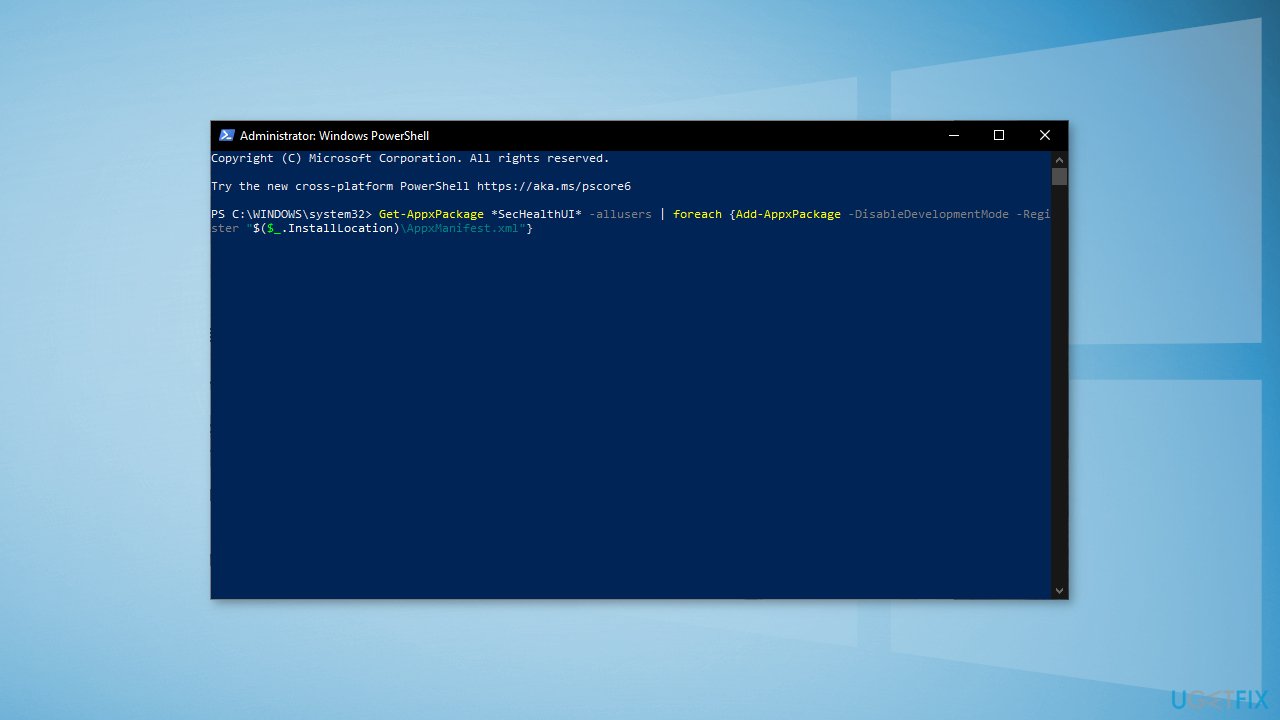
- When the process is finished, restart your PC and Check for Updates again
Method 4. Manually Update Windows Defender
- Download the installer from the official Microsoft website
- Double-click on mpam–fe.exe to launch it
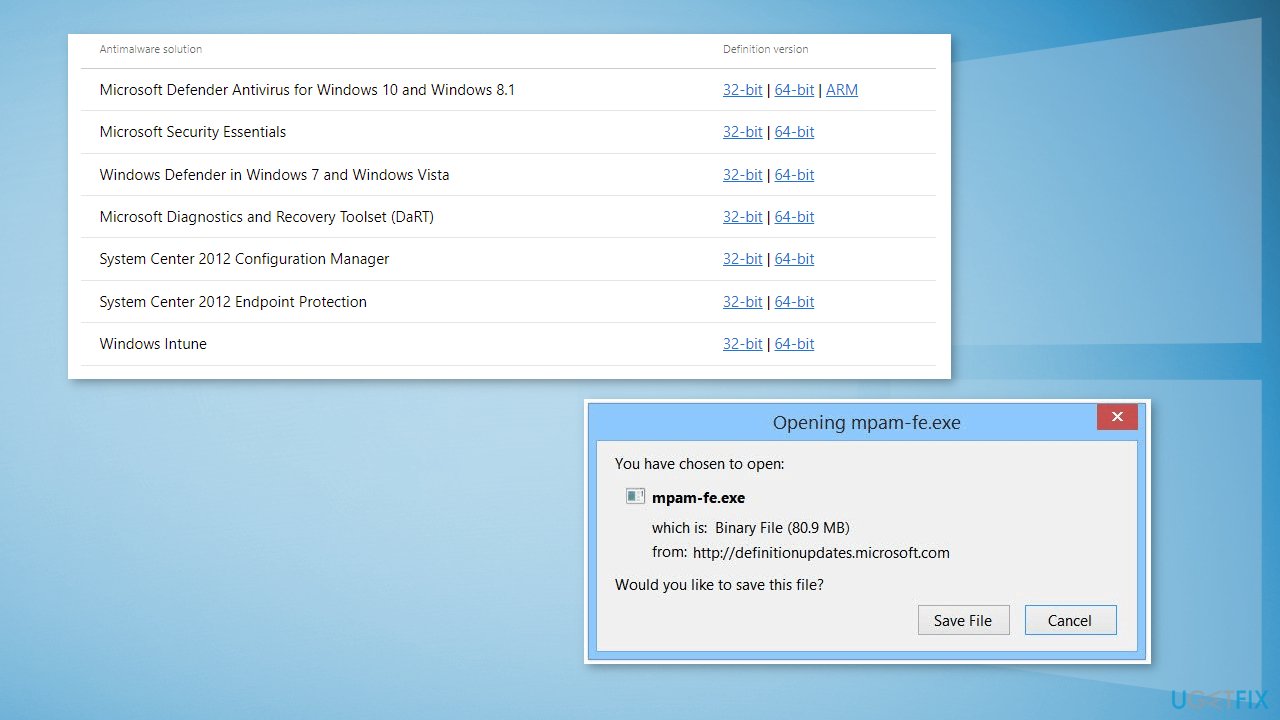
- Follow the prompts to install the update
- Restart your computer
Method 5. Reset Your PC
- Press Windows key + I to open the Settings app
- Then select Update & Security from the menu
- Select Recovery in the left panel
- Click on the Get Started button under the Reset this PC section
- Choose to Keep my files and click Next
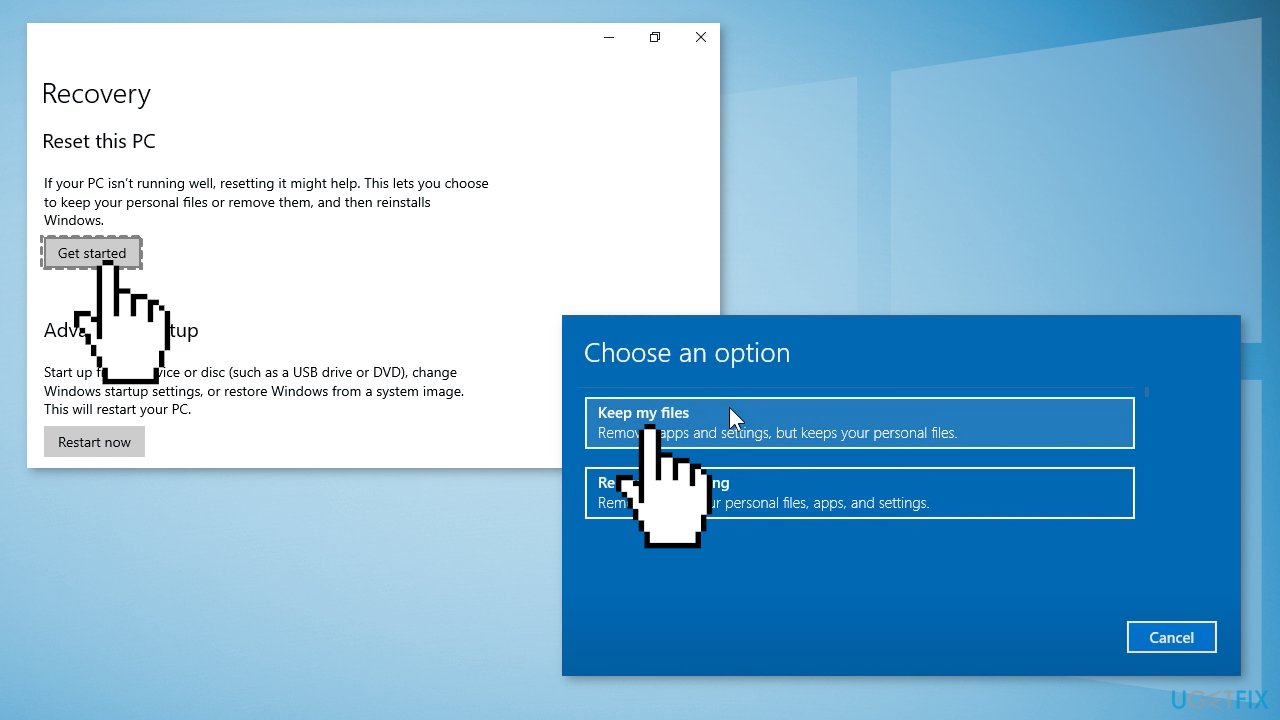
- Click Reset to begin the process. Wait for a while, your computer will begin to install Windows.
Method 6. Perform a Repair Upgrade
- To begin, download Windows 10 installation media from the official Microsoft website
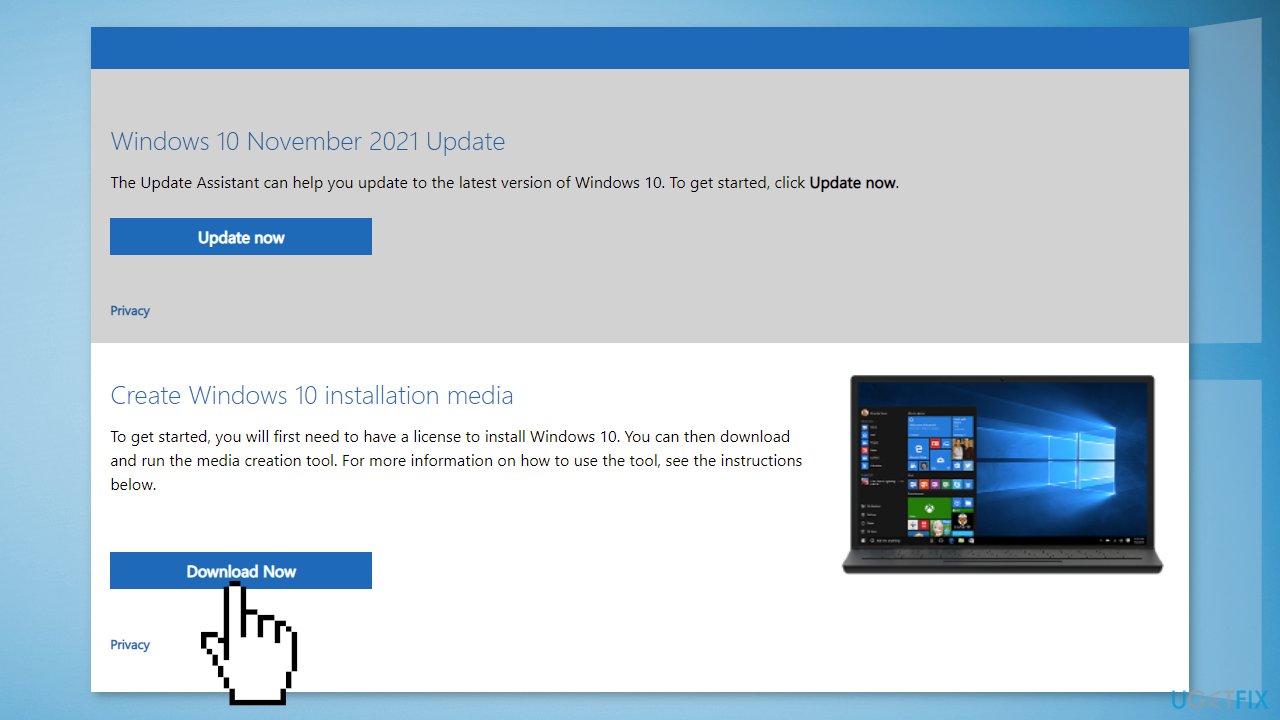
- Right-click the downloaded file, and choose Run as Administrator
- Choose Upgrade This PC Now, and the procedure will begin
- Answer any needed questions
- The procedure will take around an hour to complete, and your PC will restart several times
- When the process is finished, check if the issue was solved
Bottom line
To fix the Protection definition update failed error code: 2147023293, you can repair corrupted system files using Command Prompt, restart Windows Defender services, or repair Windows Defender itself. If these methods do not resolve the issue, consider using a maintenance tool to address system errors.
Frequently asked questions
Error code 2147023293 typically indicates that there is a problem with accessing or downloading the latest protection definitions for Windows Defender, often due to network issues or corrupted system files.
To resolve this issue on Windows 11, try running the Windows Update Troubleshooter, resetting Windows Update components, or manually updating Windows Defender definitions.
Yes, corrupted system files can lead to the protection definition update error in Windows 10; using the System File Checker (SFC) tool can help repair these files.




Report an issue
What's wrong with this guide? We review every report and update or remove content.
Report received — thank you. We'll review and fix it.
You need a free account to submit a report.
Be the first to comment