How to fix
Windows won’t recognize iPad or iPhone
on Windows
Resolve the issue of Windows 10 or 11 not recognizing your iPad or iPhone with expert tips and proven fixes. Get your device connected fast, expert-tested!

![[Fix] Windows won’t recognize iPad or iPhone](https://ugetfix.com/wp-content/uploads/articles/askit/fix-windows-wont-recognize-ipad-or-iphone_en-768x432.jpg)
What causes [Fix] Windows won’t recognize iPad or iPhone?
- Device drivers are outdated
- USB cable or ports are malfunctioning
- Computer or device needs to be restarted
- iTunes or related software needs to be reinstalled
- Device settings are not properly configured
Repairs Windows system files, removes malware, and restores a clean OS state — without reinstalling.
Hello. When I try to connect my iPhone to my Windows laptop via USB, it is not recognized. What do I do?
When Windows fails to recognize an iPad or iPhone, users may experience frustration and inconvenience. This problem occurs when the computer does not recognize the presence of an iOS device when connected via USB. Instead of connecting and allowing users to transfer files, sync data, or perform other tasks, Windows treats the device as if it isn't plugged in at all.
The inability of Windows to recognize an iPad or iPhone can have a number of serious consequences for users. For starters, it makes it difficult to transfer files and media between the device and the computer. This is especially problematic when users want to backup important data, sync their media libraries, or transfer documents. Lack of recognition can disrupt workflow and impede productivity by forcing users to use alternative methods or devices to complete their tasks.
Second, it limits the ability to perform software updates or manage the firmware of the device. Recognizing an iOS device is required to begin the update process or to manage the device's settings via iTunes or other software. Users may miss out on important updates, bug fixes, and security patches that improve the functionality and security of their device if this is not recognized.
Additionally, the inability to connect an iPad or iPhone to Windows can have an impact on users who rely on their devices for multimedia purposes. Users may encounter difficulties transferring music, photos, or videos to and from their device without recognition, limiting their ability to enjoy their media library or share content with others.
There are several potential solutions that users can try to resolve the issue of Windows not recognizing an iPad or iPhone. These may include updating device drivers, ensuring that the USB cable and ports are properly functioning, restarting both the computer and the device, or reinstalling iTunes or other related software.
This guide will walk you through 6 steps that should help you fix Windows not recognizing your iPad or iPhone. You can also use a maintenance tool such as [d1] to repair most system errors, BSODs,[ref en-1] corrupted files, and registry[ref en-2] issues. Otherwise, proceed with the instructions below.
Solution 1. Connect to a Different Computer
If you're having problems with Windows not recognizing your iPad or iPhone when connected, connecting the device to a different computer can help you determine whether the problem is with Windows or the device itself. If your iPad or iPhone is recognized without issue on another computer, you can move on to troubleshooting steps specific to your original Windows computer. Updating drivers, checking USB ports and cables, adjusting settings, or reinstalling software related to the device connection may all be necessary.
Solution 2. Uninstall KB5027293 Update
- Press the Windows key + I to open Settings.
- Go to Windows Update from the navigation pane.
- Click on Update history.
- Scroll to the bottom and click on Uninstall updates.
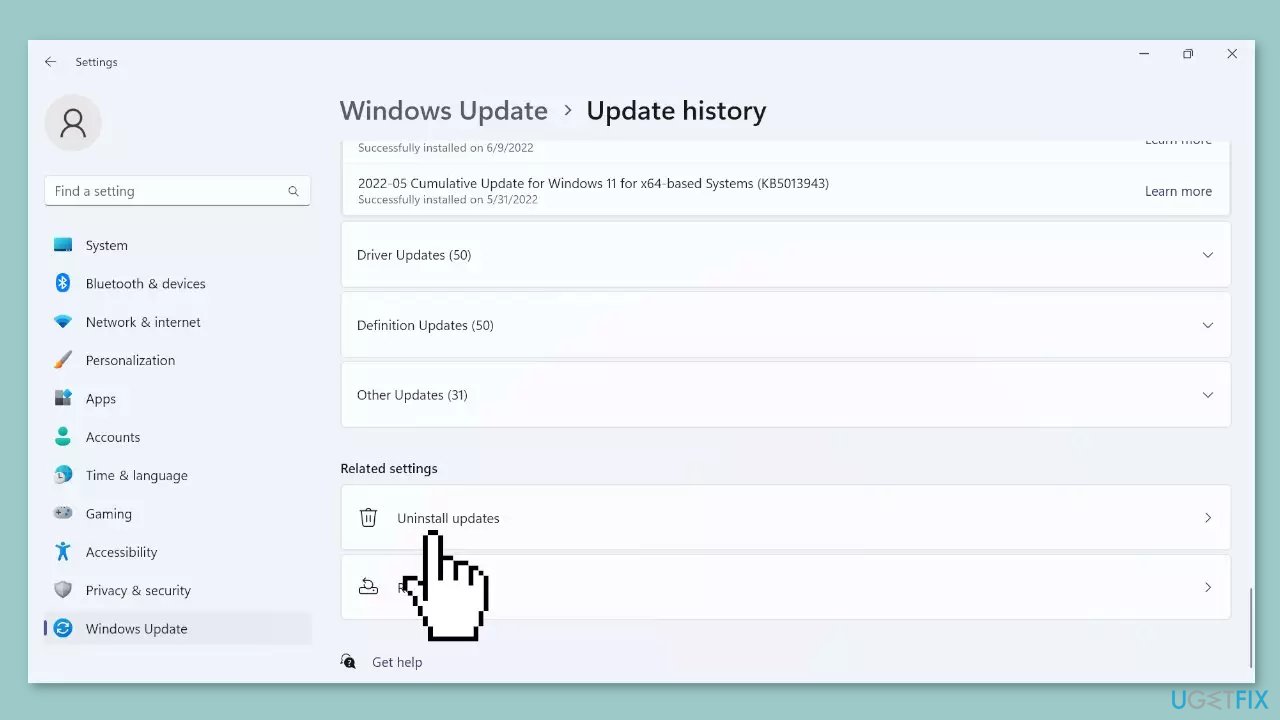
- Locate the KB5027293 update.
- Click on Uninstall next to that update.
- Confirm the uninstallation when prompted.
- Finally, restart the computer to complete the process.
Solution 3. Reinstall an Older Version of iTunes
- Close iTunes and any related Apple software (such as iCloud or Apple Mobile Device Support) that may be running in the background.
- Open the Control Panel on your Windows computer.
- In the Control Panel, select Programs or Programs and Features.
- Locate iTunes in the list of installed programs and click on it.
- Click on the Uninstall or Change button at the top of the list.
- Follow the on-screen prompts to confirm the uninstallation of iTunes and any associated components. If prompted, select the option to remove all data and settings related to iTunes.
- Open a web browser and go to the Apple iTunes download page.

- Scroll down to find the list of available iTunes versions.
- Browse the list and find the older version of iTunes that you want to install on your computer.
- Click on the download link next to the desired version. This will initiate the download of the iTunes installer file (usually an .exe file).
- Once the download is complete, locate the downloaded installer file on your computer.
- Double-click on the installer file to start the installation process.
- Follow the on-screen instructions to install the older version of iTunes on your computer.
- Once the installation is complete, launch iTunes and check if your iPad or iPhone is recognized by Windows.
Solution 4. Create a New User Account
- Press the Windows key + I to open Windows Settings.
- Switch to the Accounts tab.
- Click on the Family & other users.
- Click the Add account button under Other users.
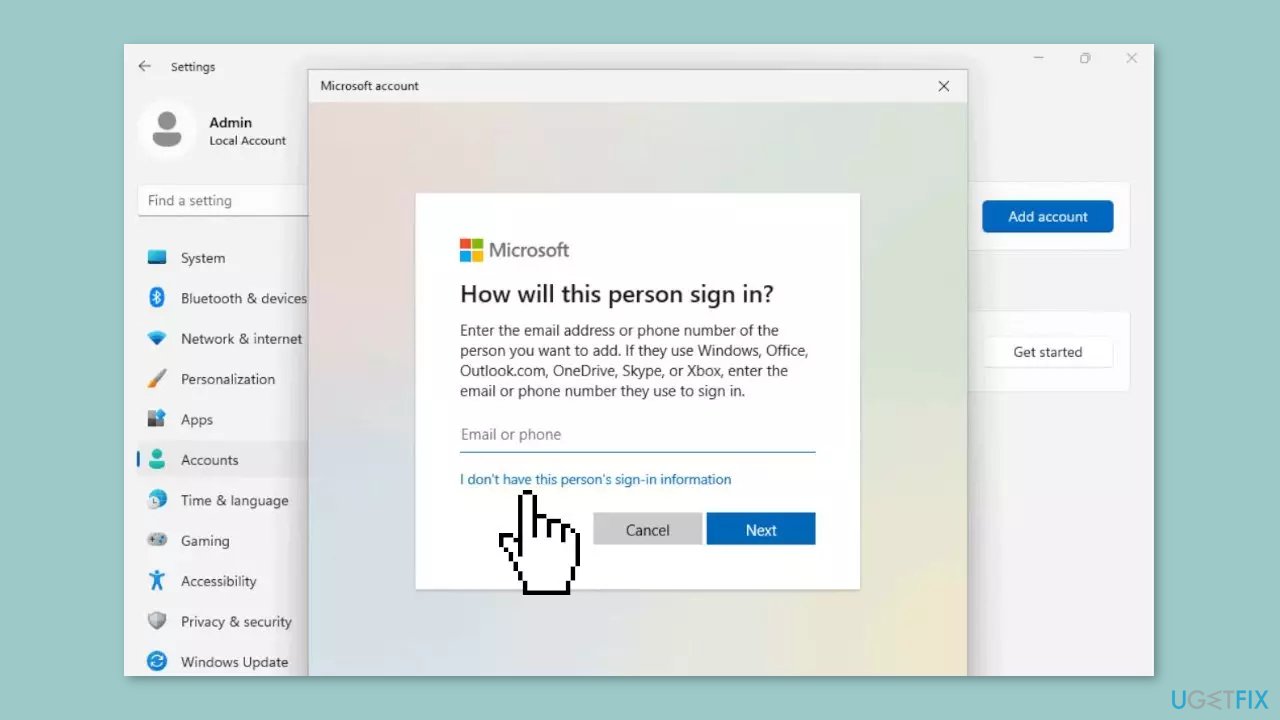
- Click the I don’t have this person’s sign-in information option.
- Select the Add a user without a Microsoft account option.
- Enter the username, password, and click the Next button.
Solution 5. Disable Third-Party Security Software
When you connect your iOS device to your computer, Windows requires a secure and reliable connection in order to access the device's data and functionalities. However, some third-party security software, such as antivirus or firewall applications, can obstruct this process. These security programs frequently include settings or features that monitor USB connections and restrict or block unrecognized devices.
You can determine if third-party security software is causing the problem by temporarily disabling it. These programs' settings may be overly cautious, treating your iOS device as a potential security threat and preventing Windows from recognizing it. By disabling the security software, you can get around these restrictions and see if the device is detected correctly. If it is recognized after disabling the software, it indicates that the settings of the security program were interfering with the connection.
Solution 6. Try Clean Boot
- Open the Search menu, type in system configuration, and press Enter.
- Under the Services tab, tick the Hide all Microsoft services box.
- Click on Disable all button.
- Head over to the Startup tab and click on Open Task Manager.
- Select a third-party program and click on Disable at the top.

- Repeat this step to disable all third-party apps and programs.
- Restart your PC to enter the clean boot state and see if the issue persists.
- If the issue disappeared in the clean boot state, then you can be certain that a third-party app is causing it.
- Go through all recently installed apps or programs and remove them one by one.
Bottom line
To resolve the issue of Windows not recognizing your iPad or iPhone, you can try updating device drivers, checking the USB cable and ports, restarting both the computer and the device, or reinstalling iTunes. If none of these solutions work, consider seeking further technical support.
Frequently asked questions
This issue may occur due to outdated drivers, so make sure to update your Apple Mobile Device USB driver through Device Manager. Additionally, check if your iPhone or iPad is unlocked and trust the computer when prompted.
Try restarting both your iPhone and Windows 11 PC, then reconnect the device; ensure that you have the latest Windows updates installed. If the problem persists, reinstall the Apple software, including iTunes, to refresh the connection.
Ensure that your iPad is updated to the latest iOS version and that your Windows 10 PC has the necessary Apple drivers installed. You may also need to check your USB port and cable for any damage or issues.




Report an issue
What's wrong with this guide? We review every report and update or remove content.
Report received — thank you. We'll review and fix it.
You need a free account to submit a report.
Be the first to comment