How to fix
“Microsoft account doesn’t exist” error
on Windows
Resolve the "Microsoft account doesn't exist" error on Windows 10 and 11 quickly. Get expert-tested solutions that work every time! Fixed in minutes.


What causes How to fix “Microsoft account doesn’t exist” error in Windows?
- Account has been permanently deleted by Microsoft after 365 days of inactivity
- Attempting to log in using an alias instead of primary account credentials
- Account may have been compromised by a hacker
- Typing errors in the email address
- Using an incorrect email address or phone number for login
Repairs Windows system files, removes malware, and restores a clean OS state — without reinstalling.
Today, when I attempted to log into my email, I received a message saying "That Microsoft account doesn't exist. Enter a different account or get a new one." But it does exist - I didn't delete it or anything. I am not sure what is going on.
Microsoft accounts serve as a gateway to a vast array of services and features provided by Microsoft, including access to Windows operating systems, Office applications, OneDrive, Skype, and Xbox Live. These accounts are integral to the user experience, offering personalized settings and data synchronization across various devices and platforms. Typically, users create a Microsoft account to enjoy a cohesive and integrated experience with Microsoft products and services.
However, a common issue that you might encounter is receiving the error message "Microsoft account doesn't exist" when attempting to log in. This error can be perplexing and frustrating, especially if you are certain of your account details. The cause of this error can be multifaceted. One possibility is that your account has been permanently deleted by Microsoft, which can happen after 365 days of inactivity. This policy is in place to ensure user security and efficient management of inactive accounts.
Another potential cause could be that you are attempting to log in using an alias of your Microsoft account. An alias refers to an alternative email address or phone number added to your account for login purposes. If you are not using the primary account credentials, the system might not recognize the alias, leading to this error.
A more concerning scenario is that your account may have been compromised. In such cases, a hacker could have accessed your account, added their own email as an alias, and then removed your original details. This unauthorized access can result in the "Microsoft account doesn't exist" error, as the system no longer recognizes your original login credentials.

If you encounter this error, it is advisable to first verify that you are entering the correct account details. Double-check for any typing errors in your email address. If the problem persists, consider whether the account might have been inactive for an extended period or if there is any possibility of unauthorized access.
In closing, if you suspect that the issue might be related to underlying problems with your Windows system, utilizing a PC repair tool like [d1] could be beneficial.
Fix 1. Verify account details
Ensuring the accuracy of your account details is a fundamental step. This solution involves confirming that the email address and password entered match those of your Microsoft account. Errors in typing, such as incorrect characters or case sensitivity, are common issues that can prevent successful login.
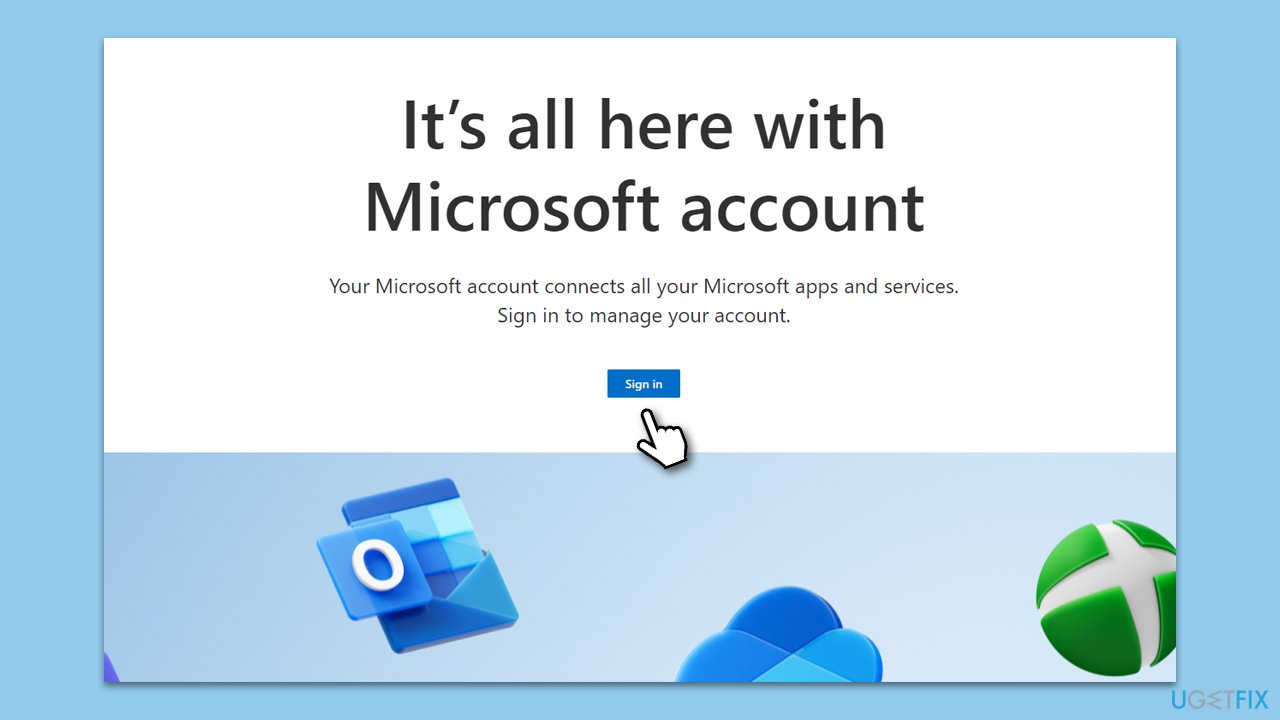
- Open your web browser and navigate to the Microsoft account login page.
- Enter your email address carefully, paying attention to each character.
- Ensure that the caps lock on your keyboard is turned off, as passwords are case-sensitive.
- If your first attempt fails, retype your email address and password to rule out any typing errors.
Fix 2. Reset your password
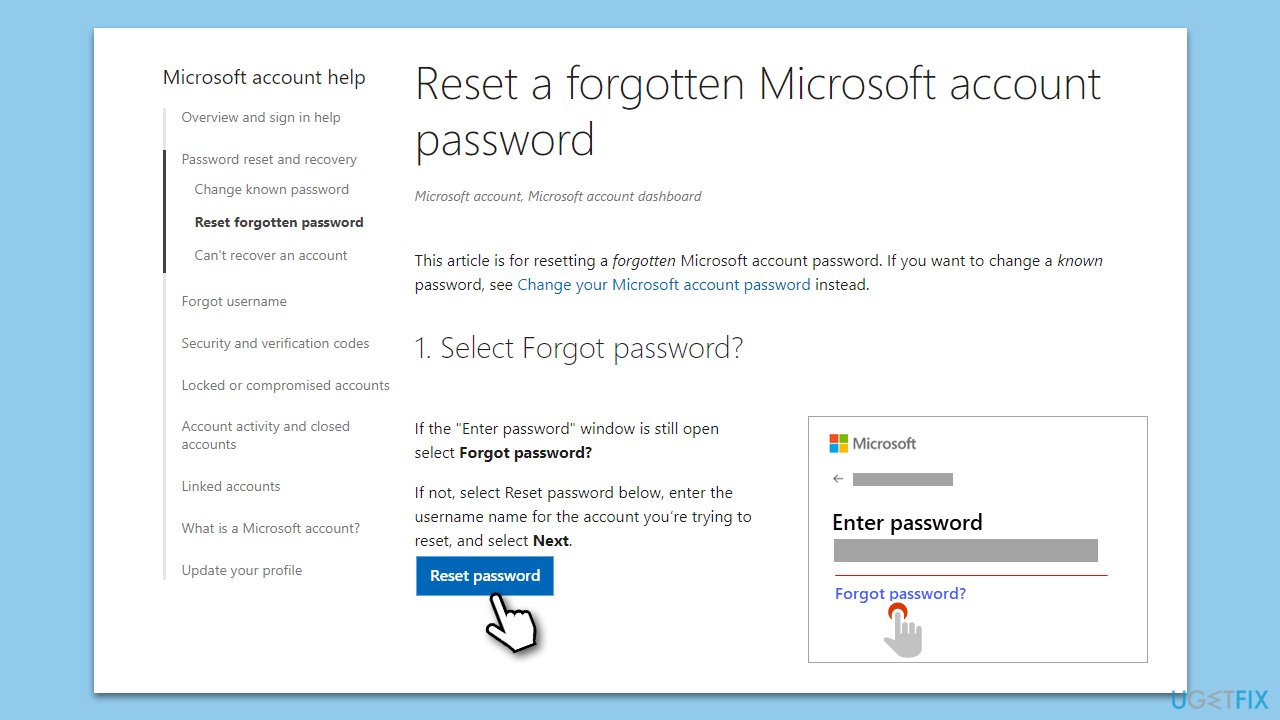
If you suspect that your password is incorrect, resetting it can resolve the login issue. This process involves verifying your identity through a secondary email or phone number and creating a new password.
- Visit the Microsoft account password reset page.
- Enter your email address and follow the prompts to verify your identity.
- Choose the method of verification (secondary email or phone number).
- Once verified, follow the instructions to set a new password.
- Try logging in with the new password.
Fix 3. Recover your Microsoft account
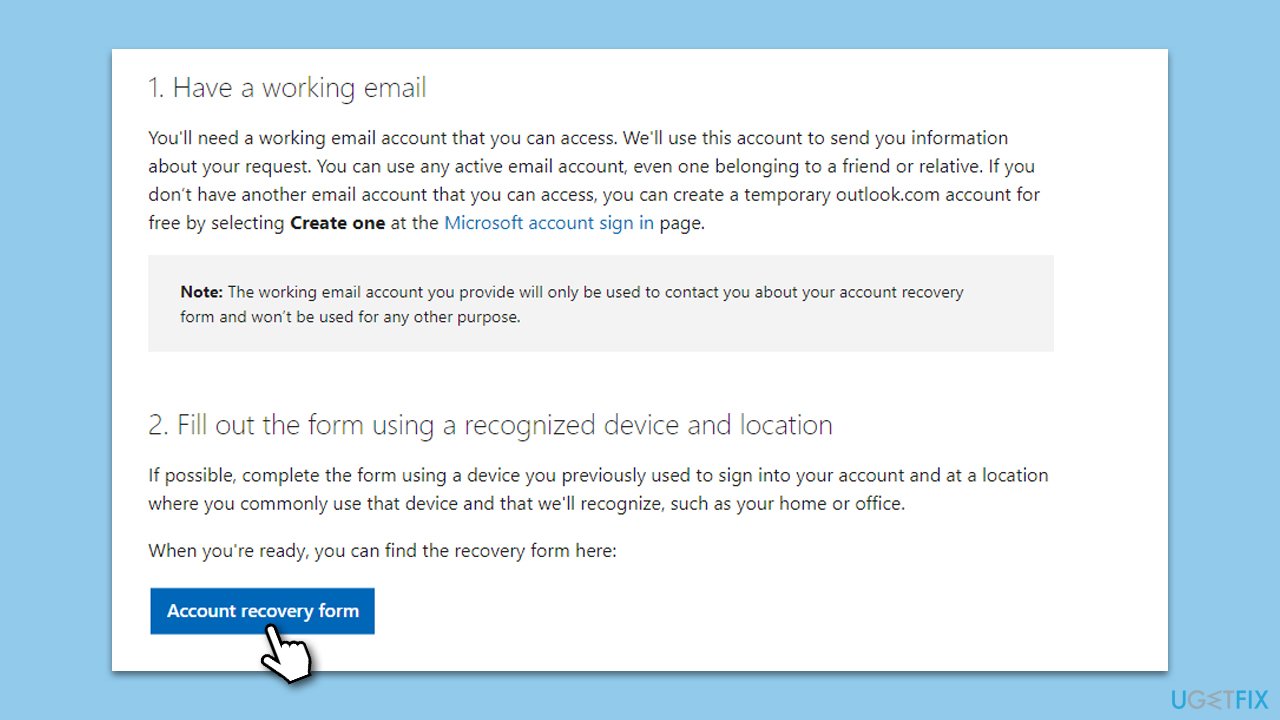
If your account has been inactive or compromised, recovering it is necessary. This process involves proving your identity to Microsoft and regaining access to your account.
- Go to the Microsoft account recovery page.
- Enter the email address of the account you wish to recover.
- Follow the on-screen instructions to verify your identity.
- Provide any additional information requested by Microsoft to help verify your account ownership.
- Once verified, follow the steps provided to regain access to your account.
Fix 4. Check for alias issues
If you have multiple email addresses or phone numbers associated with your account, ensuring you are using the correct alias is important. This solution involves confirming the primary alias for your account.
- Log in to your Microsoft account using an alternate method, if possible.
- Navigate to the Your info section.
- Check the list of aliases associated with your account.
- Ensure you are using the correct primary alias to log in.
Fix 5. Scan for system issues
Sometimes, the problem may lie with your operating system. Running a system scan can help identify and fix issues that might be interfering with the login process.
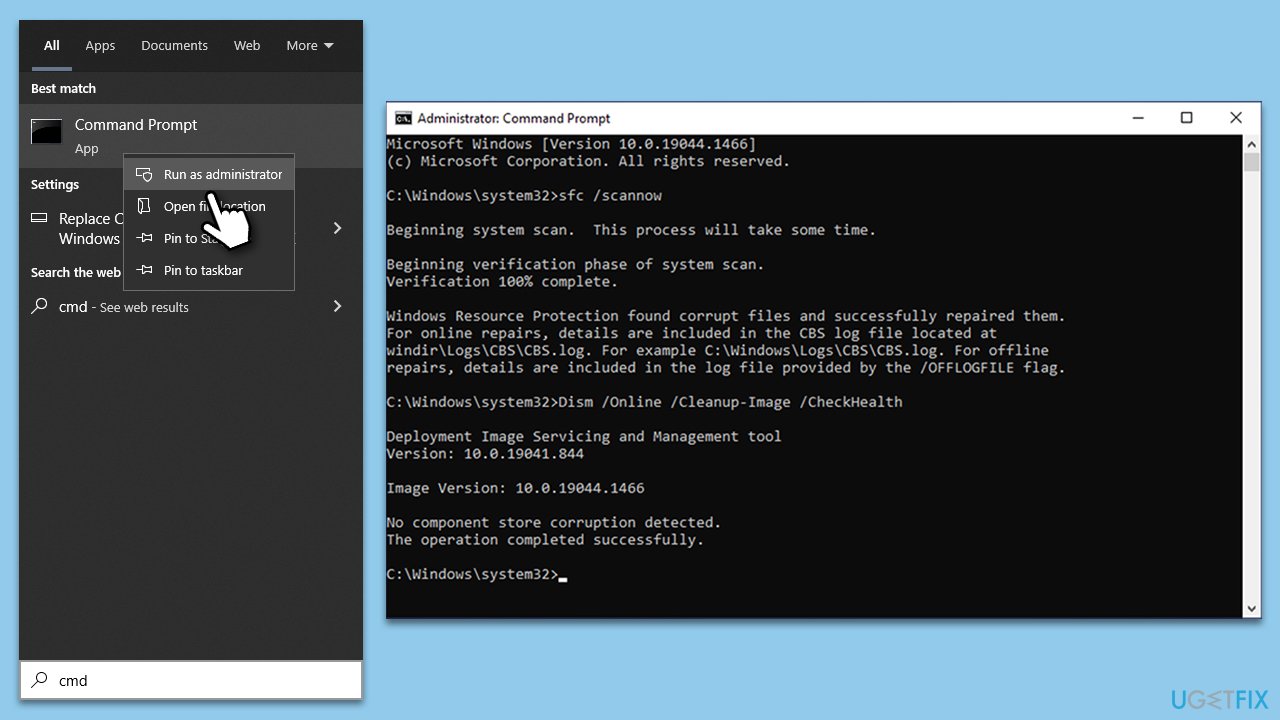
- Type cmd in Windows search.
- Right-click on Command Prompt and pick Run as administrator.
- User Account Control window will show up - click Yes when prompted.
- Then, copy and paste the following command, pressing Enter after:
sfc /scannow - Wait till the scan is finished. If Windows finds system file integrity violations, it will attempt to fix them. After this, use the set of the following commands, pressing Enter each time:
DISM /Online /Cleanup-Image /CheckHealth
DISM /Online /Cleanup-Image /ScanHealth
DISM /Online /Cleanup-Image /RestoreHealth - (Note: if you get an error executing this last command, add /Source:C:\RepairSource\Windows /LimitAccess to it and try again).
- Close down the Command Prompt and restart your system.
Bottom line
To fix the 'Microsoft account doesn't exist' error, verify that you are entering the correct account details and check for any typing errors. If the issue persists, consider recovering your account or contacting Microsoft support for further assistance.
Frequently asked questions
First, double-check that you are entering the correct email address associated with your Microsoft account. If the email is correct, try resetting your password via the Microsoft account recovery page.
Unfortunately, you need an internet connection to verify your Microsoft account; however, you can switch to a local account temporarily if you need immediate access.
You can check by attempting to recover your account using the Microsoft account recovery page; if it indicates that the account is no longer recognized, it may have been deleted.




Report an issue
What's wrong with this guide? We review every report and update or remove content.
Report received — thank you. We'll review and fix it.
You need a free account to submit a report.
Be the first to comment