How to fix
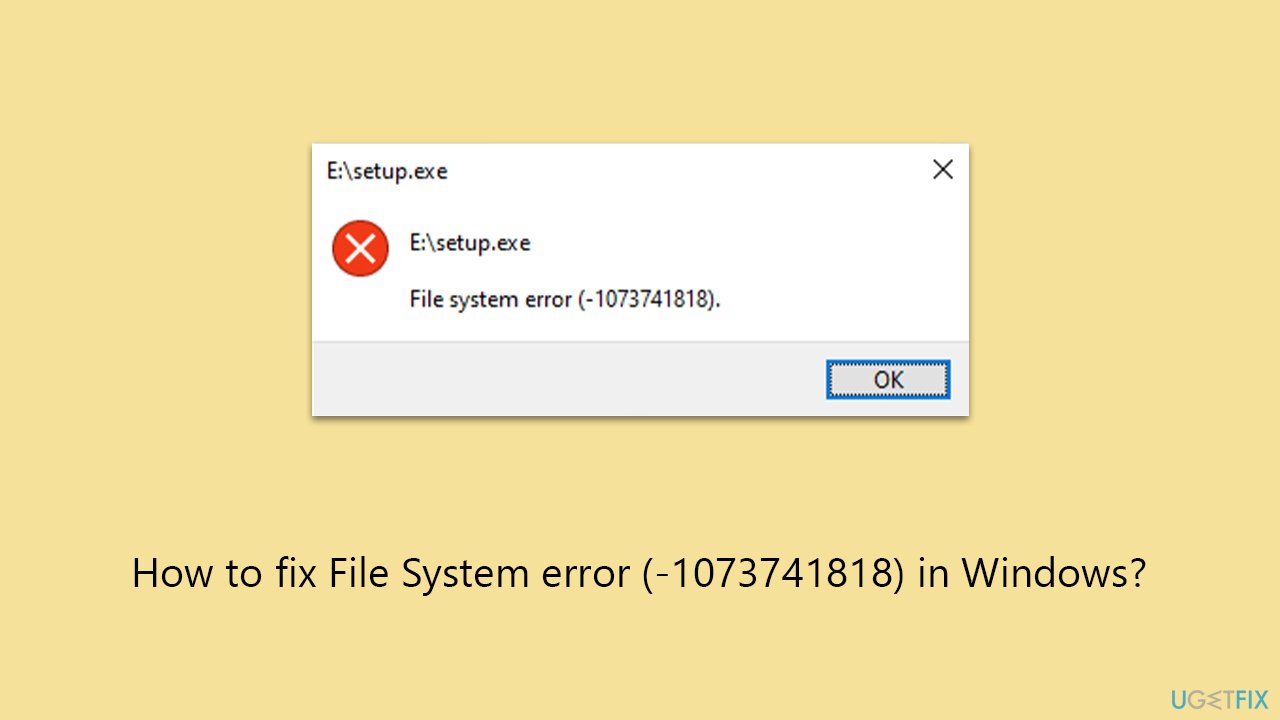
File System error (-1073741818)
on Windows
Resolve the File System error (-1073741818) on Windows 10 and 11 effortlessly with expert-tested solutions. Fix it in minutes and enjoy a smoother exper…


What causes How to fix File System error (-1073741818) in Windows?
- Faulty system files
- Hardware issues
- Software defects
- Power outages
- Erroneous shutdowns
Repairs Windows system files, removes malware, and restores a clean OS state — without reinstalling.
So recently I have noticed that I can't open some programs and there's also some issues with my start menu. The Task Manager also sometimes disappears. Whenever I attempt to open apps, I receive a File System error (-1073741818). Help!
A file system error is any issue that arises with the file system of a computer's storage device, such as an SSD or hard drive. Numerous factors, such as faulty system files, hardware issues, software defects, power outages, or erroneous shutdowns, might result in these errors.
One somewhat rare File System problem that can arise in Windows operating systems is the (-1073741818) error code. It typically indicates that the computer is unable to access or write data to a certain file or folder and that there is an issue with the file system.
The user may experience a number of problems as a result, such as corrupted files, poor speed or frozen computer, and application crashes or launch failures. The latter is the most common occurrence when dealing with the File System error (-1073741818) in particular. In addition, people reported that they can't use certain Windows components, including the Task Manager or the Registry Editor, which can be a real usability issue.
As evident, every error or other issue on Windows happens for a reason, and (-1073741818) is no exception. Some users reported that issues started after Windows updates, while others are not sure what has happened/they are not aware.
One of the first checks you should make is scanning your device for malware, as an infection can often prevent you from opening certain Windows components and other apps.
If the reason is not malware, then there are several other troubleshooting steps you can try - refer to the instructions below. For a comprehensive and convenient solution, we recommend trying a powerful PC repair utility [d1].
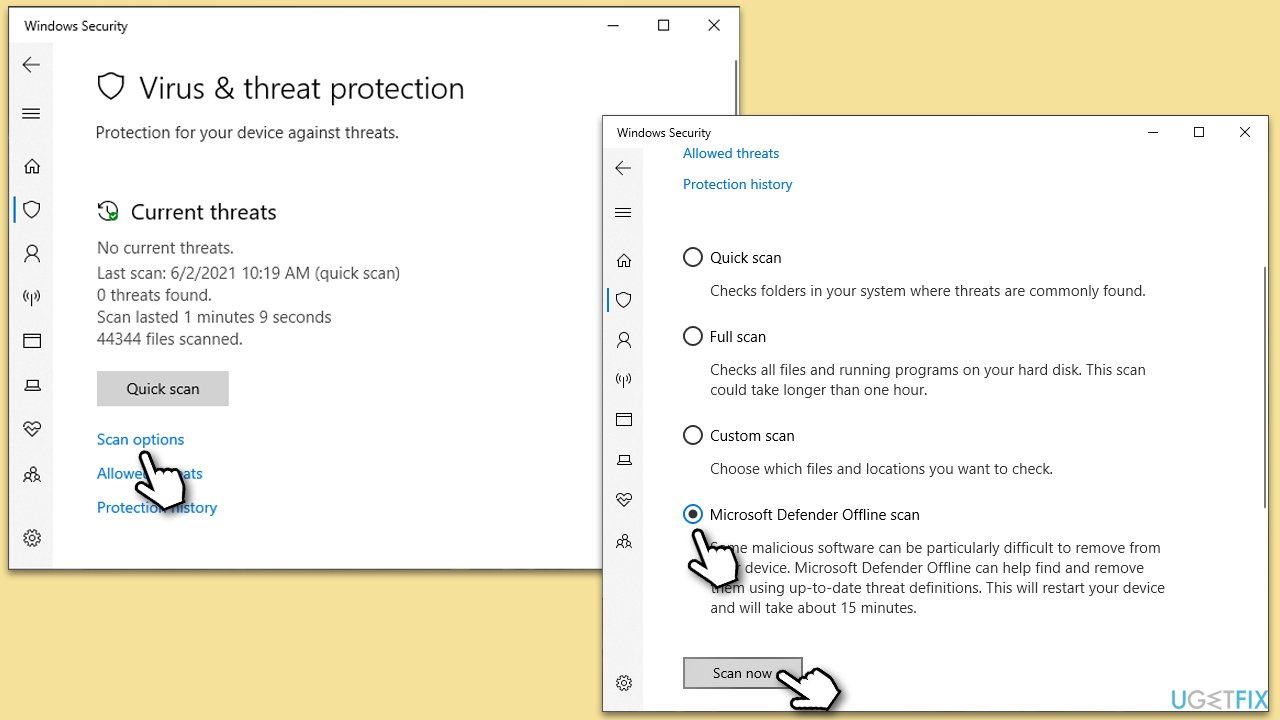
Fix 1. Scan your system for malware
Performing a malware scan can identify and eliminate harmful software that might be behind the File System error. You can employ a third-party anti-malware, Microsoft Security Scanner, or the built-in Microsoft Defender:
- Type Windows Security in the Windows search bar and hit Enter.
- Select Virus & threat protection.
- Pick Scan options.
- Choose Microsoft Defender Offline scan and click Scan now.
- Your PC will immediately reboot and begin a deep scan.
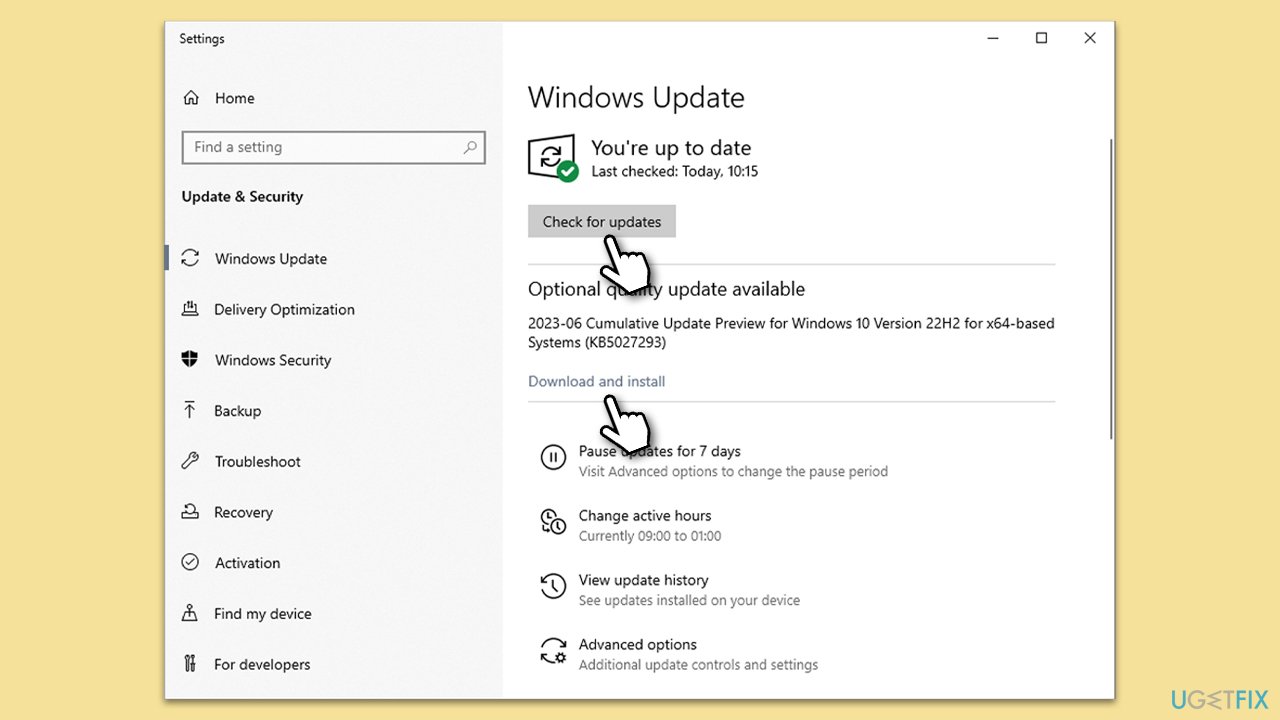
Fix 2. Install all available Windows updates
Regularly updating your Windows operating system is vital for security and functionality. Updates often include fixes for known bugs and errors, which could solve the File System error (-1073741818).
- Type Updates in Windows search and press Enter.
- In the new window, click Check for updates.
- Wait till all the necessary files are downloaded and installed.
- If optional updates are available, install them as well.
- When done, reboot your PC to apply updates.
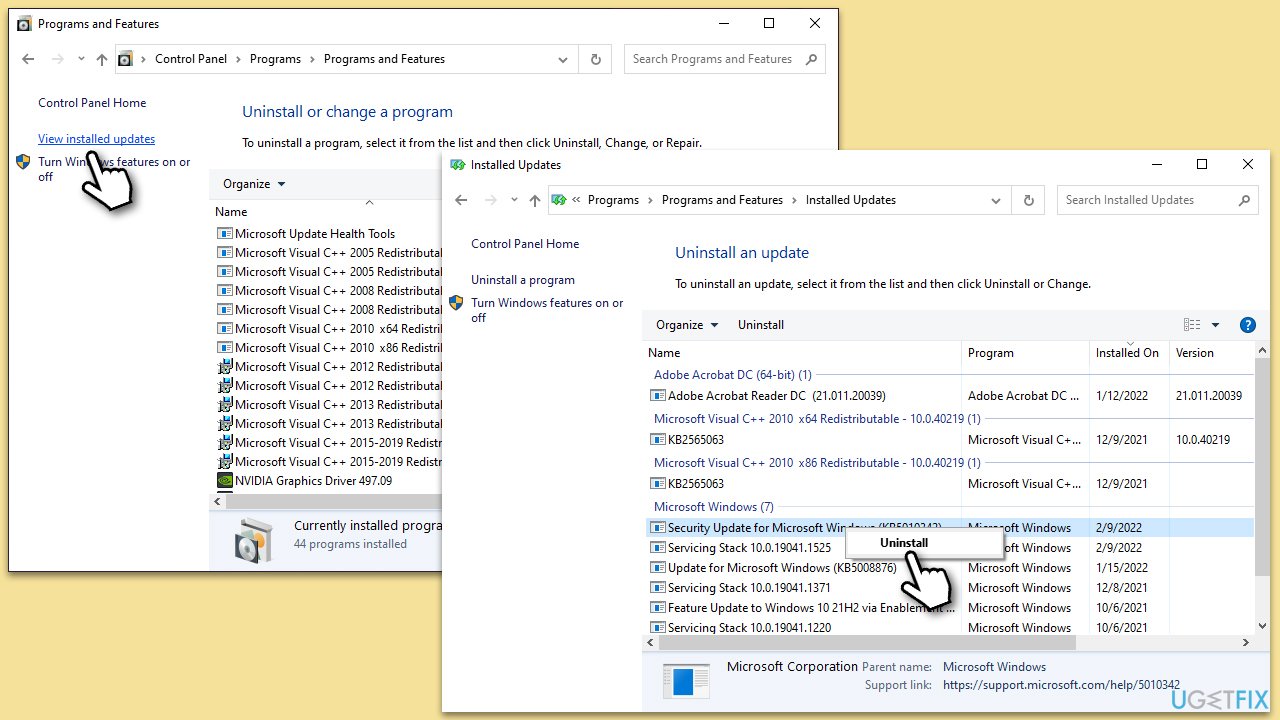
Fix 3. Uninstall the most recent Windows update [if applicable]
If you already had the most recent Windows update installed and it seems like it might have caused the issue in the first place, we recommend removing the latest update until Microsoft sorts the issue out.
- Type Control Panel in Windows search and press Enter.
- Select Programs > Uninstall a program.
- Click on View installed updates on the left side of the window.
- Sort all the updates by date.
- Right-click on the most recent update and select Uninstall.
- Proceed with on-screen instructions.
- Then, type Updates in Windows search and press Enter.
- Click Pause the updates for 7 days (in Windows 11, you can pick a different time period).
- Install updates only once the issue is addressed by Microsoft.
Fix 4. Repair system file corruption
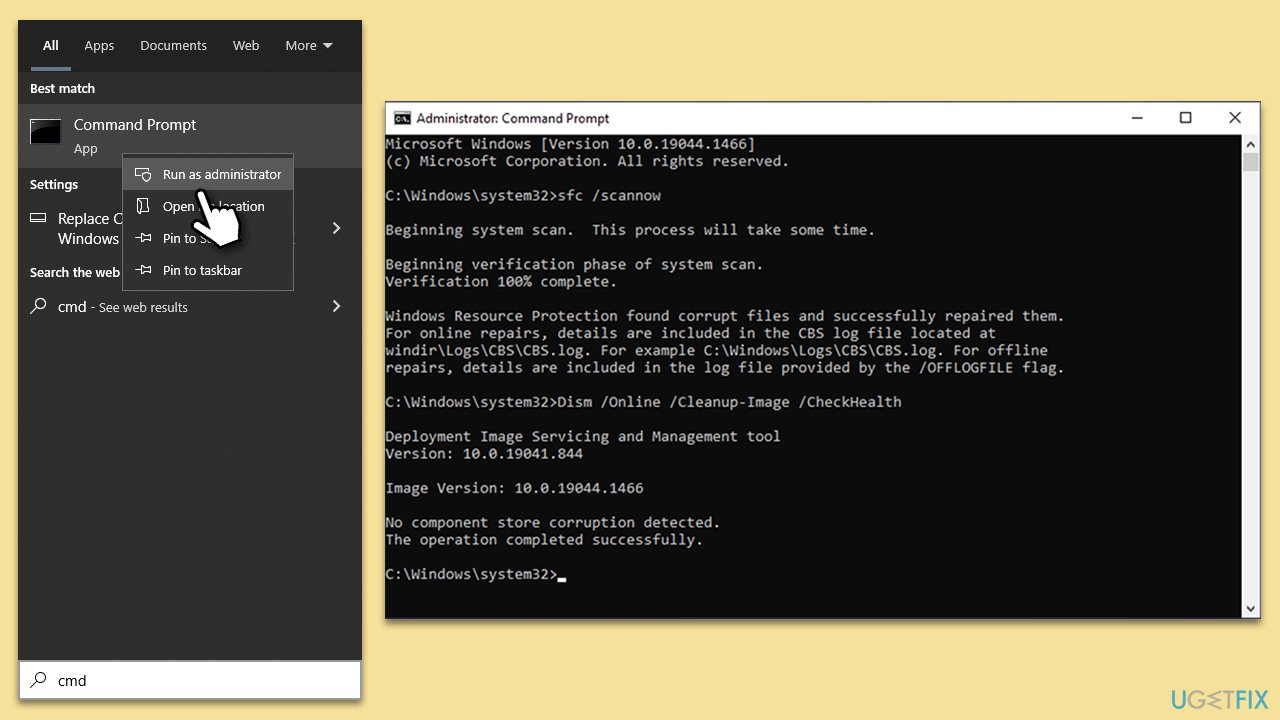
System File Checker (SFC) and Deployment Image Servicing and Management (DISM) are Windows tools for repairing corrupt system files. Using these tools can fix issues with system file integrity, potentially resolving the File System error.
- Type in cmd in Windows search.
- Right-click on Command Prompt and select Run as administrator.
- When User Account Control shows up, click Yes.
- In the Command Prompt window, paste the following command and hit Enter:
sfc /scannow - Next, use the following commands, pressing Enter each time:
Dism /Online /Cleanup-Image /CheckHealth
Dism /Online /Cleanup-Image /ScanHealth
Dism /Online /Cleanup-Image /RestoreHealth
(Note: if you get an error executing this last command, add /Source:C:\RepairSource\Windows /LimitAccess to it and try again). - Reboot your system.
Fix 5. Perform System Restore
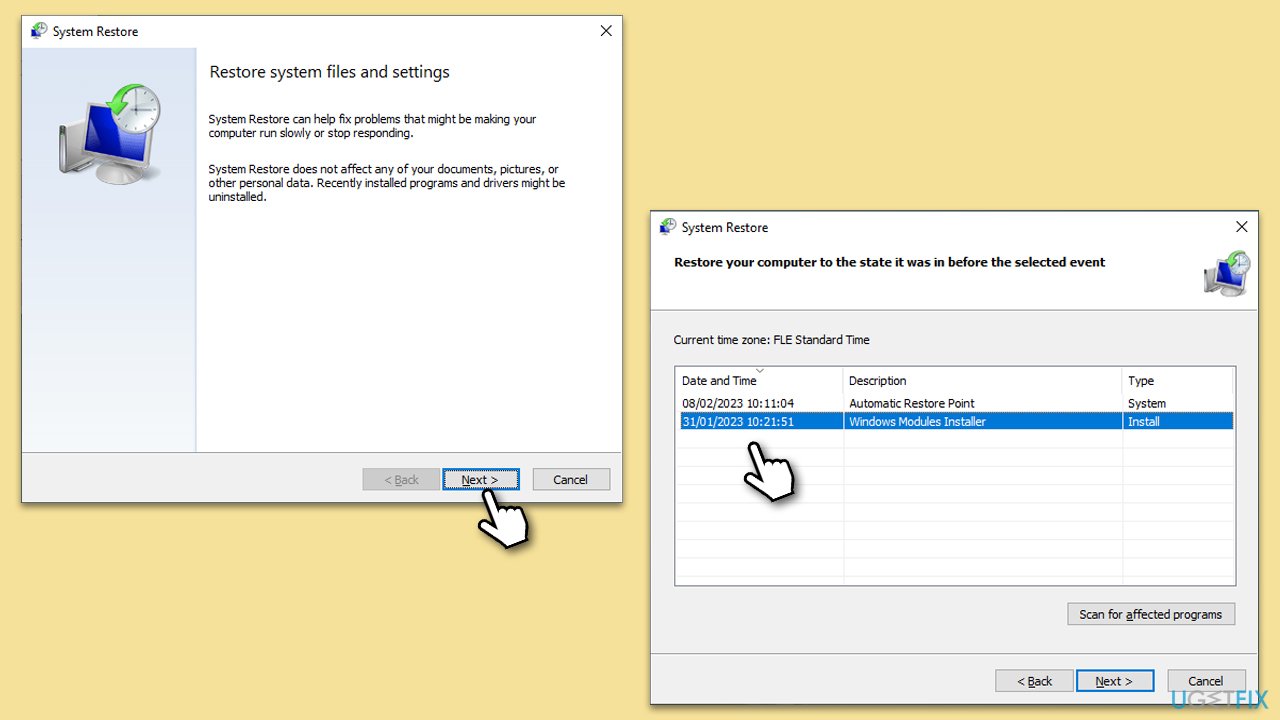
System Restore can revert your system to a previous state, potentially fixing the File System error. This is useful if the error started following a specific change or installation.
- Type in Create a Restore point in Windows search and hit Enter.
- In the System Protection tab, pick System restore.
- Click Next.
- Click Show more restore points (if available).
- Pick the time before the problem occurred and click Next.
- Your computer will reboot.
Fix 6. Reset Windows
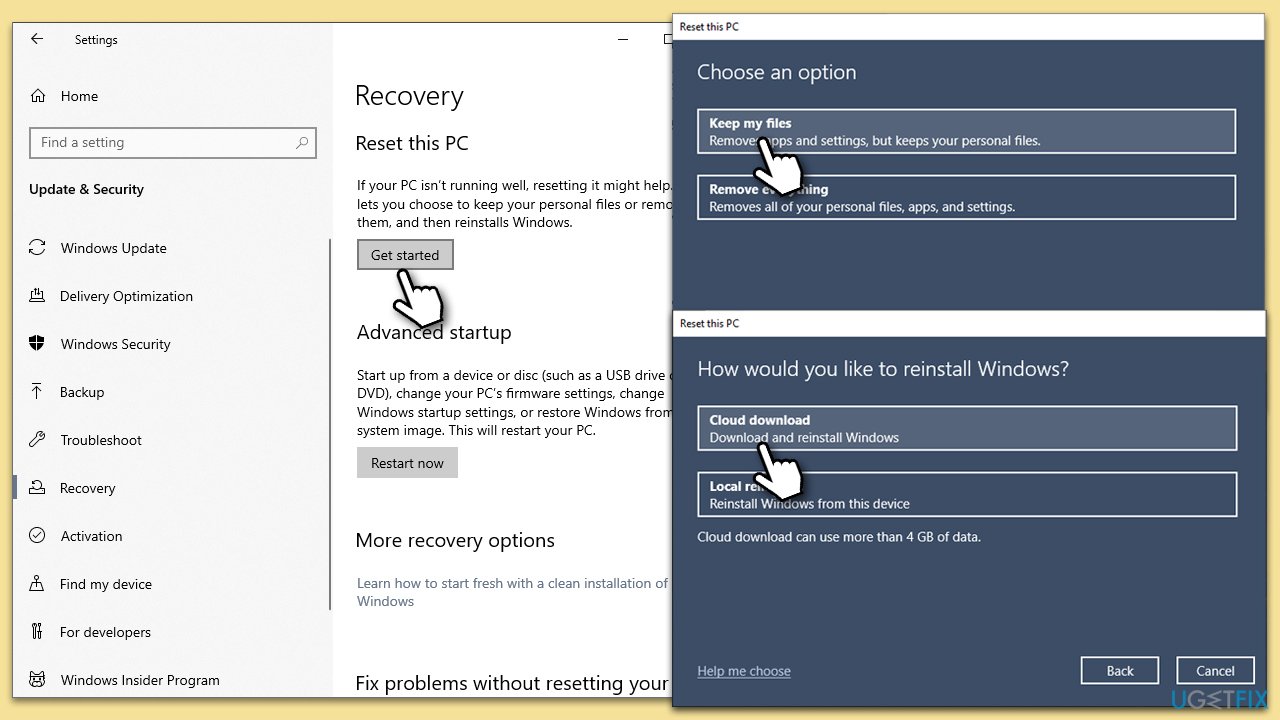
Resetting Windows reinstalls the operating system, which can fix persistent issues. This should be a last resort as it might lead to data loss.
- Right-click on Start and then select Settings.
- Go to Update & Security and pick Recovery on the left side of the window.
- Find Reset this PC section and click Get Started.
- Select Keep my files and Cloud download.
- Next, pick whether you want to reinstall the apps.
- Click Reset.
- Your system will restart, and the process of Windows reset will begin.
Fix 7. Perform in-place upgrade with Media Creation Tool
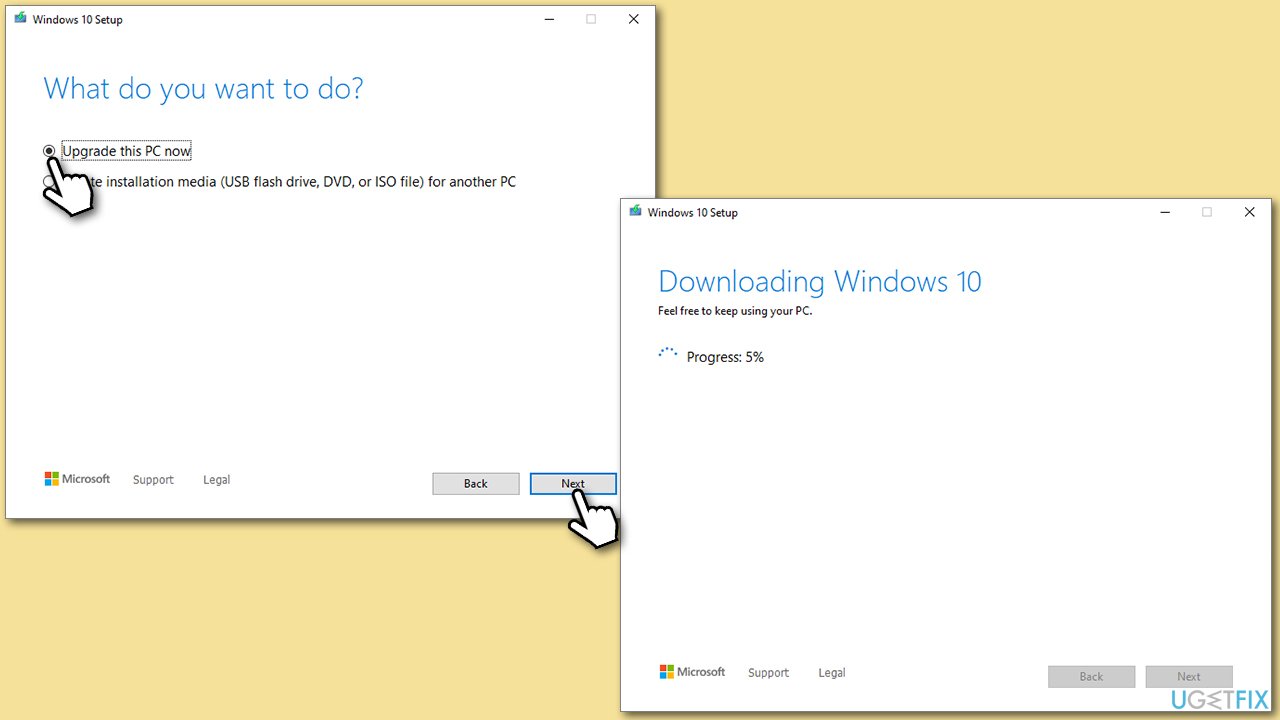
An in-place upgrade using the Media Creation Tool can repair underlying Windows issues while keeping your personal files and installed applications intact.
- Visit the official Microsoft website and download Windows 10 installation media (Windows 11 version).
- Double-click the installer, select Yes when UAC shows up, and agree to the terms.
- Select Upgrade this PC now and click Next.
- Windows will start downloading the needed files.
- Agree to the terms once again and click Next.
- Before installing, make sure that you are happy with your choices (otherwise, you can click Change what to keep option).
- Finally, click Install to begin the upgrade process.
Bottom line
To fix the File System error (-1073741818), start by scanning your system for malware, as infections can prevent access to certain Windows components. If malware is not the issue, consider trying other troubleshooting steps outlined in the guide. If none of these solutions work, it may be beneficial to use a powerful PC repair utility.
Frequently asked questions
This error often stems from corrupted system files or issues with the Windows Update process. It can also be triggered by incompatible software or hardware problems.
You can try running the System File Checker by executing 'sfc /scannow' in the Command Prompt as an administrator to repair corrupted files. Additionally, performing a Windows Update may help fix underlying issues.
To prevent this error, ensure that your system is updated regularly and that you run regular disk checks using 'chkdsk' to identify and fix potential filesystem issues. Keeping your drivers up to date can also help avoid conflicts.




Report an issue
What's wrong with this guide? We review every report and update or remove content.
Report received — thank you. We'll review and fix it.
You need a free account to submit a report.
Be the first to comment