How to fix
File System error (-2015294522)
on Windows
Resolve File System error (-2015294522) on Windows 10/11 effortlessly. Follow our expert-tested solutions to fix the issue quickly and effectively.


What causes How to fix File System error (-2015294522) in Windows?
- Corrupted system files
- Out-of-date Windows versions
- Issues with the Notepad software
- Misconfiguration of Notepad
- Underlying system flaws
Repairs Windows system files, removes malware, and restores a clean OS state — without reinstalling.
Hello, I've encountered a problem where attempting to open text documents results in a system file error (-2015294522). Everything was functioning properly just moments ago, and this error began occurring abruptly without any apparent cause.
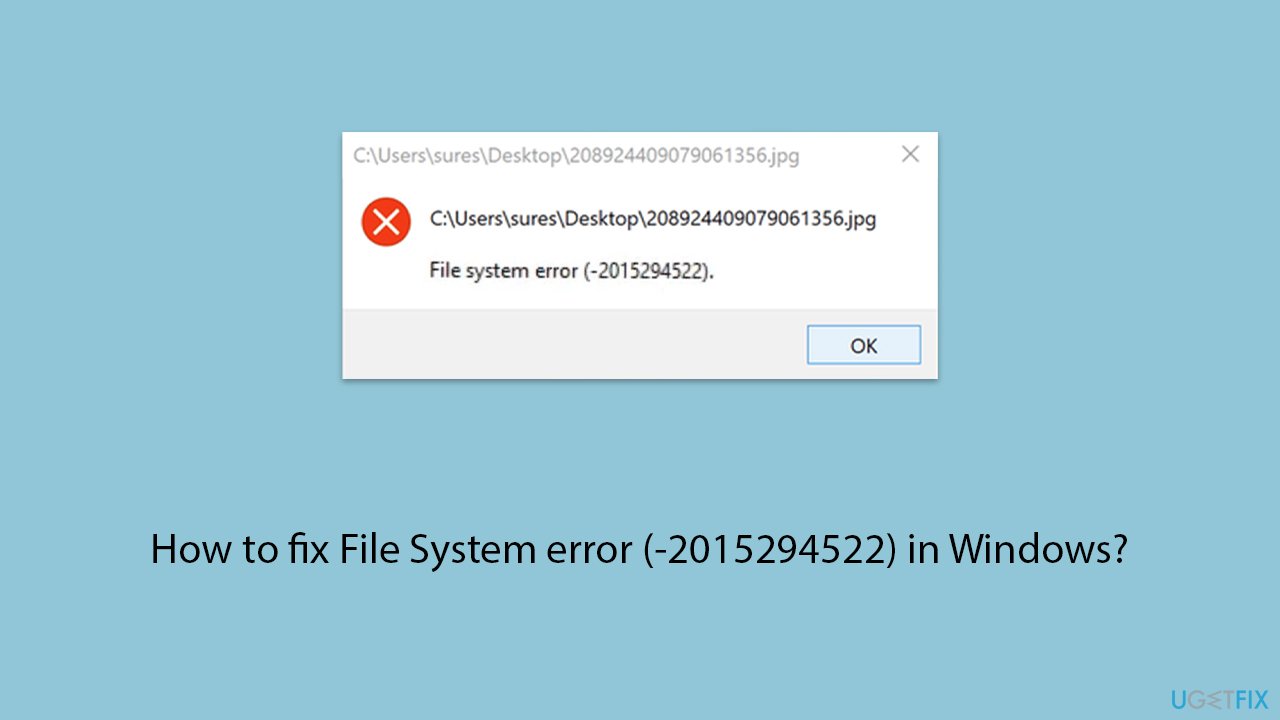
Windows system issues can range from small annoyances to significant difficulties that impair functionality and productivity. For Windows 10 and 11, the File System error (-2015294522) is one of the most serious problems among them. This error is frequently encountered while attempting to open text documents using Notepad, but it can also occur under other circumstances. Its presence suggests that the system has underlying flaws that need to be addressed.
There are several potential causes of the File System error (-2015294522), such as corrupted system files, out-of-date Windows versions, and issues with the Notepad software. These problems may interfere with Windows' regular functionality, making the user experience unpleasant.
Fixing the (-2015294522) issue usually involves a series of steps aimed at identifying and rectifying the root cause. You might need to repair the Notepad app through the Windows settings, perform system scans to repair corrupted system files or update Windows to the latest version. Additionally, creating a new user profile or registering all Windows apps anew could resolve the problem by refreshing the operating system’s configuration.
Each of these potential solutions targets a different aspect of the system, from individual applications to the entire operating system. By systematically applying these measures, you can often eliminate the error and restore normal functionality to your PC.
However, for those seeking a more straightforward approach, utilizing a specialized PC repair tool might offer a viable alternative. Tools like [d1] are designed to automatically diagnose and fix a wide range of underlying Windows issues, potentially resolving the File System error (-2015294522) without the need for extensive manual troubleshooting.
Fix 1. Repair or reset Notepad
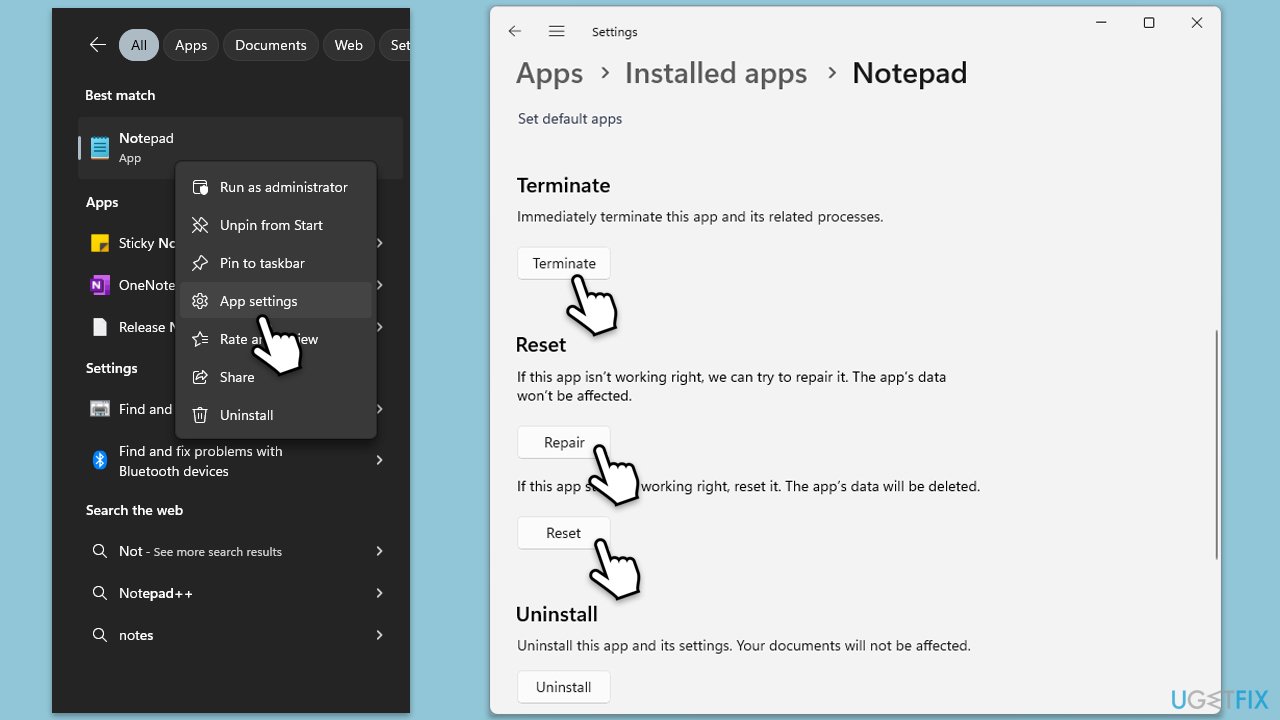
Repairing or resetting Notepad can resolve issues caused by the application's corruption or misconfiguration. This process restores Notepad to its default state without affecting your personal files.
- Type Notepad in Windows search.
- Right-click on the Notepad result and select App settings.
- Scroll down and click Terminate.
- Next, click Repair and check if Notepad works well.
- If not, try using Reset instead.
Fix 2. Install all Windows updates
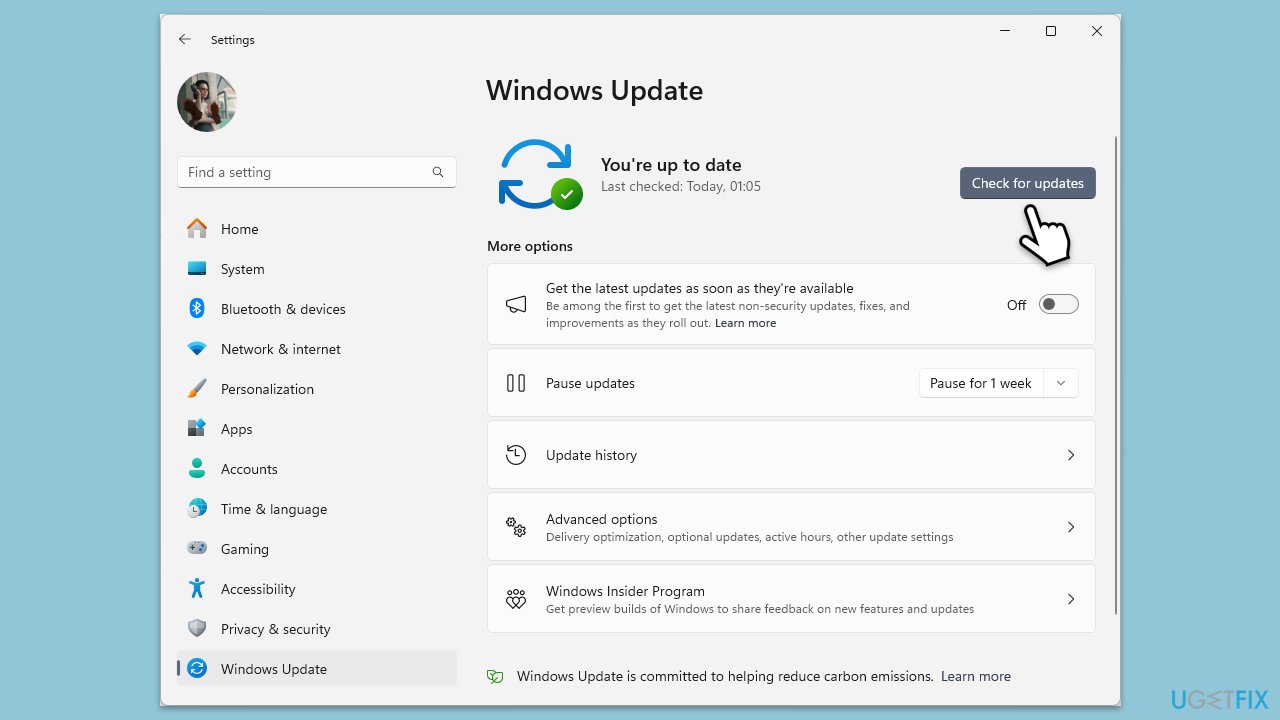
Keeping Windows up to date ensures that all system components work correctly and can resolve existing errors.
- In Windows search, type Updates and hit Enter.
- In the new window, click Check for updates and wait till everything is installed.
- Make sure you also install any available optional updates.
- When done, restart your system to implement the changes.
Fix 3. Run SFC and DISM
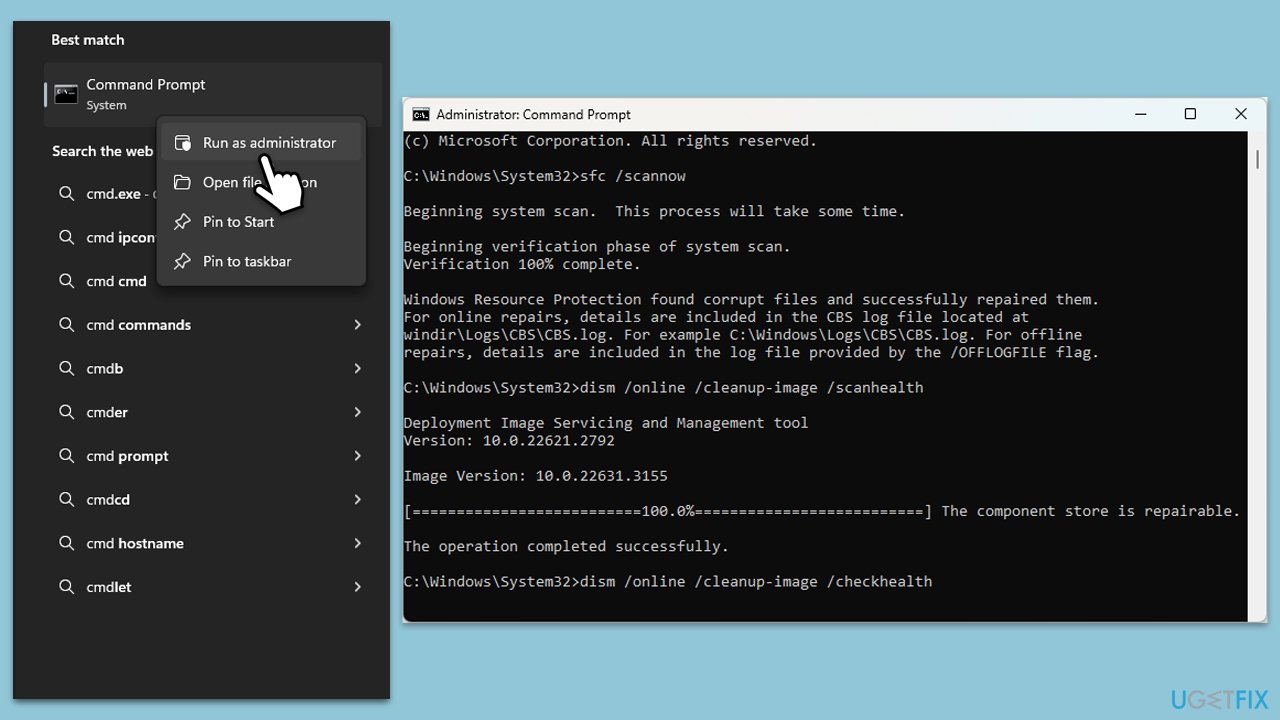
The System File Checker (SFC) and Deployment Image Servicing and Management (DISM) tools can fix corrupted system files that might be causing the File System error (-2015294522).
- Type cmd in Windows search.
- Right-click on Command Prompt and pick Run as administrator.
- User Account Control window will show up - click Yes when prompted.
- Then, copy and paste the following command, pressing Enter after:
sfc /scannow - Wait till the scan is finished. If Windows finds system file integrity violations, it will attempt to fix them. After this, use the set of the following commands, pressing Enter each time:
DISM /Online /Cleanup-Image /CheckHealth
DISM /Online /Cleanup-Image /ScanHealth
DISM /Online /Cleanup-Image /RestoreHealth - Close down the Command Prompt and restart your system.
Fix 4. Create a new user profile
Corruption in your user profile can lead to various system errors. Creating a new profile can resolve these issues by providing a fresh environment.
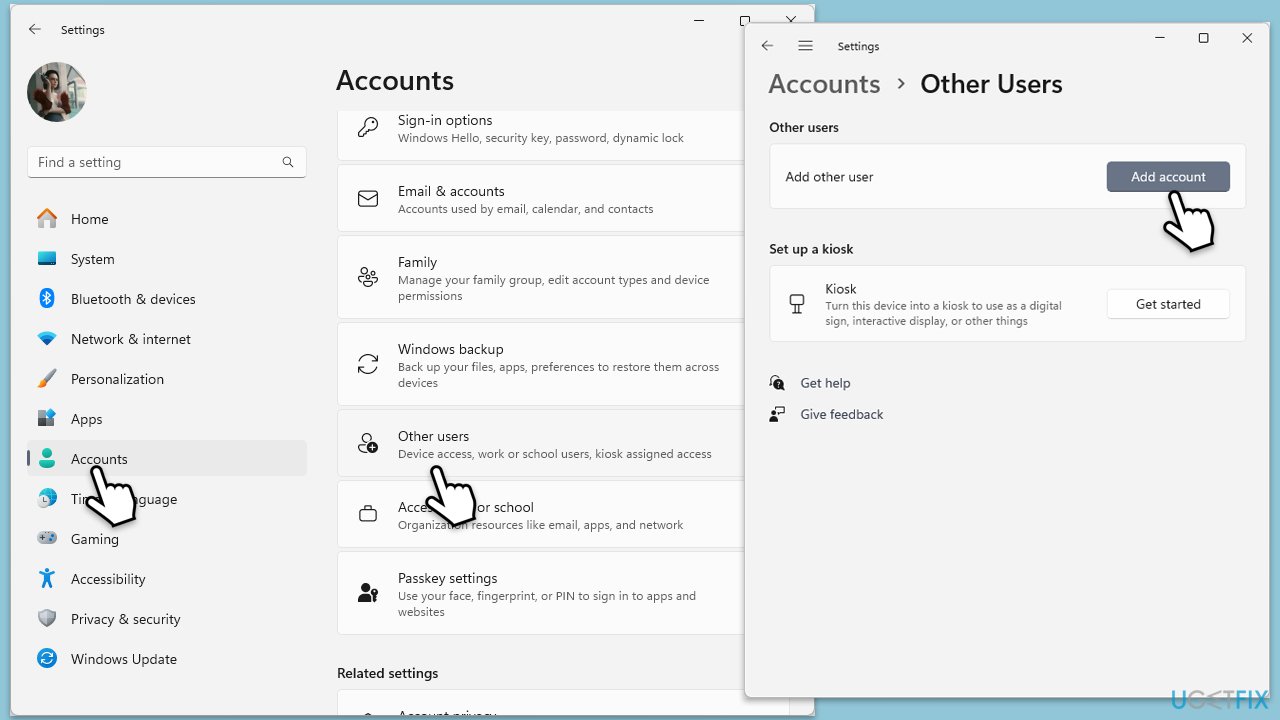
- Open Windows Settings.
- Go to Accounts then Family/Family & other users.
- Under Other users, click Add account/Add someone else to this PC.
- Follow the prompts to create a new user account. If you don't have Microsoft account details, you can choose I don't have this person's sign-in information followed by Add a user without a Microsoft account.
- Assign a username and password for the new account and complete the setup.
- Log out of your current account and log into the new account.
Fix 5. Reregister all Windows apps
Reregistering Windows apps can fix errors caused by corruption or misconfiguration within the Universal Windows Platform environment.
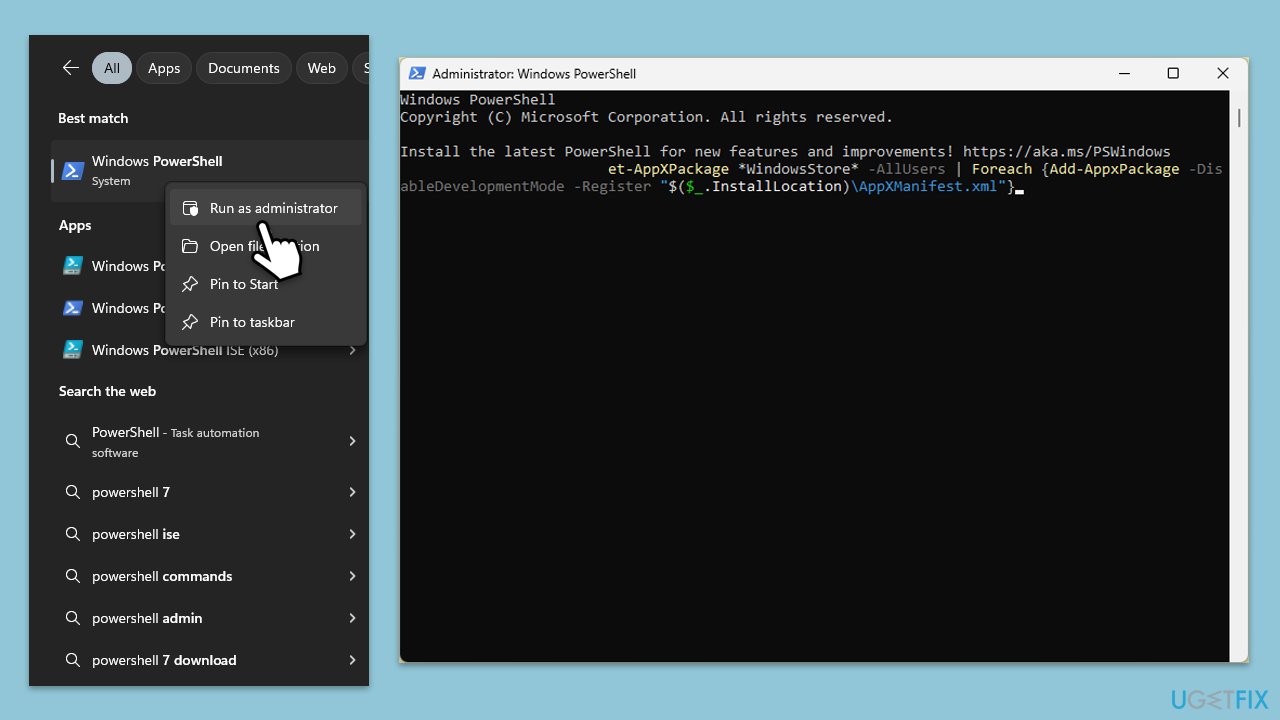
- Type PowerShell in Windows search.
- Right-click on the result and select Run as administrator.
- When UAC shows up, click Yes.
- Use the following command and press Enter:
Get-AppXPackage *WindowsStore* -AllUsers | Foreach {Add-AppxPackage -DisableDevelopmentMode -Register "$($_.InstallLocation)\AppXManifest.xml"} - When done, restart your computer.
Fix 6. Reset Windows
Resetting Windows reinstalls the operating system, which can resolve persistent system errors by starting fresh. This option should be used as a last resort.
- Click on Start and pick Settings.
- Go to Windows Update/Update & Security.
- Select Advanced options.
- Under Additional options, select Recovery.
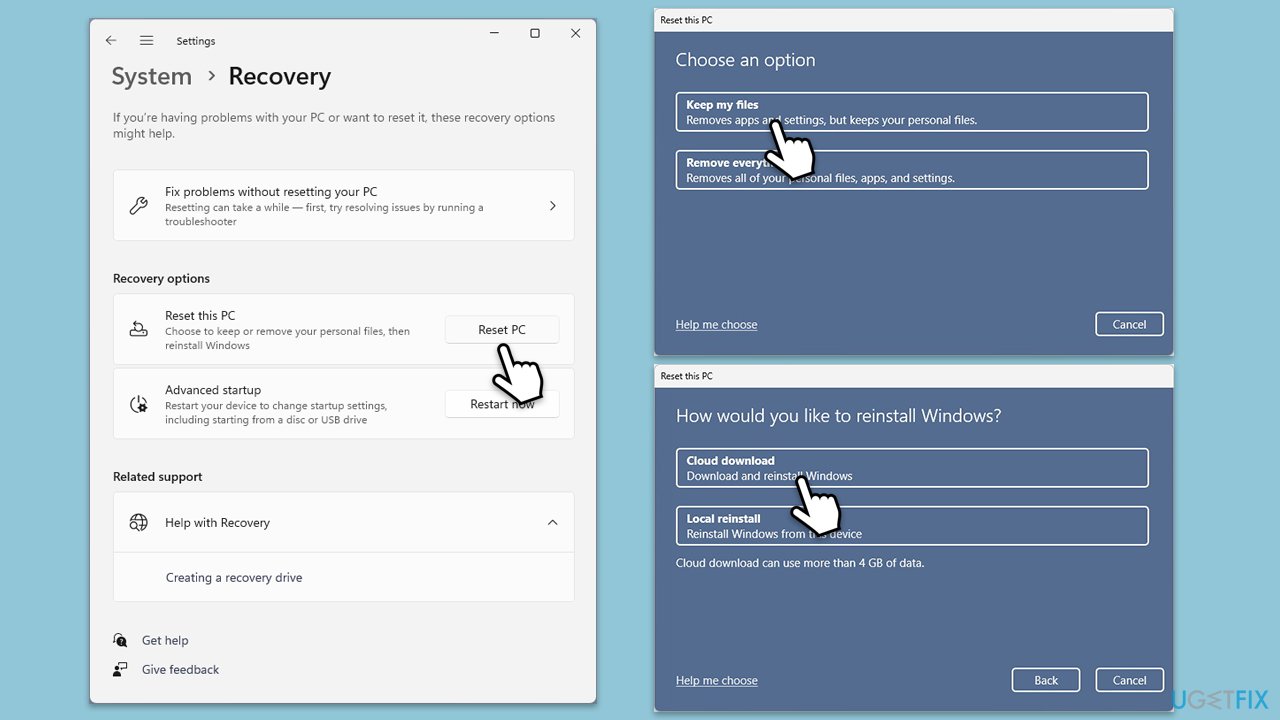
- Under Recovery options, click Reset PC.
- Select the option to Keep your files and then press Cloud download.
- Follow on-screen instructions to finish the process.
Bottom line
To fix the File System error (-2015294522), you can repair or reset Notepad, perform system scans to repair corrupted files, and update Windows to the latest version. Additionally, creating a new user profile or using a specialized PC repair tool may help. If none of these solutions work, consider seeking professional assistance.
Frequently asked questions
This error can occur due to corrupted system files, issues with the Windows update, or problems with the file system itself.
You can run the 'sfc /scannow' command in Command Prompt to scan and repair corrupted system files that may be causing the error.
Yes, you can try using the DISM tool with the command 'DISM /Online /Cleanup-Image /RestoreHealth' to repair the system image without affecting your personal files.




Report an issue
What's wrong with this guide? We review every report and update or remove content.
Report received — thank you. We'll review and fix it.
You need a free account to submit a report.
Be the first to comment