How to fix
“Sorry, we couldn’t connect you” error in Microsoft Teams
on Windows
Resolve the "Sorry, we couldn't connect you" error in Microsoft Teams on Windows 10 and 11 easily. Expert-tested solutions guarantee quick fixes!


What causes How to fix “Sorry, we couldn’t connect you” error in Microsoft Teams?
- Network connectivity problems
- Incorrect settings
- Software conflicts
- Firewall settings
- Antivirus settings
Repairs Windows system files, removes malware, and restores a clean OS state — without reinstalling.
Hello. For some reason I can't connect to Teams - I keep getting an "Sorry, we couldn't connect you" error every time. Is there anything I can do to fix it?
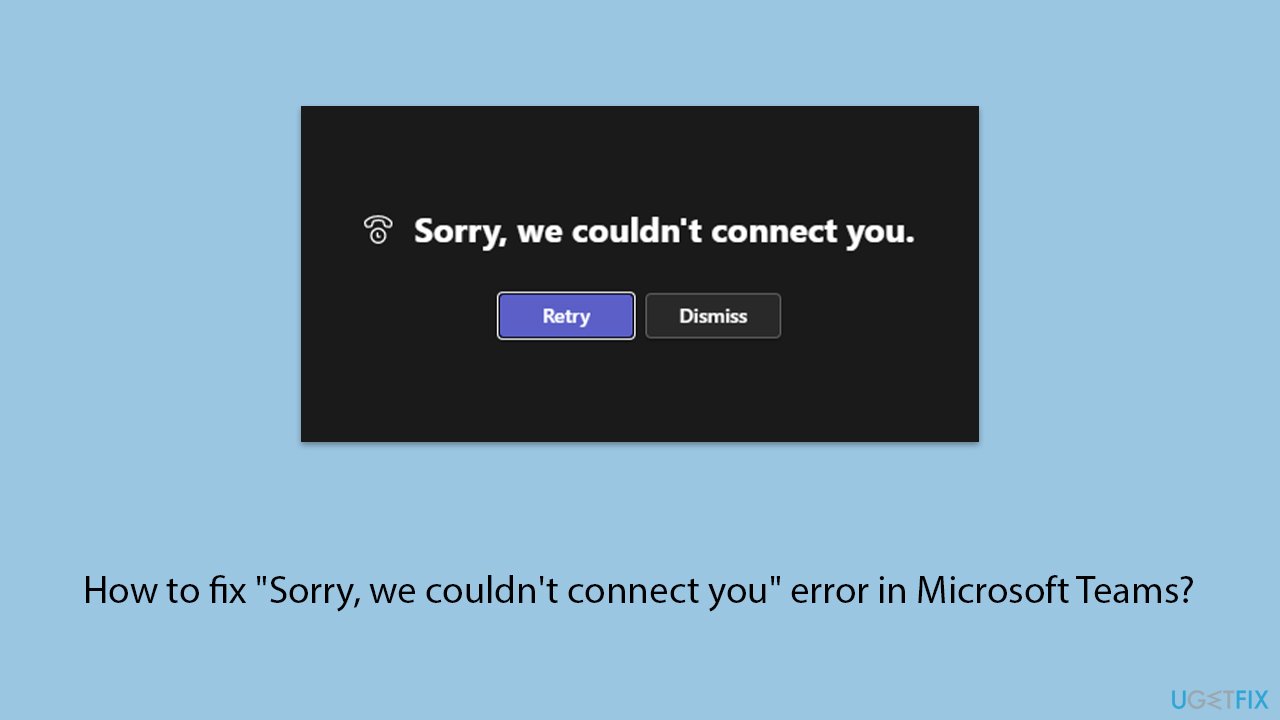
If you're encountering the "Sorry, we couldn't connect you" error in Microsoft Teams, it's typically a sign that there's an issue with your internet connection or Teams settings that are preventing the app from connecting to its servers.
This can be particularly frustrating when trying to join meetings or collaborate with colleagues. Here’s a closer look at the error and some potential solutions to help you get back online and participate in your Teams activities.
The "Sorry, we couldn't connect you" error in Microsoft Teams usually appears due to network connectivity problems, incorrect settings, or software conflicts. It can disrupt communication and delay productivity as it affects the app's ability to function properly.
Solutions for fixing the "Sorry, we couldn't connect you" error in Microsoft Teams
There are several ways to resolve the "Sorry, we couldn't connect you" error in Microsoft Teams. First of all, make sure your internet connection is reliable, as a poor connection is typically the root of connectivity issues with collaboration tools like Teams. If your internet connection is working properly, restarting the Microsoft Teams program may be necessary. This can remove any transient issues that may be generating the error.
Keeping Microsoft Teams up to date is also essential. Updates not only provide new features, but they also fix known flaws that may be hurting the application's performance. To ensure you have the most recent version, check for updates in the Teams app or via the Microsoft Store.
Another step is to examine the general condition of Microsoft Teams. Sometimes the trouble comes from Microsoft, especially if their servers are down. Microsoft's Office 365 Service Health Dashboard gives real-time updates on the status of all of its services, including Teams.
Finally, you should review your firewall and antivirus settings. These security precautions can occasionally prohibit Teams from establishing a reliable connection. Adjusting these settings to allow Teams to interact with its servers without hindrance will frequently alleviate connectivity difficulties.
If these steps do not solve the problem, a complete [d1] PC repair tool may be recommended. This program can address more complicated Windows issues that may affect Teams and other apps.
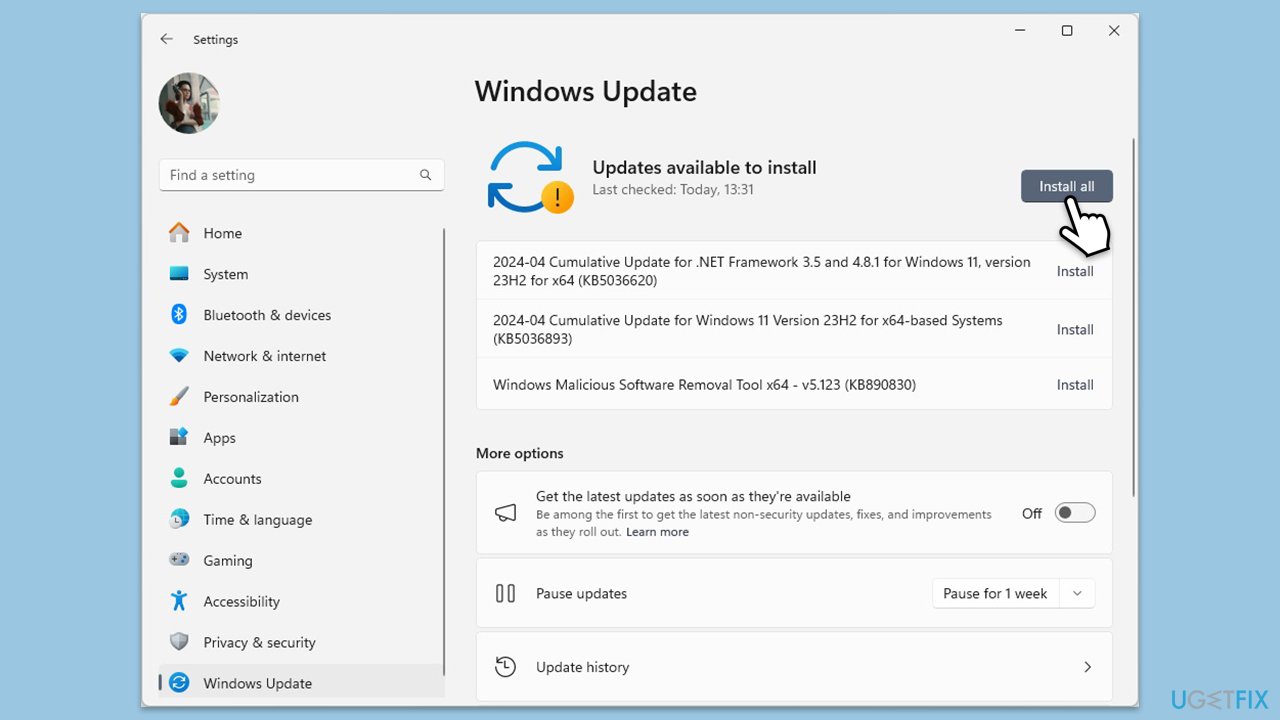
Fix 1. Install Windows and Teams updates
Ensuring both Windows and Microsoft Teams are up-to-date is crucial for running the software smoothly, as updates often fix bugs and improve performance.
- Type Updates in Windows search and press Enter.
- Select Check for updates and install any available Windows updates.
- Restart your PC to implement the changes.
- Open Microsoft Teams.
- Click on your profile picture at the top right corner and select Check for updates.
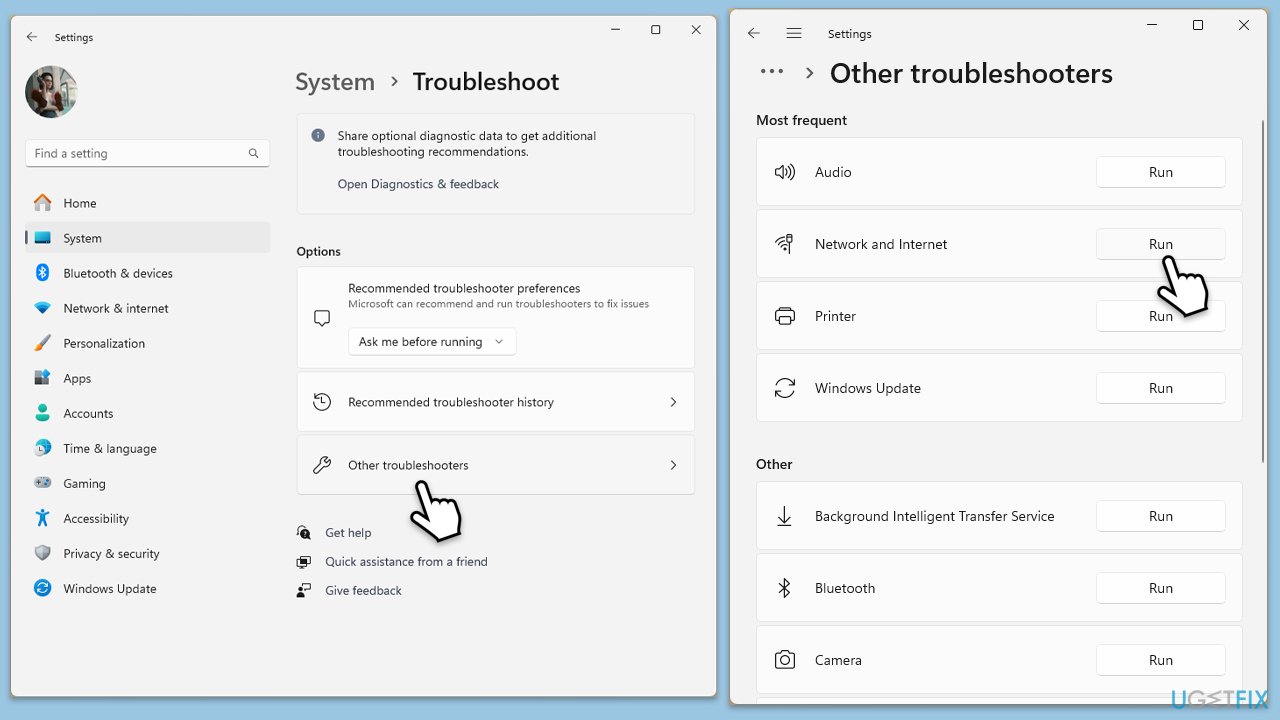
Fix 2. Run network troubleshooter
This tool can help identify and resolve any issues with your network that might be causing connectivity problems with Microsoft Teams.
Windows 11
- Type Troubleshoot in Windows search and press Enter.
- Select Other troubleshooters.
- Find Network & Internet troubleshooter from the list and select Run.
- Wait till the process is finished and apply the offered fixes.
- Restart your computer.
Windows 10
- Right-click on Start and pick Settings.
- Go to Network & Internet section.
- On the right side, find the Advanced network settings section.
- Click Network troubleshooter, specify the problem, and wait till the scan is finished.
- When done, apply all the recommendations.
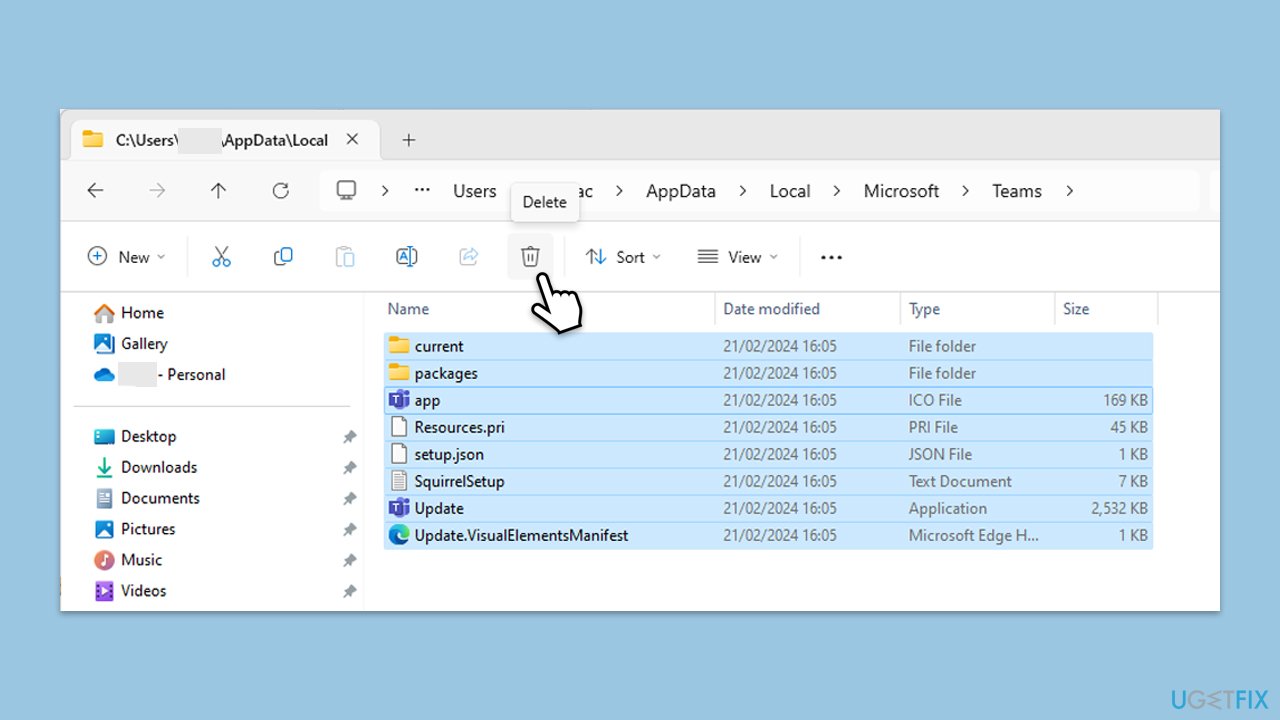
Fix 3. Clear Teams cache files
Clearing the cache can resolve performance issues and errors by removing old or corrupted data.
- Close Microsoft Teams.
- Press Win + R on your keyboard to open the Run dialog.
- Type AppData and press Enter or click OK.
- Go to the following location:
C:\Users\User\AppData\Local\Microsoft - Delete all the files and folders located in the Teams folder.
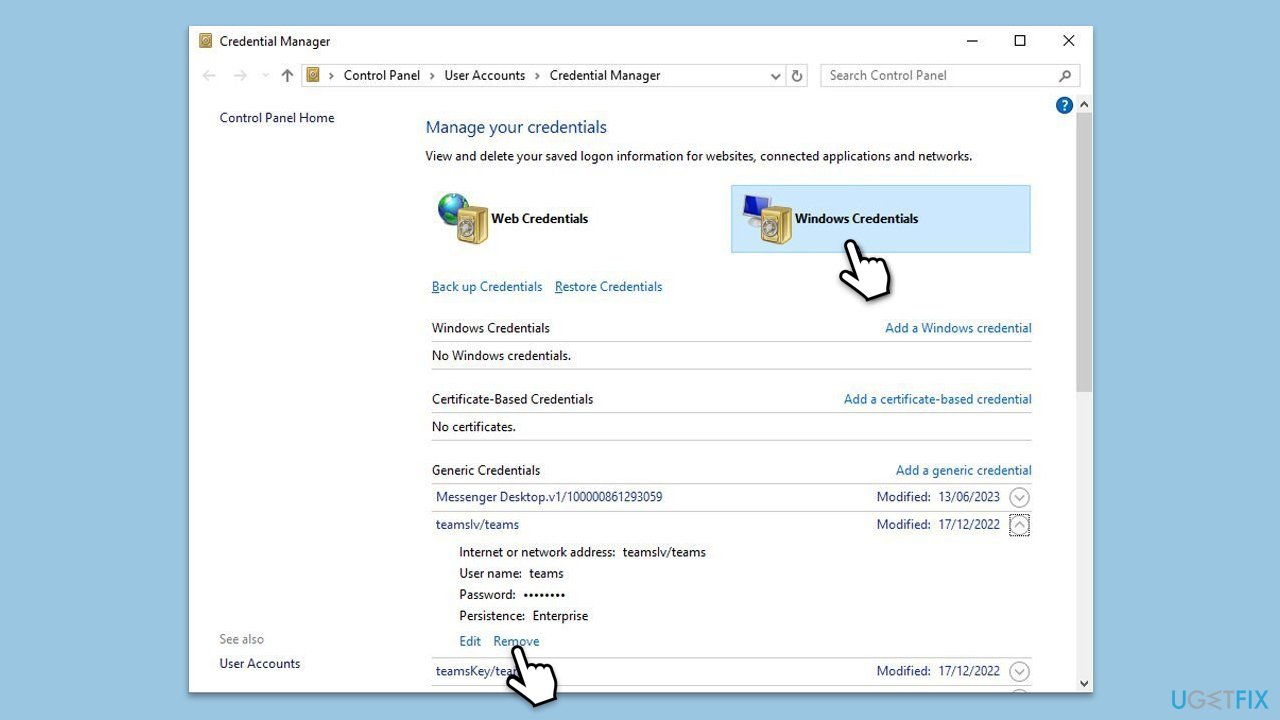
Fix 4. Clear Teams credential cache
Removing stored credentials can help fix login and connection problems by forcing a fresh authentication session.
- Lof off from Microsoft Teams.
- Type Credential Manager in Windows search and press Enter.
- Select Windows Credentials.
- Locate and remove any stored credentials related to Microsoft Teams.
- Restart Teams and re-enter your login details.
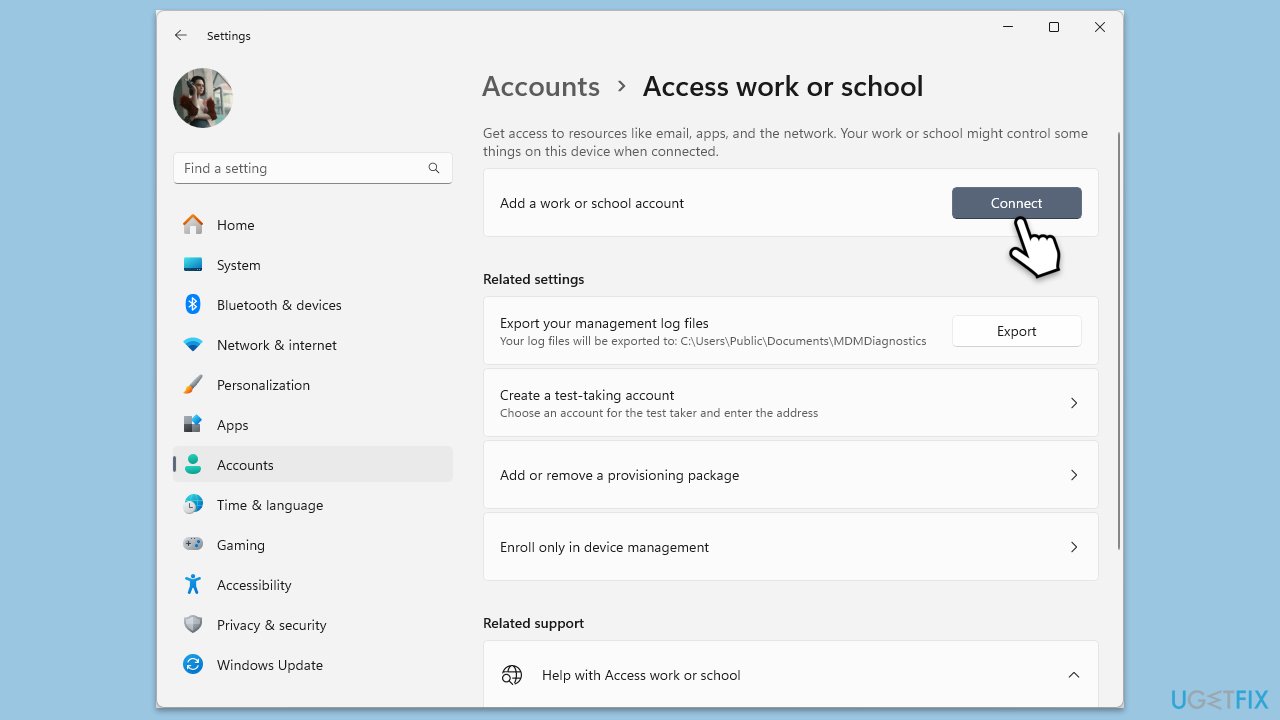
Fix 5. (Re)Connect your work or school account
Sometimes reconnecting your account can resolve issues by refreshing your session.
- Right-click on Start and pick Settings.
- Click on Accounts.
- Select Access work or school.
- If connected, click Disconnect.
- Navigate to C:\users\USERNAME\AppData\Local\Packages (replace USERNAME with your actual username).
- Delete the contents of the folder.
- Restart your computer.
- Return to Access work or school and connect your account again.
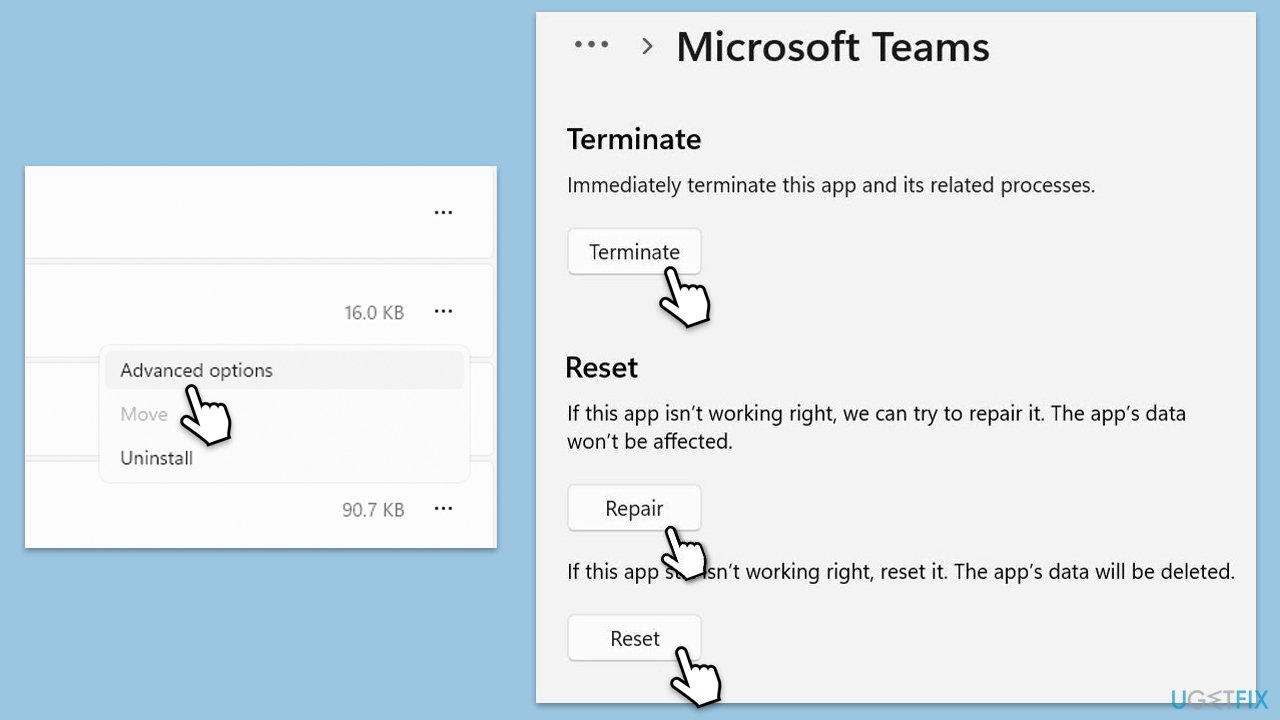
Fix 6. Repair or reset Teams
Repairing or resetting the app can fix issues without affecting your data, but resetting will delete app data.
- Click on Start and pick Settings.
- Go to the Apps section.
- Locate Microsoft Teams from the list.
- Click on the three vertical dots and pick Advanced options.
- Click Terminate to ensure that the app is not running.
- Under the Reset section, click Repair and see if that solved your issue.
- If not, then try the Reset option.
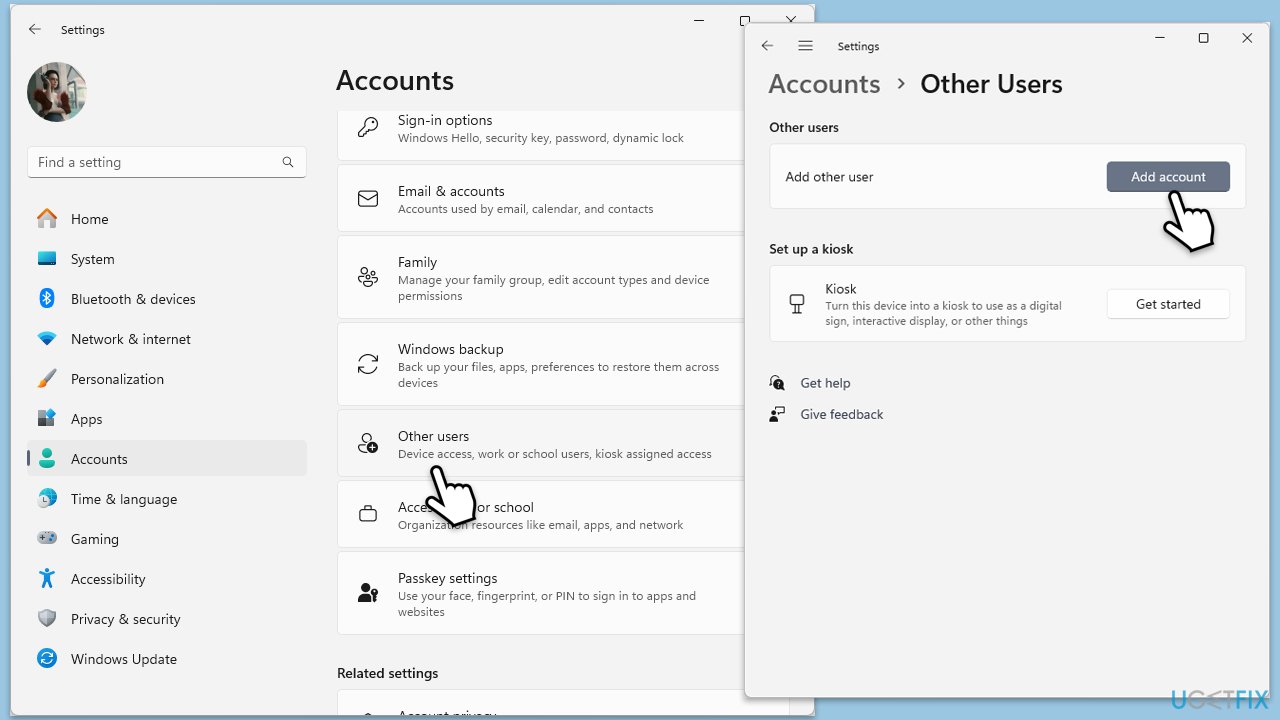
Fix 7. Create a new user profile
A new user profile can sometimes resolve persistent software issues by providing a fresh environment.
- Open Windows Settings.
- Go to Accounts then Family/Family & other users.
- Under Other users, click Add account/Add someone else to this PC.
- Follow the prompts to create a new user account. If you don't have Microsoft account details, you can choose I don't have this person's sign-in information followed by Add a user without a Microsoft account.
- Assign a username and password for the new account and complete the setup.
- Then go back to the Accounts section. Under Family/Family & other users, select the newly created account and click Change account type.
- Under Account type, pick Administrator and click OK.
Bottom line
To fix the 'Sorry, we couldn't connect you' error in Microsoft Teams, ensure your internet connection is reliable, restart the Teams program, and keep the app updated. Additionally, check the status of Microsoft services and review your firewall and antivirus settings. If none of these solutions work, consider reaching out to Microsoft support for further assistance.
Frequently asked questions
Try clearing the Teams cache by navigating to %appdata%\Microsoft\Teams in File Explorer and deleting the contents of the Cache folder. Additionally, ensure your Windows 10 is up to date with the latest updates installed.
Check your internet connection and restart your router if necessary. You can also try resetting the Teams app by right-clicking the Start menu, selecting Apps and Features, and then choosing Microsoft Teams to reset.
Yes, you can try disabling any VPN or proxy settings that may be interfering with Teams. Additionally, ensuring that your firewall settings allow Teams to access the internet can also help resolve the issue.




Report an issue
What's wrong with this guide? We review every report and update or remove content.
Report received — thank you. We'll review and fix it.
You need a free account to submit a report.
Be the first to comment