How to fix
Error Code 0x80240438
on Windows
Resolve error code 0x80240438 on Windows 10 quickly and effortlessly. Follow our expert-tested solutions for a smoother experience today!


What causes How to Fix Error Code 0x80240438 on Windows 10?
- Proxy connection enabled
- Windows Store cache not cleared
- Windows Firewall active
- IPv6 enabled
- Windows Update components not restarted
Repairs Windows system files, removes malware, and restores a clean OS state — without reinstalling.
Hello all. I can’t find relevant information on how to fix Windows 10 error code 0x80240438. It shows only when I try to download apps from Microsoft Store. Maybe you have any solutions?
The Window Store error code 0x80240438 is quite an old Windows bug which currently is referred to as a Windows Store error. Tracking such bugs, especially the ones related to security, has become a seriously well-paid business.[ref en-1] However, we should not forget the issue.
The ones who are dealing with error code 0x80240438 will definitely argue about the "old" reference because the error has already appeared during Windows 10 upgrade or update processes. As a result, you can notice that it suspended the performance of both, Windows Store[ref en-2] app and Windows Update service.[ref en-3]
Not being able to download new apps or update already installed ones can be quite a hassle to many. Not only it negatively impacts security but it also prevents users from enjoying relevant features on Windows. When they attempt to download either an update or an app from Windows Store, they receive the following error message:
Give us a few minutes
Something went wrong on our end. Wait a bit and then try again.
The error code is 0x80240438, in case you need it.
Since each operating system has diverse characteristics and content, the culprit of the 0x80240438 error differs accordingly. Nevertheless, the problem can be resolved by disabling the Proxy connection, clearing the Windows Store cache, turning off Windows Firewall, disabling IPv6, restarting Windows Update components, and similar.
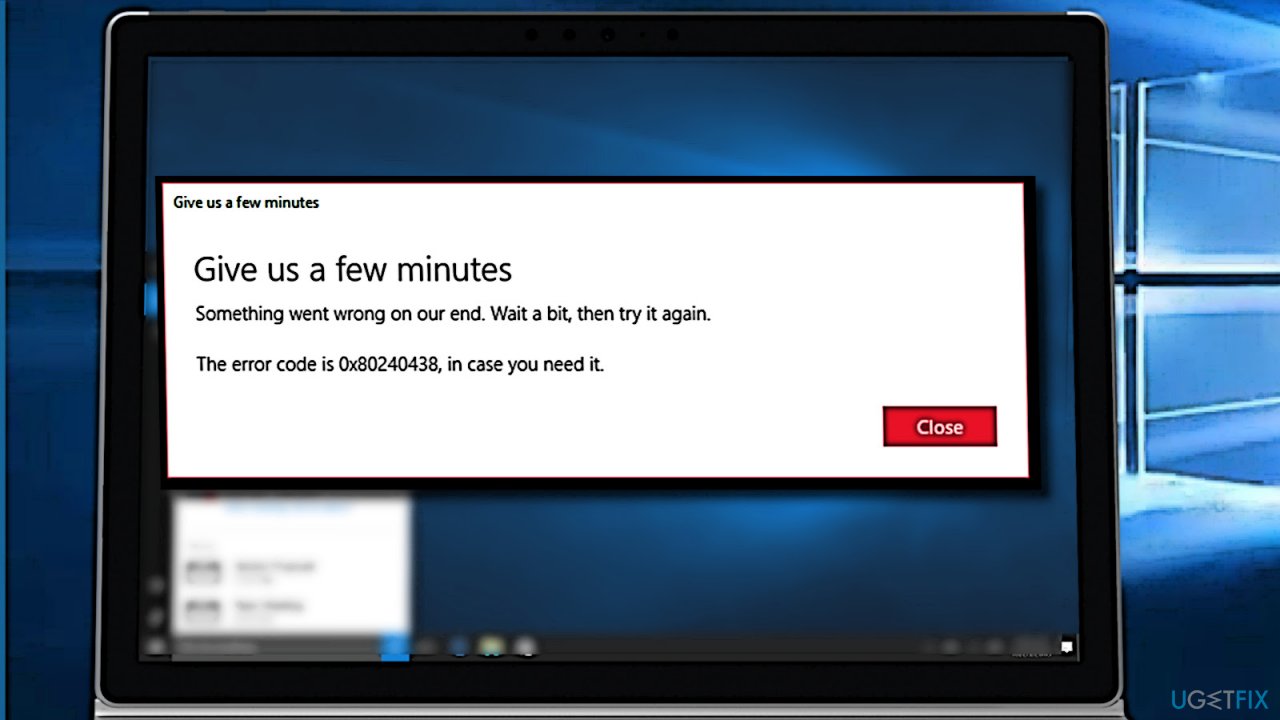
A Guide on how to fix Windows 10 App store error code 0x80240438
In this thread, we’ll provide all 0x80240438 error code fixes, so try them one by one and check if any of them helps. In case of a failure, we would recommend resetting Windows or performing a clean install.
Also, check the system with the Windows Repair tool such as [d1] to ensure that all components are in the right place. Cyber infections or simple programs tend to modify system settings in a way users could not download security software or perform other actions putting the malware at risk of being removed.
[youtube kKgSXvv4RZI]
Solution 1. Disable IPv6
Many users claimed that they were able to download apps again after disabling the IPv6 connection. Here's how:
- Right-click on Start and pick Network connections.
- On the right side, click Change adapter options.
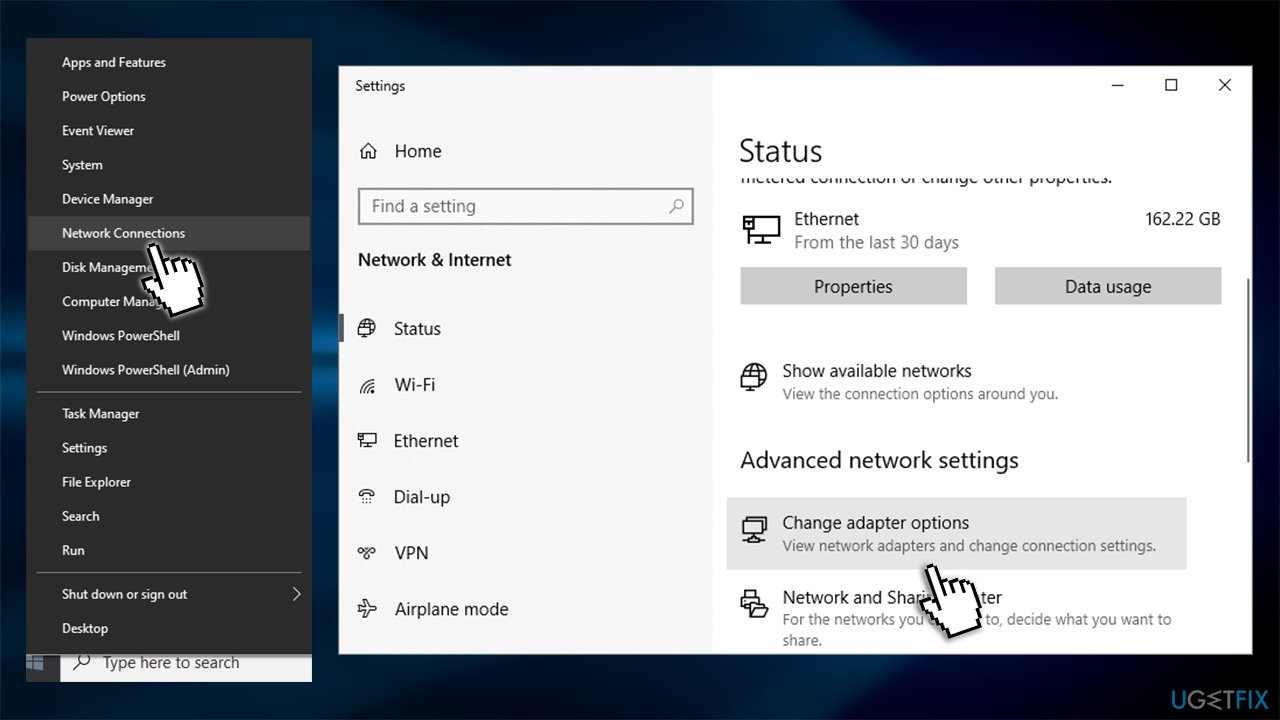
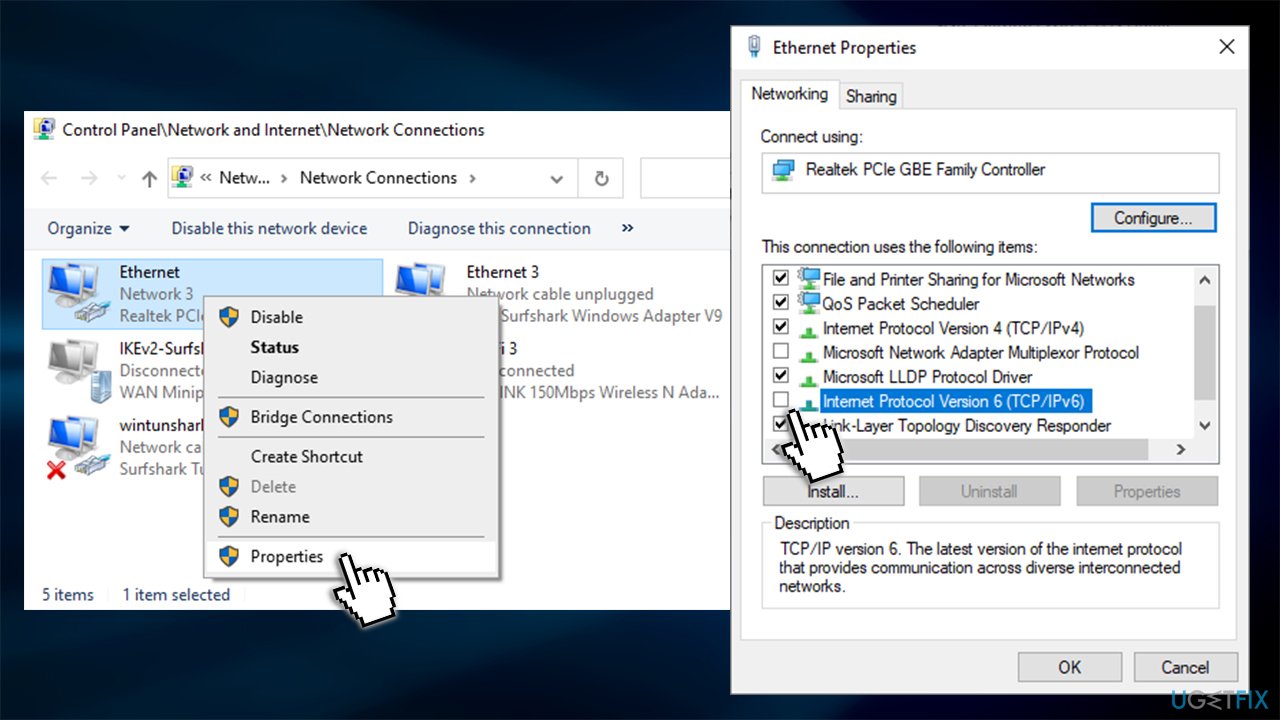
- Right-click on your primary connection and select Properties.
- In the new window, deselect the tick next to Internet Protocol Version 6 (TCP/IPv6).
Solution 2. Run Windows Store Apps troubleshooter
Troubleshooters might not be able to automatically solve your issues, but they can point in the right direction. Hence, you should run Windows Store Apps Troubleshooter:
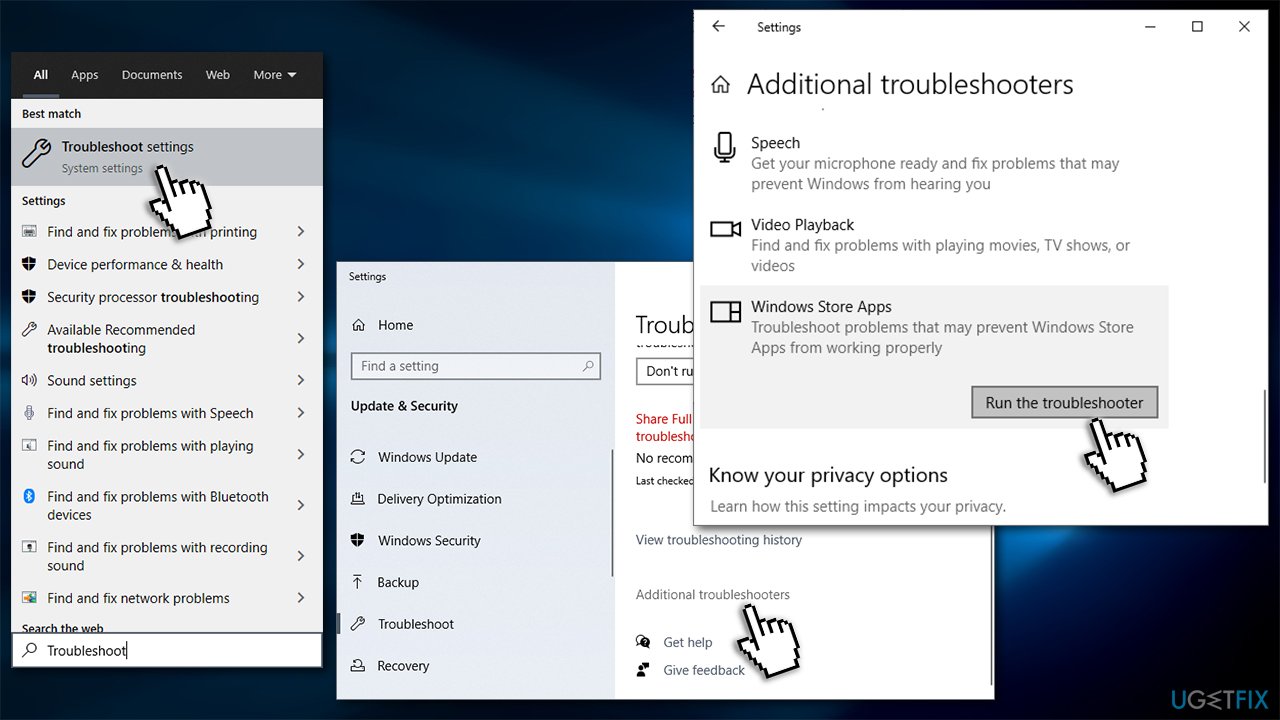
- Type in Troubleshoot in Windows search and press Enter.
- On the right side, you should see listed troubleshooters. If you don't click Additional troubleshooters.
- Scroll down and click on Windows Store Apps.
- Select Run the troubleshooter and wait for scan to be finished.
Solution 3. Disable Windows Firewall
- Press Windows key and type Windows Defender.
- Click on Windows Defender Security Center option.
- Click on Private (discoverable) network link.
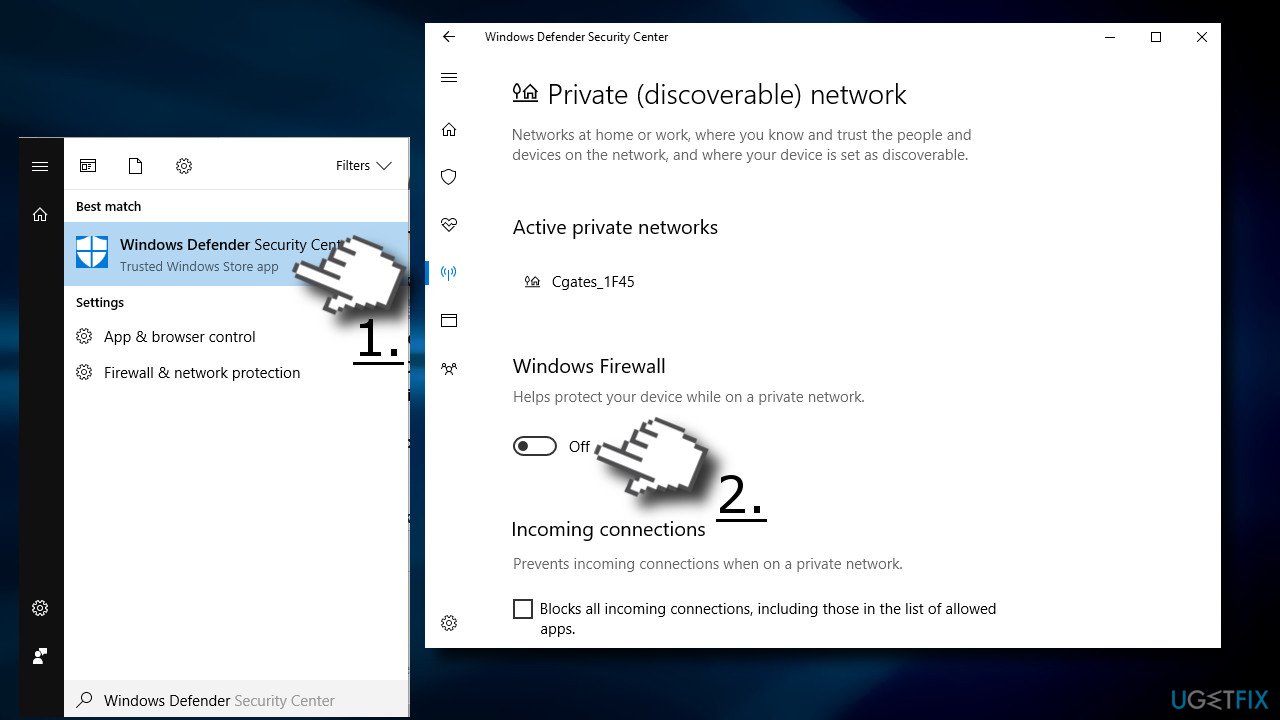
- Slide a toggle to Off under Windows Firewall section.
- Now go back to Firewall & network protection and do the same with Public (non-discoverable) network.
Solution 4. Disable Background Intelligent Transfer Service and remove the content of C:\\Windows\\SoftwareDistribution
- Press Windows key + R, type services.msc, and press Enter.
- Find Background Intelligent Transfer Service, right-click on it, and select Stop.
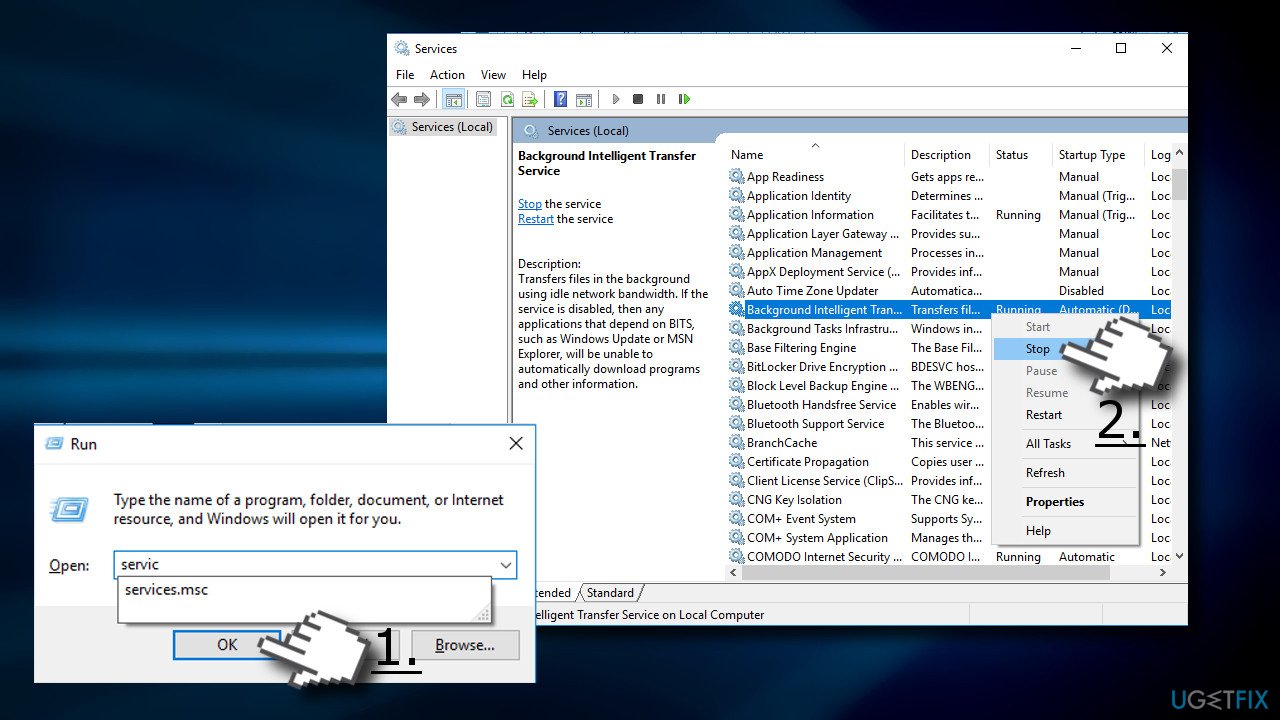
- Then find the Windows Update service, right-click on it, and select Stop.
- Open Windows Explorer and navigate to the C:\\Windows\\SoftwareDistribution.
- Remove all content stored on this folder (IMPORTANT: make sure that Download and DeliveryOptimization files have been successfully removed).
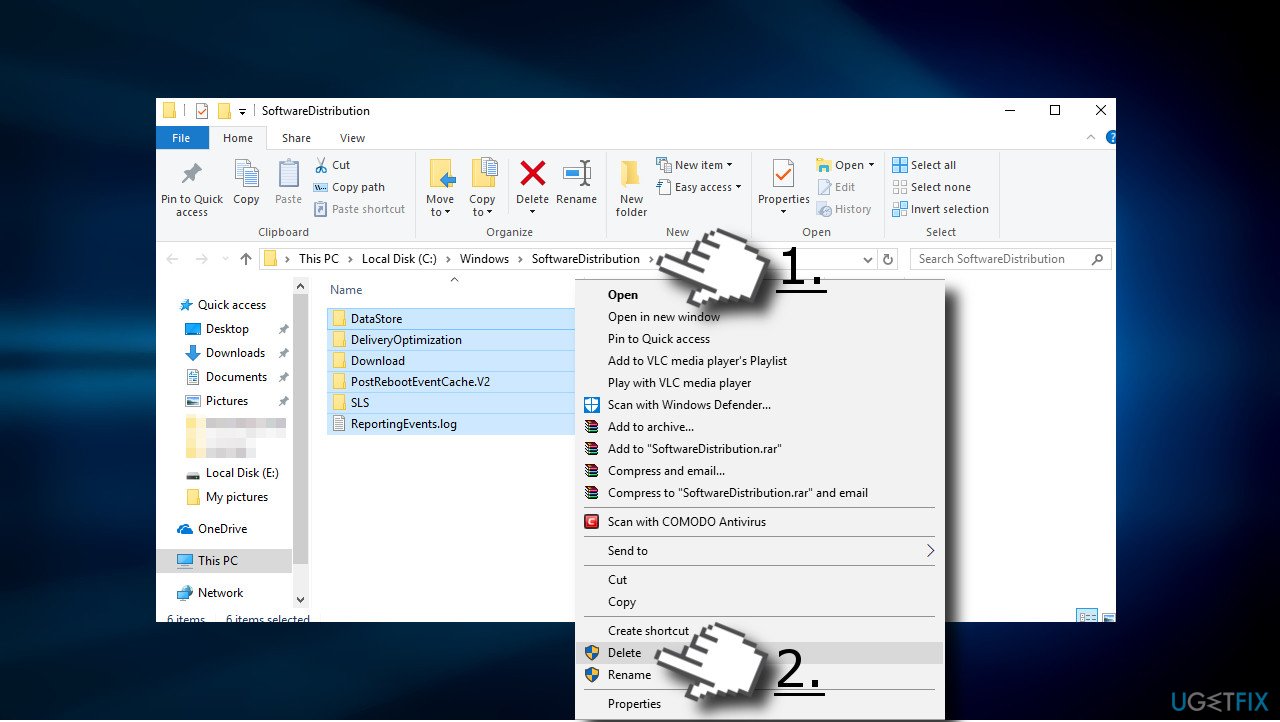
- Once the content is removed, enable Background Intelligent Transfer Service and Background Intelligent Transfer Service and Windows Update services.
Solution 5. Disable Proxy connection
- Open Internet Explorer.
- Click on the Gear Icon located at the right top of the window.
- Choose Internet Options and open Connections Tab.
- Got to LAN settings, and check the box near Use a proxy server for your LAN.
- Open Advanced tab and remove everything in Do not use a proxy server for addresses beginning with field.
- Click OK.
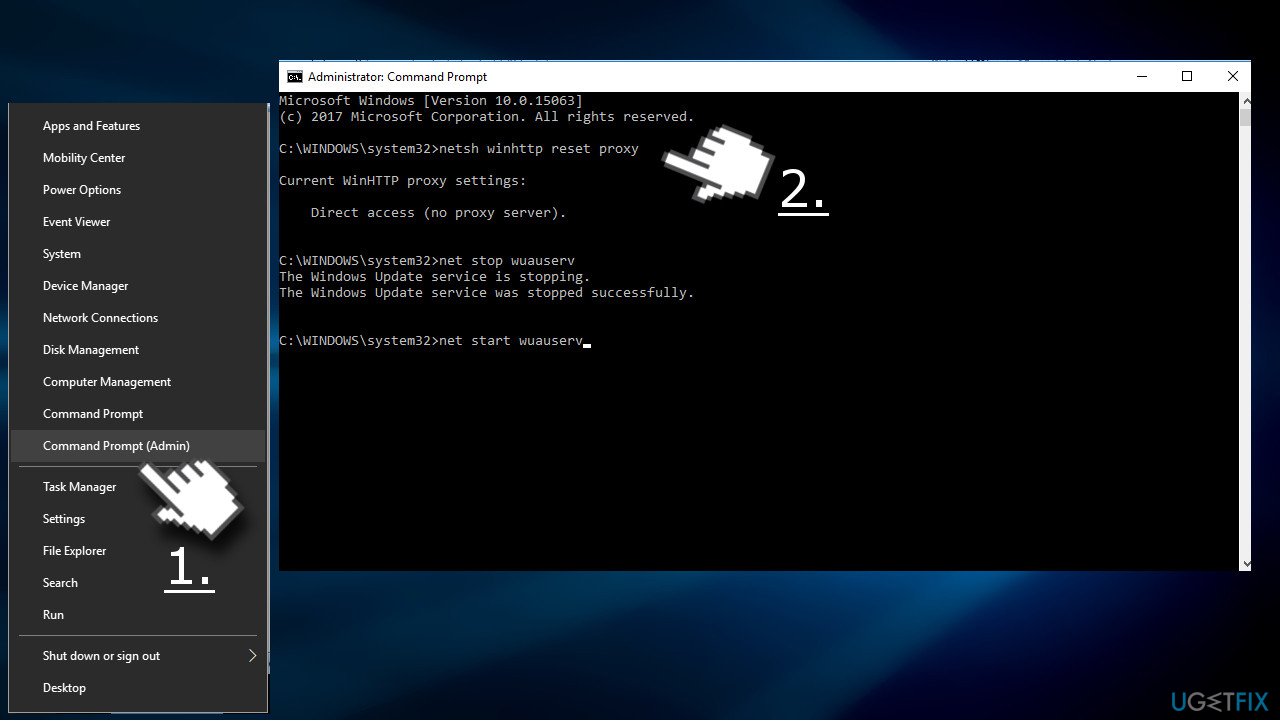
- Now right-click on Windows key and select Command Prompt (Admin).
- Copy and paste the following commands each followed by Enter:
netsh winhttp reset proxy
net stop wuauserv
net start wuauserv
Solution 6. Clear Windows Store cache
- Click on Windows key and type wsreset.
- Click on wsreset (Run command) option and wait.
- When the process will be finisged, Windows Store window will automatically open.
Solution 7. Rename Windows Store cache folder
- Press Windows key + R, paste the %localappdata%\\Packages\\Microsoft.WindowsStore_8wekyb3d8bbwe\\LocalState command in the run, and cick OK.
- Find the Cache folder, and right-click on it, and select Rename.
- Name it as Cache.old
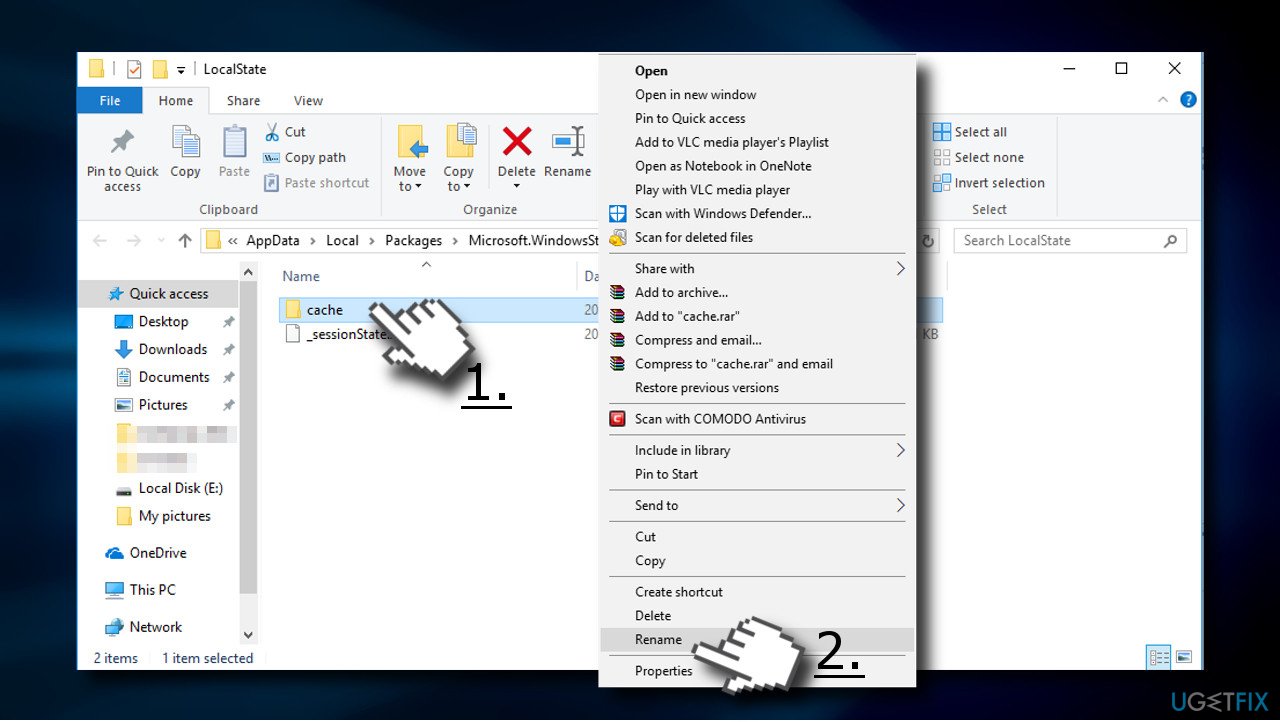
- If such folder is not on the LocalState folder, right-click on an empty space and select New -> Folder.
- Name it Cache and close File Explorer.
- Now press Windows key + I and open Updates & Security section.
- Select Troubleshoot from the left pane and find the Windows Store App.
- Click it and run a scan.
Solution 8. Modify the DisableWindowsUpdateAccess Value
- Press Windows key + R, type regedit, and press Enter.
- Use the left pane to navigate to the HKEY_CURRENT_USER \\Software \\Microsoft \\Windows \\CurrentVersion \\Policies \\WindowsUpdate directory.
- Find the DisableWindowsUpdateAccess REG_DWORD key and change its value from 1 to 0.
- Finally, restart the computer and check if that helped.
Bottom line
The error code 0x80240438 can be resolved by disabling the Proxy connection, clearing the Windows Store cache, turning off Windows Firewall, and disabling IPv6. If these fixes do not work, consider resetting Windows or performing a clean install.
Frequently asked questions
The error code 0x80240438 typically occurs due to issues with Windows Update services or problems with your internet connection affecting the update process.
To reset Windows Update components, you can run commands in Command Prompt to stop the services, rename the SoftwareDistribution and Catroot2 folders, and then restart the services.
Yes, you can try running the Windows Update Troubleshooter, which can automatically detect and fix common problems related to Windows Update, including error code 0x80240438.




Report an issue
What's wrong with this guide? We review every report and update or remove content.
Report received — thank you. We'll review and fix it.
You need a free account to submit a report.
Be the first to comment