How to remove
Uninstall MyWinLocker Suite
from Windows
Easily uninstall MyWinLocker Suite from Windows 10 or 11 with our clear guide. Expert-tested for quick and hassle-free removal, zero traces left.

How does How to Uninstall MyWinLocker Suite end up on your PC?
- Program is not provided with a direct uninstall choice
- Failed uninstallation via Control Panel
- Program may be a potentially unwanted program (PUP)
- Leftover registry entries after attempted removal
- Program may cause PC slowdowns and crashes
Repairs Windows system files, removes malware, and restores a clean OS state — without reinstalling.
I tried to remove MyWinLocker a couple of days ago and thought that I managed to do so. Sadly, today I found this program residing in my PC. Actually, I‘m not provided with a direct uninstall choice, which is why I don‘t know how to get rid of it. I tried to delete the software via Control Panel, but that doesn‘t work. For now I receive a pop-up saying that the program was not uninstalled successfully. Please help, guys!
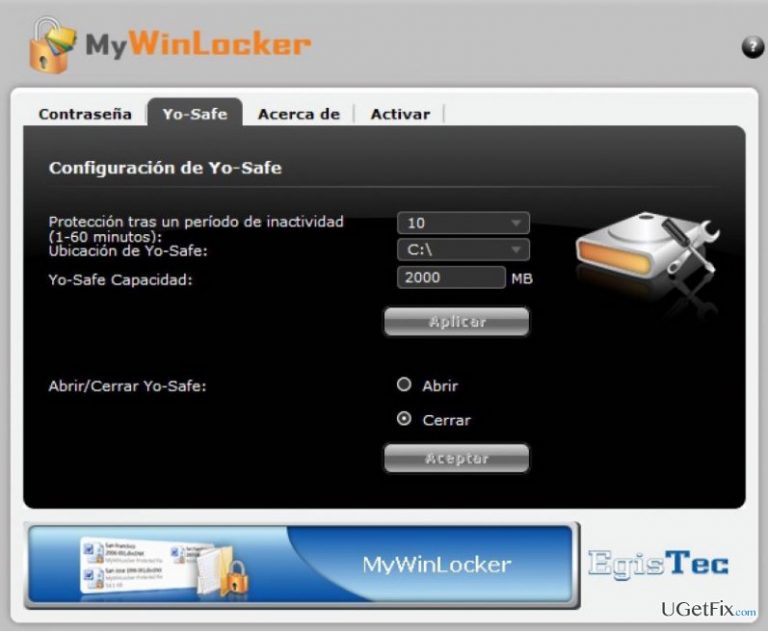
Before introducing you with the MyWinLocker removal methods, we would like to introduce the program itself. MyWinLocker (a.k.a MyWinLocker Suite) is a software developed by Egis Technology. It is described as an advanced file encrypting utility, what means that it has been developed for protecting passwords, log-ins, and other personal information. Unfortunately, the program is blamed for being a Trojan horse or a virus which is not actually true. This program might be called a PUP (potentially unwanted program) as it is commonly spread via software bundles.
Even though the program does not exhibit malicious traits, lots of users claim that it useless. On top of that, it may cause PC‘s slowdowns, crashes and similar unwanted issues. Therefore, if you belong to the group of unsatisfied users, you should remove MyWinLocker right now. Luckily, the removal can be performed quite easily. You can select one of the methods described down below.
How to uninstall MyWinLocker Suite?
Method 1. Manual removal
- Make sure that the program is not running. For that, click Ctrl + Alt + Delete at once and open Task Manager. Find MyWinLocker, right click on it and select End Task;
- Click on the Start button (left corner) and select Control Panel (Windows 8);
- Click Uninstall a Program (Windows Vista/7/8) or click Add or Remove Programs (Windows XP);
- Press OK to confirm the removal and wait until it’s done.
Unfortunately, that’s not enough to remove MyWinLocker once and for all. In order to get rid of it completely, you have to root out the leftovers from the registries. For this purpose, perform the following steps:
- Press and hold Windows key, select Search, enter “regedit” in the field to open Registry Editor.
- Here you should look for the folders named as:
HKEY_CURRENT_USER\Software\EgisTec MyWinLocker\ HKEY_LOCAL_MACHINE\SOFTWARE\EgisTec IPS\
Besides, look for anything that is related to MyWinLocker. - Make sure that you remove the folders and all other leftovers.
- Finally, restart your PC. We believe that this method will help you to successfully delete MyWinLocker from Windows.
Method 2. Automatic removal
Since this software is commonly distributed via software packages, it is frequently recognized as a PUP. Thus, if you seek a quick MyWinLocker removal, you can use a professional anti-malware program. However, having in mind that MyWinLocker is NOT a virus, not all anti-malware programs can recognize it as a threat or unwanted application. Therefore, we recommend using a tool that is used for removing programs particularly. Our recommendation would be to use [rev id="Perfect Uninstaller"] or [d1].
Bottom line
To uninstall MyWinLocker Suite, you can manually remove it by ending the task in Task Manager and then uninstalling it through Control Panel. Additionally, ensure to clean up any leftover registry entries to completely remove the program. If these methods do not work, consider seeking further assistance or using specialized uninstallation software.
Frequently asked questions
To uninstall MyWinLocker Suite from Windows 10, go to Settings, select Apps, find MyWinLocker Suite in the list, and click on Uninstall.
If MyWinLocker Suite is not listed, try using the Control Panel by searching for 'Control Panel' in the Start menu, then navigate to Programs and Features to uninstall it.
After uninstalling MyWinLocker Suite, check for leftover files in the installation directory and use a registry cleaner to remove any remaining entries from the Windows registry.




Report an issue
What's wrong with this guide? We review every report and update or remove content.
Report received — thank you. We'll review and fix it.
You need a free account to submit a report.
Be the first to comment