How to remove
Uninstall LogMeIn
from Windows
Discover quick methods to uninstall LogMeIn on Windows 10 and Windows 11. Ensure a clean removal with expert-tested techniques and zero traces left.

How does How to Uninstall LogMeIn on Mac OS X end up on your PC?
- Application running in the background
- User inexperience with Mac devices
- Difficulty in using the LogMeIn uninstaller
- Potential for system crashes or slowdowns due to unused apps
- User perception of the program as malicious
Repairs Windows system files, removes malware, and restores a clean OS state — without reinstalling.
Hello, I have recently installed LogMeIn app on my Mac as I thought that I will have to log in to my work PC from home. Nevertheless, I didn’t need to do so, but it appears now that I can’t delete this application. Could you please help me to do so as I don’t want to keep unused apps on my Mac, and I believe that this program is somewhat malicious. Thanks.
LogMeIn is the program that gives the opportunity to connect remotely. It is a cloud-based platform used for IT management, software collaborations, customer engagement. This is a popular and simple program, but the uninstallation of the tool can get difficult, especially when you are not experienced with Mac devices and applications.
The application can still be running in the background and interfere with the elimination process and uninstallation using the particular LogMeIn uninstaller. Users[ref en-1] complain about this issue online constantly, so it seems that LogMeIn creates frustration particularly often.
LogMeIn is a software for PC and Mac systems. Its function is to connect several computers in order to let users access each of them remotely. In other words, by using LogMeIn, people get the ability to access home PC/Mac from work and vice versa. Such service is sometimes called the host.[ref en-2]
Before creating remote access to the device you need, make sure that both PCs/Macs have LogMeIn installed. Then you just have to launch the software on both machines and follow the instructions.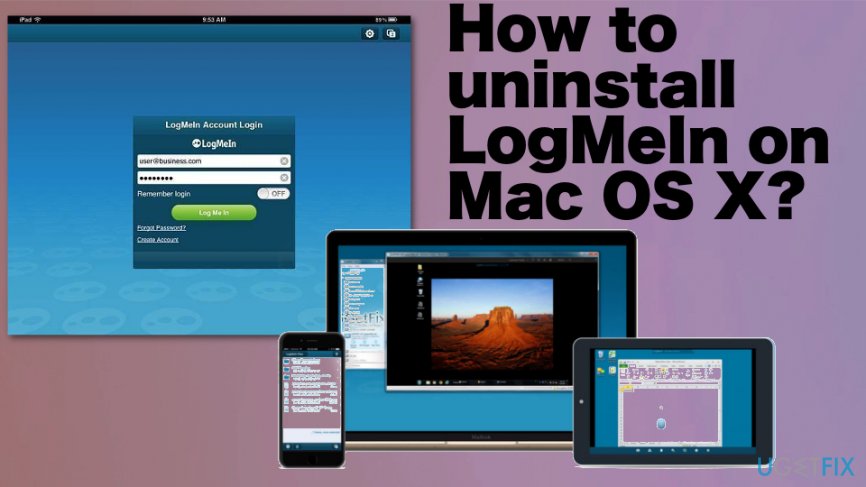
This is not a program that could be considered malware[ref en-3] or a particular Mac virus, but there are many reasons that users want to uninstall the software that they don't use. If LogMeIn did not meet your expectations or you don‘t need it anymore, it‘s time to uninstall it. Otherwise, it may waste space on your Mac or even collide with other important apps.
How to Uninstall LogMeIn on Mac OS
If you want to Uninstall LogMeIn on Mac OS manually, you should know the difference between „remove“ and „uninstall“. Removal means that you simply drag the icon to the trash. Unfortunately, but that‘s not the solution for this app. By doing so, you may leave lots of files that are related to this program, which means that you can‘t use the app anymore, but it is still using the machine‘s resources and running some processes.
To uninstall LogMeIn and other apps on Mac means that you have to look through different folders and delete everything that is related to the program you no longer need. There is a serious need for cleaning all related files to stop the processes completely.
Be very careful because it’s very easy to skip the needed files because they are somewhere among hundreds of other system files. In case you want to avoid this tough manual LogMeIn removal process, you can always rely on the program like [rev id=”Reimage”] that can possibly find those files and even fix damaged and corrupted system folders, entries.
LogMeIn removal
- Quit LogMeIn if it is running and find the LogMeIn icon in the Menu to choose exit.
- Find Applications folder and open it;
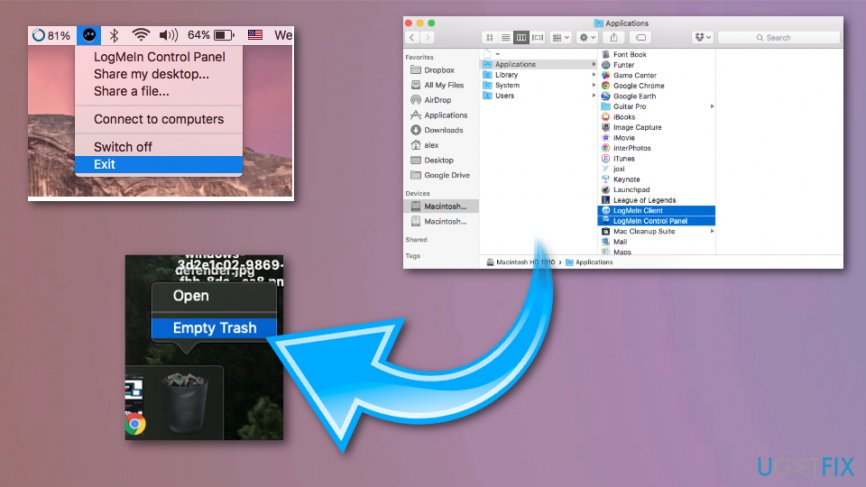
Uninstall logmein on mac os remove trash - Look for the LogMeIn icon and click on it;
- Hold it for a while and then drag to Trash;
- Empty the Trash.
Stop LogMeIn tasks
- Open the Terminal from Applications/ Utilities
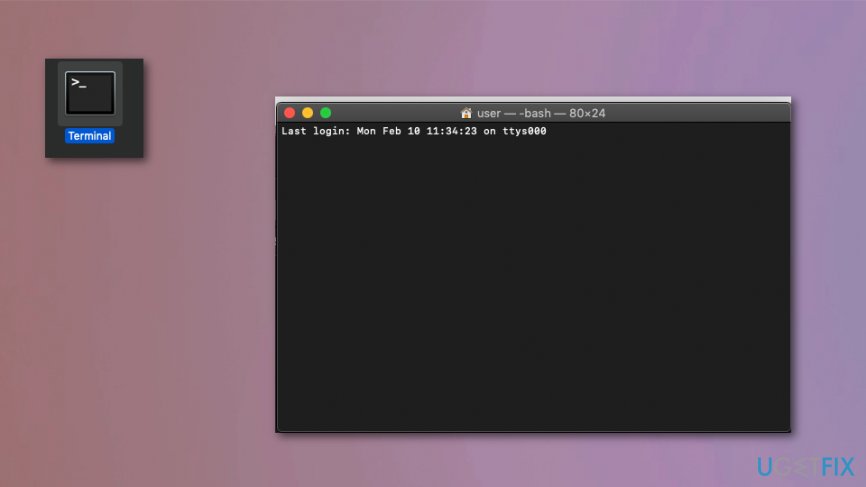
Uninstall logmein on mac os terminal - Type the following command:
/Library/Application Support/LogMeIn/bin/LogMeIn.app/Contents/Helpers/logmeinserverctrl stop - Then run the following commands:
/bin/launchctl unload /Library/LaunchDaemons/com.logmein.logmeinserver.plist 2>/dev/null euid:0 uid:0
/bin/launchctl bsexec 68 chroot -u 501 -g 20 / /bin/launchctl unload -S Aqua /Library/LaunchAgents/com.logmein.logmeingui.plist 2>&1 euid:0 uid:0
/bin/launchctl bsexec 68 chroot -u 501 -g 20 / /bin/launchctl unload -S Aqua /Library/LaunchAgents/com.logmein.logmeinguiagent.plist 2>&1 euid:0 uid:0
/bin/launchctl unload -S LoginWindow /Library/LaunchAgents/com.logmein.logmeinguiagentatlogin.plist 2>/dev/null euid:0 uid:0
Remove LogMeIn files
You need to go through particular places of the device to find all the components of the application on your Mac:
/Library/Application Support/LogMeIn/
/Library/Application Support/LogMeIn/drivers/LogMeInSoundDriver*.kext
/System/Library/Extensions/LogMeInSoundDriver*.kext
/Library/LaunchDaemons/com.logmein.*
/Library/LaunchAgents/com.logmein.*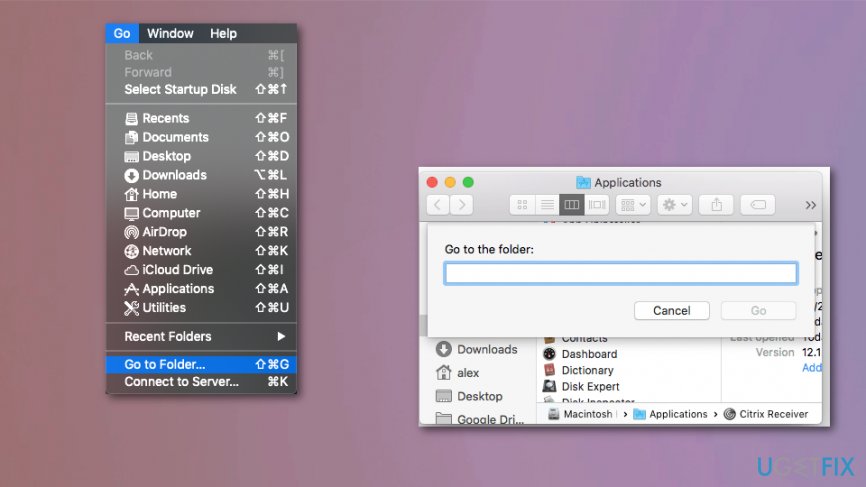
Uninstall LogMeIn completely
Furthermore, you have to check other folders and locate all additional files that may belong to LogMeIn application. Start checking with these folders:
/Library/Application Support/
/Library/ Preferences/
Bottom line
To uninstall LogMeIn, ensure the application is not running in the background and use the LogMeIn uninstaller. If you encounter issues, consider checking for any residual files or using a third-party uninstaller. If none of these methods work, seeking professional assistance may be necessary.
Frequently asked questions
Yes, you can uninstall LogMeIn from Windows 10 or Windows 11 through the Control Panel or Settings app by navigating to 'Apps' and selecting LogMeIn from the list.
If LogMeIn won't uninstall on Windows 10, try using the built-in troubleshooter for programs or consider using a third-party uninstaller to remove it completely.
Yes, uninstalling LogMeIn should not affect your Windows 10 or Windows 11 performance, but make sure to back up any important data before proceeding.




Report an issue
What's wrong with this guide? We review every report and update or remove content.
Report received — thank you. We'll review and fix it.
You need a free account to submit a report.
Be the first to comment