How to remove
Uninstall Adobe Acrobat
from Windows
Discover quick and effective ways to uninstall Adobe Acrobat from Windows 10 or Windows 11 effortlessly. Expert-tested solutions for hassle-free removal!

How does How to uninstall Adobe Acrobat from Mac end up on your PC?
- Application is currently running
- User finds the app annoying due to dialogue boxes
- Users experience struggles and slowness
- Some users dislike the design and functionality
- Deleting the app may affect PDF viewing in browsers
Repairs Windows system files, removes malware, and restores a clean OS state — without reinstalling.
Hello, I have this Adobe Acrobat Reader DC application in my Mac computer and I want to get rid of it. How should I eliminate the application itself and all of its "leftovers"? Thank you.
Adobe Acrobat Reader DC is known as a popular application for managing PDF files.[ref en-1] This app allows users to view, edit, comment, and print various PDF documents. Even though if some people find this program very useful as they may be dealing with PDFs every day, some other users can experience struggles and slowness while using this app.
One of the main reasons why some people decide to get rid of Adobe Acrobat is that it bombards the screen with a dialogue box which includes the option to open the PDF document in a browser window. Users have to press the "open" button, otherwise, the program will not allow them to view the file.
In some cases, this becomes very annoying, especially when the person is in a hurry. What is more, we have made some research and search for reviews in tech forums. We have found that some users think about this Adobe Acrobat app as ridiculous due to its design and functioning style.[ref en-2]
However, it does not matter why you want to delete Adobe Acrobat as it is only your own choice. Just note that once you delete this app you might not be capable of viewing PDFs on some browsers, so you will need to get another app. If you have already decided to clean your Mac computer from this application, continue with the following steps.
How to uninstall Adobe Acrobat from Mac?
Before you start the removal of Adobe Acrobat from your Mac machine, you need to ensure that the application is not currently running on the system as this will prevent it from being removed to the Trash section. Furthermore, you will need to eliminate not only the application itself but also get rid of all additional content that has been brought by it.
Way 1. Get rid of Adobe Acrobat from the Applications folder
- Go to the Applications folder which is located in the Finder section.
- Locate Adobe Acrobat and send it to the Trash section.
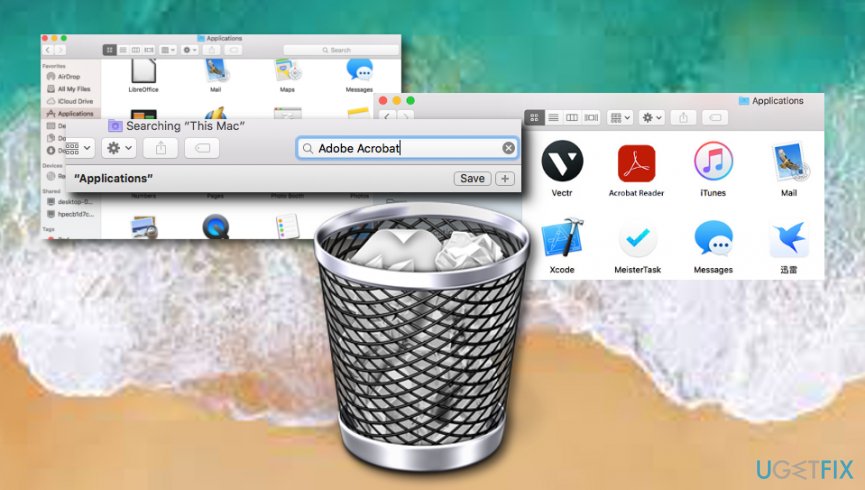
Remove adobe acrobat from mac - Also, empty the Trash.
After you complete this action, do not forget to eliminate all other additional components that have been installed together with Adobe Acrobat Reader DC. What you will have to do its visit these folders:
~/Library/Application Support/Adobe
~/Library/Caches/Adobe
~/Library/Saved Application State/com.adobe.Reader.savedState
~/Library/Caches/com.adobe.Reader
~/Library/Caches/com.adobe.InstallAdobeAcrobatReaderDC
~/Library/Preferences/Adobe
~/Library/Preferences/com.adobe.Reader.plist
~/Library/Preferences/com.adobe.AdobeRdrCEFHelper.plist
~/Library/Logs/Adobe_ADMLogs
~/Library/Logs/Adobe
~/Library/Cookies/com.adobe.InstallAdobeAcrobatReaderDC.binarycookies
You can easily reach each of this folder by pressing Command+Shift+G all together at the same time. A dialogue box will appear and you can type in the folder name that you want to go to and you will be taken to it slightly. Once you locate all Adobe Acrobat-related content, delete it and send it to the Trash section also. After you are finished, empty the Trash.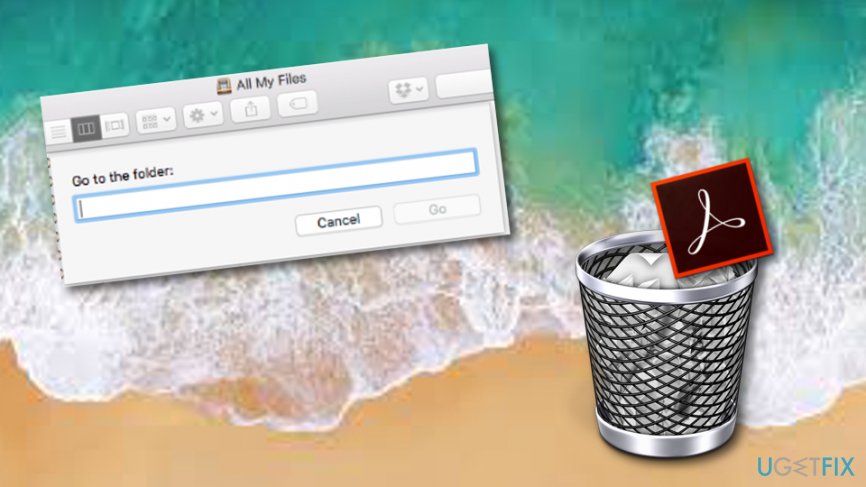
Way 2. Take care of your problems automatically
The previous method should work for you, however, if you have done everything exactly as we have described in the instructions but Adobe Acrobat Reader DC is still on your computer, there might be other problems in your system. Maybe some type of error or threat is preventing the uninstalling of such application. You can try to find this out by performing a full Mac system[ref en-3] scan with a reputable computer tool such as [d1].
Bottom line
To uninstall Adobe Acrobat from your Mac, ensure the application is not running and remove it from the Applications folder. Additionally, eliminate all associated content to fully clean your system. If these steps do not resolve the issue, consider seeking further assistance or using alternative PDF management applications.
Frequently asked questions
Yes, you can uninstall Adobe Acrobat by going to Control Panel > Programs > Programs and Features, selecting Adobe Acrobat, and clicking 'Uninstall.'
To completely remove Adobe Acrobat, use the built-in uninstaller and then manually delete leftover files in the installation directory and registry entries related to Adobe.
If you encounter errors, try using the Adobe Creative Cloud Cleaner Tool, which can help remove problematic installations.




Report an issue
What's wrong with this guide? We review every report and update or remove content.
Report received — thank you. We'll review and fix it.
You need a free account to submit a report.
Be the first to comment