How to remove
Vulkan Run Time Libraries. FAQ: what is it? how to reinstall
from Windows
Discover what Vulkan Run Time Libraries are and how to easily reinstall them on Windows 10 or 11. Expert-tested tips for smooth performance, updated 2025.

How does Vulkan Run Time Libraries. FAQ: what is it? how to reinstall end up on your PC?
- Vulkan Run Time Libraries is not a virus or malware
- It is necessary for accessing specific features of certain programs
- It helps in controlling CPU and GPU work
- It enhances performance in 3D gaming
- It can prevent CPU overheating by distributing workloads
Repairs Windows system files, removes malware, and restores a clean OS state — without reinstalling.
Hi, I'm here with a question. I was scrolling through my computer system yesterday and found this Vulkan Run Time Libraries. What is this software? Should I remove it?
We want to inform all users that Vulkan Run Time Libraries is definitely NOT a virus or some type of malware form as some people might think. This type of component is widely used on Windows operating systems for controlling the work of the Central Processing Unit[ref en-2] and the Graphics Processing Unit.[ref en-1]
A Vulkan Run Time Library can be recognized as a collection of various software products that are necessary if the user wants to access some specific features of the program he/she is using at the moment. Run time libraries bring benefits when allowing the software package to launch will all its functions and services included.
Vulkan Run Time Libraries are APIs, familiar with OpenGL[ref en-4] and DirectX[ref en-5] which are commonly used for better and more advanced computer graphics.[ref en-3] Such software is very useful for people who are interested in 3D gaming. Even though this tool is just newly created, some games which are supported by it gain the ability to operate at a higher level.
In addition, if you are looking for a way to keep your CPU work at a normal and low level, note that installing Vulkan Run Time libraries might help you with this task as Vulkan is known to have the ability of dividing computing work into multiple groups and passing them on for different CPU cores so that the CPU itself would not overheat.
If you are a frequent player of computer games such as Mad Max, Quake, GRID Autosport, Dota 2, Warhammer 40,00, Doom, Rise of the Tomb Raider, The New Colossus, Dawn of War III, Wolfenstein II, F1 2017, and Serious Sam Fusion 2017, our advise would be to leave Vulkan Run Time Libraries on your machine.
Note that it is completely normal to find Vulkan Run Time Libraries running on your Windows computer system as they can already come originally installed if you are using Nvidia services or similar drivers. Even though you can install the libraries yourself, you will supposedly find them already automatically installed on your Windows machine.
However, if you do not want to see Vulkan Run Time Libraries on your computer anymore, you can uninstall it, just make sure that the quality of your gaming does not decrease after the removal of this tool. If you are not a player of the before mentioned games, you should be fine without this tool.
Additionally, if you run into some problems or errors that are related to Vulkan Run Time Libraries, you can try reinstalling this application. In some rare cases, it might start freezing, struggling, or the tool icon might not appear. So, if you think that this software is not operating as it should, such problems should end after reinstalling it with the below-given guidelines.
How to uninstall and reinstall Vulkan Run Time Libraries?
If you decided that you do not need Vulkan Run Time Libraries on your Windows computer anymore, you can remove this tool from your machine with the help of the below-provided steps. Additionally, we have provided a guide for reinstalling this app also. This should suit users who have been running into problems with the tool's operating process.
Step 1. Uninstall Vulkan Run Time Libraries from Windows
If you are not playing any games that require the run time library and found the Vulkan Run Time Libraries driver unnecessary on your Windows computer system, you can perform the uninstalling process yourself. Below we have provided some guiding steps that will help you to delete this component from your machine easily:
- Hold the Windows key and R button together for a second.
- Once a white run box appears, type in appwiz.cpl and hit OK.
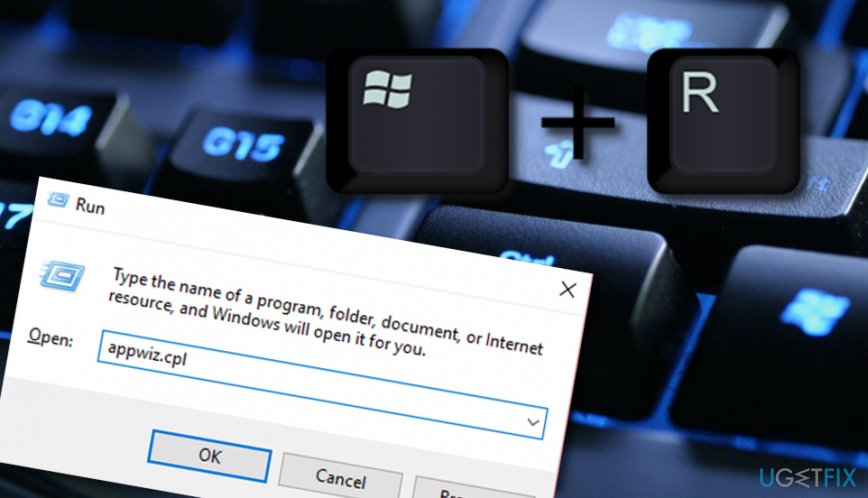
Uninstall vulcan run time libraries from windows - Locate Vulkan Run Time Libraries in the given list.
- Right-click on this tool and choose the "Uninstall" function.
Step 2. Use Control Panel to remove the driver
We have made a research and found out that there is more than one technique that will help you to remove run time libraries. If you prefer using the Control Panel more than the Windows Task Manager, you can uninstall Vulkan Run Time libraries via this section:
- Type "Control Panel" in the Windows search.
- Launch the app and go for the Uninstall a program section.
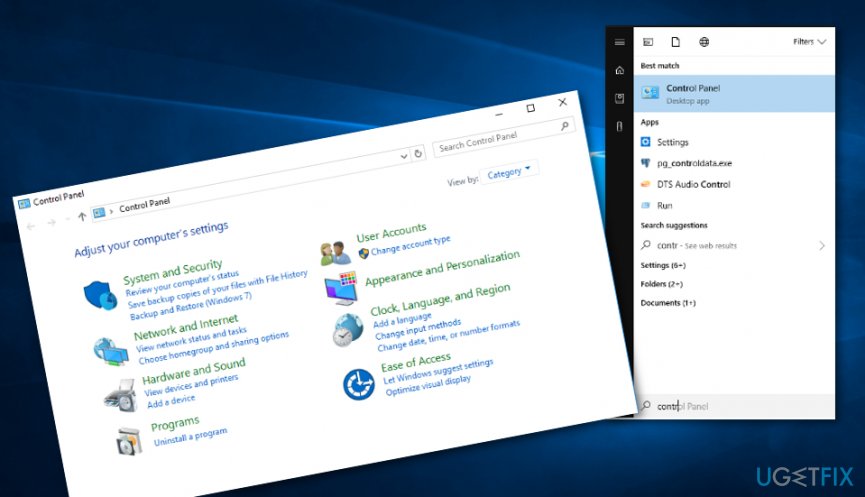
Uninstall vulkan run time libraries via control panel - Find Vulkan Run Time Libraries and opt for Uninstall.
Step 3. Reinstall Vulkan Run Time Libraries on your machine
We also have provided a method for reinstalling Vulkan Run Time Libraries on your Windows operating system. If you have found this product struggling, freezing, or not operating for some error/bug, you could try to recover its activity by using the below-provided reinstalling guidelines:
- Go to your Windows search section and locate Device Manager.
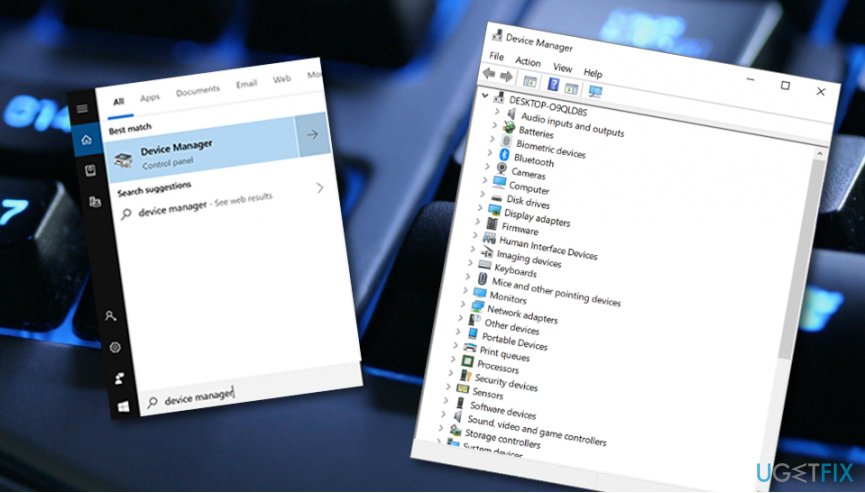
Reinstall vulcan run time libraries - Expand the graphics hardware device section and right-click on the driver to Uninstall it.
- Take a look at the "Delete the driver software for this device" section and then opt for the Uninstall feature.
- Reboot your machine.
- Search if Vulkan Run Time Libraries is on your computer again.
These are the basic steps for uninstalling and reinstalling Vulkan Run Time Libraries on your Windows computer system. If you have completed all of the instructions correctly, the tool should be successfully removed or reinstalled on the machine. However, if something is preventing you to do that, you can use [rev id="Reimage] for a computer check-up as some errors in the system might be causing you (un)installing problems of this software.
Bottom line
Vulkan Run Time Libraries is a legitimate software component that enhances gaming performance and system efficiency. If you encounter issues, consider reinstalling the libraries or ensuring your drivers are up to date. If none of these solutions work, further troubleshooting may be required.
Frequently asked questions
Vulkan Run Time Libraries are components that allow applications to utilize the Vulkan API for enhanced graphics performance. They are often installed with games or graphics software on Windows 10 and Windows 11.
You can check for Vulkan Run Time Libraries by going to 'Apps & features' in Settings and looking for 'Vulkan Run Time Libraries' in the list of installed applications.
To reinstall Vulkan Run Time Libraries, first uninstall them from 'Apps & features', then download the latest version from the official Vulkan website or reinstall the software that originally installed them.




Report an issue
What's wrong with this guide? We review every report and update or remove content.
Report received — thank you. We'll review and fix it.
You need a free account to submit a report.
Be the first to comment