How to remove
Uninstall Baidu PC Faster
from Windows
Easily uninstall Baidu PC Faster from Windows 10 or 11 with our comprehensive guide. Expert-tested methods guaranteed to remove it completely. Fixed in …


How does How to uninstall Baidu PC Faster end up on your PC?
- Outdated hardware
- Insufficient storage space
- Dust accumulation
- Outdated drivers
- Malware infections
Repairs Windows system files, removes malware, and restores a clean OS state — without reinstalling.
Hello, I have recently noticed scans being performed on my Windows machine by a program called Baidu PC Faster. I don't remember installing it, and, judging by its name, it seems like it can be used to speed up the PC? Should I keep or uninstall l Baidu PC Faster? Thanks for the advice.
Baidu PC Faster is a system optimization tool developed by Beijing-based technology company Baidu which employs more than 45 million people worldwide.[ref en-1] As the application claims:
We make PC Faster
So, the question is if the application is actually useful, and can it make the PC faster? Should you uninstall Baidu PC Faster? In this article, we will try to give you insights on the app, and you can decide for yourself.
Many computer users complain about slow PC speeds, high CPU usage, fast fan speeds, programs freezing and crashing, and other issues they experience. These type of problems might arise due to numerous issues, including outdated hardware, insufficient storage space, dust, outdated drivers, or even malware infections. Regardless of what it is, users rush to try to fix slow PC issues.
Due to this reason, many users resort to "system cleaners" or "optimizers" - just like Baidu PC Faster. However, many of such tools are known to be complete scams - they actually do not have a positive effect on the PC speed. Additionally, some of such software often flags harmless registry[ref en-2] or other files as junk or even potentially dangerous.
The exaggerated scan results that are shown to users are employed to strike fear to users, making them believe that they have to fix the heavily damaged machine as soon as possible. However, as soon as they click the button to do so, they are prompted to the payment page.
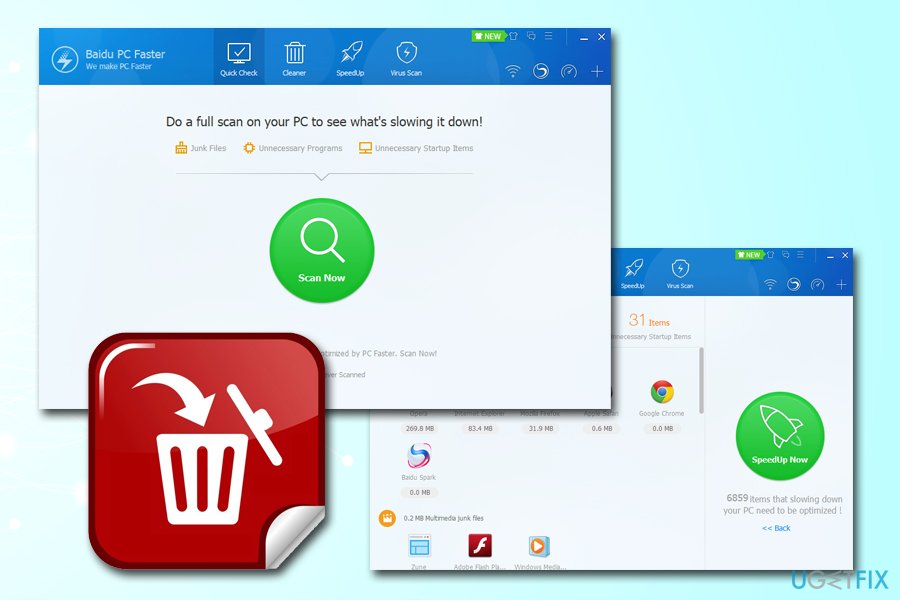
This is a mere trick used by scareware (otherwise known as hoax software)[ref en-3] developers to spend money on their applications. However, the actual use of Baidu PC Faster and similar optimization tools are highly debatable, especially when it comes to fair marketing practices.
Developers of Baidu PC Faster and similar tools might claim that their programs work, as they often should you hundreds of megabytes of cleaned junk files. However, this can be done manually just as quickly. Besides, potentially unwanted programs might even delete files that are crucial for Windows OS operation. If that happened to you and you see that your system is malfunctioning, we recommend a unique PC repair software [d1] - it can repair Windows OS which was compromised by inadequate software or malware.
Finally, the reason why many users see Baidu PC Faster performing scans "out of nowhere" is due to software bundling. Freeware/shareware installers are often injected with potentially unwanted programs and, because users do not pay much attention to the installation process, end up with unwanted apps on their PCs. To avoid that, always pick Advanced/Custom installation settings and decline all the deals or offers on the way.
To conclude, we would advise you to uninstall Baidu PC Faster, as its benefits to the system are highly doubtful. Additionally, if you keep it installed, it will most likely spam you with prompts to buy its licensed version - these are usually intrusive and annoying.
Note: please be aware that not all PC optimization utilities are bogus and can actually help you resolve slow system operation issues.
Step 1. Terminate all the Baidu PC Faster-related processes
In some cases, Baidu PC Faster removal might be prevented from its own processes running in the background. Therefore, you should terminate all such processes from running before proceeding:
- Press Ctrl + Shift + Esc to enter Task Manager
- Click on More Details
- You need to find all the entries related to Baidu PC Faster (make sure you check services and background processes)
- Right-click on each one of them and select End Task
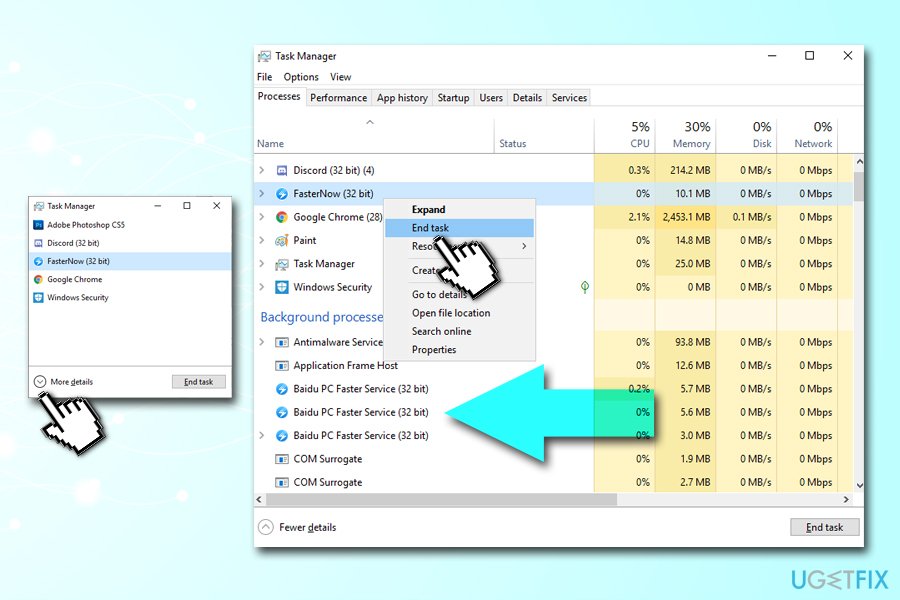
How to uninstall baidu pc faster shut down all related processes via task manager
Step 2. Uninstall Baidu PC Faster via the Control panel
This step will allow you to uninstall Baidu PC Faster application. You should enter Control Panel as follows:
- Type in Control Panel into Cortana's search box
- Go to Programs > Uninstall a program
- Find Baidu PC Faster in the list
- Double-click or right-click on the entry to start the uninstallation process
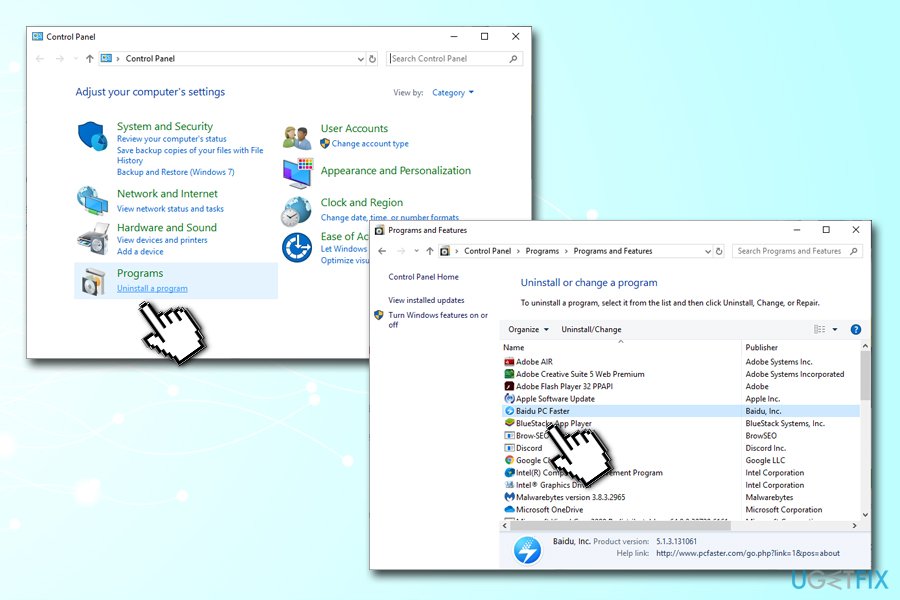
How to uninstall baidu pc faster remove via control panel - If User Account Control warning shows up, click Yes
- You will be prompted by a strange pop-up window - pick I want to uninstall PC Faster at the bottom and then click Uninstall
- Confirm another prompt with OK
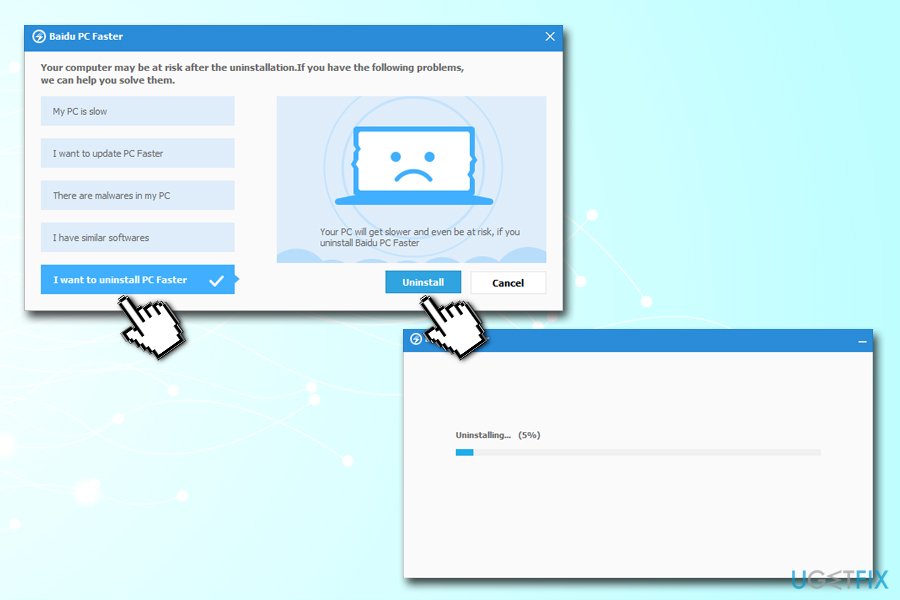
How to uninstall baidu pc faster finalize removal
As you can see, developers of the unwanted program are using all sorts of tricks and techniques in order for user fail to uninstall the Baidu PC Faster application.
Step 3. Remove Windows registries related to Baidu PC Faster (optional)
This step is not necessarily mandatory, but it will make sure that all the traces of the unwanted program are removed. Warning: modification of Windows registry can be dangerous, so please perform them at your own risk.
- Type in regedit into Cortana's search box
- Right-click on the search results and pick Run as administrator
- Once the Registry editor opens, go to the following folder:
HKEY_CURRENT_USER\\Software
- Expand it, and find Baidu PC Faster registry folder
- Right-click and select Delete
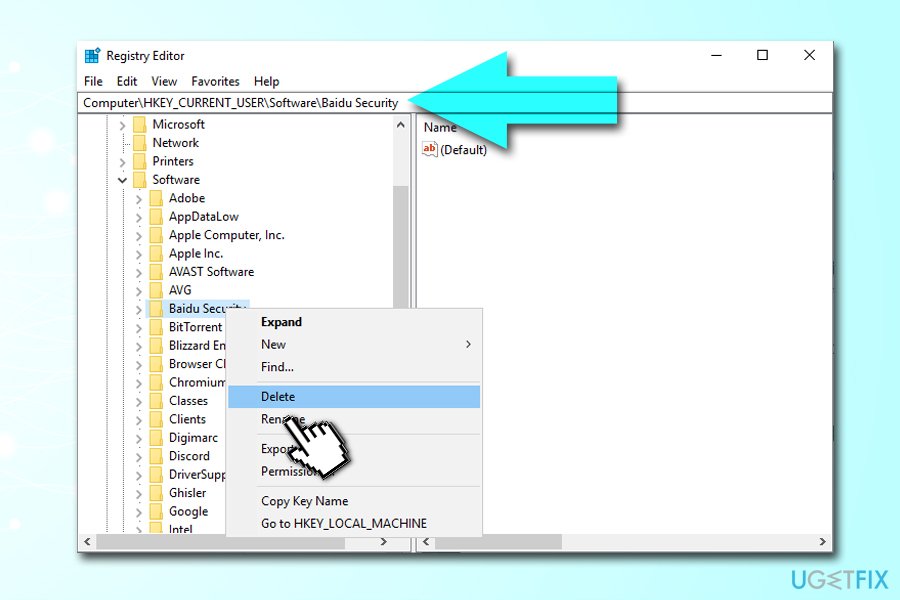
How to uninstall baidu pc faster remove related registry entries
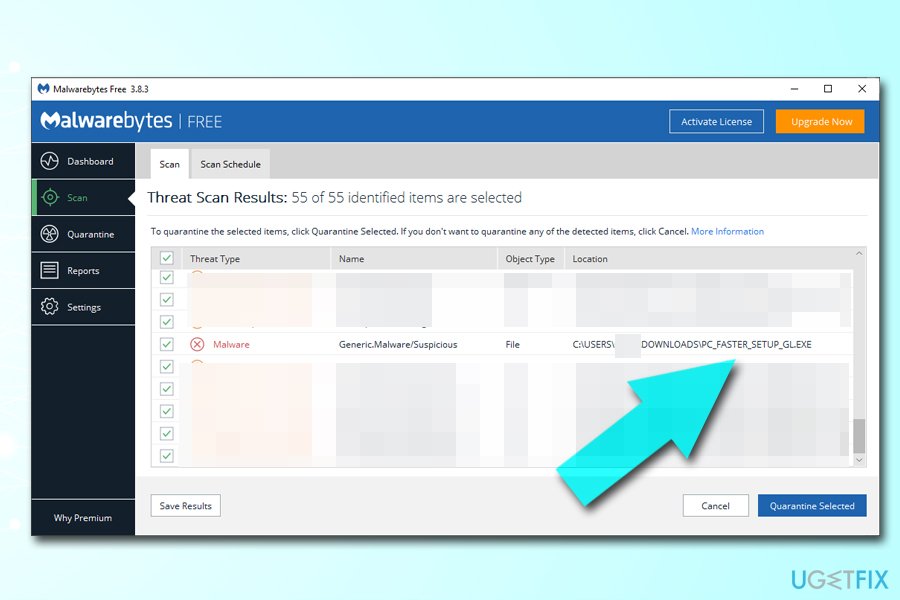
Alternative method: use security software to uninstall traces of Baidu PC Faster automatically
You can also use anti-malware software that recognizes potentially unwanted programs and remove all its traces automatically.
Bottom line
Many users experience slow PC speeds and high CPU usage due to various issues. Common fixes include checking hardware, freeing up storage space, cleaning dust, updating drivers, and scanning for malware. If these solutions do not resolve the problem, consider uninstalling Baidu PC Faster.
Frequently asked questions
To uninstall Baidu PC Faster from Windows 10, go to Settings > Apps > Apps & features, find Baidu PC Faster in the list, click on it, and select Uninstall.
Yes, in Windows 11, you can uninstall Baidu PC Faster by right-clicking the Start button, selecting 'Apps and Features', locating the program, and then clicking 'Uninstall'.
If Baidu PC Faster doesn't appear in the installed programs list on Windows, try using the Control Panel's 'Programs and Features' section to remove it, or consider using a third-party uninstaller tool.




Report an issue
What's wrong with this guide? We review every report and update or remove content.
Report received — thank you. We'll review and fix it.
You need a free account to submit a report.
Be the first to comment