How to remove
Uninstall IMVU Avatar Chat
from Windows
Easily uninstall IMVU Avatar Chat from Windows 10 or Windows 11 with our expert-tested guide. Enjoy a clean system in minutes, zero traces left!

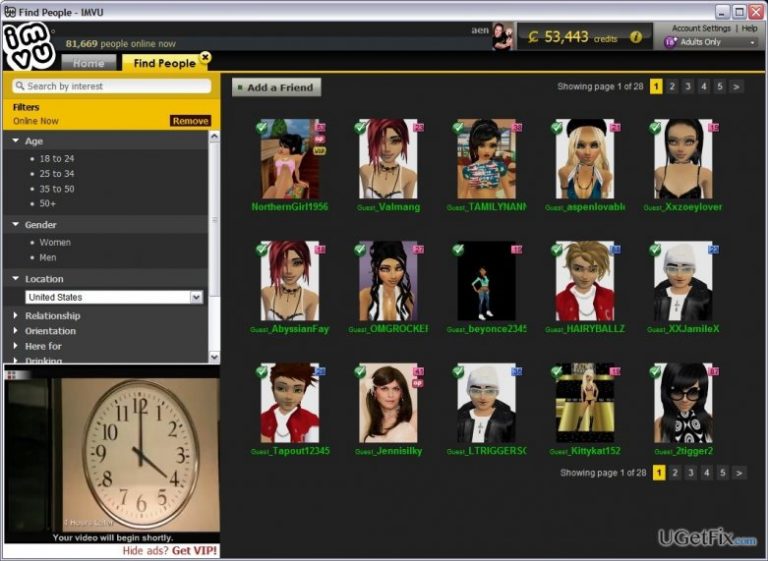
How does How to Uninstall IMVU Avatar Chat on Windows end up on your PC?
- Software may not be fully uninstalled
- Background processes may remain active
- User may not have sufficient permissions
- Errors during uninstallation process
- Leftover files may cause issues
Repairs Windows system files, removes malware, and restores a clean OS state — without reinstalling.
Hi guys. I’ve recently installed IMVU Avatar Chat, which appeared to be a real nonsense to me. I’ve uninstalled it, but then I found its process on Task Manager still running. Could you please help me to uninstall it permanently?
IMVU Avatar Chat is an avatar-based instant messaging tool, which enables communication with people from all over the world. The majority of people consider it interesting as it enables chat in a 3D environment. However, lots of people on the Internet ask how to uninstall IMVU Avatar Chat completely. It has been reported for causing difficulties in terms of removal. Some people claim that they can’t remove this tool because an error appears when trying to do so. The others claim that after removal lots of leftovers keep working in the background. Therefore, in this post, we will explain how to remove IMVU Avatar Chat on Windows completely.
How to Uninstall IMVU Avatar Chat?
There are two ways to uninstall IMVU Avatar Chat. i.e. automatically or manually. If you opt for an easier way to get rid of this software, install a software removal tool and set it to uninstall unwanted software. It’s easy because then it will do everything automatically. For this purpose, we recommend using [rev id="Perfect Uninstaller"].
If you prefer manual IMVU Avatar Chat removal, then take your time and perform the following steps carefully:
Run Windows as Administrator:
- Go to Start and type cmd in the search box. If you are using Windows 10/8, then click on Search and type cmd command.
- Right-click on the Command Prompt option and select Run as Administrator.
Close IMVU Avatar Chat via Task Manager
- Click Ctrl + Alt + Delete to open Task Manager.
- Locate IMVU Avatar Chat software, click on it and select End Task.
- After that, re-open Task Manager and check if it has successfully been closed.
Uninstall IMVU Avatar Chat via Control Panel
- Windows 7. Open Start menu – select Control Panel – Uninstall a Program.
Look for IMVU Avatar Chat, click on it and select Uninstall. - Windows 8/8.1. Right-click on Start – select Programs and Features.
Locate IMVU Avatar Chat app, right-click on it, and select Uninstall. - Windows 10. Right-click on the Windows icon – select Control Panel.
Find IMVU Avatar Chat on the list, click it and select Uninstall. - As soon as the uninstall wizard notifies that the program has successfully been removed, reboot your PC.
Remove IMVU Avatar Chat leftovers via Registry Editor
- Open Start menu or click on the Windows icon (Windows 10) and type regedit in the search box to run Registry Editor.
- Navigate to HKEY_CURRENT_USER\Software\IMVU folder and delete it.
- After that, while on the Registry Editor, click on Edit, the choose Find and search for IMVU Avatar Chat Software.
- You should receive the list of files that belong to this application, so make sure that you remove them one by one.
- Finally, reboot your PC.
We hope that you’ve successfully uninstalled IMVU Avatar Chat Software on Windows. To check it, open Task Manager and go through the list of running processes. If there are no files related to IMVU Avatar Chat Software, it means that it’s gone permanently. If it is still there, our recommendation would be to run [rev id="Perfect Uninstaller"].
Bottom line
To uninstall IMVU Avatar Chat completely, you can either use a software removal tool like Perfect Uninstaller for an automatic process or follow manual steps including closing the application via Task Manager and uninstalling it through Control Panel. If these methods do not work, consider seeking further assistance or using alternative uninstallation software.
Frequently asked questions
To uninstall IMVU Avatar Chat on Windows 10, go to Settings > Apps > Apps & features, find IMVU in the list, click on it, and select Uninstall.
Yes, on Windows 11, you can right-click the Start button, select Apps and Features, locate IMVU Avatar Chat, click the three dots next to it, and choose Uninstall.
If IMVU Avatar Chat is not listed, try using the Control Panel by navigating to Programs > Programs and Features, or use a third-party uninstaller tool for a more thorough removal.




Report an issue
What's wrong with this guide? We review every report and update or remove content.
Report received — thank you. We'll review and fix it.
You need a free account to submit a report.
Be the first to comment