How to remove
Uninstall CleanMyPC
from Windows
Discover effective ways to uninstall CleanMyPC on Windows 10 and 11, ensuring a clean system without leftover files. Expert-tested solutions await!

How does How to uninstall CleanMyPC end up on your PC?
- Installed via freeware installations
- Spread through deceptive sites
- Hides files across folders
- Triggers changes in settings and preferences
- Runs in the background for an extended period
Repairs Windows system files, removes malware, and restores a clean OS state — without reinstalling.
Hello. I have this shady program on my computer. I am not the one that installed this CleanMyPC tool, so I have no idea how to get rid of it. I think it might be a virus, so I should probably get a tool that's more powerful than my security application. I tried to scan the PC and the PUP was not found. Are there any options or possible manual solution? Can I uninstall CleanMyPC?
CleanMyPC is the potentially unwanted program that manages to affect devices, and in most cases, it spreads via freeware installations and deceptive sites. So it is intrusive and considered possibly malicious because of this behavior and involvement with third-party advertisers.[ref en-1]
It might be difficult to remove CleanMyPC when you cannot access the particular program in the system. It hides various files all over the folders, so the application is more annoying and triggers changes, runs in the background for a longer period. It becomes difficult to remove the application because it might trigger particular changes in the settings, preferences like Windows Registry, and startup preferences.[ref en-2]
CleanMyPC program is advertised as a tool that should repair, clean, and optimize the system, but it provides nothing even similar to these claims and promotional information. This program often gets installed unknowingly, but some people can download this application when fallen for the advertisers' tricks and claims.[ref en-3]
Removing the potentially unwanted program is not the easiest task because to uninstall CleanMyPC, you need to find the tool itself and get rid of all the files associated. There is no need to keep the program on the system since it only affects functions and internet traffic. Though you should take some additional steps and rely on particular programs to clean the machine from traces and possible damage that the intruder left behind.
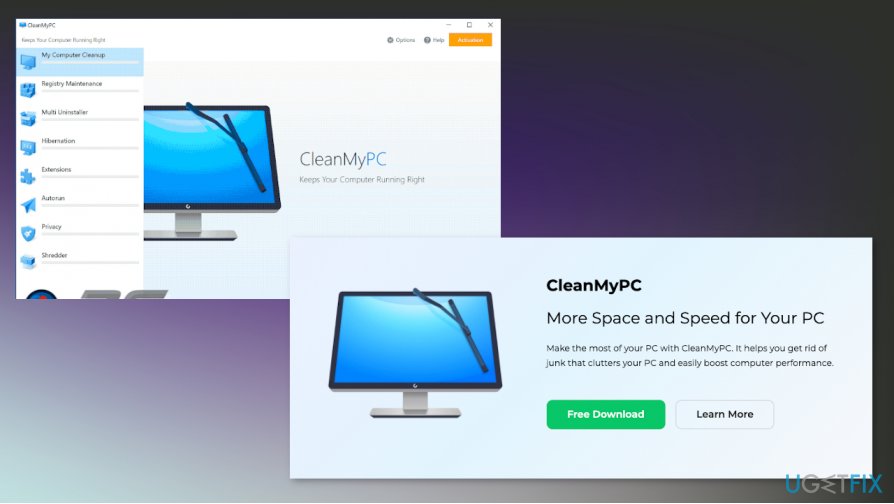
How to uninstall CleanMyPC
There are some issues when the user tries to uninstall CleanMyPC because the program claims to be a PC cleaner, a useful and valuable program. However, this is not valuable nor needed to have on the system. You can rely on proper PC repair and optimization tools like [d1] for such purposes of improving the performance. Especially, when your device gets affected by threats like the PUP itself. You should check for alterations in system folders too.
You can get the anti-malware tool and get rid of the program this way. But there are many databases that AV engines rely on, so it is possible to not get the program detected if the database is not updated or the PUP is not considered malicious, but intrusive only. Anti-malware tools can clear all the traces, but you should also double-check to make sure. Sometimes web browsers can also get affected by such PUPs, so the machine should be cleaned properly to get rid of any alterations. You can reset the browser to default. This is the feature easily accessible in the advanced parts of the settings.
Uninstall CleanMyPC via Windows Control Panel
- Press the Windows key and locate the search bar. Type Control Panel there and press Enter.
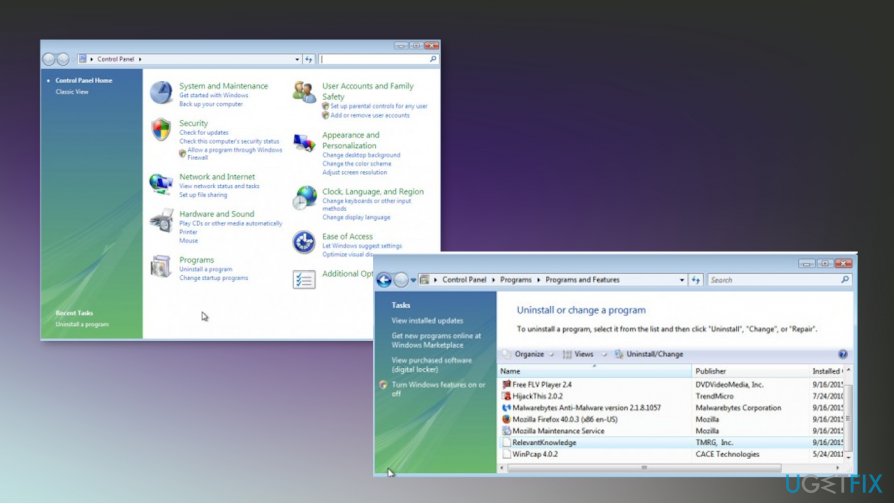
How to uninstall cleanmypc programs - Click Uninstall a program under the Programs sector.
- The list of programs should show CleanMyPC, so click that and choose Uninstall.
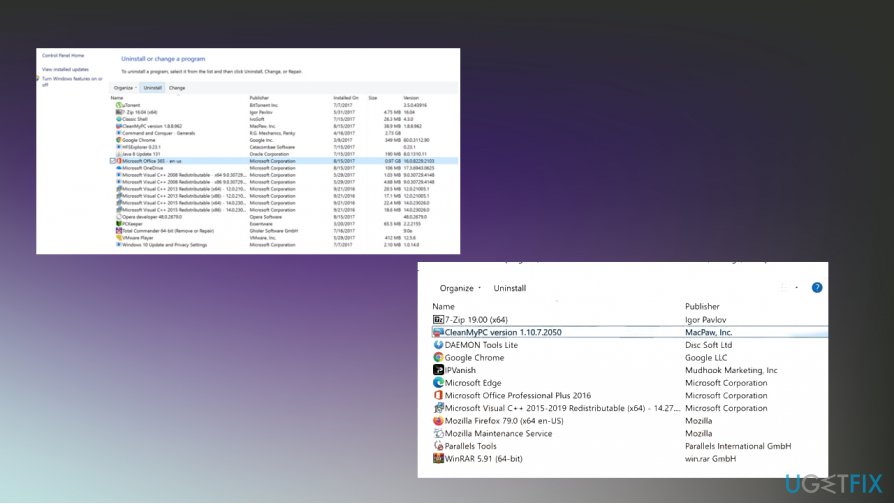
How to uninstall cleanmypc programs uninstall
Uninstalling CleanMyPC from Windows 10
- Go to Start and then locate Settings.
- Choose System and then click Apps and features.
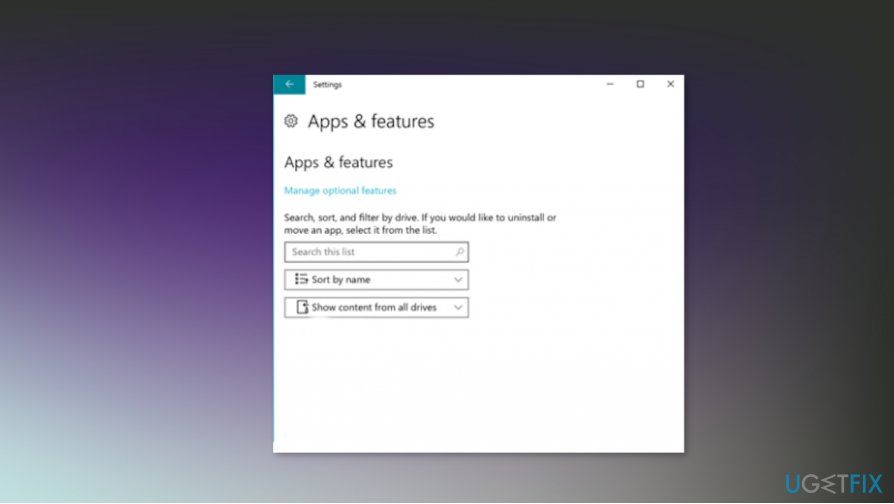
How to uninstall cleanmypc win - Find the suspicious application and click on it to Uninstall.
- Confirm and Uninstall the intruder.
Bottom line
To uninstall CleanMyPC, you need to locate the program and remove all associated files. It is also recommended to use additional programs to clean any traces left behind. If these steps do not work, consider seeking professional help.
Frequently asked questions
To uninstall CleanMyPC from Windows 10, go to Settings > Apps, find CleanMyPC in the list, and click on it to select 'Uninstall.' Follow the prompts to complete the uninstallation process.
If CleanMyPC won't uninstall on Windows 11, try using the built-in Windows uninstaller by right-clicking the Start button, selecting 'Apps and Features,' and then choosing CleanMyPC to uninstall it.
Yes, after uninstalling CleanMyPC, it's advisable to check for leftover files in the Program Files and AppData folders on Windows, and you may need to delete them manually.




Report an issue
What's wrong with this guide? We review every report and update or remove content.
Report received — thank you. We'll review and fix it.
You need a free account to submit a report.
Be the first to comment