How to recover
Restore files
from Windows
Easily recover lost files from the Windows.old folder on Windows 10 or 11. Fast solutions ensure zero traces left. Expert-tested for your peace of mind.

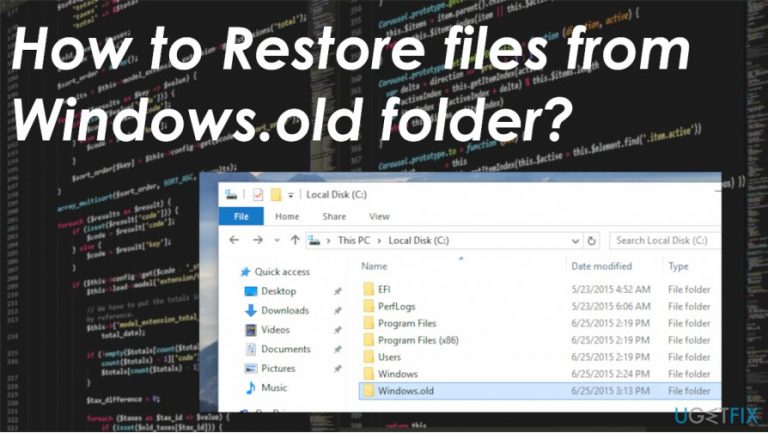
What leads to How to Restore files from Windows.old folder?
- Windows update or reinstall
- Files not kept during installation
- Automatic deletion after 10 or 30 days
- Corrupted or altered files
- Infections or faulty installations
Repairs Windows system files, removes malware, and restores a clean OS state — without reinstalling.
Hey. I have updated my Windows. I reinstalled Windows 10 actually because my PC crashed on me. I think I failed because my files got lost. I cannot access them, but I see files in some folders taking up space. I see the particular Windows.old folder. How can I restore those files? Help!
It is possible to restore files from Windows.old folder, and it is an issue that worries people worldwide.[ref en-1] The problem occurs when people refresh, upgrade, or installs Windows 10 on a device that previously had Windows installation but without a clean install. This is how c:/Windows.the old folder appears.
When the user selects Keep nothing, personal data from the profile folder ends up in the Windows.old folder. This piece gets deleted 10 or 30 days after the upgrade. It happens by default, so you need to restore files from Windows.old folder as soon as you updated or installed the OS.
This folder is not containing any installation files or a copy of the previous Windows install. You can retrieve files from the Windows.old folder, and it is not that difficult. You can also delete the folder to free up space, but the means that your files are no longer.
This is the automatic file backup[ref en-2] folder that is created by the Windows system. You need to take care of these files within those 10 days, or the folder is lost. You can take the folder to a different place or restore Windows.old folder entirely if you want to keep it. of course, the folder can be deleted too. It is possible to restore files from the lost Windows.old folder too. We list all the solutions for you.
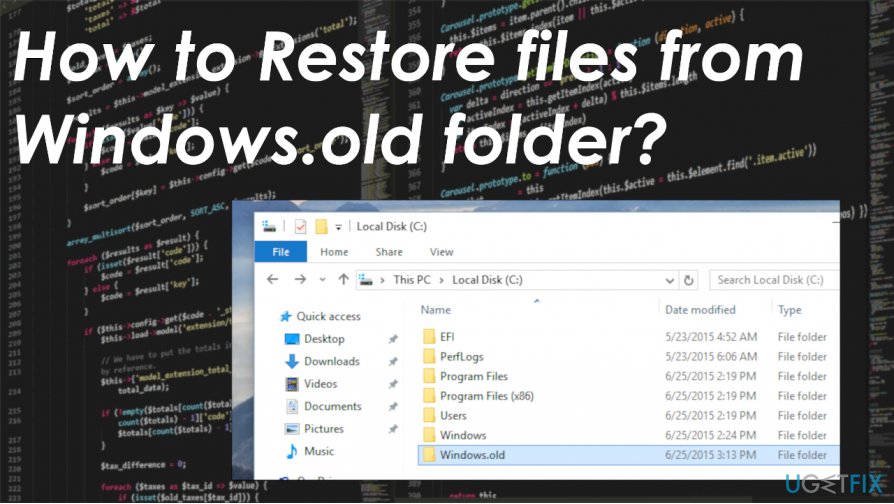
How to Restore files from Windows.old folder
Restore files from Windows.old folder - the main issue here. Still, when you experience additional problems with the machine or performance, it might be because of the damage that is done to your computer already. It happens when some files get corrupted or altered for some reason. Infections[ref en-3] or faulty installations can lead to such damage. You can try to repair any other issues using [d1] or a similar program if you experience additional interruption.
Then you can try to restore files from Windows.old folder depending on the issue for you. It is possible to achieve manually with easy steps or even with automatic tools. Follow the solutions below.
Manual Windows.old folder restore
- Open the Local Disk folder.
- Double-click the Windows.old folder and go to the Users folder.
- Your particular username.
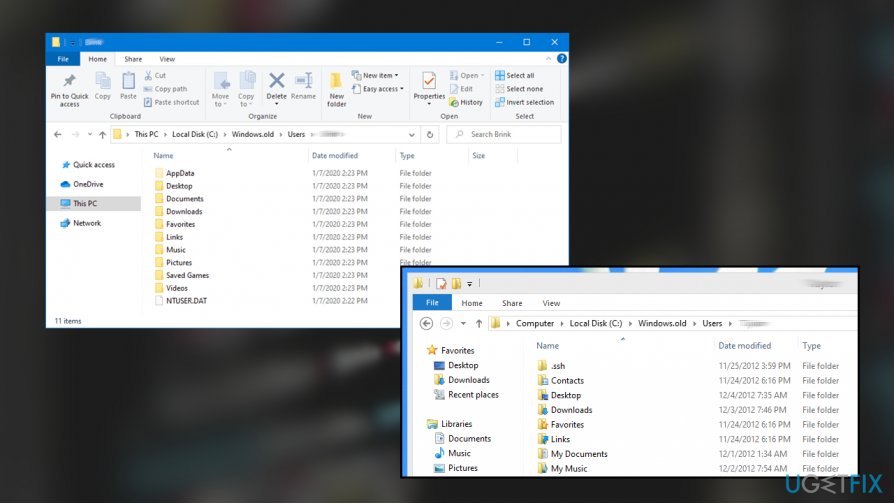
Retrieve files from the windows old folder user - Open folders with files you want to restore.
- Copy and paste all the files from folders to a folder on Windows 10.
Automatic method to restore files from Windows.old folder
You can use a tool like [rev id="Data Recovery Pro"] for automatic data retrieval. This is the solution that shouldn't create any issues for you and be exceptionally easy to achieve. You can use other tools designed to restore files, but remember to choose a trustworthy program and source you get it from.
Restore deleted Windows.old folder
- Go to This PC and click on Open.
- Find your system partition.
- Choose View on the menu and click Options.
- Hit Change folder and search options.
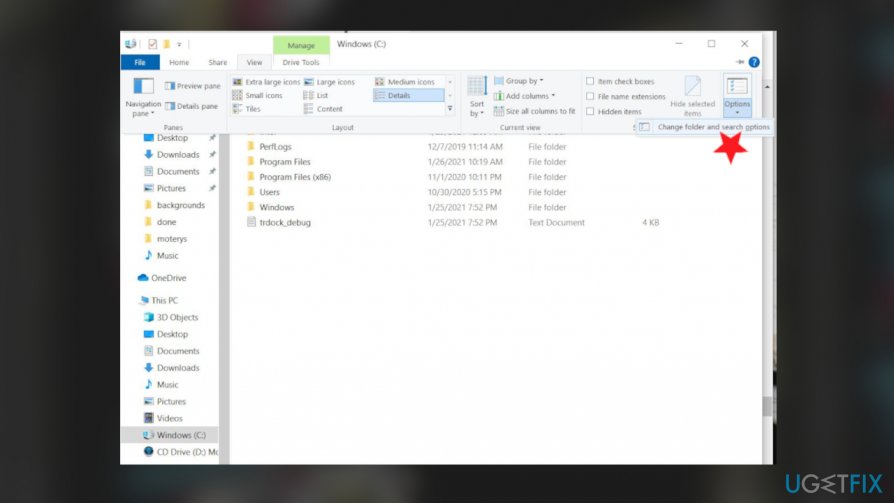
Retrieve files from the windows old folder change dserach options - Go to the View tab ad find the Files and Folders option in the Advanced area.
- Find Hidden files and folders option to check Show hidden files, folders, and drives.
- Click OK and look for Windows.old folder.
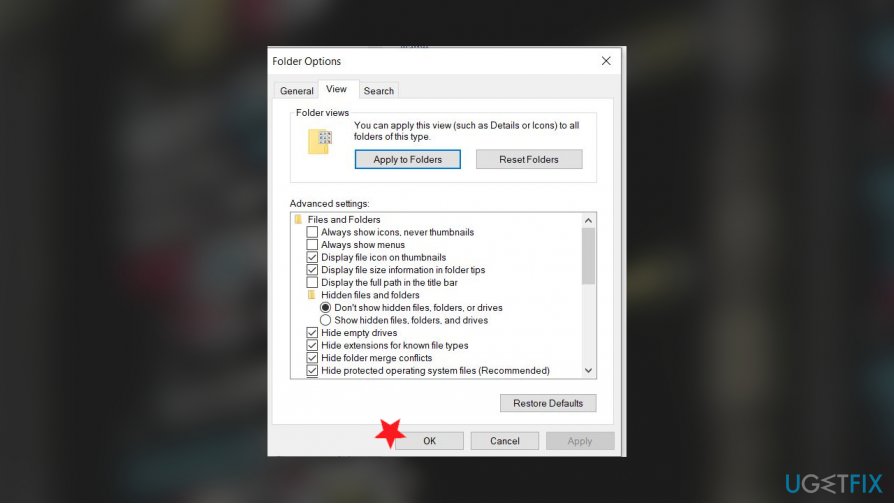
Retrieve files from the windows old folder ok to changes - Click the old folder and choose properties.
- Uncheck Hidden under Attributes and click OK.
- Confirm changes.
- You can restore the folder from there by copying files.
Bottom line
To restore files from the Windows.old folder, you can retrieve them directly or move the folder to a different location. If you encounter performance issues, consider repairing your system. If none of these solutions work, further troubleshooting may be necessary.




Report an issue
What's wrong with this guide? We review every report and update or remove content.
Report received — thank you. We'll review and fix it.
You need a free account to submit a report.
Be the first to comment