How to remove
Hicurdismos Malware (Fake Microsoft Security Essentials)
from Windows
Easily uninstall Hicurdismos malware from Windows 10 or 11 and regain your system's safety. Expert-tested solutions ensure a secure fix in minutes.

How does How to Remove Hicurdismos Malware (Fake Microsoft Security Essentials) end up on your PC?
- Installed VLC Media Player using quick installation
- Received a BSOD window during web browsing
- Multiple setup.exe files running in Task Manager
- Hicurdismos pretends to be a legitimate Microsoft Security Essentials installer
- Malware is spread via drive-by download or software bundling
- Fake BSOD mimics Microsoft Security Essentials
Repairs Windows system files, removes malware, and restores a clean OS state — without reinstalling.
Hello. I have a bad feeling that I have installed malware on my PC. I couple of days ago I’ve installed VLC Media Player using quick installation and then I’ve started receiving a BSOD window during web browsing, which states that my PC has run into a problem. What seems unusual for me that this particular BSOD contains a support number. I’ve checked Task Manager as well and discovered more than five setup.exe files running on it and consuming quite a lot of recourses. Please tell me if it’s normal?
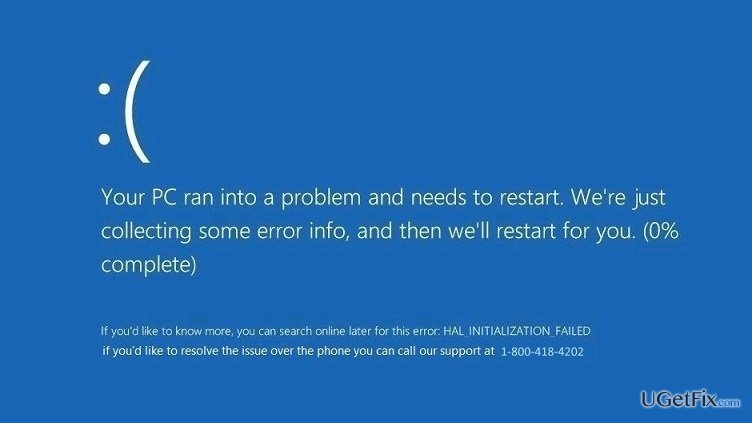
Microsoft warns Windows users about a newly released cyber threat known as Hicurdismos. This program pretends to be a legitimate Microsoft Security Essentials (MSE) installer and is spread using drive-by download or software bundling methods. To put it simpler, Hicurdismos malware renders a pop-up flag, which appears when people are browsing with Microsoft Edge or Internet Explorer web browsers and prompts users to run or save setup.exe file. Although this notification may look secure from the first glimpse, it contains a malicious file, which is executed as soon as the user clicks Run or Save button. Consequently, the malware roots deeply into the OS and starts throwing a fake Blue Screen of Death window on a random occasions. The same happens if the user falls for installing a free software, which carries a pack of potentially unwanted programs as an attachment.
How does Hicurdismos work?
As already pointed out, Hicurdismos is a support scam, which is spread to trick users into thinking that their PCs are encountering a serious issue and has to be fixed with the help of professional technicians. To make the error persuasive, Hicurdismos virus mimics Microsoft Security Essentials, which is a default anti-malware product for Windows 7 and earlier versions. Paradoxically, it displays a BSOD that is typical for Window 10 and 8 versions. This blue screen claims that “Your PC ran into a problem and needs a restart (etc.)” and provides a technical support number at the end of this screen. Beware that official Microsoft BSOD messages DO NOT contain support number or other mobile contacts. At best, the notification includes an error code, so that the user could contact Microsoft support via email or make a research on the bug on the Internet. In addition to the fake BSOD, Hicurdismos malware disables Task Manager, freezes the mouse cursor, inserts its files, and injects itself among startup programs. As a consequence, it starts using PCs resources and displays Hicurdismos BSOD whenever the system is booted.
Why shouldn’t people call for the support number?
Since Hicurdismos is a technical support scam, you should NEVER call for the number that is provided on the Blue Screen of Death. That’s because support scam is the method rendered by online scammers for swindling people’s money or tricking them into downloading malicious viruses, such as ransomware, keylogger, worms, etc. into the system. Therefore, DO NOT call the numbers give on any error messages because Microsoft NEVER includes telephone numbers on in the genuine error notifications. If, unfortunately, you have already called for fake technical support scam, or even made a payment, call your credit card provider and cancel the payment ASAP. After that, run a full scan with a professional anti-malware tool and remove Hicurdismos virus right away.
In a nutshell, Hicurdismos pop-up and BSOD screen are not malicious as long as you do not call for the given support number. However, keeping this potentially unwanted program on your PC may lead to system slowdows, freezes, and may decrease system’s security, which is why other potentially dangerous programs may get into the system more easily. In case you are receiving BSOD by Hicurdismos from time to time, you have to remove this pest right away. Although automatic removal is recommended, it’s also possible to get rid of it manually, so we will provide manual Hicurdismos removal steps just in case.
How to remove Hicurdismos virus on Windows?
Method 1. Automatic removal
This is the most advanced way to remove Hicurdismos malware. For this purpose, you have to install (if you don’t have one) a professional software, such as [d1]. Run a full system scan and check if the name SupportScam:MSIL/Hicurdismos.A is included among search results. If your seucrity tool found it, remove all threats indiated on the list and reboot the system.
Method 2. Manual removal
Step 1.
- Navigate to Start -> Control Panel -> Add/Remove Programs.
- On the list of programs that are running on your PC, find OCEP or other suspicious looking programs that you don’t remember installing, click on each of them and select Uninstall.
- Click Yes on the confirmation window and wait for the OCEP uninstall process to be executed.
Step 2.
- Click Ctrl + Alt + Delete to Open Task Manager.
- Click on the Processes tab at the top of the screen and terminate all processes that are related to OCEP. This can be done by right-clicking on the unwanted process and selecting End Task.
Step 3.
- Click Win key + R, type services.msc, and press Enter.
- Locate OCEP Windows services, right-click on them, and select Stop.
Step 4.
- Click Win key + R to open Registry Editor. Here you have to find all files that are related to OCEP. This is a tiresome process because you will have to go through lots of Windows files. Be very careful and don’t remove any files that you are not certain about.
Step 5.
- Type OCEP in the Windows search to make sure that there are no files or folders named as OCEP left. If you find any, delete all of them.
Step 6.
Open your web browser and disable its plug-ins. You don’t have to disable the ones that you have been using before, but make sure to disable OCEP plug in, as well as other plug-ins or add-ons that you are not familiar with.
Step 7.
As soon as you perform all the above listed fixed, restart your PC. We hope that Hicurdismos virus has been removed successfully. If, however, you keep receiving a fake support scam BSOD by this malware, the only thing left for you is a full system scan with a professional anti-malware.
Bottom line
To remove Hicurdismos malware, users should run a full system scan with a trusted antivirus, remove suspicious programs from the Control Panel, and reset web browsers to default settings. If these methods do not resolve the issue, consider seeking professional assistance.
Frequently asked questions
Look for unusual pop-up alerts claiming your system is infected or notifications prompting you to install security software, as these are common signs of Hicurdismos Malware.
Use the Control Panel to uninstall any suspicious programs, then run a full scan with Windows Defender or a reputable antivirus software to remove any remaining threats.
Yes, performing a reset can remove malware like Hicurdismos, but ensure you back up your important files first, as this process can delete personal data.




Report an issue
What's wrong with this guide? We review every report and update or remove content.
Report received — thank you. We'll review and fix it.
You need a free account to submit a report.
Be the first to comment