How to remove
Uninstall Spotify
from Windows
Discover effective methods to uninstall Spotify on Windows 10 or 11 easily. Enjoy a clutter-free system with expert-tested techniques.


How does How to Uninstall Spotify on Mac OS X end up on your PC?
- Corrupted installation of Spotify
- Conflict between Spotify and antivirus or Firewall
- Error pop-ups after installation of Spotify Free
- Cached data accumulation from streaming
- System slowdowns triggered by Spotify
Repairs Windows system files, removes malware, and restores a clean OS state — without reinstalling.
Hello all. Could someone provide me with a thorough guide on how to uninstall Spotify on Mac OS X? Strange things started happening on the system after its installation, so I assume that it might have been corrupted. I don't use it anymore, either way, so I would like to delete it completely but it seems too difficult. Any help?
Spotify is a great tool that allows playing and downloading millions of songs legally. With this application, people can create a playlist, get the latest charts, brand new song, and collections. Free and Premium versions of Spotify are available, so people can register for one of them according to the service they expect receiving.
While naturally, people's opinions towards various things differ, it’s worth mentioning that many people disapproved off Spotify and claim that they would never use it again. We have found lots of questions on various online forums on how to Uninstall Spotify on Mac OS X due to the fact that it triggers system errors and slowdowns.[ref en-1] It’s very important to stress the fact that Spotify is completely safe to use. It does not carry malware or unwanted third-party software that might be causing issues.[ref en-2]
However, it has been noted that after installation of Spotify Free, Mac OS X starts prompting error pop-ups. That may happen due to the conflict between Spotify and antivirus or Firewall. If you opt for using Spotify but want to stop your antivirus from showing warnings related to it, you should try to create an exception under antivirus settings, so that it would stop blocking the app. In case you don’t trust Spotify and want to uninstall it, we’ll provide a guide on how to do so.

Additionally, you may need to clear Spotify cache to help reduce your internal data usage.[ref en-3] Due to the fact that this is a streaming service its algorithm collect cached data of music you've listened. This clearing might be a good boost in the available storage or even fix the slowdown issue. follow every step we have prepared and use a few methods to ensure the smooth performance of your Mac again.
How to Uninstall Spotify on Mac OS X?
In case you really want to uninstall Spotify on Mac, you should try to do so with a proper tool. Be very careful because even the smallest constituent of Spotify application left running on the system may cause conflict with anti-virus. In case you are not willing to analyze all folders on your Mac looking for smallest files of the application you no longer need, we would highly recommend installing [rev id=”Reimage”] application and let the program get rid of useless apps.
Delete local files on Spotify Mac
- Go to Spotify
- Select the arrow icon and choose Settings
- Find Local Files
- Disable all folders
- Relaunch the application
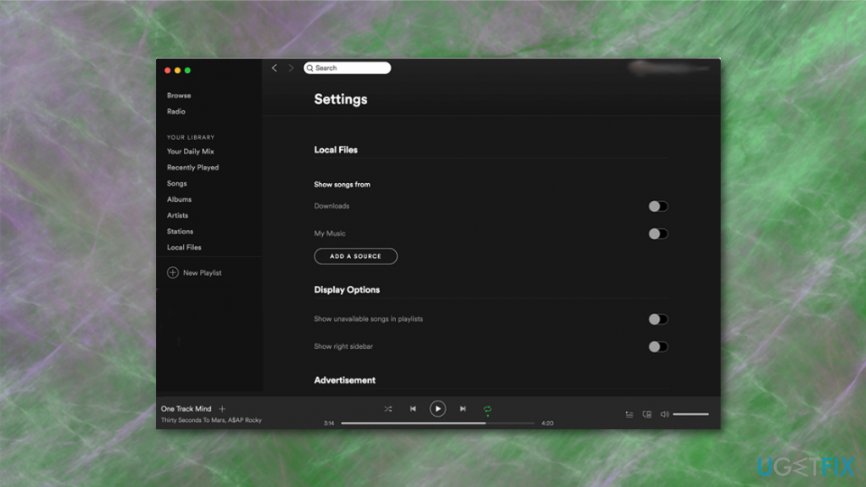
It is possible that app shows songs but is not playing them, so follow with clearing the cache
Delete Spotify Cache
- Locate to Finder
- Hold Shift-Command-G and open Go to the folder window this way
- Go to ~/Library/Caches/com.spotify.client/Data/ and remove all the contents from the folder
- Remove local-files.bnk
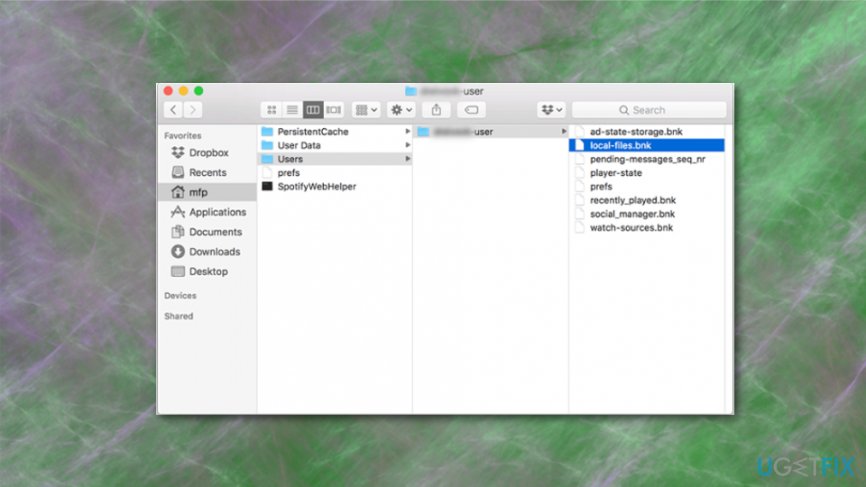
Uninstall Spotify
- Open Spotify Menu and select Quit.
- After that, open Find menu bar, open Go and find your library. In case you can’t see the library, click and hold Alt key.
- On the library, find Cache and remove the entire Spotify folder (com.spotify.client) by dragging it to trash.
- Go back to the library and open Applications folder.
- Find Spotify folder and delete it by dragging to trash as well.
- After that, open Find menu and select Secure empty trash.
- Restart your Mac.
Clear associated files
We would like to emphasize that to remove Spotify from your Mac permanently, you have to delete all associated files, so be very careful and go through all library folders to make sure that there is nothing related to Spotify left. These are the possible locations of this app:
/Applications/
/Library/Application Support/
/Library/Address Book Plug-Ins/
/Library/Caches/
/Library/
/Library/Preferences/
/Library/Saved Application State/
/Library/Application Support/CrashReporter/
Bottom line
To uninstall Spotify on Mac OS X, you may need to follow specific steps including clearing the Spotify cache and checking antivirus settings. If you continue to experience issues after uninstalling, consider seeking further technical support.
Frequently asked questions
Yes, you can uninstall Spotify on Windows 10 or Windows 11 by going to Control Panel > Programs > Programs and Features, then selecting Spotify and clicking 'Uninstall.'
To completely uninstall Spotify from Windows 10 or Windows 11, ensure you remove both the application and any associated files in the AppData folder.
If the Spotify uninstaller fails, you can use a third-party uninstaller tool or manually delete the Spotify folder from Program Files and remove leftover files in the AppData directory.




Report an issue
What's wrong with this guide? We review every report and update or remove content.
Report received — thank you. We'll review and fix it.
You need a free account to submit a report.
Be the first to comment