How to remove
Uninstall PhotoScape Compeletely
from Windows
Easily uninstall PhotoScape from Windows 10 or 11 without leaving traces behind. Follow our expert-tested guide for a thorough removal today!

How does How to Uninstall PhotoScape Compeletely end up on your PC?
- Cannot find PhotoScape in Add/Remove Programs list
- Application often cannot be found in Control Panel
- Users experience system slowdowns
- Users miss advanced/modern photo editing features
- Crashes of the application
Repairs Windows system files, removes malware, and restores a clean OS state — without reinstalling.
Hello. I want to delete PhotoScape as I’ve recently started using another photo editor. I’ve noticed that this app takes up a decent amount of memory, so don’t see a reason for keeping it idle. The problem is that I cannot find it on the Add/Remove Programs list and have no idea what its alternative location could be. Any help would be appreciated.
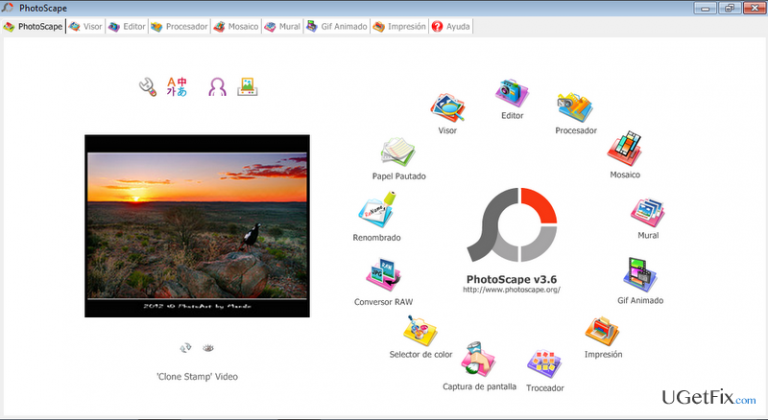
PhotoScape by MOOII Tech is free graphic editing software, which enables people to edit photos and pictures in a fast and easy way. Like other similar tools, it allows users to upload photos from a digital camera or mobile phone and perform modifications, such as crop, resize, adjust color, print, attach GIF animation, and similar. According to the developer, this tool stands out from the others as it allows creating slideshows, capture screenshots, create collages, split images, and even more. What is more, the user interface is as simple as it can be, so that it would be understandable for all users possible. At the moment of writing, it’s compatible with Windows OS only and web browsers featuring modern HTML standards (Google Chrome, Mozilla Firefox, IE, Microsoft Edge, etc.).
However, despite all advantages, in this post, we are going to describe PhotoScape removal steps. While this application is legitimate and secure, the number of people looking for a way to uninstall PhotoScape completely prompted us to write this post. The biggest number of people who used to use this tool claims that they missed some advanced/modern photo editing features in this tool. The others point out system slowdowns and crashes of this application as the trigger inducing them to remove PhotoScape and replace it with another photo editor. One way or another, the problem is the same – the application often cannot be found in Control Panel. In this case, the solution would be to install a software removal tool, such as [rev id="Perfect Uninstaller"], and set it to uninstall PhotoScape automatically. Otherwise, it may be difficult to detect what is the exact location of this tool and where its uninstaller may be kept.
Another issue pointed out by PhotoScape users is related to the leftovers. Although the uninstaller of the tool is found in Control Panel and can be executed, Task Manager runs a related process after all. It means that there are some hidden files left on the registries that keep the program running in the background of the system even though it’s not available on the system programs anymore. This issue would also be fixed using [rev id="Perfect Uninstaller"], but if you prefer manual PhotoScape removal, here's what you have to do:
Step 1. Uninstall PhotoScape from Control Panel
- Click Start (bottom left corner) - Select Settings – Click System – Apps & Features.
- Find Browse for the Cause, click on it and select Uninstall. (Windows 8)
- Right-Click on the Win logo and select Control Panel.
- Open Programs and then Uninstall a Program under Programs.
- Find PhotoScape, right-click on it and select Uninstall. (Windows 10)
Step 2. Delete PhotoScape file leftovers from the Registries:
Click Win key (or Start), type regedit in the search box, and hit Enter. In the Registry Editor, you should find and remove all registry entries that belong to PhotoScape app. First of all, find HKEY_CURRENT_USER\Software\Mooii folder and delete it all. After that, search for the files located in folders:
HKEY_LOCAL_MACHINE\Software\Mooii (or PhotoScape)
HKEY_LOCAL_MACHINE\Software\Microsoft\Windows\CurrentVersion\Run\eg ui
After that, find and delete all related files in these system folders:
C:\Program Files\PhotoScape
C:\Document and Settings\All Users\Application Data\PhotoScape
C:\Documents and Settings\%USER%\Application Data\PhotoScape
Bottom line
To uninstall PhotoScape completely, consider using a software removal tool like Perfect Uninstaller to automatically remove the application. If this method does not work, you may need to manually locate the uninstaller or seek further assistance.
Frequently asked questions
To uninstall PhotoScape from Windows 10, go to Settings > Apps, find PhotoScape in the list, click on it, and select 'Uninstall.' Follow the prompts to remove it entirely.
If PhotoScape is not listed in the Apps section on Windows 11, try using the Control Panel by searching for 'Control Panel' in the Start menu, then navigate to Programs > Programs and Features to uninstall it.
Yes, after uninstalling PhotoScape, check the Program Files and AppData folders for any remaining files and delete them to ensure complete removal from your Windows system.




Report an issue
What's wrong with this guide? We review every report and update or remove content.
Report received — thank you. We'll review and fix it.
You need a free account to submit a report.
Be the first to comment