How to remove
Block Go.padsdel.com Pop-Up Ads
from Windows
Say goodbye to Go.padsdel.com pop-up ads on Windows 10 and Windows 11. Follow our expert-tested methods for a smooth, ad-free experience!

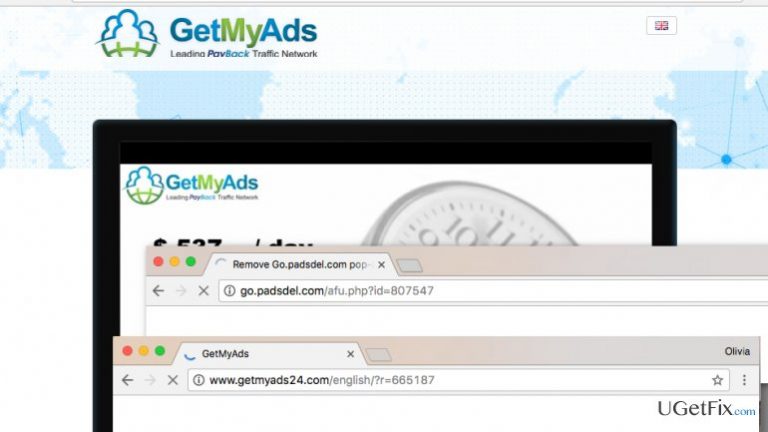
How does How to Block Go.padsdel.com Pop-Up Ads end up on your PC?
- Ad-supported program (adware) installed
- Suspicious browser extensions
- Recently installed shady programs
- Malware infection from visiting unsafe websites
Repairs Windows system files, removes malware, and restores a clean OS state — without reinstalling.
Something is wrong with my computer. When it is turned on, my browser automatically loads Go.padsdel.com pop-up ads on my screen. These ads typically present shady-looking offers or advertise suspicious websites, in general, nothing useful. How can I block Go.padsdel.com ads once and for all? They’re driving me insane…
Many computer users expressed complaints regarding Go.padsdel.com virus lately. It seems that all victims mention the same issue - numerous pop-up ads coming from hxxp://go.padsdel.com/afu.php?id= domain. The truth is, these ads should not be ignored because the fact that they appear on the computer screen indicates that the computer is affected by some kind of an ad-supported program, also known as adware. Therefore, it is recommended to check the system and see if there are any suspicious programs/browser extensions installed that might be causing Go.padsdel.com pop-up ads. There are two methods to remove Go.padsdel.com virus - uninstall Padsdel adware using anti-malware program like [d1] or delete files that belong to it manually. We prepared manual removal instructions for people who wish to block Go.padsdel.com pop-up ads. Remember that the adware can hide in the system under various names, so carefully inspect every file before deleting it. Also, keep in mind that deleting the wrong files can lead to system stability problems, so please do not carry out these instructions in a rush! If you want to see more detailed instructions, you can read this post about Go.padsdel.com virus (prepared by 2-Spyware experts).
How to Block Go.padsdel.com Pop-Up Ads?
Uninstall related programs from Windows OS
Shady programs like Go.padsdel.com adware typically attack Windows operating system, since it is the most popular OS in the world. To uninstall Padsdel virus, do the following:
- You need to access a panel that shows recently installed programs; therefore, you need to click Start > Control Panel > Programs and Features > Add/Remove Programs. If you’re using Windows 8/10 OS, right-click on the Windows button, which is located in the lower left corner of the screen, choose Control Panel and go to Uninstall a Program section.
- You will be redirected to a panel that displays the list of all installed programs. Look through the list (sort it by the date it was installed on - it will be easier to find the source of Go.padsdel.com ads) and then select suspicious entries and click Uninstall. If a notification asking to confirm your choice appears, click OK/Uninstall.
Now that suspicious programs are gone, you will need to fix affected browsers (those that display Go.padsdel.com advertisements). Below, you will find guides on how to uninstall Go.padsdel.com from Chrome, Firefox, IE and Safari.
Fix Chrome browser
- Launch Google Chrome and then look for a button with three bars on it (it is located in the top right corner). Once a drop-down menu appears, choose Tools > Extensions.
- Look through the list of installed Chrome extensions. Find suspicious ones and click on the trash icon next to each of them. Confirm your choice by clicking Remove.
- Reset Chrome. Click on the aforementioned three-bar button in Chrome again, choose Settings, and then scroll down until you see a Show advanced settings… option. Click on it, and scroll down again. At the bottom of the page, find and click Reset settings button. Read the information on Chrome notification and confirm your choice by clicking Reset.
Fix Safari browser
- Launch Safari, then click on Safari button in the top left corner of the Safari window. Choose Preferences.
- Go to Extensions tab and uninstall suspicious entries from here. Simply click Uninstall button next to questionable entries.
- Click on Safari button again, but this time, choose Reset Safari option. In a pop-up that appears, select all options and confirm your choice by clicking on the Reset button.
Fix Firefox browser
- Open Firefox browser. In the top right corner of it, you will see a button with three bars on it. Click it, and then go to Add-ons. Then navigate to Extensions tab. Here, spot suspicious extensions and click each Remove button next to ones you wish to delete.
- Click on the three-bar button once again, then on "?" button and then select Troubleshooting Information. Then click on Refresh Firefox… button on the right side of the page that appears. Confirm your choice by clicking “Refresh Firefox” again.
Fix Internet Explorer
- Click on Gear icon at the top right corner of the screen, then choose Manage Add-ons. In the window that appears then, look for entries that might be related to Go.padsdel.com ads. Right-click on them and choose Disable option.
- Reset IE: click on Gear icon once again, then select Internet Options > Advanced > Reset. In a pop-up that appears, put a tick on Delete Personal Settings option and then click Reset to confirm.
Bottom line
To block Go.padsdel.com pop-up ads, you can uninstall related programs from your Windows OS or delete the adware files manually. If these methods do not resolve the issue, consider using an anti-malware program for a more thorough removal.
Frequently asked questions
You can remove Go.padsdel.com pop-up ads by uninstalling any suspicious programs from the Control Panel and resetting your web browser settings.
To prevent Go.padsdel.com pop-up ads, ensure your antivirus software is up to date and consider using browser extensions that block ads.
Yes, tools like Malwarebytes and AdwCleaner are effective for scanning and removing adware that causes Go.padsdel.com pop-ups.




Report an issue
What's wrong with this guide? We review every report and update or remove content.
Report received — thank you. We'll review and fix it.
You need a free account to submit a report.
Be the first to comment