How to remove
Uninstall Chromium Browser
from Windows
Easily uninstall Chromium Browser from Windows 10 or 11 with our expert-tested guide. Quick fixes ensure zero traces left behind for a clean system.

How does How to Uninstall Chromium Browser end up on your PC?
- Installed without permission
- Disguised under Quick installation setup
- Pre-checked by default during installation
- Spread via software bundles
- Contains malicious code that displays third-party advertisements
Repairs Windows system files, removes malware, and restores a clean OS state — without reinstalling.
I’ve got infected with Chromium browser virus after the installation of Adware Cleaner. It was installed without my permission and now opens as a default web browser, which I do not prefer, mildly saying. Could you please tell me how to uninstall it?
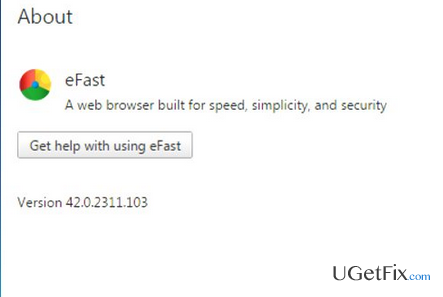
Chromium web browser should not be confused with the Chromium project. To make it clear, Chromium is an open-source browser project, which is oriented towards the development of the safe, fast, stable, and customized web browser. The project is directly related to Google Chrome, which is originally built on the Chromium platform. Unfortunately, the legitimate Chromium source code has been misused by malware developers who have designed a variety of malicious supposedly Chromium-based web browsers, including Olcinium, eFast, BrowserAir, Qword, Chedot, MyBrowser, Fusion, Tortuga, BeagleBrowser, Torch, and many others. Chromium web browser as software, NOT as a project, belongs to this list as well. Security specialists have already included it in the list Potentially Unwanted Programs (PUP) and the database of anti-malware tools. It is often dubbed as ‘adware’ due to the fact that it has a malicious code, which is set to display third-party advertisements and redirect people to undesirable websites. The studies related to Chromium virus has revealed that it may sometimes initiate redirects to compromised websites, which contain malicious codes and are used for virus distribution. Not to mention, Chromium malware has an inbuilt set of cookies, which collect browser-related information (not excluding IP address, email address) and share it with third-party advertisers. That’s why we highly recommend you to uninstall Chromium web browser without a delay.
Typically Chromium malware is spread via software bundles. It is disguised under Quick installation setup. It is pre-checked by default, which is the reason why people install it unintentionally. To prevent this from happening, it’s vital to opt for Advanced installation setup and uncheck all pre-checked attachments. If you have been tricked into installing Chromium web browser and now opt for its removal, the guidelines provided down below will help you.
How to Remove Chromium browser?
Since Chromium belongs to the PUP category and is dubbed as malware, it’s highly advisable to uninstall it using a professional anti-malware. Our recommendation would be to use [d1]. It has been noticed that Chromium browser tends to overwrite Chrome’s shortcut, corrupt web browser’s settings, including startup page, search engine or even inject additional third-party extensions. Therefore, the scan with anti-malware will help to prevent malware leftovers.
Nevertheless, those who opt for manual Chromium web browser removal should not get disappointed. All you have to do is to get rid of the software from the Control Panel and Windows Registry. Finally, no matter manually or automatically the removal of Chromium virus is going to be performed, web browser’s settings will have to be reset manually. So, here’s what you have to do:
Step 1. Uninstall Chromium app
- Click Start (bottom left corner) - Select Settings – Click System – Apps & Features.
- Find Browse for the Cause, click on it and select Uninstall. (Windows 8)
- Right-Click on the Windows logo and select Control Panel.
- Select Programs and then Uninstall a Program under Programs.
- Find Browse for the Cause, right-click on it and select Uninstall. (Windows 10)
Step 2. Uninstall Chromium from the Registries:
Click Win key (or Start), type regedit in the search box, and hit Enter to open Registry Editor.
Here you should find and remove all registry entries that belong to Browse for the Cause. Search for the files located in folders:
HKEY_CURRENT_USER\Software\Chromium
HKEY_LOCAL_MACHINE\Software\Chromium
HKEY_LOCAL_MACHINE\Software\Microsoft\Windows\CurrentVersion\Run\eg ui
After that, find and delete all related files in these system folders:
C:\Program Files\Chromium
C:\Document and Settings\All Users\Application Data\Chromium
C:\Documents and Settings\%USER%\Application Data\Chromium
Step 3. Remove Chromium extension on web browser
- Open Google Chrome and click More.
- Select More Tools and then go to Extensions.
- Find Browse for the Cause extension and click Remove.
- If your start page and search engine have also been modified, open Settings and select Manage Search engines under the Search section.
- Remove malicious search engines.
- Finally, reset your web browser and restart the system to save all the changes.
If you need a more thorough description of the Chromium web browser, open this page and scroll down to the end.
Bottom line
To remove the Chromium browser, it is recommended to uninstall it immediately due to its classification as a Potentially Unwanted Program (PUP). Additionally, opting for Advanced installation setup in the future can help prevent such installations. If these steps do not resolve the issue, consider using anti-malware tools to assist in the removal.
Frequently asked questions
To uninstall Chromium on Windows 10, go to Settings > Apps, find Chromium in the list, click on it, and select 'Uninstall.' Follow the prompts to complete the removal process.
Yes, in Windows 11, you can right-click the Start button, select 'Apps and Features,' locate Chromium, click on it, and then choose 'Uninstall' to remove it.
If Chromium fails to uninstall, try using a third-party uninstaller or run the built-in Windows troubleshooter for apps to resolve any issues.




Report an issue
What's wrong with this guide? We review every report and update or remove content.
Report received — thank you. We'll review and fix it.
You need a free account to submit a report.
Be the first to comment