How to remove
Uninstall Garmin Express
from Windows
Easily uninstall Garmin Express from Windows 10 or 11 with our expert-tested guide. Enjoy a clutter-free system today! Fixed in minutes.

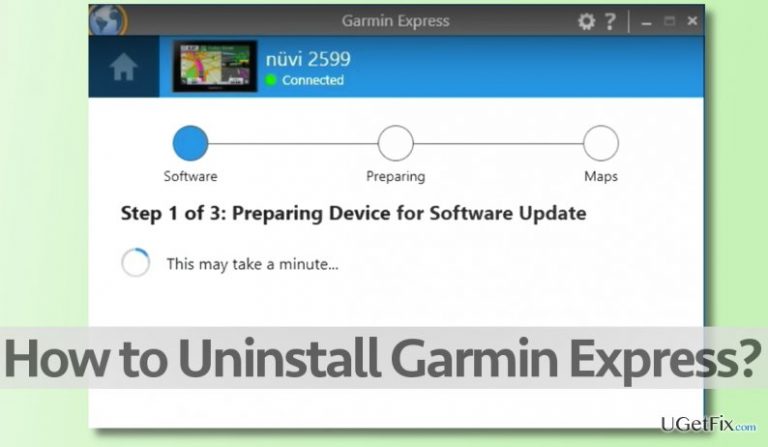
How does How to Uninstall Garmin Express end up on your PC?
- User no longer needs Garmin Express
- User wants to remove all files/components from the system
- Garmin Express is not being used for device management
- User is looking for a clean uninstallation process
- User may have encountered issues with Garmin Express
Repairs Windows system files, removes malware, and restores a clean OS state — without reinstalling.
Hello, I am looking for a tutorial on how to uninstall Garmin Express. I am wondering what is the right way to delete it because I don’t want to leave any of its files/components on my system.
Garmin Express is a software package that helps users to manage their Garmin devices easily. Its developer Garmin focuses on delivering innovative GPS technology for various markets, for instance, marine, aviation, fitness, outdoor recreation, mobile applications and tracking. Many users find Garmin Express useful because the software is available for both Mac and Windows computers, and its purpose is to allow users to add Garmin devices easily, set them up and register them. The software is also used to install device updates, upload activities and so on. However, if you do not use your Garmin devices anymore or if you simply do not need Garmin Express in your life anymore, you can use instructions provided below and remove Garmin Express from your PC/Mac quickly.
How to Uninstall Garmin Express on Windows?
- Open Start menu (the button is located in the bottom-left corner of the computer screen), then go to Programs and Features. You can also open this panel this way: press Windows Key + R letter at the same time to open the Run dialog, then type in control panel and click OK. Once Control Panel opens, find Programs and Features section (or Add/Remove Programs) and open it.
- Find Garmin Express in the list of recently installed programs, select it, and click Uninstall. Follow guidelines provided by Garmin Express Uninstaller and once you click Uninstall, wait until the Uninstaller deletes all files related to the Garmin Express software.
- Once the Uninstaller finishes its job, close it. Now, it’s time to make some alterations in Windows Registry. Please note that this part is very important and you need to be very careful when performing configurations in Windows Registry.
- Press Windows Key + R to open the Run dialog again. Type in regedit and press OK.
- Find and delete this folder: HKEY_CURRENT_USER\software\Garmin\.
- Then, click Edit > Find, and type in Garmin Express.
- If the search finds some Garmin Express remains, delete them.
- Restart your PC.
How to Uninstall Garmin Express on Mac?
- First of all, quit Garmin Express before trying to remove it from Mac. If the app is open, just click on Garmin Express title in the top-right corner of Mac screen and choose Quit.
- Open Finder, then find Applications folder (listed on the left side of Finder window). Open it.
Find Garmin Express icon and drag it to the Trash folder. - Click on Go in the menu bar, then select Go to Folder. Type in: ~/Library and click Go.
- Find Preferences folder and double click on it.
- Find all files that start with com.garmin.renu and move them to Trash.
- Go back, then find Application Support folder. Open it. Find Garmin folder there. Drag Express folder to Trash.
- Go back two times until you are back in Application Support folder again. Open Caches folder.
- Here, find and drag to Trash these two items: com.garmin.renu.client, com.garmin.renu.service.
- Empty the Trash.
However, if for some reason you cannot uninstall Garmin Express, you can always use certain programs that can help you to uninstall particular software successfully. For Windows users, we suggest [rev id="Perfect Uninstaller"] software, while Mac users should rely on [rev id=”CleanMyMac”] or [rev id=”MacKeeper”] programs.
Bottom line
To uninstall Garmin Express on Windows, open the Start menu and navigate to Programs and Features, or use the Run dialog to access the Control Panel. Follow the uninstallation instructions and then make necessary changes in the Windows Registry to ensure all related files are removed. If these steps do not resolve the issue, consider seeking additional support or reinstalling the software.
Frequently asked questions
To uninstall Garmin Express from Windows 10, go to Settings > Apps, find Garmin Express in the list, select it, and click on 'Uninstall.' Follow the prompts to complete the uninstallation process.
Yes, on Windows 11, you can right-click the Start button, select 'Apps & features,' locate Garmin Express, click on the three dots next to it, and choose 'Uninstall' to remove it.
If Garmin Express won't uninstall, try using the Control Panel by navigating to Programs and Features, or use a third-party uninstaller tool to forcibly remove it from your Windows system.




Report an issue
What's wrong with this guide? We review every report and update or remove content.
Report received — thank you. We'll review and fix it.
You need a free account to submit a report.
Be the first to comment