How to remove
Incorrect driver update Microsoft – WPD – 2/22/2016 12:00:00 AM – 5.2.5326.4762
from Windows
Easily uninstall the incorrect Microsoft driver update on Windows 10. Follow our expert-tested guide for a hassle-free fix! Zero traces left.

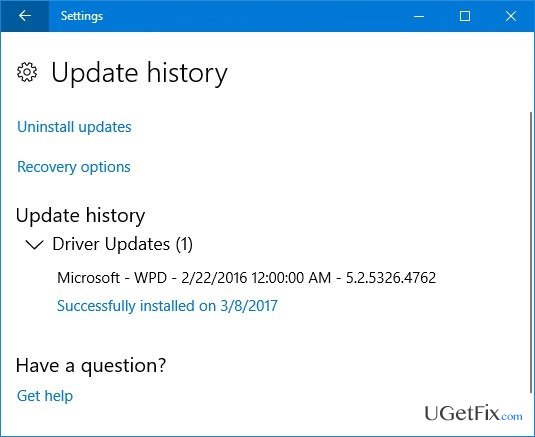
How does How to remove incorrect driver update Microsoft – WPD – 2/22/2016 12:00:00 AM – 5.2.5326.4762 on Windows 10 end up on your PC?
- Incorrect driver update installed
- Driver update blocks access to connected devices
- Device marked with a yellow and red mark
- Faulty driver update released by Microsoft
- Update not removed before installation
Repairs Windows system files, removes malware, and restores a clean OS state — without reinstalling.
Hello, everyone. I’ve installed the latest Windows 10 updates and soon after that my OS stopped recognizing My Sansa Clip+ in both auto and MTP modes. I’ve tried to check what’s the problem and noticed the name “Microsoft – WPD – 2/22/2016 12:00:00 AM - 5.2.5326.4762” on the list of drivers. As far as I remember, it wasn’t there before. What could that mean?
Yesterday Microsoft released an official warning addressing Windows 10 users who have installed driver updates on March 8, 2017. The company acknowledged that an incorrect device driver update had been released, which is listed as Microsoft – WPD – 2/22/2016 12:00:00 AM - 5.2.5326.4762 on the installed Windows Update list. While this update did not cause fatal damage to the devices, a small group of Windows 10 community reported that the faulty driver update block access to the connected phones of portable devices.
Microsoft has officially approved the fact that the incorrect driver update Microsoft – WPD – 2/22/2016 12:00:00 AM - 5.2.5326.4762 has been removed from Windows Update the same day. Nevertheless, the analysis had shown that a small group of Windows 10 users installed the update before it was removed. If you have doubts whether you have installed that update or not, click Win key + I top open Settings app, then open Update and Security, open Windows Update, and select Update History. If you find Microsoft – WPD – 2/22/2016 12:00:00 AM - 5.2.5326.4762 update included on the list, you will have to remove it to prevent system’ malfunctions.
How to remove incorrect driver update Microsoft – WPD – 2/22/2016 12:00:00 AM - 5.2.5326.4762 on Windows 10?
Method 1. Revert driver’s changes and prevent the driver from reinstalling
- Click Win key + X and select Device Manager.
- Find the device marked with a yellow and red mark next to it (this device should be your phone or another portable device the access of which has been blocked by the update).
- Right-click on that device and select Update Driver Software.
- After that, reboot the system and reconnect the device that you’ve just updated.
- Then open Device Manager again, right-click on the device that you’ve updated previously.
- When a new window opens, select Browse my computer for driver software.
- Click Let me pick from a list of available drivers on my computer.
- Mark Show compatible hardware box and select MTP USB Device.
- Click Next and let the installation proceed.
- After that, your mobile device or another portable device should be detected by your Windows 10 OS.
After that, you should take some precautionary measures to prevent the faulty driver from reinstalling. For this purpose, please do the following:
- Click Win key + X and select Command Prompt (Admin).
- If a UAC shows up, click Yes to proceed.
- Type pnputil.exe –e command and press Enter.
- Now you should find the faulty driver on the list. For example, the driver may be named as oem42.inf. In your case, the number should not be 42, but something else, so look for the .inf file, which starts with the oem followed by one of two random digits. Save the file name somewhere.
- Enter pnputil.exe -d oem##.inf command (## stands for the digits of the .inf file saved on your system)
- Press Enter and close Command Prompt.
Method 2. Use a System Restore Point
If you have created a System Restore Point before the incorrect driver update Microsoft – WPD – 2/22/2016 12:00:00 AM - 5.2.5326.4762 has been installed on your PC, you may also try to use a System Restore Point to revert back the changes. For this purpose, please do the following:
- Click Win key + R, type rstrui, and press Enter.
- If you have an available System Restore Point, opt for the one that was created before March 8.
- Select the Restore Point and follow the on-screen instructions to use it.
Bottom line
To resolve the issue, you can revert the driver's changes and prevent it from reinstalling by accessing Device Manager and updating the driver software. If these steps do not work, further troubleshooting may be necessary.
Frequently asked questions
You can identify the incorrect driver update by checking the Device Manager under the 'Portable Devices' section and looking for the WPD entry that shows the version 5.2.5326.4762.
To uninstall the incorrect WPD driver update, right-click on the WPD device in Device Manager, select 'Uninstall device,' and then restart your computer to allow Windows to reinstall the correct driver.
Uninstalling the WPD driver update should not negatively affect your Windows 10 system, as Windows will automatically reinstall a compatible version upon reboot.




Report an issue
What's wrong with this guide? We review every report and update or remove content.
Report received — thank you. We'll review and fix it.
You need a free account to submit a report.
Be the first to comment