How to remove
Uninstall AdBlocker for YouTube
from Windows
Easily uninstall AdBlocker on Windows 10 or Windows 11 with our simple guide. Get it fixed in minutes and enjoy an uninterrupted YouTube experience!

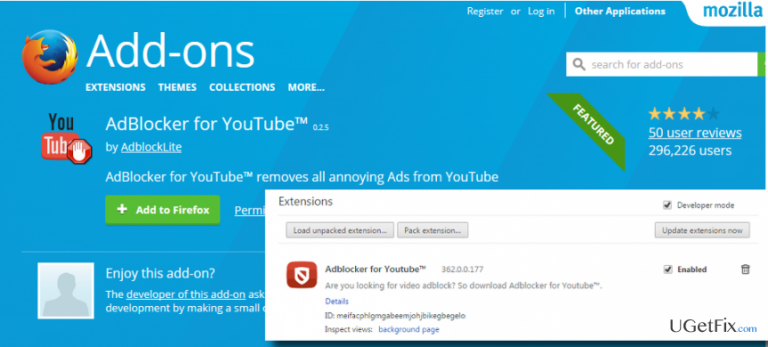
How does How to Uninstall AdBlocker for YouTube end up on your PC?
- Distributed bundled with third-party software
- Installation does not require user’s explicit approval
- Modifies web browser’s settings
- Uses cookies
- Modifies Windows Defender’s database
Repairs Windows system files, removes malware, and restores a clean OS state — without reinstalling.
Keep receiving pop-up alerts from AdBlocker for YouTube. They report about blocked ads, but I would dare to say that those AdBlock ads are even more irritating. However, what is most important is the fact that I did not install this tool by myself, so I believe its malware. Could you please guys tell me how to remove it?
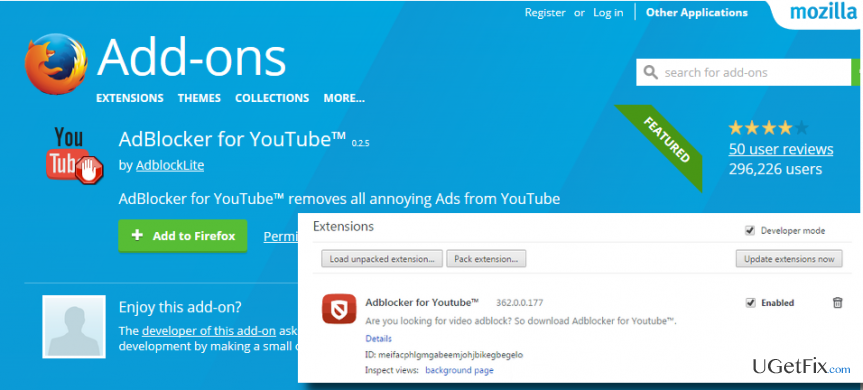
AdBlocker for YouTube (also known as YouTube AdBlocker or Clean YouTube) is web browser’s add-on, which supports Mozilla Firefox, Google Chrome, and Opera. Its developers (MyBrowserAddon Group) represent it as a tool capable of removing all kinds of ads from YouTube videos, as well as accelerating video loading speed. However, AdBlocker for YouTube should not be confused with AdBlock Plus or AdBlock for YouTube. While the two programs are legitimate and deemed as the best ad-blocking tools currently available on the Internet, AdBlocker for YouTube's trustworthiness is highly questionable due to the following reasons:
- It’s distributed bundled with third-party software;
- Its installation does not require user’s approval explicitly;
- It modifies web browser’s settings and may use cookies;
- AdBlocker for YouTube modifies Windows Defender’s database by attaching itself to the exclusion list. This way, Windows Defender bypasses this tool without checking its files.
- It establishes a remote connection to unknown servers in Russia.
Due to these facts, PC security experts classify AdBlocker for YouTube as a potentially unwanted program (PUP) and recommend uninstalling it. Therefore, if you haven’t installed this tool purposely and have no reasonable grounds for keeping it, we would strongly recommend performing a complete AdBlocker for YouTube removal. The uninstall guide below will help you to do so easily.
Method 1. Uninstall AdBlocker for YouTube using a professional anti-malware
If you are relying on Windows Defender solely, the culprit of unrecognized AdBlocker for YouTube installation is clear. As pointed out earlier, it inserts itself into Windows Defender’s app exclusion list, which is why all files related to this ad-blocker are omitted during the scan process. Therefore, to uninstall this PUP, we would recommend using an alternative security tool, for example, [d1]. Before downloading it, boot your device with Administrator privileges. Then download Reimage and launch its setup file. Follow the on-screen instructions to install it and run the full system scan. After a scan, you should disable AdBlocker for YouTube extension from your web browser (the instrcutions given below).
Method 2. Eliminate AdBlocker for YouTube manually
Step 1. Uninstall it from Control Panel
- Click Start - Select Settings – Click System – Apps & Features.
- Find Browse for the Cause, click on it and select Uninstall. (Windows 8)
- Right-Click on the Windows key and select Control Panel.
- Select Programs and then Uninstall a Program under Programs.
- Find AdBlocker for YouTube, right-click on it and select Uninstall. (Windows 10)
Step 2. Remove AdBlocker for YouTube from the registries
- Click Windows key (or Start), type regedit, and press Enter.
- Check the following folders for the AdBlocker for YouTube files and delete all of them:
- HKEY_CURRENT_USER\Software\AdBlocker for YouTube (may also find as YtbeAdBlock, AdBlockIE, Youtube AdBlockU and similar names)
- HKEY_LOCAL_MACHINE\Software\AdBlocker for YouTube (may also find as YtbeAdBlock, AdBlockIE, Youtube AdBlockU and similar names)
- HKEY_LOCAL_MACHINE\Software\Microsoft\Windows\CurrentVersion\Run\eg ui
- The type AdBlocker for YouTube and its altered names in the search bar to make sure that there are no leftovers.
- Once done, check the following system folders and delete their content:
- C:\Program Files\AdBlocker for YouTube (or similar)
- C:\Document and Settings\All Users\Application Data\AdBlocker for YouTube
- C:\Documents and Settings\%USER%\Application Data\AdBlocker for YouTube
Step 3. Disable AdBlocker for YouTube add-on on web browser
Google Chrome:
- Open Google Chrome and click More.
- Select More Tools and then go to Extensions.
- Find AdBlocker for YouTube add-on and click Remove.
- Finally, it's advisable to reset and restart Chrome to save all the changes.
Mozilla Firefox:
- Open Menu (three horizontal lines at the top-right corner).
- Select Add-Ons and then click on Extensions or Appearance panel.
- Select AdBlocker for YouTube and click Disable.
- It's advisable to reset and restart Mozilla Firefox to save the changes.
Opera:
- Open Menu and select Tools.
- Open Extensions and select Manage Extensions.
- Find AdBlocker for YouTube and click Uninstall.
- It's advisable to reset and restart Opera to save the changes.
Bottom line
To uninstall AdBlocker for YouTube, it is recommended to use a professional anti-malware tool instead of relying on Windows Defender, as it may omit files related to the ad-blocker. Follow the uninstall guide provided to ensure complete removal. If these methods do not work, consider seeking further assistance from a tech support professional.
Frequently asked questions
To uninstall AdBlocker for YouTube on Windows 10, go to 'Settings', select 'Apps', find the extension in the list, and click 'Uninstall'. This will remove the extension from your browser.
No, the process is similar; simply open 'Settings', navigate to 'Apps', and uninstall the extension from the list of installed programs.
If it's not listed, check your browser's extensions or add-ons section, as many ad blockers are installed as browser extensions rather than standalone apps.




Report an issue
What's wrong with this guide? We review every report and update or remove content.
Report received — thank you. We'll review and fix it.
You need a free account to submit a report.
Be the first to comment