How to remove
Uninstall YAC (Yet Another Cleaner)
from Windows
Easily uninstall YAC from Windows 10 or 11 with our expert-tested guide. Clear your system in minutes and enjoy a cleaner PC with zero traces left.

How does How to Uninstall YAC (Yet Another Cleaner) end up on your PC?
- YAC is installed via freeware bundling
- YAC drops a browser helper object (BHO) to prevent removal
- File leftovers after uninstallation
- YAC is promoted as a multifunctional utility but is often considered unwanted
- YAC's distribution methods have been deemed suspicious by security vendors
Repairs Windows system files, removes malware, and restores a clean OS state — without reinstalling.
I got YAC by mistake and now it keeps scanning the system although I do not ask for that. I uninstalled it using Add/Remove Program feature, but it reappears soon after that. Could you please tell me how to uninstall YAC completely? I’m using Windows 10.
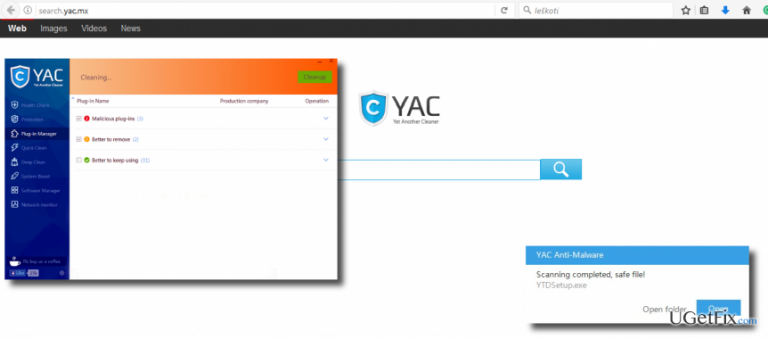
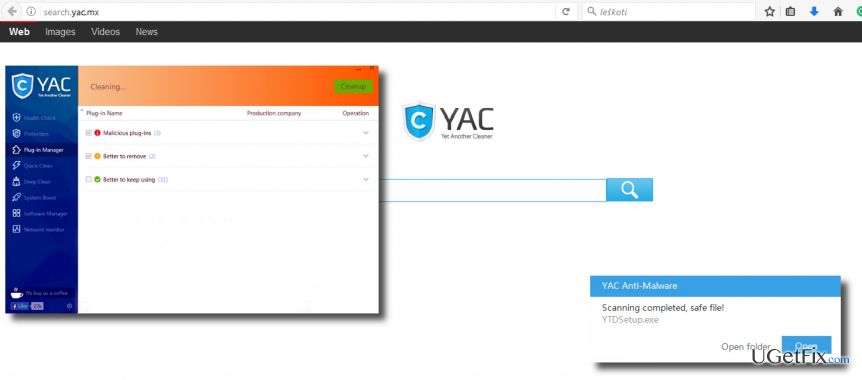
YAC or Yet Another Cleaner is an anti-malware tool developed by Elex do Brasil Participações Ltda Technology Inc. It is promoted as a multifunctional utility providing online protection, malware/virus protection, junk removal, app removal, ads block, and other services. Although you may find some people satisfied with YAC performance, the vast majority of those who have confronted with it expressed negative opinion and concern about its installation methods and removal.
Security vendors have revealed suspicious YAC’s distribution methods a couple of years ago, but it seems that Elex did not learn from mistakes and keep spreading its tools using bundling. Attached to freewares, shareware or sometimes even torrent files, this questionable anti-malware manage to install to the system without being recognized. Usually, it drops a browser helper object (BHO) to prevent removal and search.yac.mx search engine to initiate doubtful advertising campaigns simultaneously. On top of that, YAC has started arousing suspicions when software vendors, including Malwarebytes, Spyware Doctor, Enigma Software, and many others found out false claims about the affiliation with Elex, and respectively, YAC program. The overall characteristics of this tool are typical to potentially unwanted programs (PUPs); however, YAC hasn’t been assigned to this group and is deemed as a legitimate anti-malware up-till-now. Nevertheless, if it has been installed on your PC via freeware bundle and did not meet expectations as an anti-malware and optimizer, use the instructions given below and uninstall YAC completely without any doubts.
Option 1. Uninstall YAC manually
Since YAC is not a malicious virus, you should be able to uninstall it manually. However, many people reported that after its removal, the program gets installed automatically. This may happen due to file leftovers, so it's important to perform a clean YAC uninstall.
- Press Windows key + R, type msconfig, and press Enter.
- When System Configuration window opens, open Boot tab.
- Select Boot Options, click Safe Boot and choose Network.
- Click Apply and OK to save the changes. These steps will boot the system into a Safe Mode with Networking.
- Then right-click on Windows key and select Control Panel.
- Open Add/Remove Programs list and find YAC.
- Click it and select Uninstall.
- Finally, reboot the system.
In case YAC changed your search engine, you should also change web browser's settings manually.
- Open Google Chrome.
- Click on the menu icon (top-right corner) and select Tools.
- Open Extensions, select search.yac.mx and click on the Trash bin.
- Then click on Menu icon again and select Settings.
- Find Open a specific page or set of pages under the On startup.
- Find Set pages and remove the search.yac.mx on the new window.
- The type the URL address of the preferable search engine.
- Open Settings and select Manage Search engines under Search section.
- Open Search Engines and remove search.yac.mx.
- Restart Google Chrome.
Option 2. Uninstall YAC automatically
For this purpose, you may use either [d1] or [rev id="Perfect Uninstaller"]. The first program is a professional anti-malware, which should recognize YAC as a PUP and remove it eventually. The second one is software removal tool, so you will have to set it to remove YAC specifically.
IMPORTANT: before installing any of these programs, boot your PC into Safe Mode with Networking as explained above. Besides, do not forget to remove search.yac.mx search engine from the web browser manually.
Bottom line
To uninstall YAC completely, you should perform a manual uninstall and ensure that all file leftovers are removed. If the program continues to reinstall itself, consider using additional removal tools or seeking professional assistance.
Frequently asked questions
To uninstall YAC from Windows 10, go to Settings > Apps, find YAC in the list, click on it, and select 'Uninstall.' Follow the prompts to complete the removal process.
Yes, in Windows 11, open Settings, navigate to Apps > Installed apps, locate YAC, click on the three dots next to it, and choose 'Uninstall' to remove it.
If YAC won't uninstall, try using a dedicated uninstaller tool or boot your Windows PC in Safe Mode and attempt the uninstallation again.




Report an issue
What's wrong with this guide? We review every report and update or remove content.
Report received — thank you. We'll review and fix it.
You need a free account to submit a report.
Be the first to comment