How to remove
Hiberfil.sys file
from Windows
Easily free up space on Windows 10 and 11 by removing the hiberfil.sys file. Follow our expert-tested guide for quick and safe deletion with zero traces…

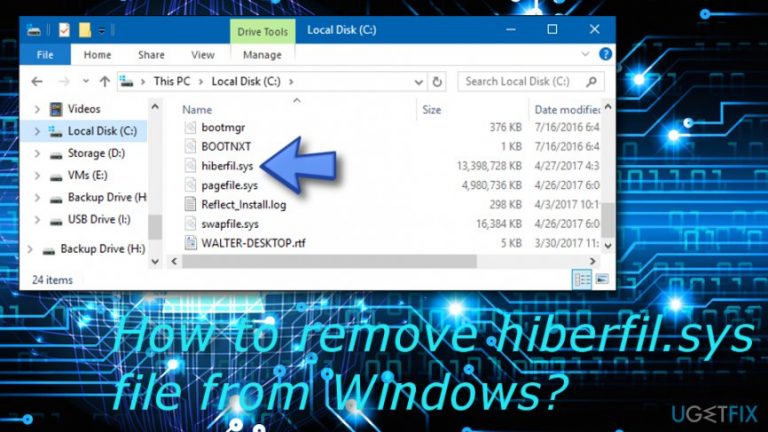
How does How to remove hiberfil.sys file from Windows end up on your PC?
- Hibernation mode is not used by the user
- Hiberfil.sys file is created to save memory for hibernation
- Hiberfil.sys occupies 75 percent of RAM by default
- Old computers with low RAM storage may experience performance issues
- User may prefer to free up disk space
Repairs Windows system files, removes malware, and restores a clean OS state — without reinstalling.
Hiberfil.sys file takes up loads of RAM memory, so I would like to uninstall it. It’s a long time since I did not use hibernation mode, so I assume that this file is no longer needed. Could you please help?
Hiberfil.sys is a temporary file that is created by Windows OS for saving the memory in hard drive. This is necessary if the PC/laptop user wants to put the system into the hibernation mode. Hibernation mode is one of the two power management modes available on all Windows OS versions. Typically, the computer or laptop is put in a low power state by enabling Sleep Mode.
For this purpose, the PC/laptop owner sets a required Power Plan, which then automatically puts the system into Sleep Mode when it stays idle for 5 minutes or more. However, all Windows versions,[ref en-4] including Vista, XP, 7, 8.1, 8, and 10 allow putting the system in Hibernation Mode, which completely turns off the machine thus using zero recourse.[ref en-3]
Nevertheless, just like with Sleep Mode, rebooting the system after hibernation will restore the exact state of the system as it was before enabling hibernation. The problem is that to enable this state Microsoft creates the hiberfil.sys file, which is stored in the C: drive and uses 75 percent of the RAM[ref en-2] by default.
Such huge memory occupation may reduce the system’s performance significantly, especially if you are using an old computer with low RAM storage (e.g. 160 GB). If you have never tried enabling Hibernation Mode and do not plan to do so, it would be wise to remove hiberfil.sys file completely.
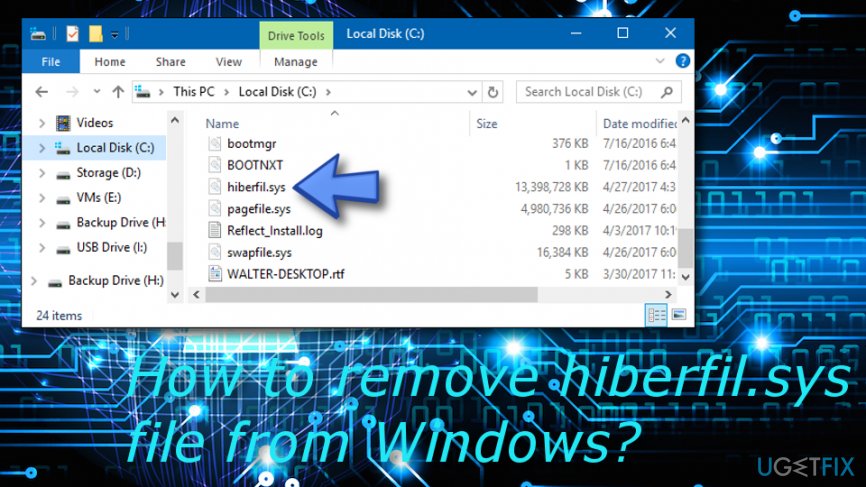
How to remove hiberfil.sys file from Windows?
We have provided some methods on how to remove hiberfil.sys file from your Windows system and you will find them below. We made sure that the techniques are suitable for all kinds of Windows OS versions, including Windows Vista, Windows XP, Windows 7, Windows 8, and Windows 10.
Make sure that you choose the correct method and complete each step exactly as shown in the instructions. However, if you are sure that you have done everything as displayed but the component still remains on your system, you can use [rev=id"Reimage"] for scanning your system and maybe discovering the cause which is not allowing you to remove hiberfil.sys file from WIndows.
Step 1. Check if Hibernation Mode is enabled
To start with, we would recommend checking if Hibernation Mode is enabled on your PC. For this purpose, we have provided some guiding lines on how to succeed in the process. You will find them here:
- Click the Windows key and way until all menu options show up.
- Locate and select Command Prompt (Admin).
- Afterward, check if hiberfil.sys file is included on the list.
- If it is that means hibernation is enabled.
Step 2. Resize hiberfil.sys file
If you have plans to enable Hibernation state in the future, its settings can be customized to reduce the space that hiberfil.sys file occupies. To do so, complete all the following steps:
- Go to Windows Search and type "cmd".
- Once the Command Prompt option shows up, click it, and choose to Run as an Administrator.
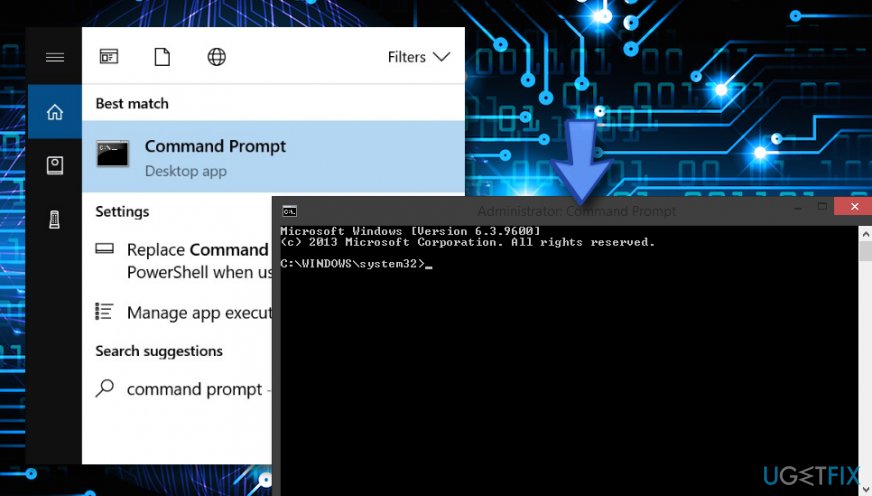
Resize hiberfil sys file on windows - Furthermore, type powercfg.exe /hibernate /size 50 in the black dialogue box. This way, the mentioned file will occupy 50 percent instead of 75.
Step 3. Delete hiberfil.sys file
Since hiberfil.sys file is not crucial for the Windows operating system, its removal does not require much effort. If you have been experiencing some problems regarding this file, you can easily delete it from your Windows machine. The following steps will explain how to remove hiberfil.sys completely.
Windows 10 / 8
- Right-click the Windows key and select Command Prompt (Admin).
- Copy and paste the powercfg.exe -h off command into the dialogue box and press Enter.
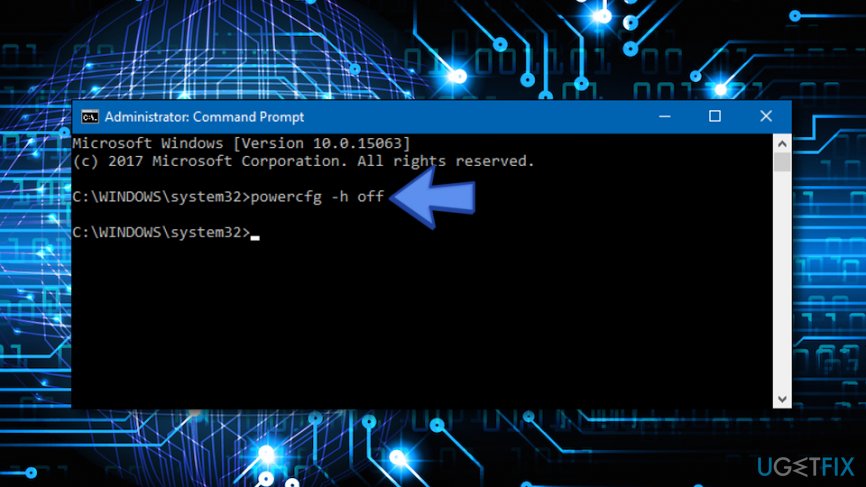
Delete hiberfil sys fom windows
(In case you would change your mind and decide to enable hibernation, copy and paste powercfg.exe -h on command into the Command Prompt).
Windows Vista and 7
- Press Start and type cmd in the search field.
- Right-click on cmd.exe and select Run as Administrator.
- Copy and paste the powercfg.exe -h off command into the dialogue box and press Enter.
Windows XP
- Press the Start button and select Control Panel.
- Double-click on the Power Options icon and open the Hibernate tab.
- Uncheck the Enable Hibernate checkbox.
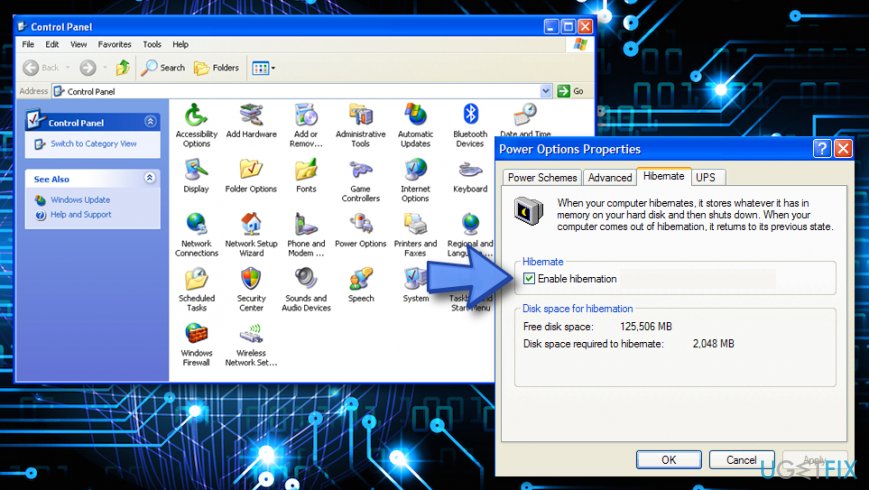
Delete hiberfil sys file fom windows vista
After that, you should no longer see the hiberfil.sys file in Command Prompt and local disk C. Besides, you should see no hibernate mode on the Start menu when clicking the Shut Down option. If something went wrong and the file still remains on your computer system, you can try repeating all the actions once again. If this does not help, think about employing a reliable AV system scanner[ref en-5] for a thorough check-up as the problem might be hiding somewhere else, e.g. malware.[ref en-1]
Bottom line
To remove the hiberfil.sys file from your Windows system, you can follow methods suitable for all Windows OS versions, including disabling hibernation through command prompt or adjusting power settings. If these methods do not work, consider checking for additional system settings or seeking further technical assistance.
Frequently asked questions
The hiberfil.sys file is a system file that Windows uses to store the contents of memory when the computer enters hibernation mode. It allows your PC to resume from hibernation quickly.
To remove hiberfil.sys, open Command Prompt as an administrator and type 'powercfg -h off', then press Enter. This will disable hibernation and delete the hiberfil.sys file.
Disabling hibernation and removing hiberfil.sys may improve disk space but will eliminate the hibernation feature, affecting how quickly your system can resume from a powered-off state.




Report an issue
What's wrong with this guide? We review every report and update or remove content.
Report received — thank you. We'll review and fix it.
You need a free account to submit a report.
Be the first to comment