How to remove
Deactivate your Facebook account
from Windows
Easily deactivate your Facebook account on Windows 10 or 11 with our expert-tested guide. Gain control over your privacy, fixed in minutes!

How does How to deactivate your Facebook account end up on your PC?
- Fed up with Facebook's privacy policy
- Intrusive ads
- Loss of friends using Facebook
- Recent privacy issues
- Facebook virus and scams
Repairs Windows system files, removes malware, and restores a clean OS state — without reinstalling.
Hello. I have been fed up with Facebook's privacy policy and all those tracking algorithm things, intrusive ads. I am planning on signing off of Facebook. What is the best way to do that? Is there any method that can delete my account completely once and for all? I do not want to lose my data though
Social media websites gain and lose members every day. Currently, Facebook hosts approximately 1.59 billion active users, but the site has been losing popularity with the arrival of other social media platforms, such as Twitter or Instagram.[ref en-1]
The reasons for leaving Facebook are various and so are the ways it can be achieved. Some people are tired of advertisements or have no friends that use Facebook still. Many people are not happy with recent incidents regarding privacy issues.[ref en-2] Or even Facebook virus that comes in tons of different forms including money-oriented scams.[ref en-3]
On their official support page, Facebook developers explicitly differentiate between two methods: account deactivation and account elimination. And these two approaches are, indeed, quite different.
Account deactivation will not destroy your Facebook account permanently. In a way, this technique allows freezing your profile until you decide to use it again. While deactivated, your account will not show up in the Facebook search, other users will not be able to see your timeline, but your posts and uploads will remain intact and will be restored the next time you log into your profile.
Facebook points out that some of the information e.g.: tagged photos, messages you have sent to your friends may still remain visible to others. Such an option is best suited for those, who do want to quit using the service but don’t want to lose their information.
How to deactivate your Facebook account
Complete account removal will not allow you to regain access to your account. Once you delete your profile, you will have a couple of days to log back into your account to cancel the removal request. If you fail to do so, the information stored on it will be permanently wiped out and within 90 days will vanish from all Facebook backup systems as well.
Nevertheless, we should point out that some non-personally identifiable information, such as log records will remain on the site’s database regardless. Luckily, there is also an option for those, who want to delete their accounts but keep their data: a backup copy with your profile information. You can request this copy and save it on your computer before deleting your account. This is why there are a few certain steps, you need to follow to go through.
If you are concerned about the malicious purposes of Facebook or any related application, you should run the scan on your system with a tool that can find dangerous threats, programs, and useless files. This is the method that can also help to fix some virus damage, so rely on [d1] and clean the machine from malware.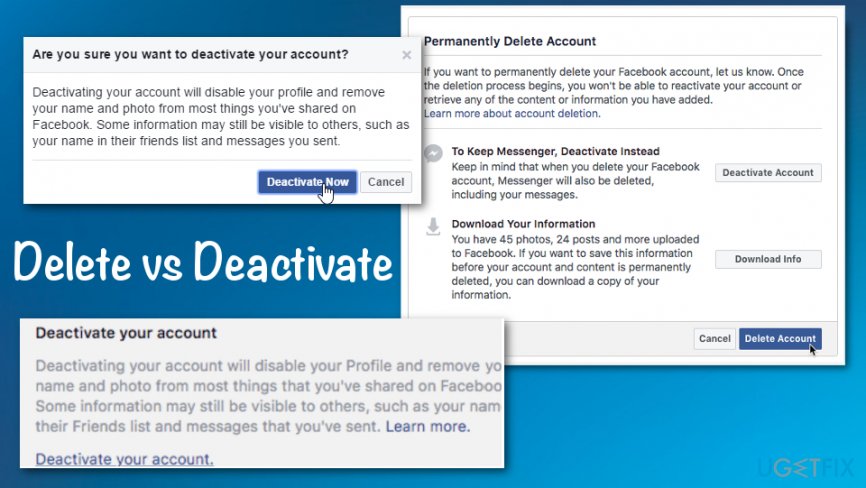
Backup data before leaving Facebook
- Log into your profile
- Click the menu icon on the top toolbar
- Go to Settings
- In the General tab, click on the Download a copy of your Facebook data option
- Backup your files by clicking the Start My Archive button.
Deactivate your account
- Log into the profile you want to deactivate
- Open the account menu located on the far right of the top control bar
- In the drop-down menu select Settings
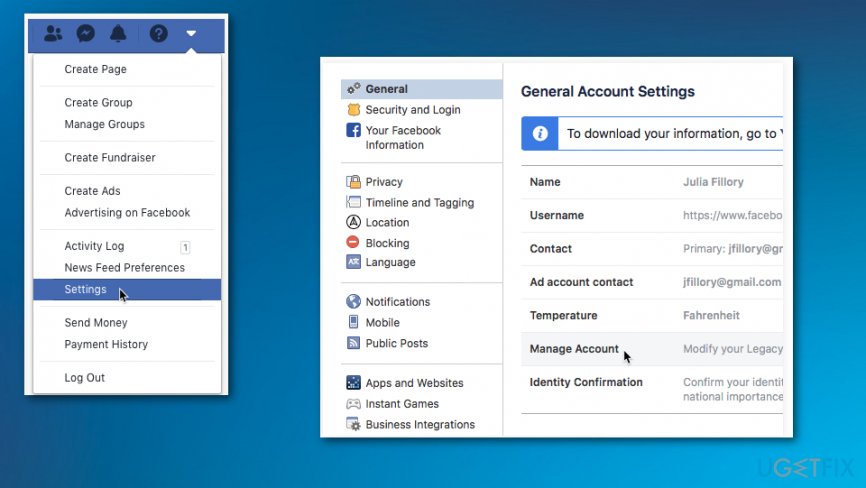
How to deactivate your facebook account settings - Go to the General tab
- Select Manage Account
- Click on Deactivate your account and Deactivate to confirm.
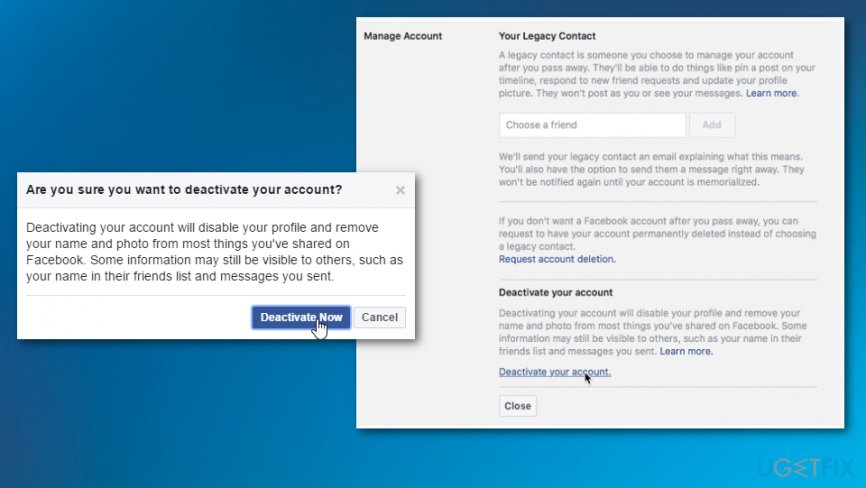
How to deactivate your facebook account settings deactivate
Delete Facebook profile permanently
- Log into the account you want to delete
- Follow the link to the Delete My Account page and Download your information to save photos and posts from the account.
- Then Delete Account.
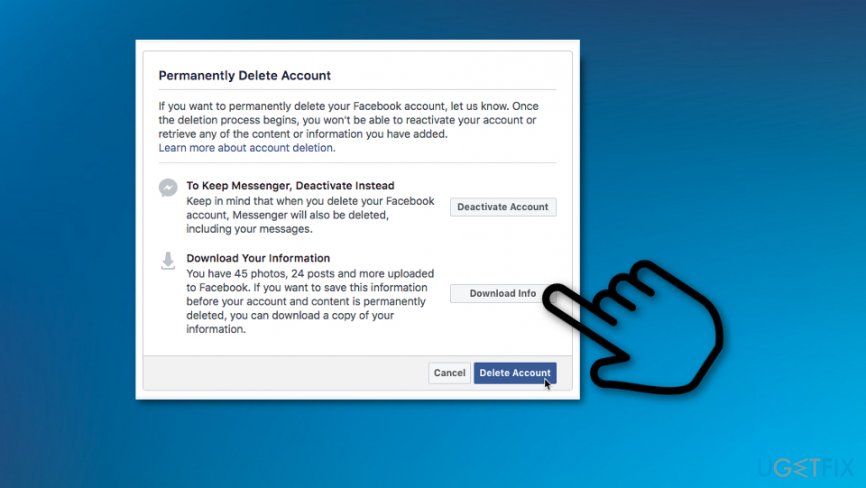
How to deactivate your facebook account delete
Bottom line
To deactivate your Facebook account, you can choose between account deactivation and complete account removal. Deactivation allows you to freeze your profile while retaining your data, whereas complete removal permanently deletes your account and data. If these methods do not work for you, consider reaching out to Facebook support for further assistance.
Frequently asked questions
To deactivate your Facebook account, log in through a web browser on your Windows device, go to Settings, select 'Your Facebook Information', and then choose 'Deactivation and Deletion'.
No, deactivating your Facebook account does not uninstall the app from your Windows device; you will need to uninstall it separately if desired.
Yes, you can reactivate your Facebook account at any time by simply logging back in on your Windows 10 or Windows 11 device.




Report an issue
What's wrong with this guide? We review every report and update or remove content.
Report received — thank you. We'll review and fix it.
You need a free account to submit a report.
Be the first to comment