How to remove
Disable Omnibox in Chrome
from Windows
Quickly disable the Omnibox in Chrome on your Windows 10 or Windows 11 system for a cleaner browsing experience. Expert-tested tips included!


How does How to disable Omnibox in Chrome end up on your PC?
- Autocomplete suggestions in Omnibox
- Privacy concerns related to data collection
- Synchronization of Omnibox history across devices
- Annoyance due to frequent suggestions
- Dependence on browsing history for predictions
Repairs Windows system files, removes malware, and restores a clean OS state — without reinstalling.
How can I disable omnibox in Google Chrome? I do not like these autocomplete suggestions!
Omnibox in Chrome has been called one of the most significant and convenient features of the web browser. However, some users find it annoying due to privacy reasons and might want to disable Omnibox altogether. Google Chrome by default has enabled omnibox which is a combined search box and URL[ref en-1] bar. Therefore, you can search the web and look for the information quickly, without having to access Google or another search provider first.
Once you start typing a search term, Chrome delivers suggestions and auto-completes queries. As soon as you click on a particular opinion, you are redirected to a website or Google search results page. These omnibox suggestions are based on these types of information:
- your browsing history
- bookmarked items
- suggestions
- URL prediction provided by Google
These predictions are made based on your entered keywords, previous search queries and Trending stories (it is based on what other people are looking for).

There are two main reasons why people decide to disable Omnibox in Chrome. One of them is related to possible privacy-related issues which have appeared as soon as this feature was released in 2008.[ref en-2] Google may collect and store logs; thus, if you want to hide your terms from the search giant, you need to disable Omnibox and use another search provider.
Another reason is related to Chrome’s ability to synchronize connected devices.[ref en-3] Chrome remembers Omnibox history and uses it across other devices. Therefore, if you searched for particular information from your laptop, you will find the same keywords when you open Chrome on your smartphone.
How to Disable Omnibox in Chrome?
If you are concerned about your privacy or find this feature annoying, you need to take three simple steps in order to disable Omnibox in Chrome. These steps require turning off Omnibox history sync, deleting history and autofill form data, and deleting search suggestions and URL prediction. Follow the steps below:
Step 1. Turn off Omnibox History sync
If Omnibox History sync has been enabled on Chrome, you need to turn it off. Perform the following steps to disable Omnibox history sync:
- Open Google Chrome browser
- Click on the three vertical dots on the top-right of the window and click on Settings (make sure you are logged in to your Google account)
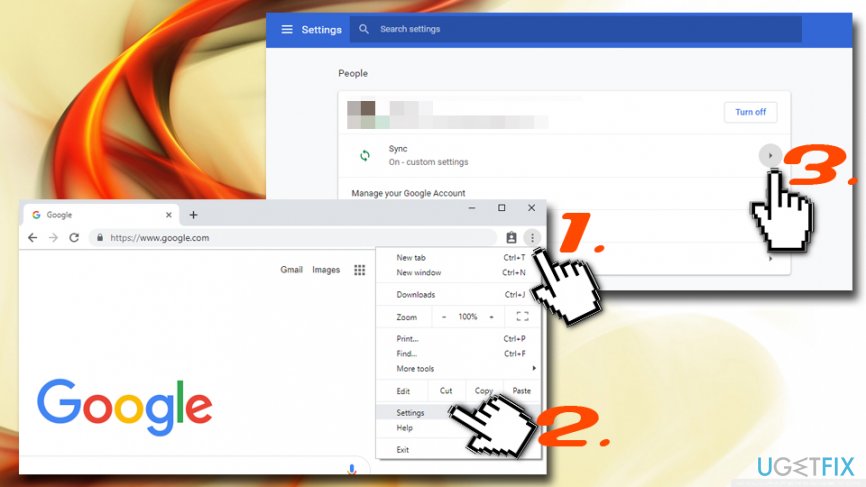
How to disable omnibox in chrome go to settings - Click on Sync, and you will enter Advanced sync settings
- Make sure the History option is turned off
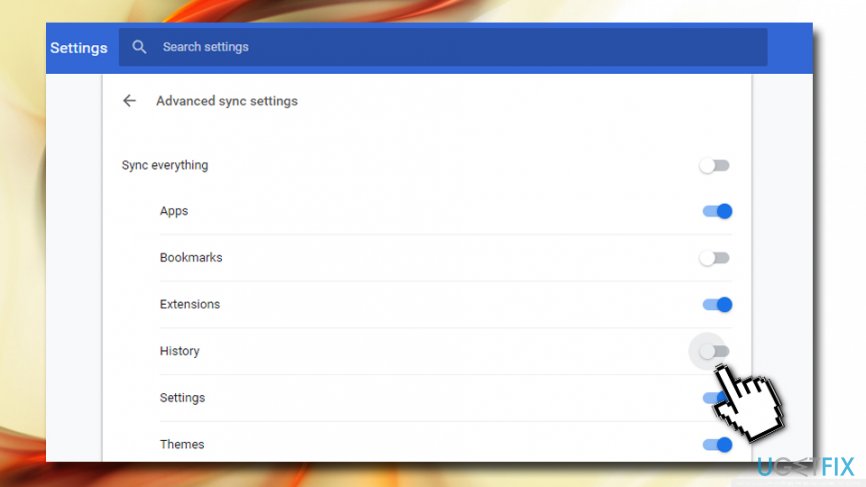
How to disable omnibox in chrome disable history sync
Step 2. Delete History, Cookie and Autofill Data
Next, you have to remove all the previous data you used while browsing the web (Google saves it automatically):
- Open Google Chrome once again and go to Settings
- Scroll down and click on Advanced
- In the Privacy and security section, locate Clear browsing data
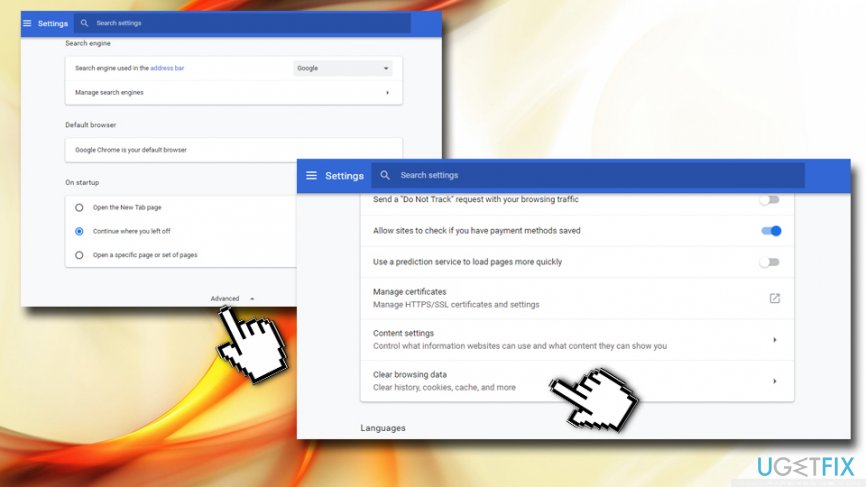
How to disable omnibox in chrome clear browser data - In the newly opened window, click on Advanced
- In the Time range section, pick the option All time
- Tick Browsing history, Cookies and other site data and Autofill form data
- Click on Clear data
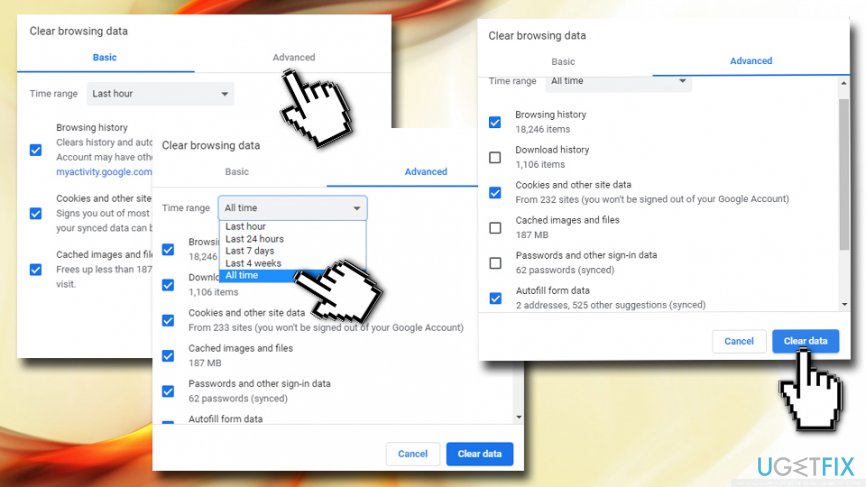
How to disable omnibox in chrome clear browser data cookies
Step 3. Delete search suggestions and URL prediction
This step is crucial to disable Omnibox completely. Perform the following actions:
- Go to Settings and click Advanced once again
- Under Privacy and security, locate Use a prediction service to help complete searches and URLs typed in the address bar
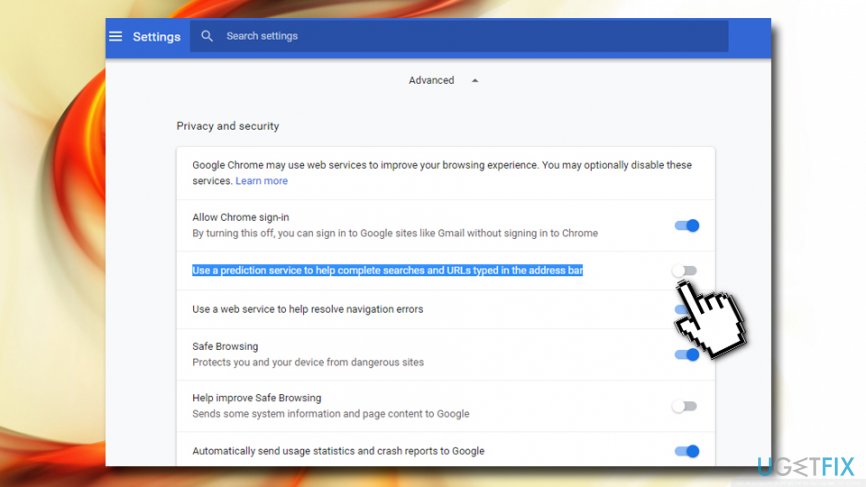
How to disable omnibox in chrome disable prediction service - Click on it once to disable Omnibox prediction service completely
We hope that this tutorial helped you to make the browsing experience more pleasant on Google Chrome!
Bottom line
To disable Omnibox in Chrome, you need to turn off Omnibox history sync, delete your browsing history and autofill form data, and remove search suggestions and URL predictions. If these steps do not resolve the issue, consider using another search provider.
Frequently asked questions
To disable Omnibox in Chrome on Windows 10, go to 'Settings', then 'Privacy and security', and clear your browsing data. This can help reset any unwanted suggestions in the Omnibox.
No, you cannot completely remove Omnibox as it is a core feature of Chrome, but you can disable suggestions by adjusting your search settings under 'Settings' > 'Search engine'.
If unwanted suggestions appear in Omnibox, try clearing your browsing data and resetting Chrome settings by going to 'Settings' > 'Advanced' > 'Reset and clean up'.




Report an issue
What's wrong with this guide? We review every report and update or remove content.
Report received — thank you. We'll review and fix it.
You need a free account to submit a report.
Be the first to comment