How to recover
Microsoft Word Documents
from Windows
Easily recover lost Microsoft Word documents on Windows 10 or 11 with expert-tested tips. Restore your files quickly and effectively. Fixed in minutes!


What leads to How to Recover Microsoft Word Documents?
- Corrupted file
- Power loss during saving
- Improper saving of the file
- Virus infection
- Storage media issues
Repairs Windows system files, removes malware, and restores a clean OS state — without reinstalling.
Hello. I need someone to help recover my Word file ASAP. At the moment, I’m struggling with my BA thesis, which has to be done this Friday. A half of an hour my PC crashed due to the electricity problems and the worst thing is that the word document with BA was opened. Now I can’t open it due to the “Microsoft Office cannot open this file because some parts are missing or invalid” error. For some unknown reason, autosave was disabled, and I did not know that!!! I did not touch anything after that because I’m afraid to lose my work. Could you please help to recover the file?
Microsoft Word remains one of the most popular applications for word processing.[ref en-1] However, there is a possibility of issues with the program still. "Microsoft Office cannot open this file because some parts are missing or invalid” message may be caused by corrupted or some issues that occurred during the saving of your file.
If a computer loses power or crashes as the program is writing to the disk there is a high possibility of files crashing. When the part of a file is left behind, the document becomes corrupted and cannot be opened properly. Other file corruptions, storage media issues, and even computer viruses can cause these issues with files.
The recent version of Microsoft Word has a function that allows minimizing corruption of the files. By AutoSaving the document to a different location instead of saving on top of the current existing file. The nature of this file corruption should dictate how to recover the document, so there are many solutions depending on the reason. Make sure to try all the methods listed below.

The culprit of corruption may be a virus infection or the system’s crash/power loss. The latter variant is most frequent and may lead to errors like the following:
The file is corrupt and cannot be opened.
or
Microsoft Office cannot open this file because some parts are missing or invalid.
That could mean that the Word document got corrupted due to improper saving or closing. There are other data corruption causes, but in most of the cases, it is possible to recover the file or at least to minimize the loss. Unfortunately, if your PC forcefully shut down due to the power loss, it might have been curtailed and hard to recover. Nevertheless, if you can’t open a Word file and need it desperately, you can always try the following MS Word file recovery methods.
Methods to recover Microsoft Word files
Various issues with Windows versions and updates can cause bugs or issues with the system, errors, and corruption of the files.[ref en-2] Fortunately, Windows got several updates and fixes, patches to ensure the end of these issues. The same thing may happen to MS Word too. Maybe your program is affected or some settings need renewal.
In case your PC has been infected with a virus, for example, the one that encrypts files, you will have to remove the virus first and then try to decrypt the damaged Word file.[ref en-3] First of all, remove the virus with a professional anti-malware, say [d1]. After that, check this article to find data recovery methods.
Method 1. Use Microsoft Word Repair tool
Microsoft Word Repair is an inbuilt tool, which can be launched by following these steps:
- Start Microsoft Word.
- Open File and select Open.
- Find the file that has been corrupted and click it.
- Click the Open button and select Open and Repair.
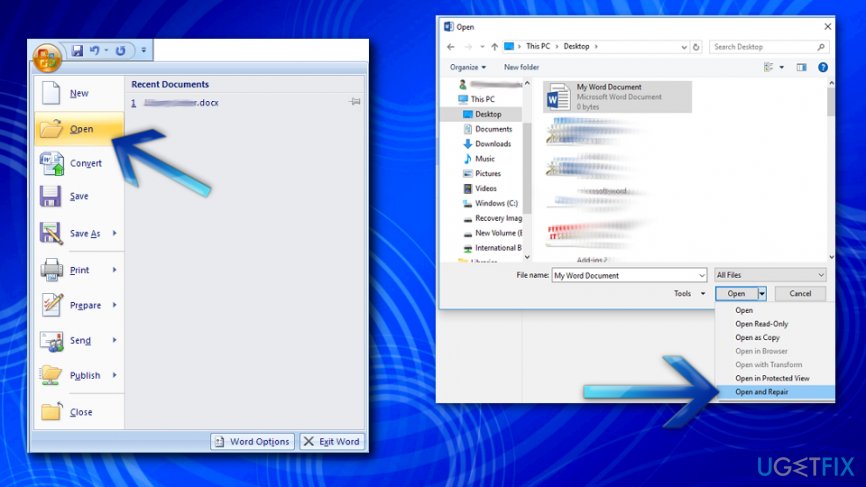
How to recover microsoft word documents open repair
Method 2. Recover text only
If you cannot recover everything from the corrupted document, at least, try to restore text. Although you will lose images and formatting, a long and important text recovery would minimize the loss to the minimum:
- Launch Microsoft Word.
- Open File and select Open.
- Find the file that has been corrupted and click it.
- Select All Files and click on Recover Text From Any File option from the drop-down menu.
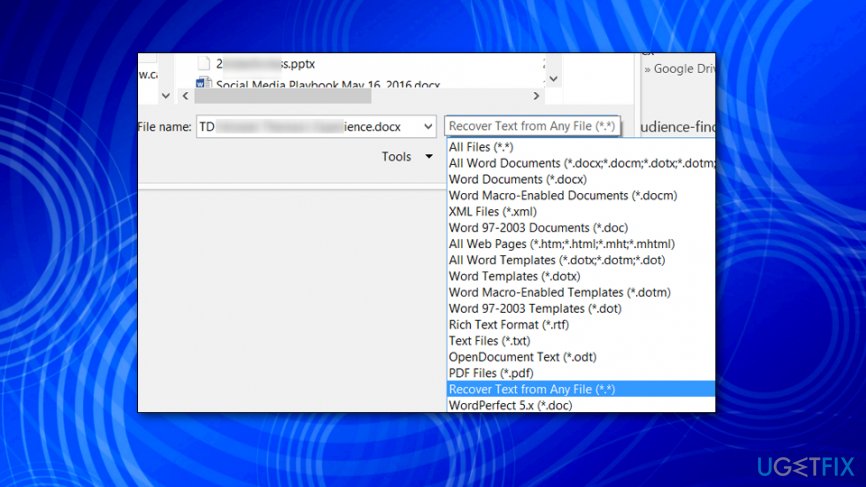
How to recover microsoft word documents recover any file - Click Open and save the file to the new location.
Method 3. Use Notepad to save text
This method will help you to recover the text only. Although that’s not the best solution, it’s better to recover at least something than nothing, isn’t it?
- Find the Word document you cannot open.
- Right-click on it and select Open with.
- Click Choose default program and select Other Programs.
- Pick out Notepad and uncheck the Always use the selected program to open this kind of file box.
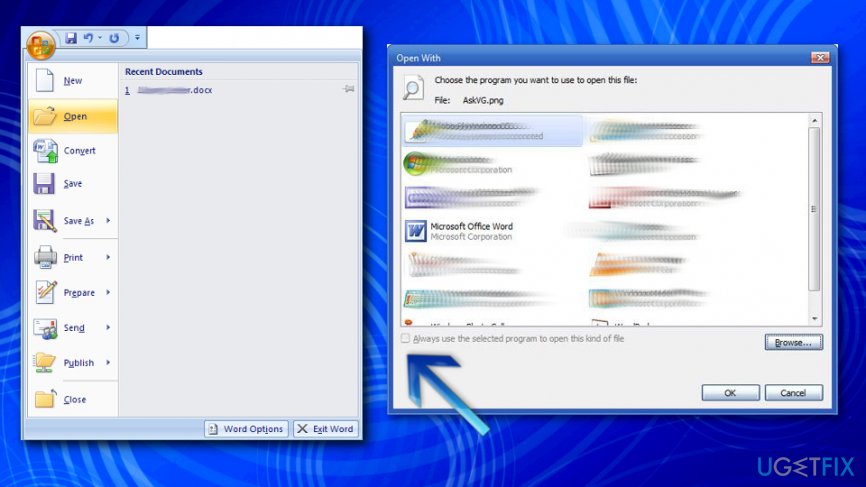
How to recover microsoft word documents always use selected - Click OK to save the option and check if the text from the corrupted Word document has successfully been transferred to Notepad.
- If it’s there, copy the text and paste it into a new word document.
Method 4. Install a third-party tool
Check the Internet for recovery tools that can recover corrupted Word files. Before downloading it, make a research on it and make sure to download it from a reliable source.
Bottom line
To recover your Microsoft Word document, you can try using the AutoRecover feature, opening the file in a different program, or restoring from a backup if available. If these methods do not work, consider using file recovery software or seeking professional help.
Frequently asked questions
You can recover unsaved documents by opening Word, clicking on 'File', then 'Info', and selecting 'Manage Document' to find 'Recover Unsaved Documents'.
In Windows 11, try opening Word, then select 'File', 'Open', and choose 'Browse'. From there, select the corrupted file and click on the arrow next to 'Open' to choose 'Open and Repair'.
Yes, right-click the Word document in File Explorer, select 'Properties', and then go to the 'Previous Versions' tab to restore an earlier version if available.




Report an issue
What's wrong with this guide? We review every report and update or remove content.
Report received — thank you. We'll review and fix it.
You need a free account to submit a report.
Be the first to comment