How to remove
Uninstall StackPlayer
from Windows
Easily remove StackPlayer from your Windows 10 or Windows 11 device with our expert-tested guide. Enjoy a seamless uninstall process today!

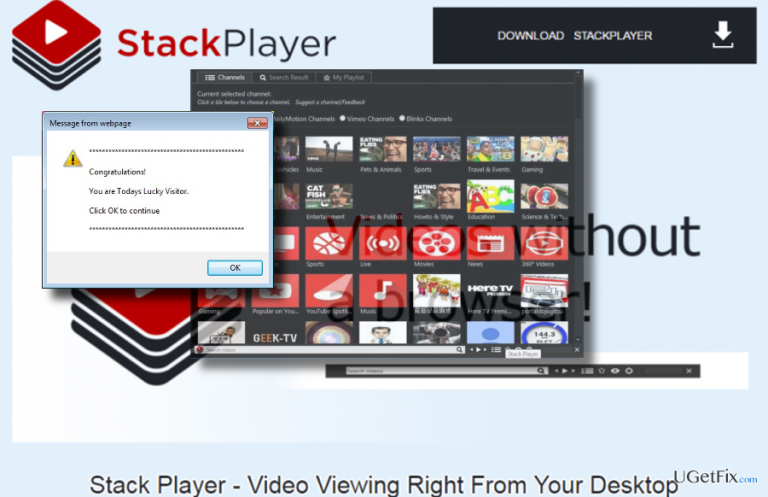
How does How to Uninstall StackPlayer end up on your PC?
- Stack Player is distributed bundled with free programs on questionable third-party download sources.
- Security experts classify Stack Player as a potentially unwanted program (PUP).
- Some anti-virus programs detect stackplayer.exe as a virus.
- Stack Player injects a web browser add-on and displays commercial advertisements.
- The program may not appear in the Programs and Features applet for some users.
Repairs Windows system files, removes malware, and restores a clean OS state — without reinstalling.
I desperately need to get rid of Stack Player. Nothing will remove it. I have tried multiple malware programs, safe mode, everything. Please help.
Stack Player is a legitimate software utility digitally signed by the Stack Player Company. The slogan of the software is “Videos without a browser” and the aim is to outrun the Adobe Flash Player tool. However, its reliability is highly questionable by security experts and there are serious grounds for such doubts. First of all, it has been noticed that Stack Player is usually distributed bundled with free programs on questionable third-party download source. Due to this fact, security experts classified Stack Player as a potentially unwanted program (PUP). Some of the anti-virus programs detect stackplayer.exe as a virus and the official StackPlayer detection rate is 7%. Usually, it is identified as a Virus.Aad.Gen!c, Generic.AAD, Artemis!68AB09CAB4CC or Artemis!Trojan.
StackPlayer PUP is also classified as adware because it forcefully injects a web browser add-on into the default web browser and starts displaying commercial advertisements (pop-ups, banners, interstitials, in-text ads, etc.). Clicking on StackPlayer ads usually, redirect to sponsored websites the content of which should not be trusted. Besides, the program installs cookies and tracks PC user’s personally non-identifiable information.
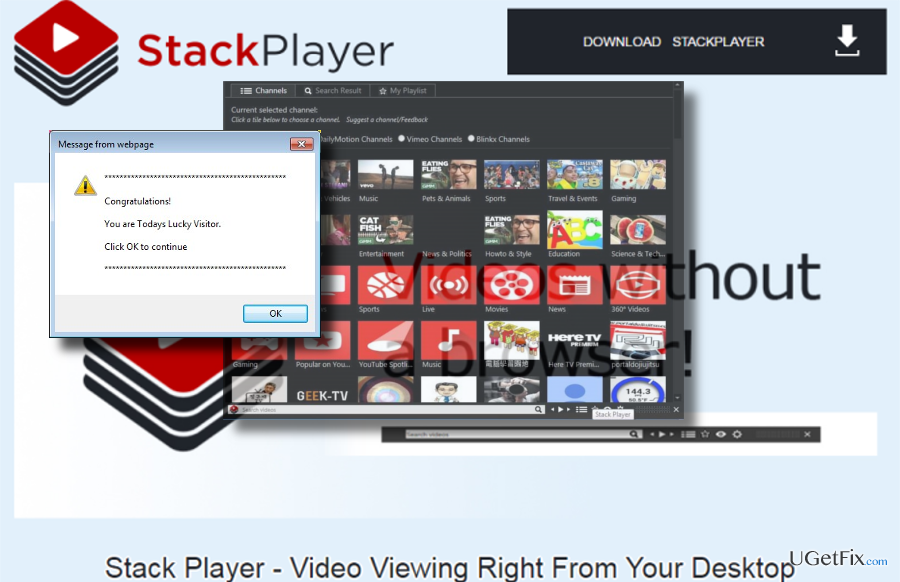
In a nutshell, this program is not a good choice to view videos both from the desktop or web browser. Unfortunately, many people are struggling with Stack Player removal. Sometimes it can’t be found on Programs & Features applet, but usually the removal process seems to be accomplished successfully, but the program is soon reinstalled automatically. If you are facing StackPlayer uninstall issues as well, please follow the instructions provided below.
Method 1. Uninstall StackPlayer manually
Stack Player is not a virus. Therefore, it should be listed in the Programs and Features applet. If it is there, you should uninstall it without any difficulties. To check that, you should:
- Click on the Windows key + I and launch Settings.
- select Programs and Features.
- Find StackPlayer, click it and select to Uninstall or Remove. Follow the wizard.
- Finally, reboot your PC.
If you are not allowed to uninstall the tool this way because the program is in use, you should terminate stackplayer.exe file on Task Manager. For that, press Ctrl + Alt + Delete to launch Task Manager. Locate the stackplayer.exe file, click it, and select Disable. Then boot your PC into Safe Mode with Networking and try to uninstall it again. To boot the system into Safe Mode, you should:
- Press Windows Key + R and type in msconfig.
- Click OK to continue. When the System Configuration panel opens, go to Boot tab.
- Under Boot Options, select Safe Boot and choose Network from the list.
- Click Apply and then OK.
- Then click Restart to confirm.
- Once done, try to remove Stack Player as explained above.
When the main executable is deleted, make sure to eliminate all file leftovers from the Registry. Please note that this part is very important and you need to be very careful when performing configurations in Windows Registry.
- Press Windows Key + R to open the Run dialog again. Type in regedit and press OK.
- Find and delete this folder: HKEY_CURRENT_USER\software\Stack_Player\.
- Then, click Edit > Find, and type in Stack Player.
- If the search finds some Stack Player remains, delete them.
- Restart your PC.
Method 2. Eliminate Stack Player Automatically
If you can't uninstall Stack Player manually, then you should try to perform the removal automatically. Boot the system into Safe Mode with Networking as explained above and then install a professional anti-malware (if you don't have one). Our recommendation would be [d1]. You may also use a software removal tool, for example, [rev id="Perfect Uninstaller"], but it may fail to detect corrupted/malicious files.
Method 3. Remove StackPlayer add-on
- Launch Google Chrome. Click on the menu icon (top right corner) and navigate to Tools → Extensions.
- Here, select Stack Player add-on. Click on the Trash bin on each entry.
- Then open Settings.
- Scroll down to the end of the page and choose Reset browser settings.
- Clicking the Reset action would revert the browser‘s settings to the factory ones.
Bottom line
To uninstall Stack Player, you can check the Programs and Features applet and follow the uninstallation process. If you encounter issues, try rebooting your PC after attempting the removal. If none of these methods work, consider seeking further assistance or using specialized removal tools.
Frequently asked questions
To uninstall StackPlayer in Windows 10, go to Settings > Apps > Apps & features, find StackPlayer in the list, click on it, and select Uninstall.
Yes, you can remove StackPlayer from Windows 11 by opening Control Panel, navigating to Programs > Programs and Features, selecting StackPlayer, and clicking on Uninstall.
If StackPlayer doesn't appear in the list, try using a third-party uninstaller tool or check if it's installed in a different directory that requires manual removal.




Report an issue
What's wrong with this guide? We review every report and update or remove content.
Report received — thank you. We'll review and fix it.
You need a free account to submit a report.
Be the first to comment