How to remove
Disable the Windows 7 Support – Case ID Pop-Up
from Windows
Easily disable the Windows 7 Support Case ID pop-up and reclaim your screen space. Follow our expert-tested guide for a hassle-free solution. Fixed in m…

How does How to Disable the Windows 7 Support – Case ID Pop-Up end up on your PC?
- Adware infection
- Fake technical support scam
- Browser vulnerabilities
- Malicious websites
- Unwanted software installations
Repairs Windows system files, removes malware, and restores a clean OS state — without reinstalling.
Hello, all. Or random occasions, my web browser shows a strange notification 'Windows 7 Support – Case ID.' It says that my PC might be infected with adware and that I should call for remove technical support assistant to remove it. The funniest thing is that I‘m NOT a Windows 7 user. My PC runs Windows 10 for a long time; It‘s a virus, isn‘t it?
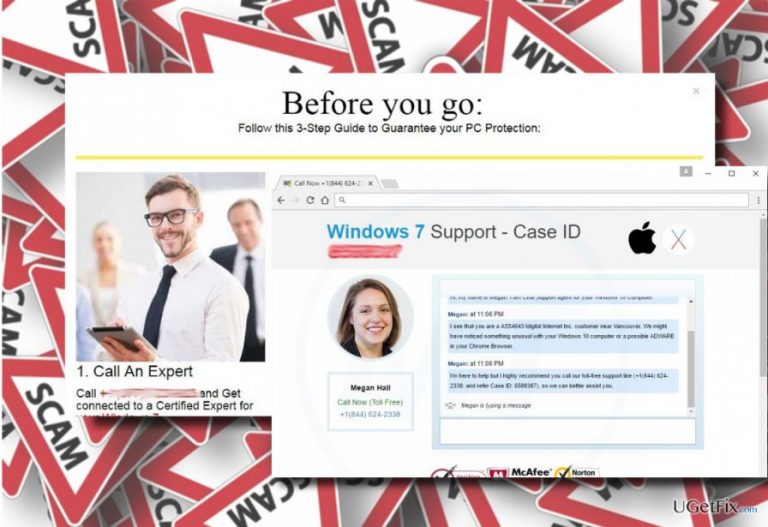
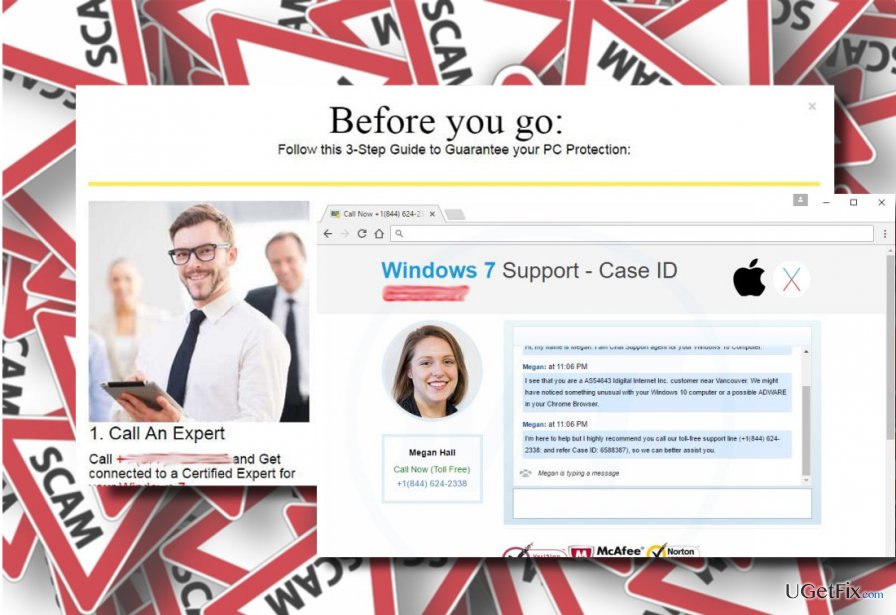
The Windows 7 Support – Case ID is a pop-up notification showing up on Chrome, Edge, Firefox, and other web browsers. The message reports that the web browser of the current PC may be infected with adware and perform unusually. The Windows 7 Support – Case ID pop-up pretends to be an official Microsoft alert generated by a „Chat Support Agent“ responsible for Windows 7 computers. The PC user is advised to call for technical support on a given number. The message may look like:
Windows 7 Support - Case ID (YOUR ID NUMBER)
Hi, my name is Megan. I am Chat Support Agent for your Windows 7 Computer.
I see that you are a [insert ISP] customer. We might have noticed something unusual with your Windows 7 computer or a possible ADWARE in your Chrome Browser.
Megan Hall
Call Now (Toll-Free)
+1(844) 624-2338
OR
Windows 7 Support Case ID: 3376306
Dear [NAME OF YOUR INTERNET SERVICE PROVIDER] -
Are you getting excessive POPUPS and having performance issues on your Windows 7 computer? It could be because of a possible ADWARE in your Firefox Browser.
Unfortunately, we do not have a Level 3 Technician near [YOUR CITY] Stores. So Please Call +1(844) 624-2338 immediately and get connected to a Level 3 technician for Windows 7 Computer.
Please note your Reference number for this Case is: 3376306
The Windows 7 Support – Case ID pop-up is FAKE. It‘s yet another Tech-Support-Scam distributed by remote tech support companies that seek to trick people into calling for highly-charged telephone numbers or, even worse, to contact with the hackers. Such call may lead to money loss or serious computer infection.
How does the Windows 7 Support – Case ID adware spread?
The Windows 7 Support – Case ID is a fake Microsoft warning, which is delivered by an adware-type infection. Adware programs usually spread bundled with freeware and hidden under Quick/Basic installation setup. So, if you have recently installed a freeware, you should check the list of programs installed on your PC and check if there are not doubtful media players, shopping assistants, or similar programs installed. If you found some of them, remove them immediately to disable The Windows 7 Support – Case ID scam.
In case you did not found any suspicious programs, it might be that The Windows 7 Support – Case ID pop-up was displayed via malicious websites. According to the latest reports, this alert is usually displayed via the following pages:
browseclean[.]bid
browseclean[.]space/Final-Notice/tito2.php#
nimbleland.co[.]in/bb/www.usaa.com.inetent_logon-signon/home/pin.php
realtimescan.flu[.]cc
stop-immediately[.]club
system-error-found.flu[.]cc/5mp-can-not-proceed/ag2lbxv5M.php
In this case, you should be more careful and avoid visiting untrustworthy or illegal websites.
How to Disable the Windows 7 Support – Case ID pop-ups?
Step 1. Close your web browser
If your web browser got stuck with the Windows 7 Support – Case alert, then you should close your web browser via Task Manager by following these steps:
- Click Ctrl + Shift + ESC to open Task Manager.
- Find the process of your web browser, click on it, and select End Task.
- Then launch your web browser again, but DO NOT restore the last session.
Step 2. Scan the system with a professional anti-malware
- Press Windows Key + R and type in MSConfig.
- Click OK to continue. When the System Configuration panel opens, go to Boot tab.
- Under Boot Options, select Safe Boot and choose Network from the list.
- Click Apply and then OK.
- Then click Restart to confirm.
- Then download [d1] or another powerful security tool and launch it.
- If it detects malicious entries, remove them immediately.
Step 3. Uninstall Windows 7 Support – Case ID adware manually
- Open Control Panel and select Programs and Features.
- Find the recently installed or unknown programs and uninstall them.
- Click OK to save the changes and close Control Panel.
Step 4. Reset your web browser‘s settings
- Open Google Chrome.
- Click on the menu icon (top right corner) and navigate to Tools → Extensions.
- Check for questionable extensions and disable them. Select the unknown extension and then click on the Trash bin next to it.
- Then open Settings.
- Scroll down to the end of the page and choose Reset browser settings.
To remove Windows 7 Support – Case ID scam on another web browser, reset its settings as well.
Bottom line
The Windows 7 Support – Case ID pop-up is a scam that falsely claims your PC is infected. To address this issue, ensure your antivirus software is up to date, clear your browser cache, and avoid clicking on suspicious links. If none of these fixes work, consider seeking professional technical support.
Frequently asked questions
You can disable the Windows 7 Support pop-up by uninstalling any suspicious programs associated with it through the Control Panel in Windows 10.
Yes, you can stop the pop-up by running a full system scan with Windows Defender and removing any identified threats or unwanted software.
If the pop-up persists, consider using a dedicated uninstaller tool to completely remove the program or malware causing the issue.




Report an issue
What's wrong with this guide? We review every report and update or remove content.
Report received — thank you. We'll review and fix it.
You need a free account to submit a report.
Be the first to comment