How to remove
Uninstall KNCTR Media Player
from Windows
Discover the easiest way to uninstall KNCTR Media Player from Windows 10 or 11. Enjoy a clutter-free experience with expert-tested solutions!

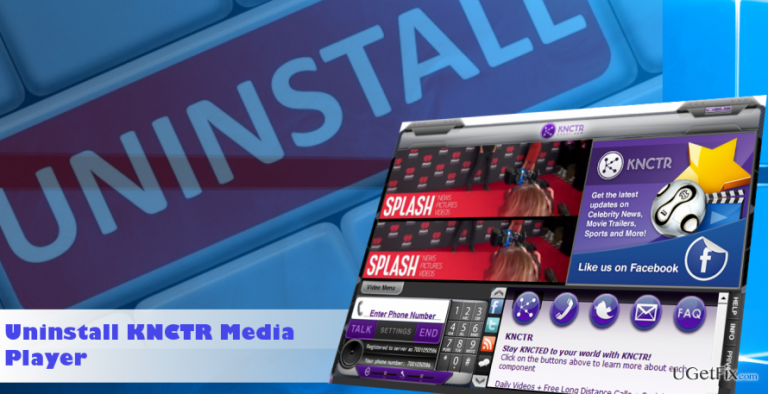
How does How to Uninstall KNCTR Media Player end up on your PC?
- Installed from a third-party download source
- Bundled with other freewares
- Classified as potentially unwanted
- Accused of contaminating web browsers
- Displays personalized advertisements
Repairs Windows system files, removes malware, and restores a clean OS state — without reinstalling.
I’ve installed Nero and TuneIn Radio from a third-party download source and found Knctr Media Player running on the system as well. Is it malware? I would like to uninstall it, so please tell me how to do that properly. Thanks!
KNCTR is a media player developed by Itibiti Ventures Inc. All information and the active download button is available at the official website of the tool. However, in short, the tool is represented as a media streaming software, which provides access to the Celebrity New, Trailers, Technology, Sport, and other channels. Besides, KNCTR Medis Player allows people to call mobile and landline phone numbers across North America for free. For this purpose, the user has to have a headset, Internet connection, and the KNCTR app. If you feel excited about trying this tool, you are free to do that. However, many people on the Internet reported this media player for strange behavior. Even though it’s a legitimate tool, it is often distributed bundled with other freewares. Consequently, lots of computer users found the KNCTR shortcut on their desktops out of nowhere. Due to unpopular distribution method, this app has been classified as potentially unwanted and included into the anti-virus database.
In addition to doubtful distribution, KNCTR Media Player is often accused of contaminating web browser. People claim that Edge, Chrome, IE, Firefox or another web browsers that the PC user uses by default before and after installation of the KNCTR starts displaying personalized advertisements labeled as “Knctr ads” or “brought by Kncrt.” If you have also noticed such behavior, it would be wise to uninstall the program because the emergence of personalized advertisements mean that third parties are tracking your web browsing activity with the help of cookies and can misuse the information for doubtful purposes.
Uninstalling KNCTR Media Player:
If you installed KNCTR Media Player directly from its official website, you should have no problems deleting it. For this purpose, you have to:
- Right-click on "Windows key' and select "Control Panel."
- Open "Programs & Features" applet.
- Locate KNCTR on the list, click it, and select "Uninstall."
If, however, the program got installed by default via another freeware, the application may be hiding or blocking the uninstaller. Besides, there may be other potentially unwanted programs installed. To check that and remove KNCTR Media Player permanently, we recommend running a full system scan with [d1].
Regardless of the removal method applied (manual or automatic), you should reset your web browser’s settings anyway. Otherwise, a potentially unwanted extension may keep working and deliver irritating pop-ups for you.
Google Chrome:
- Launch Google Chrome and click menu icon (three vertical dots at the top of the screen).
- Select "Settings" and navigate to the "Reset Settings" option.
- Click "Reset Settings."
- To confirm the selection, click "Reset" on the pop-up.
If you are not using Google Chrome, you can find the instructions on how to reset Mozilla Firefox, Microsoft Edge, and Internet Explorer by clicking on the following links:
Bottom line
To uninstall KNCTR Media Player, you can access the Control Panel, open the Programs & Features applet, locate KNCTR, and select Uninstall. If you continue to experience issues or if the program does not appear in the list, consider using an anti-malware tool to remove it completely.
Frequently asked questions
To uninstall KNCTR Media Player from Windows 10, go to Settings > Apps, find KNCTR Media Player in the list, and select 'Uninstall.' Follow the prompts to complete the removal.
Yes, you can remove KNCTR Media Player in Windows 11 by opening Control Panel, selecting 'Programs and Features,' locating KNCTR Media Player, and clicking 'Uninstall.'
If KNCTR Media Player doesn't show up in the installed programs list on Windows, try using a third-party uninstaller tool or check for any related files in the installation folder for manual removal.




Report an issue
What's wrong with this guide? We review every report and update or remove content.
Report received — thank you. We'll review and fix it.
You need a free account to submit a report.
Be the first to comment