How to remove
Disable “Please Install HD Video Player” Pop-up
from Windows
Easily remove the “Please Install HD Video Player” pop-up from Windows 10 or 11. Follow our expert-tested methods for a hassle-free fix, with screenshots.

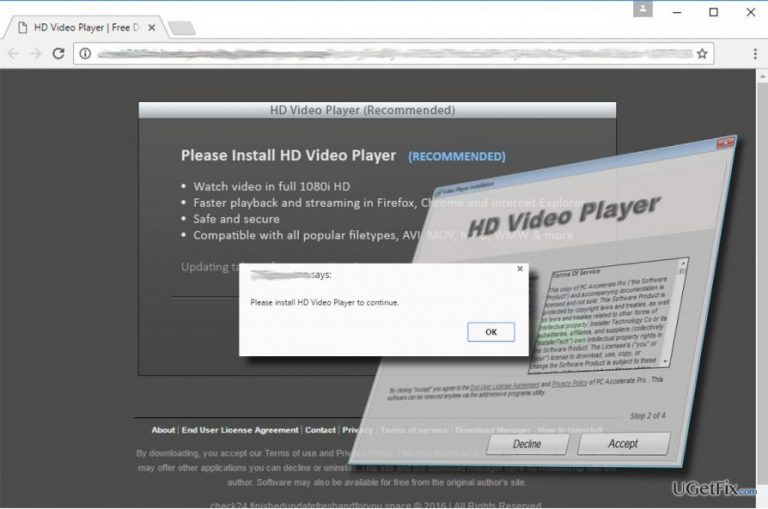
How does How to Disable “Please Install HD Video Player” Pop-up end up on your PC?
- Compromised web browser
- Adware infection
- Accessing a compromised or illegal web domain
- Clicking on a third-party advertisement
- Installation of an ad-supported application
Repairs Windows system files, removes malware, and restores a clean OS state — without reinstalling.
Why do I get the “Please Install HD Video Player” message on Chrome? It reoccurs every few hours. I can’t close it, open a new tab or perform other actions, except click the Download button. I understand that it’s a virus, isn’t it?
“Please Install HD Video Player” error message on Chrome or another web browser is not a sign of a virus. It means that you have recently installed an ad-supported application, namely “adware,” which is used for promotion of a third-party HD Video Player. This marketing technique is not new. Third party advertisers are using it for ages, but that doesn’t mean that such method is legitimate. Security experts unitedly agree upon the fact that “Please Install HD Video Player” pop-up and its alternates promote apps in an unfair manner. Besides, the apps promoted on such pop-up alerts are usually useless or even potentially dangerous. Therefore, if your web browser got stuck with the “Please Install HD Video Player” pop-up, scan your PC with [d1] or an alternative anti-malware tool.
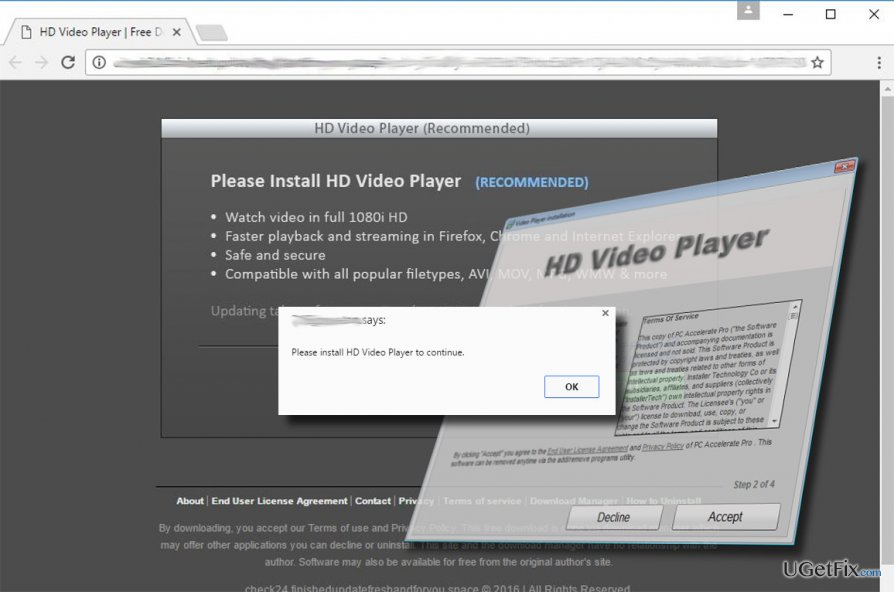
The distribution of “Please Install HD Video Player” ads
There are two reasons why “Please Install HD Video Player to Continue” pop-up may show up on Chrome, Edge, IE, Firefox, Opera or another web browser:
- Compromised web browser. If the “Please Install HD Video Player” alert occurred only once, most probably you have tried to access a compromised or illegal web domain. It may also be triggered by a third-party advertisement, which contains a link to the “Please Install HD Video Player” website.
- Adware infection. If the pop-up offering to install an HD Video Player occurs on your web browser regularly, i.e. more than three times a day, it means that your PC is infected with an ad-supported application, i.e. adware.
Removing “Please Install HD Video Player” pop-up
If the emergence of the “Please Install HD Video Player” pop-up was a one-time event, it means that the URL address you typed in the address bar or the advertisement that you clicked on was linked to a malicious web domain, which generates the unreliable pop-up. In this case, you should either include the URL address into the list of blocked sites on your web browser (use a third-party software for that) or remember it and simply avoid.
If, however, the “Please Install HD Video Player” ads occur not once nor twice in a day, you should check the system for malware. Such and similar pop-ups are typically generated by adware-type programs. To check that, you should open Programs & Features applet and check the list of apps running on the system. If you find unknown programs installed in recent days and the date coincides with the emergence of the pop-up ads, then you should uninstall them because that’s the only way to fix “Please Install HD Video Player to Continue” pop-up permanently.
Step 1. Fix “Please Install HD Video Player” error
To disable this irritating pop-up, you will have to uninstall the adware. If you got stuck with the HD Video Player pop-up, you should disable web browser’s process via Task Manager and then perform the following:
- Start > Control Panel > Programs and Features > Add/Remove Programs (Windows 7, XP).
- Right-click on Win key > select Control Panel > Uninstall a Program (Windows 8, 10).
- Carefully check what programs have been recently installed. The best way to do that is to sort the programs by date. Select unknown programs and click Uninstall. To confirm the removal, click OK/Uninstall.
Alternatively, you can disable the “Please Install HD Video Player” pop-up by removing the adware automatically. For this purpose, use a professional anti-malware, say [d1].
Step 2. Reset web browser
The adware that triggers the above-mentioned pop-ups distorts web browser’s settings and drops potentially unwanted extension/-s on it. Therefore, to remove “Please Install HD Video Player” advertisement permanently, it’s crucial to reset web browser’s settings:
Bottom line
To remove the 'Please Install HD Video Player' pop-up, scan your PC with an anti-malware tool and consider uninstalling any adware. If the issue persists, check for compromised browser settings or extensions. If none of these solutions work, further investigation into your system may be necessary.
Frequently asked questions
You can disable the pop-up by going to Settings, selecting Apps, and uninstalling any suspicious software related to HD Video Player. Additionally, run a malware scan to ensure your system is free from unwanted programs.
If the pop-up persists, try resetting your web browser settings and clearing cache to remove any remnants of the adware. Also, check for any browser extensions that may be causing the issue and remove them.
To prevent future pop-ups, ensure that your Windows 10 or Windows 11 system is equipped with a reliable antivirus program and regularly update it to block malicious software.




Report an issue
What's wrong with this guide? We review every report and update or remove content.
Report received — thank you. We'll review and fix it.
You need a free account to submit a report.
Be the first to comment