How to remove
Uninstall Smart System Care
from Windows
Easily uninstall Smart System Care from your Windows 10 or Windows 11 device. Follow our expert-tested guide for a clean removal, zero traces left.

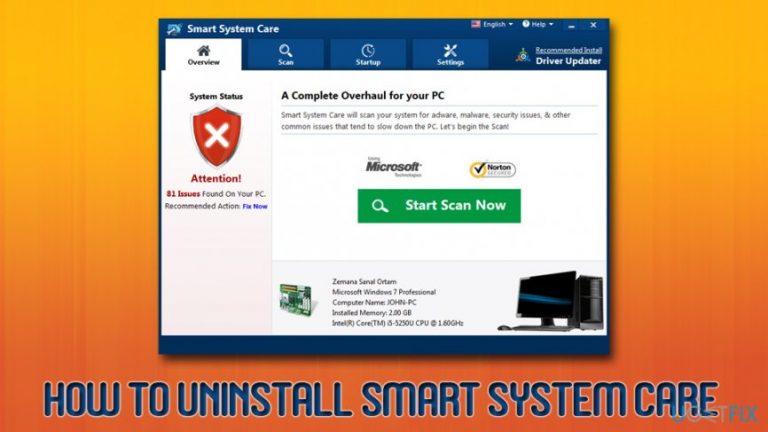
How does How to Uninstall Smart System Care end up on your PC?
- Deceptive distribution methods
- Bundled with third-party programs
- Usage of tracking cookies
- Displaying third-party ads
- Browser redirects to third-party domains
Repairs Windows system files, removes malware, and restores a clean OS state — without reinstalling.
I did not install Smart System Care tool. However, when I woke up my laptop from sleep this morning, this program launched its scanner and scanned my PC without my both my request and permission. Besides, I found my web browser showing “Ads by Smart System Care.” I ran a scan with my anti-virus, but it did not find anything. Isn’t Smart System Care a virus? Anyway, could you help me to uninstall it please?
While Smart System Care by AyaN might cause several unwanted activities on users' computers, it is not a virus.[ref en-1] It can not cause any harm to the operating system nor data stored on it. However, powerful anti-malware programs usually recognize it as a potentially unwanted program (PUP)[ref en-2]. Thus, many people start looking for ways how to uninstall Smart System Care and get rid of the nuisance.
Computer security experts found out that Smart System Care developers use deceptive methods to distribute the rogue PC optimization tool. It has been found that it spreads bundled with third-party programs[ref en-3] as a default attachment disguised under Quick/Basic installation method. Besides, this program raises suspicions for implementing other suspicious activities, including:
- The usage of tracking cookies;
- The distribution of browsing-related data with other third-parties;
- Displaying third-party ads;
- Browser’s redirects to third-party domains.
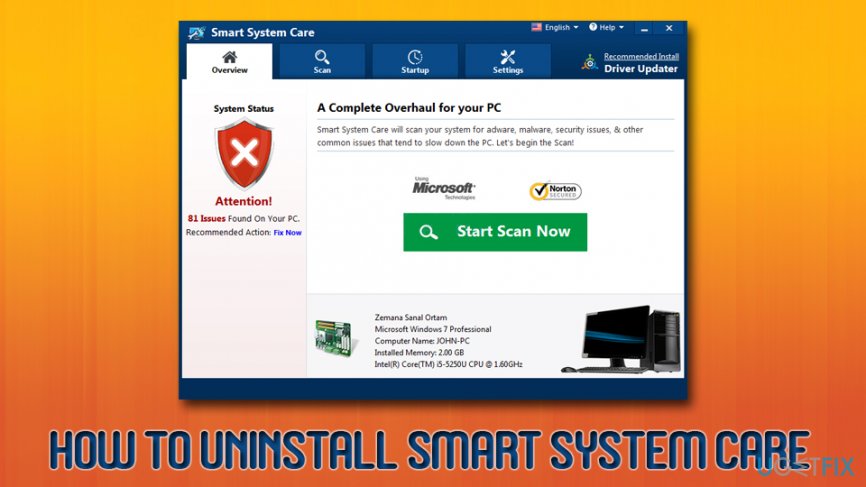
Therefore, although the Smart System Care app is represented as a tool for the PC's optimization, detection/removal of cyber threats, registry problems, software issues, and other malfunctions, it’s yet another questionable tool that displays fictitious scan results and pretends to be improving system's performance while, in reality, it might result in the opposite effect.
Those who get tricked by bogus scan results and decide to proceed using the program to fix their machines, they are prompted to pay for the licensed version, which renews yearly. However, Smart System Care scan results should not be trusted. It has been found that it picks random registry entries[ref en-4] and indicates them as damaged. Microsoft has already informed people that the registry modifications and other system’s changes initiated by Smart System Care may cause damage.
Therefore, you should uninstall Smart System Care using methods we provide below. Once you uninstall the dubious app, you will have to reset your browsers and remove registry entries related to the program. If you are not that computer savvy individual, we suggest you use [d1] - it can repair the damage done by the PUP automatically and eliminate all file leftovers, including potentially dangerous files. Alternatively, you can also try using [rev id="Perfect Uninstaller"].
If you are not willing to use automatic solutions, you will have to perform Smart System Care removal manually. Please follow each step below carefully.
Step 1. Remove Smart System Care from from Windows
- Click on the Windows key + I and launch Settings
- select Programs and Features
- Find Smart System Care, click it and select to Uninstall or Remove. Follow the wizard
- Finally, reboot your PC
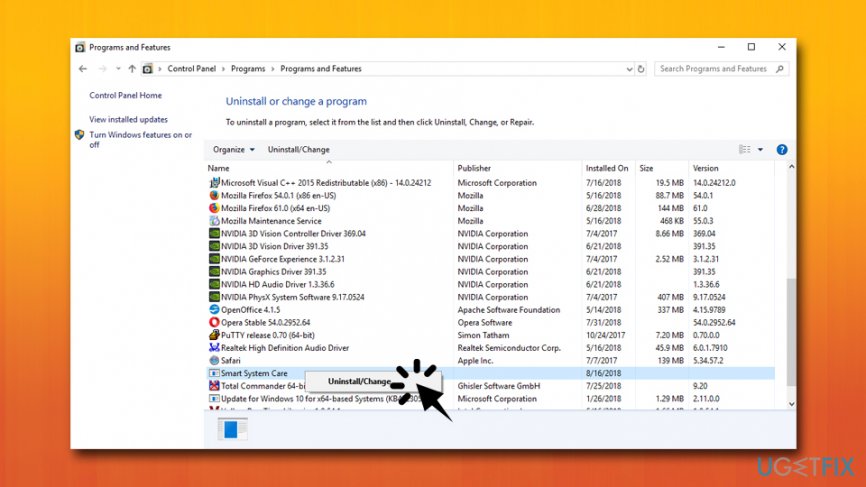
Uninstall smart system care from programs and features
If after performing the steps above you received a pop-up alert saying that the Smart System Care is in use, boot the system into Safe Mode, terminate Smart System Care process, and re-try Step 1.
Step 2. Delete Smart System Care from the Registry
- Type in regedit into the search box and press hit Enter
- Find and delete this folder:
HKEY_LOCAL_MACHINE\\Software\\[APPLICATION]\\Microsoft\\Windows\\CurrentVersion\\Uninstall..{Uninstaller}{E6298C62-873B-43BF-915D-F7B481C0633F}_is1
HKEY_CURRENT_USER\\Wow6432Node\\Microsoft\\Tracing\\ssc_RASAPI32
HKEY_CURRENT_USER\\SOFTWARE\\Microsoft\\Tracing\\ssc_RASAPI32
HKEY_CURRENT_USER\\SOFTWARE\\Wow6432Node\\Microsoft\\Tracing\\ssc_RASMANCS
HKEY_CURRENT_USER\\SOFTWARE\\Microsoft\\Tracing\\ssc_RASMANCS - Then, click Edit > Find, and type in Smart System Care.
- If the search finds some Smart System Care remains, delete them.
- Restart your PC.
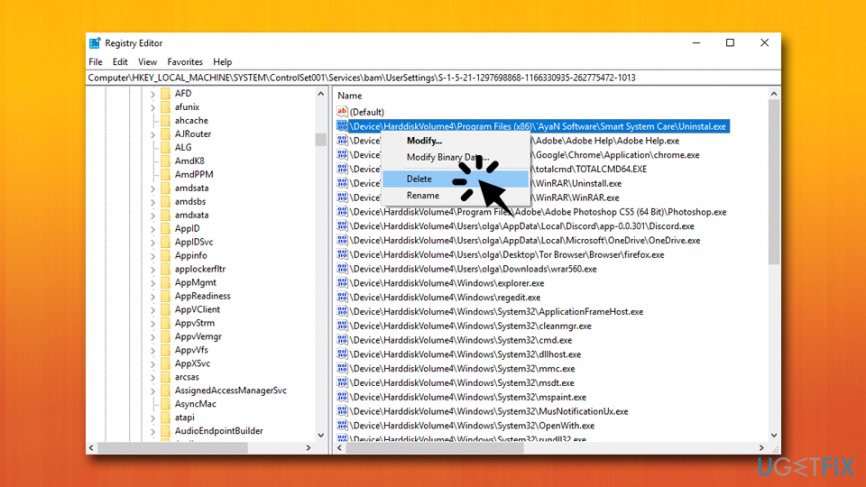
Uninstall smart system care remove registry
Eliminate Smart System Care extension from Google Chrome
Perform the following actions on Google Chrome:
- Click on the Menu and select Settings
- You will see a Main Menu icon on the top-left, click it
- Next, choose Extensions
- Select Remove next to each of the suspicious extensions
- Go to Menu > Settings, and select Main Menu again
- Pick Advanced and then Reset and clean up
- In the main window, choose Restore settings to their original defaults
- Finally, pick Reset Settings
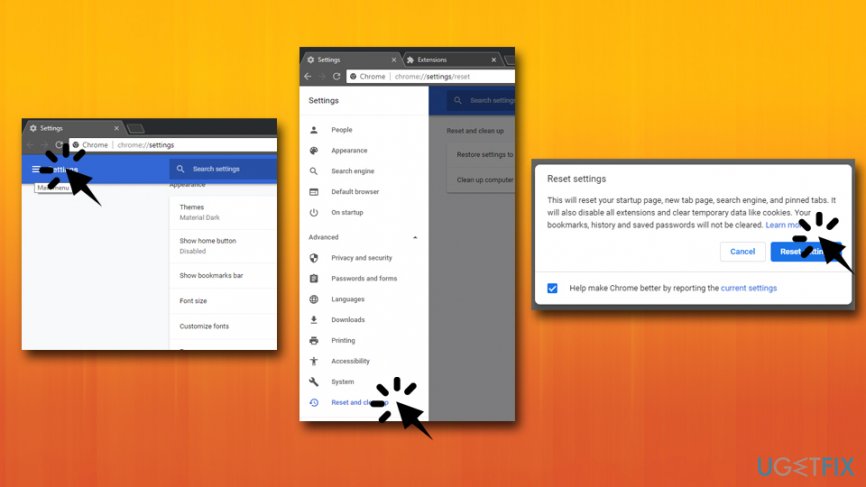
Uninstall smart system care clear google chrome
Refresh Mozilla Firefox to get rid of Smart System Care traces
- Select Menu in the top-right corner and choose Add-ons
- Open Extensions
- Press Remove next all suspicious extensions
- Now, go to Menu > Help > Troubleshooting information
- Click on Refresh Firefox
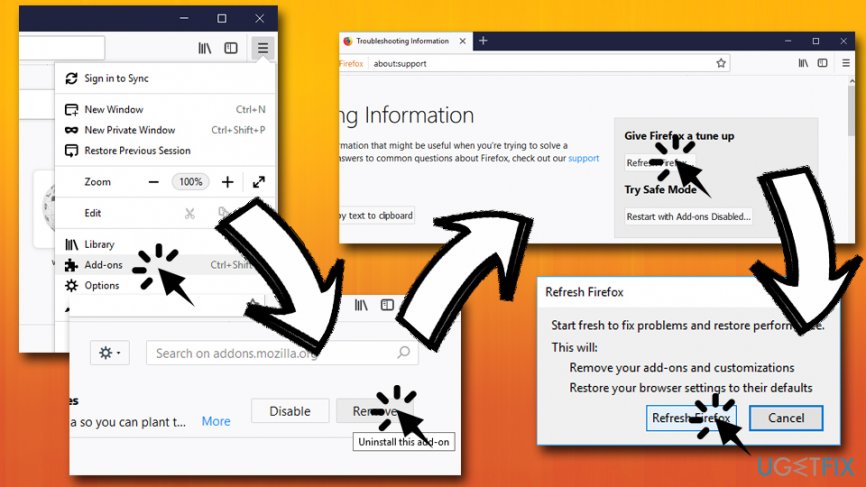
Uninstall smart system care clear mozilla firefox
Reset Safari to make sure Smart System Care stops showing ads
- Click on Safari on the top-left corner and pick Preferences
- Go to Extensions tab
- From the list of the installed extensions, pick unwanted ones and click Uninstall
- Go to the Safari menu again and choose Reset Safari
- Select all the tick boxes and press Reset
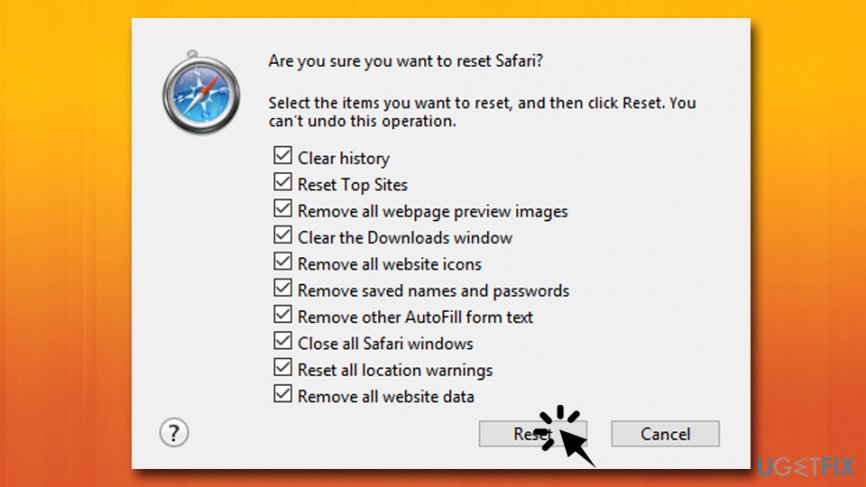
Uninstall smart system care clear safari
Bottom line
Smart System Care is not a virus but is recognized as a potentially unwanted program (PUP) that can cause unwanted activities on your computer. To uninstall it, you should remove it through the Control Panel or use a reputable anti-malware program. If these methods do not work, consider seeking professional assistance.
Frequently asked questions
To uninstall Smart System Care from Windows 10, go to Settings > Apps > Apps & features, find Smart System Care in the list, click on it, and select 'Uninstall'.
If Smart System Care doesn't uninstall properly on Windows 11, try using the Control Panel by navigating to Control Panel > Programs > Programs and Features, then locate and uninstall it from there.
Yes, after uninstalling Smart System Care, you can use a third-party uninstaller or a system cleaning tool to remove any leftover files or registry entries from Windows 10 or Windows 11.




Report an issue
What's wrong with this guide? We review every report and update or remove content.
Report received — thank you. We'll review and fix it.
You need a free account to submit a report.
Be the first to comment