How to remove
Uninstall Silverlight Plugin
from Windows
Easily remove unwanted software from your Windows 10 or 11 system. Follow our expert-tested guide for quick and hassle-free uninstallation.

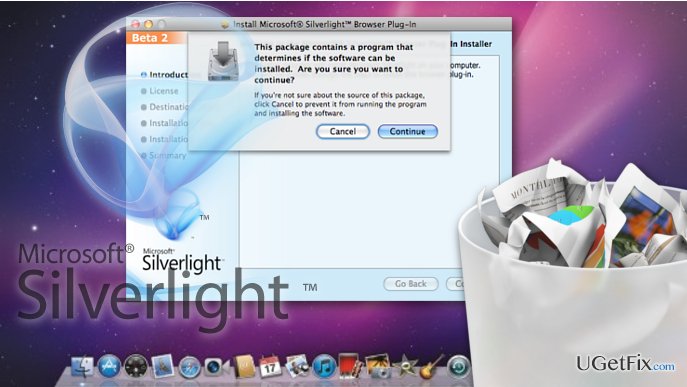
How does How to Uninstall Silverlight Plugin from Mac end up on your PC?
- Corrupted Silverlight plugin
- Malfunctioning Silverlight plugin
- Clash with other browser assistance programs
- Malware infection
- Plugin misconfiguration
Repairs Windows system files, removes malware, and restores a clean OS state — without reinstalling.
Silverlight on my Mac keeps crashing, preventing me from streaming anything on Netflix. How do I fix this?
Corrupted or malfunctioning Silverlight plugin can cause problems when streaming videos or watching movies on platforms such as Netflix or Hulu. Most of the time, the best solution to the arising problems is a simple reinstall. We will explain how to remove and perform a clean installation of this plugin later. But first, we’d like to clarify what this plugin actually is and why what it does on the computer.
Initially, Silverlight was a product designed to deliver high-quality video and audio content as well as other multimedia on Microsoft Windows operating systems. In a way, it works similarly to Adobe Flash and integrates graphics, animations and interactive features on a single platform. The plugin is currently in its 5th build, which offers over 40 new and improved features. It is compatible with the latest Windows 10 version and has also been adapted for Mac OS X systems. Unfortunately, the software was causing quite a few inconveniences and was often reported as the cause of various browser-related malfunctions. This has resulted in Apple’s choice to disable Silverlight on macOS Sierra by default. The company claims that this adjustment may help improve the browsing experience of the latest Safari 10 browser version. Nevertheless, the plugin will not be blocked completely. The users will still be able to enable Silverlight on specific websites and specific sessions. This does not shield users from potential Silverlight download or update failures, though. Thus, software malfunctions may still occur. Of course, plugin misconfiguration may not be the only factor determining program’s performance problems. It might as well be that the plugin clashes with some other browser assistance programs or is blocked as a result of some malware infection. In such case, you should closely examine the list of your browser extensions, add-ons, and plug-ins and remove suspicious components right away. Scanning the device with [rev id=”Raimage”] or similar security utility is also recommended just to make sure no hidden malicious component are corrupting your computer.
How to uninstall Silverlight from Mac OS X?
If you are experiencing problems related with Silverlight, you will have to perform a clean installation of the software. To do that, you will first have to eliminate the plugin from your Mac:
- Open the Force Quit Applications window by pressing Command + Alt and Esc keys and Force Quit all running browsers.
- Click the Finder icon on the bottom dock and press Command + Shift + G to open Go to Folder… search bar
- Paste the following string into the search box and hit Enter: /Library/Application Support/Microsoft/PlayReady. Please make sure you have verified administrative access before taking up this step
- When in the PlayReady folder, find mspr.hds and drag it to Trash
- Then, open Go to Folder… search bar again and paste: /Library/Internet Plug-ins
- Delete Silverlight.plugin from this folder.
After you are done with these steps, restart your computer and perform Silverlight installation again. Make sure you download the plugin from the OFFICIAL source only!
Bottom line
To fix the issues with Silverlight, you can try reinstalling the plugin or examining your browser extensions and removing any suspicious components. Additionally, scanning your device with a security utility is recommended. If these solutions do not resolve the problem, further investigation may be needed.
Frequently asked questions
Yes, you can uninstall Silverlight from Windows 10 or Windows 11 by going to the Control Panel, selecting 'Programs and Features,' finding Silverlight in the list, and clicking 'Uninstall.'
If Silverlight was installed via a browser, you may need to uninstall it through the browser's settings or extensions section before removing it from the Control Panel.
If you face issues while uninstalling Silverlight, try running the Windows Troubleshooter or using a third-party uninstaller tool to help remove it completely.




Report an issue
What's wrong with this guide? We review every report and update or remove content.
Report received — thank you. We'll review and fix it.
You need a free account to submit a report.
Be the first to comment