How to remove
Uninstall Zaxar Games Browser
from Windows
Easily uninstall Zaxar Games Browser from Windows 10 or 11 with our expert guidance. Quick fixes and tips for a smooth cleanup, fixed in minutes.


How does How to Uninstall Zaxar Games Browser end up on your PC?
- Bundling with other free software
- Using 'Quick' or 'Recommended' installation settings
- Silent installation without direct permission
- Modification of system and browser settings
- Accessing various Russian websites in the background
Repairs Windows system files, removes malware, and restores a clean OS state — without reinstalling.
When I browse the Internet, I receive lots of ads by Zaxar Games Browser. They suggest to play various online games, but I have no interest in them. What is more, I find ads annoying and disturbing. Is there a way to remove them?
Zaxar Games Browser is a potentially unwanted program (PUP) that is classified as an adware. The main purpose of the application is to provide lots of online ads and promote this Russian gaming platform. No matter what website you visit, this PUP employs a “virtual layer” and aggressively seeks your attention. Thus, in order to stop these ads, you have to uninstall Zaxar Games Browser from the computer. If you are wondering how this application managed to get inside your PC, we are here to explain the situation. Such programs are usually distributed together with other free software. This tricky method is called bundling. However, the success of it lays behind bad users' habits. The majority of people install new programs downloaded from various online sources using “Quick" or “Recommended” settings that do not disclose bout third-party software. Thus, all the attached applications are installed by default.
As you can see, applications like Zaxar Games Browser can enter the system silently and without asking direct permission. Once it settles in, it might modify system's and browsers’ settings. These activities allow delivering commercial content and preventing users from browsing the web normally. Apart from promoting this gaming site, adware might also work in the background and access various Russian websites, such as znimaltv.ru and tvzavr.ru. Nevertheless, users do not see this activity; the application uses computer’s resources. As a result, you might notice slower computer’s performance, page loading speed, and of course, tons of commercial content on your browser. Undoubtedly, dealing with such activities is not an option. Thus, you have to remove Zaxar Games Browser adware immediately.
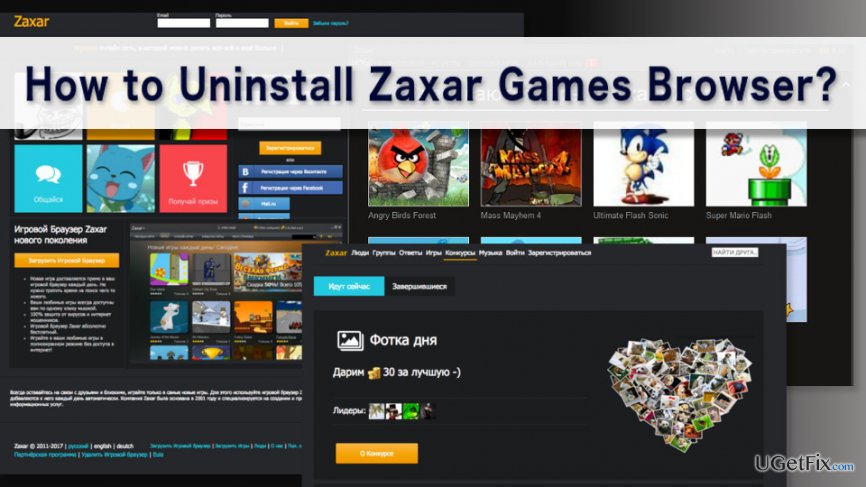
Uninstalling Zaxar Games Browser adware
In order to remove Zaxar Games Browser ads and stop redirects to this Russian gaming website, you have to find adware program and uninstall it. Therefore you have to investigate computer’s system and carefully look through the list of installed programs. Once you find suspicious entries, uninstall them without consideration.
Uninstall suspicious programs using Windows Control Panel:
There’s a chance that Zaxar Games Browser has an “Uninstall" option and might be removed from the system as an ordinary program:
1. Go to Start and click on Control Panel.
2. When in Control Panel, open Uninstall Program (or Add or Remove Programs - it may differ due to the version of Windows OS) option.
3. In the appeared list of installed programs on your computer, look up for Zaxar Games Browser or other suspicious applications. Double-click these entries and choose Uninstall option. Follow the uninstallation guide.
4. Reboot the computer if it’s necessary.
We also recommend checking each of your web browsers installed on the computer. Open the list of extensions and make sure that there are any extensions, plugins or add-ons that might be related to Zaxar Games Browser. If you find some unknown entries that you do not remember installing, remove them as well. Resetting your browser is also recommended to delete tracking cookies and other components that might have been installed too. If you still are bothered by these ads and redirects, please scan the computer with [d1]. This anti-malware program will clean all adware-related entries that you have left uninstalled.
Bottom line
To remove Zaxar Games Browser, you need to locate the adware program and uninstall it from your computer. This will help stop the ads and redirects to the gaming website. If these steps do not resolve the issue, consider using a dedicated adware removal tool.
Frequently asked questions
To uninstall Zaxar Games Browser on Windows 10, go to Settings > Apps > Apps & features, find Zaxar Games Browser in the list, and click 'Uninstall.' Follow the prompts to complete the uninstallation.
Yes, it is safe to remove Zaxar Games Browser from Windows 11 if you do not use it, as it can sometimes cause unwanted ads or browser hijacking.
If Zaxar Games Browser won't uninstall on Windows, try using the Control Panel's 'Programs and Features' to remove it, or use a dedicated uninstaller program to ensure complete removal.




Report an issue
What's wrong with this guide? We review every report and update or remove content.
Report received — thank you. We'll review and fix it.
You need a free account to submit a report.
Be the first to comment