How to remove
Uninstall ScanFolder Disk Optimizer
from Windows
Easily uninstall ScanFolder Disk Optimizer from Windows 10 or Windows 11 with our expert-tested guide. Fix issues in minutes, zero traces left!

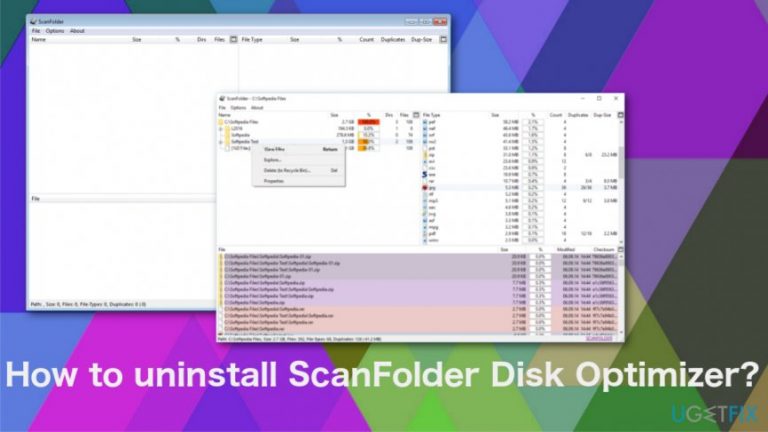
How does How to uninstall ScanFolder Disk Optimizer end up on your PC?
- Installed without user approval
- Disseminated via bundling distribution method
- Spread through spam or third-party ads
- May be related to third-party activities
- Misuses PC resources by configuring multiple tasks
Repairs Windows system files, removes malware, and restores a clean OS state — without reinstalling.
Hey. It seems that I’ve accidentally installed ScanFolder disk optimization utility because it scans my PC on a regular basis. First of all, I wonder how this program might have been installed without my approval and, second of all, could you please explain how it should be removed. The last time I tried to uninstall it was a couple of days ago, but it re-installed somehow again today.
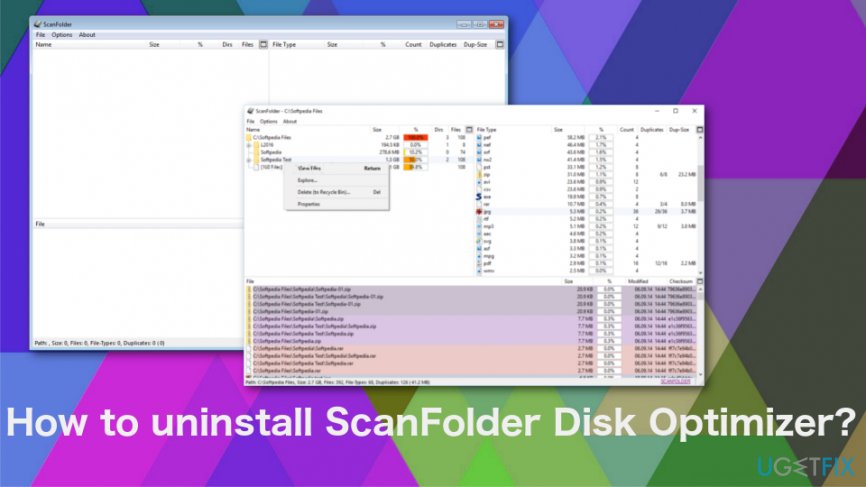
ScanFolder is a disk optimization utility, which started circulating on the Internet. There is not much information about this utility, except that it scans a drive and removes duplicate files.[ref en-1]
Looking from this point, ScanFolder looks alike with other PC optimization tools, but, in reality, it’s not. This application is already bearing negative associations and stands on the peak of being classified as a potentially unwanted program (PUP) or even malware.[ref en-2]
ScanFolder Performance on the System Raises Many Doubts. According to the certified cybersecurity experts, ScanFolder Optimizer closely related to third-parties and may be involved in very clandestine activities.
Although there is no official information yet, it is believed that the program is disseminated using bundling distribution method.[ref en-3] In other words, it spreads as an attachment of freeware disguised under quick installation setup. Moreover, it may also be spread via spam or third-party ads.
Unfortunately, unfair distribution technique is not the worst part. It has been found that the ScanFolder misuses PC’s resources by configuring multiple tasks on the system. The purpose of these tasks is to establish a remote connection with Russian servers and send some pieces of information without a user’s consent. However, it’s not clear what pieces of information are gathered and shared, which is why we would strongly recommend you to uninstall Scan Folder Disk Optimizer.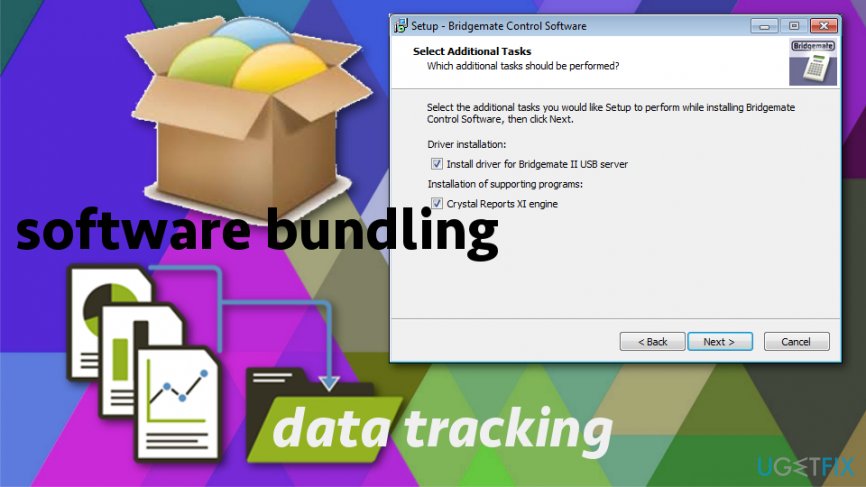
Tips that can help to uninstall ScanFolder Disk Optimizer
Firstly, you should check for other potentially unwanted programs. If ScanFolder got installed suspiciously, a bunch of other apps might have also been injected. You can do that manually by opening Control Panel and checking each program from the list or you can run a scan with [d1]. Then you can proceed with other manual methods that target directly the unwanted program. The system needs to be cleaned properly to end this intrusive behavior of the ScanFolder Disk Optimizer.
Uninstalling ScanFolder Disk Optimization Utility
- Boot the system into Safe Mode.
- Press Ctrl + Alt + Del to Open Task Manager.
- Find ScanFolder, click it, and select End Task.
- Right-click on Windows key and open Control Panel.
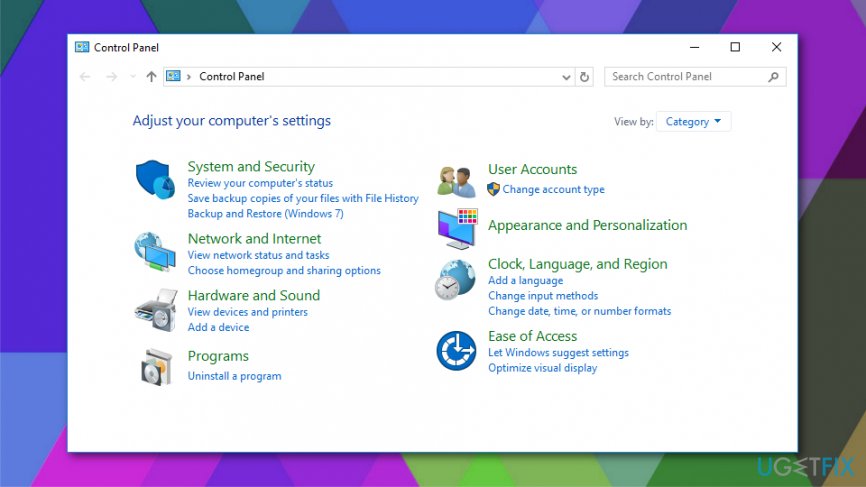
How to uninstall scanfolder disk optimizer control panel - Open Programs & Features and find ScanFolder.
- Click it and opt for Uninstall option.
- Follow the on-screen instructions and then click Remove on the confirmation pop-up.
- Close the window that you are currently seeing. Then press Windows key + R.
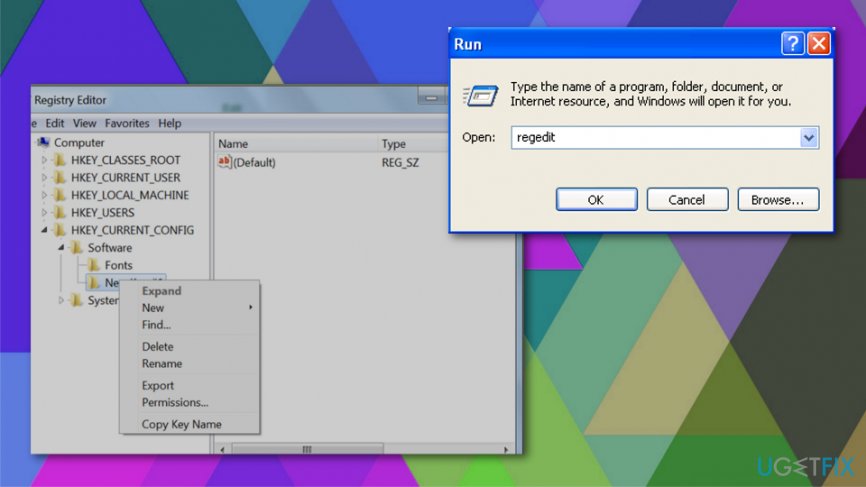
How to uninstall scanfolder disk optimizer regedit - Type regedit and press Enter.
- Click Edit at the top of the Registry Editor window and select Find.
- Type ScanFolder and wait while the search results are being prepared.
- If any files are found, delete all of them.
- Reboot your PC.
Finally, if you have noticed suspicious advertisements, links, browser redirects, changed start page, installed toolbars or similar unauthorized modifications on your default web browser, run a scan with the aforementioned program to uninstall malware and then reset your web browser.
Bottom line
To uninstall ScanFolder Disk Optimizer, check for other potentially unwanted programs in the Control Panel or run a scan with a trusted security tool. If these methods do not work, consider seeking professional assistance to remove the program.
Frequently asked questions
To uninstall ScanFolder Disk Optimizer from Windows 10, go to Settings > Apps > Apps & features, find the program, click on it, and select 'Uninstall.' Follow the prompts to complete the removal process.
If ScanFolder Disk Optimizer is not listed in the uninstaller on Windows 11, try using the Control Panel by searching for 'Control Panel' in the Start menu, then navigate to Programs > Programs and Features to uninstall it.
Yes, you can use a third-party uninstaller to remove ScanFolder Disk Optimizer on both Windows 10 and Windows 11, which may help in deleting leftover files and registry entries.




Report an issue
What's wrong with this guide? We review every report and update or remove content.
Report received — thank you. We'll review and fix it.
You need a free account to submit a report.
Be the first to comment