How to remove
The Tprdpw32.exe File Protected by SmartService Rootkit
from Windows
Quickly remove the Tprdpw32.exe file protected by the SmartService rootkit on Windows 10 or Windows 11. Expert-tested methods ensure your safety, fixed …

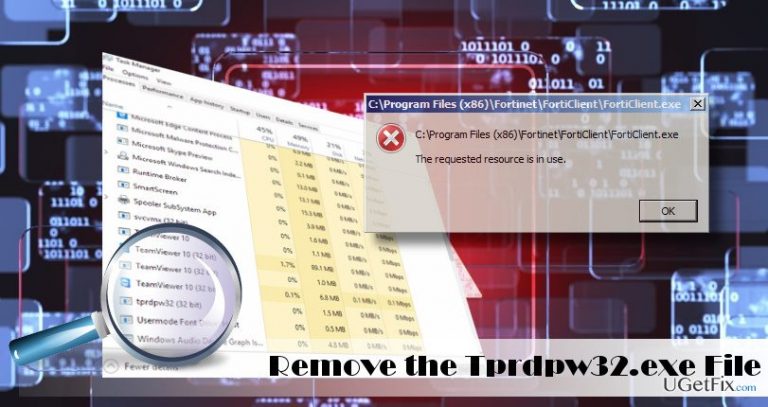
How does How to Remove the Tprdpw32.exe File Protected by SmartService Rootkit end up on your PC?
- Tprdpw32.exe file running in the background
- High CPU usage by the Tprdpw32.exe file
- Inability to terminate the Tprdpw32.exe process
- The SmartService Rootkit protecting malicious processes
- Error message 'The Requested Resource is in Use' when launching anti-malware
Repairs Windows system files, removes malware, and restores a clean OS state — without reinstalling.
Hello. It seems that my PC is infected with a severe virus, which sucks up CPU and prevents me from running anti-malware. I’m afraid that these activities are not all that the virus may be initiating on my PC. When launching anti-malware, I get “The Requested Resource is in Use” error message. Besides, I found Tprdpw32.exe file running in the background. It uses a lot of CPU and cannot be terminated. As far as I understand, this file might be the culprit, isn’t it?
Tprdpw32.exe file and the error message “The Requested Resource is in Use” are closely related. In fact, the existence of the file and emergence of this error when trying to launch anti-malware utility means that the system is infected with the SmartService Rootkit, which is often dubbed as SmartService Trojan.
Rootkit is a type of computer infection, which allows cyber criminals to maintain root-level access to a target computer. Although there are some legitimate uses for rootkit (by law enforcement or parents who want to control their kids’ behavior on the Internet), the bulk of rootkits are used by cyber criminals to maintain command and control over a PC by executing files, changing configurations, accessing log files, monitoring PC owner’s activities and so on. Consequently, the owner of the PC infected with the Tprdpw32.exe file or SmartService rootkit should be extremely worried because the consequences of the infection may be sad – identity theft, money loss or unrestrained installation of new viruses.
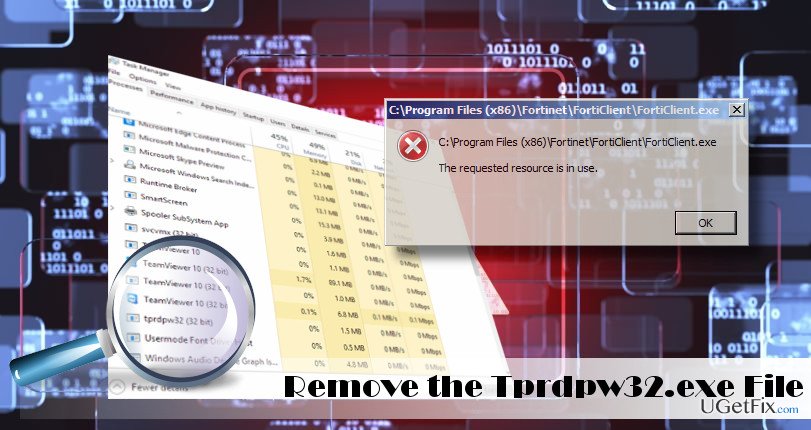
Tprdpw32.exe executable file continuously run in the background and may establish the remote connection with the malicious servers to download malicious and spyware-type programs. Each malicious program downloaded by this file is protected by SmartService rootkit, which is why an attempt to run a scan with an antivirus or antimalware ends up with “The Requested Resource is in Use” error message.
According to the latest reports, the rootkit is set to protect the following malicious processes: mbam.exe, egui.exe, zam.exe, a2start.exe or mcshield.exe, dataup.exe, cpx.exe, svcvmx.exe, szpsrv.exe, splsrv.exe, qdcomsvc.exe, ct.exe, vmxclient.exe and others.
Removing Tprdpw32.exe File and SmartService Rootkit
To find out if SmartService Rootkit is running on the system, try to terminate the Tprdpw32.exe process via Task Manager. If the attempt ends up with the “Unable to Terminate Process. The operation could not be completed.” Error, try to run a scan with anti-malware and we are pretty sure that the “The Requested Resource is in Use” error will pop up. That’s a typical behavior of the SmartService rootkit. To prevent this malware from causing the leakage of personal data or virus infection, take immediate actions to fix Tprdpw32.exe error and remove SmartService Rootkit.
Use a professional anti-malware to remove the rootkit
Unfortunately, but there is no other way for SmartService removal except that to use a professional anti-malware or anti-rootkit. In case the malware blocks your attempts to run the tool that is already installed on your system, you'll have to use an alternative application.
Option 1. Use Windows Defender (Offline Mode)
- Press Windows key + I and open Update & Security.
- Select Windows Defender on the left pane and click Scan Offline.
Windows 7 users will not be able to follow the above-mentioned steps. Alternatively, they can download Windows Defender Online (32-bit version or 64-bit version). After that, reboot the system using the Windows Defender Offline media and run a full system scan with it. When the list of infections is provided, remove all of them and reboot the system.
Option 2. Use Anti-Root Utilities
- Press and hold the Shift key and select Restart.
- On the Windows log on sreen navigate to the Troubleshoot → Advanced Options → Startup Settings.
- Click Restart and press F5 to enable Safe Mode with Networking.
- Now Download and run Malwarebytes Anti-Rootkit beta.
- Follow the on-screen instructions to update the tool and run a scan. Once done, the SmartService rootkit should be deleted.
- Finally, launch your anti-virus to remove the Tprdpw32.exe virus or another malicious process.
Option 3. Use Rkill tool
Rkill tool is capable of disabling malware temporarily. Thus, if the previous methods did not help, you may try to download enable Rkill utility. After that, immediately run a scan with a professional anti-malware and delete all malicious and potentially unwanted programs.
Option 3. Enable System Restore Point
If you responsibly take care of your PC's security, you must have created a System Restore Point before “The Requested Resource is in Use” error emerged. If our prediction proved correct, then you should try to remove the SmartService Rootkit and disable Tprdpw32.exe file permanently using the latest System Restore Point.
- Hold Power button to turn off your PC and then restart the system.
- Before Windows logo shows up, press F8 to boot into Safe Mode.
- Log in to your account if required.
- Once the system boots up, disable your antivirus.
- Click Windows key and type system restore.
- Select Create a restore point, select System Restore, and hit Next.
- Select the latest systems restore point and click Next.
Once you fix the Tprdpw32.exe error and remove the SmartService Rootkit, we would strongly recommend running a scan with [d1] to remove temporary files, corrupted data, system files, log files, and other unwanted content.
Bottom line
To remove the Tprdpw32.exe file and the SmartService Rootkit, users should attempt to run specialized removal tools or boot into safe mode to terminate the process. If these methods do not work, it is advisable to seek professional help or consider a complete system restore.
Frequently asked questions
The Tprdpw32.exe file is a malicious executable linked to the SmartService rootkit, which can compromise your Windows 10 or Windows 11 system by allowing unauthorized access and control.
You can remove Tprdpw32.exe by using reputable antivirus software to perform a full system scan and then following the prompts to quarantine or delete the infected files.
Yes, you can manually stop the Tprdpw32.exe process in Task Manager, delete its associated files from the system, and then check your startup programs to ensure it doesn't reappear on Windows 10 or Windows 11.




Report an issue
What's wrong with this guide? We review every report and update or remove content.
Report received — thank you. We'll review and fix it.
You need a free account to submit a report.
Be the first to comment