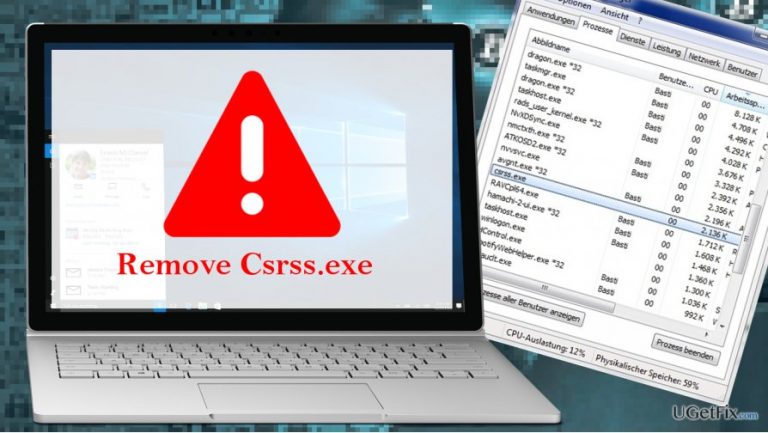
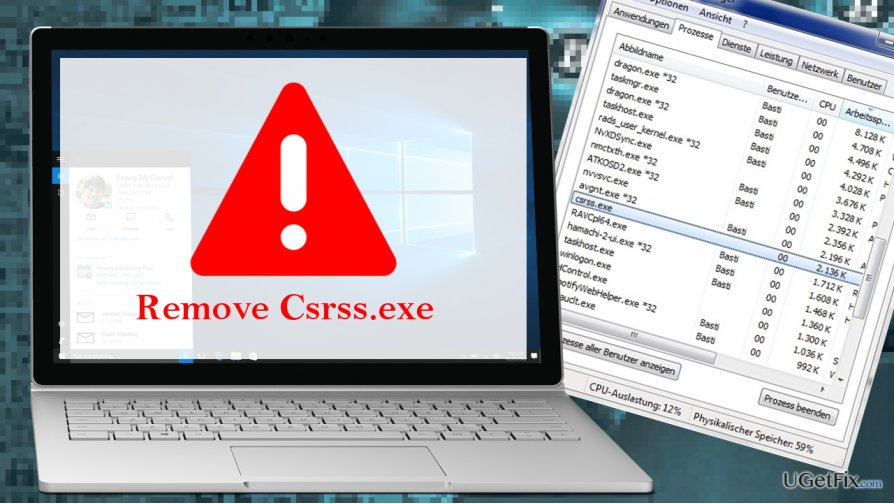
I’ve noticed Csrss.exe process on Task Manager sucking up CPU. Sometimes CPU consumption reaches more than 40%, which I assume is a lot and may negatively influence my PC’s performance. Is this file important?
Csrss.exe file is not a core system file, which means that it can be removed without causing negative effects to system’s performance. In fact, this file is known as a Miner Trojan, which purpose is to exploit target PC’s processor and subsequently mine the MonaCoin (MONA) digital currency. The Csrss.exe Trojan misuses GPU and CPU power mine MonaCoin and protects itself from being removed. The existence of this malicious file may significantly slow down the PC and may open backdoor on the system to download other malicious programs. That’s why it’s advisable to remove Csrss.exe Trojan without a delay.
Csrss.exe is distributed using various shady methods, such as malicious ads, links, encoded websites, in a pack with bundled freewares, and similar. Once installed, this Trojan creates the C:\\Windows\\svchost.exe executable, which furthermore launches the C:\\Windows\\Csrss.exe process. Although the svchost.exe is a legitimate Windows process, its name is often misused by malware developers to disguise malicious applications and prevent people from removing it. When the two mentioned processes start to run, it means that the target PC has successfully been connected with the mining pool at mona.suprnova.cc. From that moment, the PC’s GPU and CPU power is utilized for mining MonaCoin, which is why PC’s performance may significantly decrease. According to the BleepingComputer, the following are the side effects of the Csrss.exe error:
Multiple Csrss.exe processes running in Task Manager.
Csrss.exe process using up to 90% of CPU.
C:\\Windows\\Csrss.exe process with a descripton of Процесс исполнения клиент-сервер in Task Manager.
C:\\Windows\\Svchost.exe process with a description of Хост-процесс для служб Windows in Task Manager.
Computer’s slowdowns.
Long system’s boot up sessions.
Removing Csrss.exe Trojan
It’s practically impossible to uninstall Csrss.exe Miner Trojan because there’s no apps associate with it. Besides, the processes starts automatically, so you may sometimes find it running, while sometimes not. Besides, the Trojan may have some browser helpers, so trying to remove it may end up with various errors. If you are not allowed to disable Csrss.exe or another malicious process, you can use Rkill utility, which temporarily stops malicious processes and enable the PC user to remove them. Once Rkill is launched, boot your PC into Safe Mode and immediately run a scan with a professional anti-malware. We would recommend using [d1].
Malicious processes like Csrss.exe can also be disabled manually. If you want to try manual fix in gthe first place, please follow these steps:
Press Windows key + R and type “services.msc”. Click OK.
Locate the Automatic Updates service and double-click on it. Check if Log On tab is selected by default.
Deselect the option “Allow service to interact with desktop”.
Find General tab and check whether start-up is set to Automatic. If not, change it to Automatic.
Now open Service Status section. Enable it by pressing Start.
Repeat it again for the Background Intelligent Transfer Service.
Then right-click on Windows key and select Command Prompt (Admin).
Type in REGSVR32 WUAPI.DLL and press Enter.
Once you see the message "DllRegisterServer in WUAPI.DLL succeeded”, click OK.
You should now do the same with the following commands: REGSVR32 WUAUENG.DLL REGSVR32 WUAUENG1.DLL REGSVR32 ATL.DLL REGSVR32 WUCLTUI.DLL REGSVR32 WUPS.DLL REGSVR32 WUPS2.DLL REGSVR32 WUWEB.DLL
After thatm enter the net stop WuAuServ command in the Command Prompt and press Enter.
Type cd %windir% and press Enter again.
Type ren SoftwareDistribution SD_OLD.
Then type net start WuAuServ and close Command Prompt.
If that did not help, the only way to remove the Csrss.exe is to kill the process and scan the system with a professional anti-malware.
Bottom line
To remove the Csrss.exe Trojan, it is advisable to use antivirus software to detect and eliminate the malicious file. Additionally, monitoring Task Manager for unusual processes can help identify and address the issue. If these methods do not work, consider seeking professional assistance.
Frequently asked questions
Csrss.exe is a critical system process in Windows 10 and Windows 11 that handles user sessions and graphical user interface elements. It should not be removed or terminated as it can lead to system instability.
You can verify the legitimacy of Csrss.exe by checking its file location; it should be found in the C:\Windows\System32 directory. Additionally, you can use Windows Task Manager to inspect its properties.
If you suspect Csrss.exe is causing problems, run a full system scan using Windows Defender or a trusted antivirus program to check for malware disguising itself as Csrss.exe. If issues persist, consider restoring your system to an earlier point or seeking professional help.
Windows error repairBSOD troubleshootingSystem file corruptionRegistry repairWindows Update failures
Olivia Morelli is a Windows systems expert specialising in diagnosing and repairing OS-level errors. She has spent nearly a decade writing guides that help everyday users recover from BSODs, corrupt system files, broken Windows installations, and failed update rollouts. Her methodical troubleshooting approach — starting with built-in tools before escalating to manual repairs — reflects years of practical experience supporting users across Windows 7, 8, 10 and 11. Olivia's guides are known for their clarity, completeness, and the care she takes to explain not just the fix but why the problem occurred.





Report an issue
What's wrong with this guide? We review every report and update or remove content.
Report received — thank you. We'll review and fix it.
You need a free account to submit a report.
Be the first to comment