How to remove
Uninstall Tor Browser
from Windows
Easily remove Tor Browser from Windows 10 or 11 with our expert-tested guide. Get clean results and reclaim your system in minutes!


How does How to Uninstall Tor Browser end up on your PC?
- Malfunctioning after an update
- Bundled with third-party tools
- Association with darknet and criminal activity
- Desire to free up space
- Unspecified reasons for stopping use
Repairs Windows system files, removes malware, and restores a clean OS state — without reinstalling.
I used to user Tor Browser for some time, but since the last update it just stopped working. It has been malfunctioning before, but these were the minor problems, which I resolved by reloading it. This time is different. Actually, I would like to uninstall Tor Browser, but I can’t find its uninstaller. Do you have a tutorial on how to remove Tor?
TOR (the onion routing) is a web browser developed by Tor Project, Inc. Originally it was developed by and for the United States Navy to protect the communication of the U.S. government. It works as a regular web browser designed for web browsing, except that it’s much more secure in terms of the privacy of both organizations and individuals.
While most of the web browsers employ the direct connection to the internet, Tor connects through the series of virtual tunnels and therefore, prevents third-parties from analyzing people’s browsing activities and collecting personally and non-personally identifiable information.
Besides, it also works as censorship circumvention utility as it can unblock blocked websites or contents. There are many other useful features of Tor Browser, but we are not going to expatiate on them. If you want to find more, please navigate to the official Tor website.
In this post, we will provide Tor browser removal steps. It has been noticed that sometimes it spreads bundled with third-party tools, which is one of the reasons why people want to uninstall it. The others associate TOR browser with the darknet and criminal activity because Tor network is often used by cybercriminals, such as ransomware developers, for receiving victims’ payments. The others simply stopped using this browser for an unspecified reason and want to remove it for freeing up some space. Whatever the reason is, Tor removal may appear to be trickier than expected.
Uninstalling Tor Browser from Windows
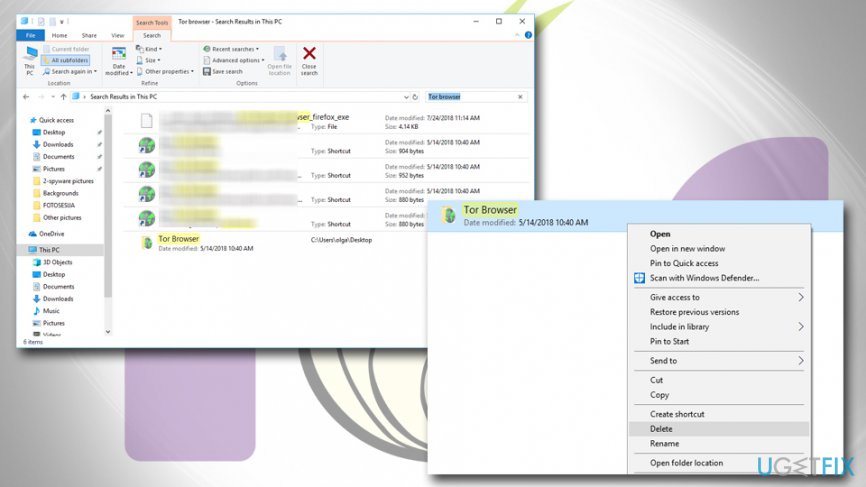
As explained by the developer, Tor Browser is not installed as the classic sense of applications. On Windows OS, people should delete the Tor folder or directory named “Tor Browser.” If, however, you have installed Tor’s bundle, then you may have to initiate a deeper system’s cleaning. First of all, check for Tor uninstaller on Control Panel. For that, please follow these steps:
- Go to the Windows start menu → Settings → Control Panel.
- When in Control Panel, find Add/Remove Programs.
- In the list of your installed programs, look for Tor and Tor-related applications.
- Single click on each of them and select Change/Remove.
- Confirm the removal.
- Then press Windows key + R, type regedit, and press Enter.
- Open Edit tab and select Find.
- Type Tor in the search address and check if there are any related keys. Remove all of them.
Alternatively, you can use an automated software removal utility, such as [d1]. Download the tool, run its setup, and set it to uninstall Tor browser completely. In case you don’t want to install additional third-party software, uninstall TOR browser using Command Prompt:
- Right-click on Start button and select Command Prompt (Admin).
- Type the following commands and press Enter after each of them:
dir /s /a /b "tor" >> \\users\\%%name\\desktop\\TorInstalationAdress.txt
dir /s /a /b "vidalia" >> \\users\\%%name\\desktop\\TorInstalationAdress.txt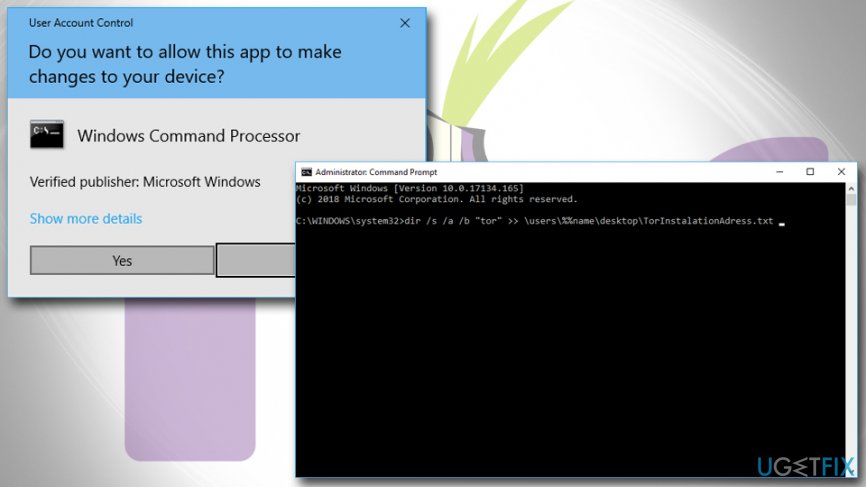
Remove tor browser via command prompt - Now open the created file and you should see a list of paths to the Tor folders:
C:\\>dir /s /a /b "tor"
C:\\proxy\\tor
|_>C:\\proxy\\tor\\Tor Browser\\Data\\Tor
|_>C:\\proxy\\tor\\Tor Browser\\Docs\\Tor
del /f "\\proxy\\tor"
C:\\Users\\%%\\AppData\\Roaming\\tor
del/f "\\Users\\%%\\AppData\\Roaming\\tor"
C:\\>dir /s /a /b "vidalia"
|_>C:\\proxy\\tor\\Tor Browser\\App\\Data\\Vidalia
|_>C:\\proxy\\tor\\Tor Browser\\Data\\Vidalia
|_>C:\\proxy\\tor\\Tor Browser\\Docs\\Vidalia
C:\\Users\\%%\\AppData\\Local\\Vidalia
del /f "C:\\Users\\%%\\AppData\\Local\\Vidalia "
C:\\Users\\%%\\Downloads\\Tor Browser\\Data\\Vidalia
C:\\Users\\%%\\Downloads\\Tor Browser\\Docs\\Vidalia
del /f " C:\\Users\\%%\\Downloads\\Tor Browser" - Now make a new text document.
- Copy and paste the following commands into it:
@echo off
del /f "\\proxy\\tor"
del/f "\\Users\\%%\\AppData\\Roaming\\tor"
del /f "\\Users\\%%\\AppData\\Local\\Vidalia "
del /f "\\Users\\%%\\Downloads\\Tor Browser" - Save the file to the desktop as TorRemoval.bat and save as all file types.
- Right-click on the TorRemoval.bat and select Run as administrator.
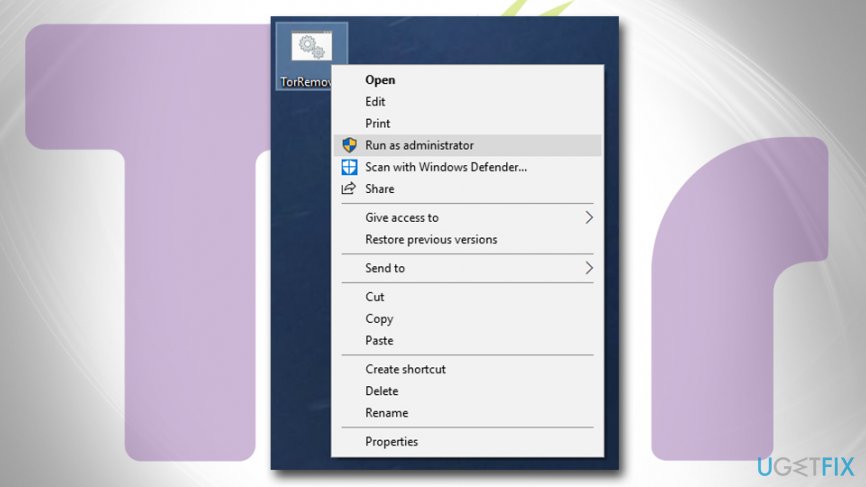
Remove tor browser run administrator
Bottom line
To uninstall Tor Browser from Windows, you need to delete the Tor folder or directory named 'Tor Browser.' If you installed Tor's bundle, a deeper removal process may be necessary. If these steps do not work, consider seeking further assistance or checking the official Tor website for more guidance.
Frequently asked questions
To uninstall Tor Browser from Windows 10, go to Settings > Apps, find Tor Browser in the list, click on it, and select 'Uninstall.' Follow the prompts to complete the uninstallation process.
Yes, after uninstalling Tor Browser on Windows 11, you can manually check the 'C:\Users\YourUsername\AppData\Local\Tor Browser' folder and delete any remaining files to ensure complete removal.
If Tor Browser doesn't appear in the uninstall list on Windows, try using the 'Add or Remove Programs' feature in Control Panel or consider using a third-party uninstaller to remove it.




Report an issue
What's wrong with this guide? We review every report and update or remove content.
Report received — thank you. We'll review and fix it.
You need a free account to submit a report.
Be the first to comment