How to remove
Uninstall CC Cleaner Optimization Utility
from Windows
Easily uninstall CCleaner from Windows 10 or Windows 11 with our expert tips. Remove it completely and enjoy a cleaner system. Updated 2025!

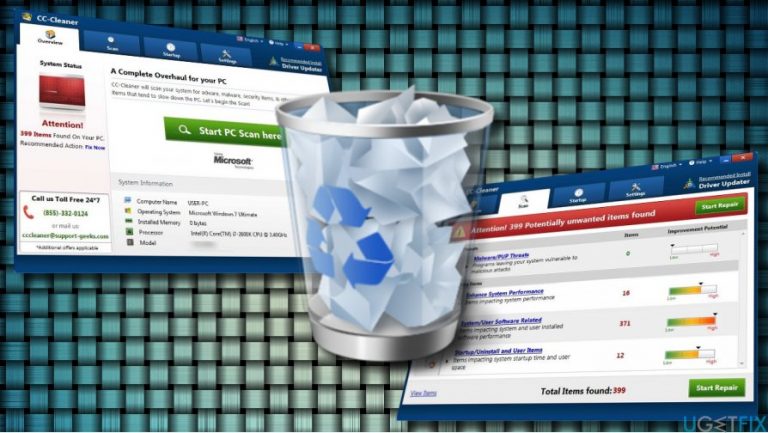
How does How to Uninstall CC Cleaner Optimization Utility end up on your PC?
- Installed via bundled freeware installers
- Classified as a potentially unwanted program (PUP)
- Recognizes neutral system files as potentially unwanted
- Requires purchase of a full license to repair issues
- May run suspicious processes in Task Manager
Repairs Windows system files, removes malware, and restores a clean OS state — without reinstalling.
I did not install CCleaner, but it keeps scanning my PC. Is it a kind of malware?
CC Cleaner is dubbed as an optimization utility, which is supposed to remove potentially unwanted system files, corrupted Windows Registry keys, temporary files, memory dumps, file fragments, log files, system caches, and other useless data, which take up free space and diminish system’s performance.
Although CC Cleaner pretends to be a useful system’s optimizer, it has been classified as a potentially unwanted program (PUP). Security experts detected this utility dispersed under various freeware installers. In other words, its developers exploit ‘bundling’ distribution technique to prompt people install it accidentally. Besides, the functioning of the CC Cleaner scanner is highly questionable. Specialists analyzed this cleaner and found out that it recognized random or neutral system files as potentially unwanted, medium or highly severe. On top of that, to repair the detected issues, the user will be asked to purchase a full license of this PUP, but such decision is NOT recommended as you will only lose money for a useless piece of software. Therefore, we would strongly recommend you to uninstall CC Cleaner without a delay.
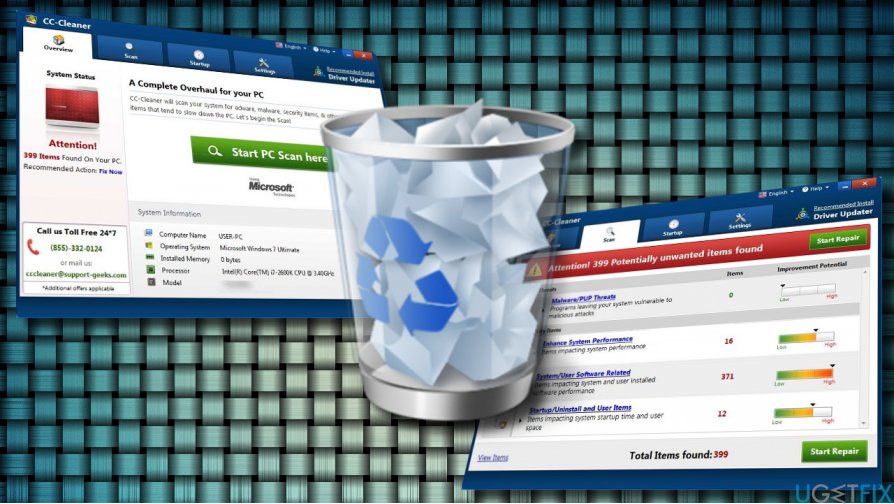
IMPORTANT: CC Cleaner should NOT be confused with the popular software utility CCleaner by Piriform. The name of CC Cleaner is nothing else but a catch.
Uninstalling CC Cleaner Optimizer
CC-Cleaner may be running many suspicious processes on Task Manager. With these processes running, you won’t be allowed to uninstall this rogue application. Therefore, you should terminate them using a third-party process removal utility, for example Rkill. Once suspicious processes are disabled, follow these steps:
- Boot the system into Safe Mode.
- Press Ctrl + Alt + Del to Open Task Manager.
- Find CC Cleaner, click it, and select End Task.
- Right-click on Windows key and open Control Panel.
- Open Programs & Features and find ScanFolder.
- Click it and opt for Uninstall option.
- Follow the on-screen instructions and the click Remove on the confirmation pop-up.
- Close the window that you are currently seeing. Then press Windows key + R.
- Type regedit and press Enter.
- Click Edit at the top of the Registry Editor window and select Find.
- Type CC-Cleaner and wait while the search results are being prepared.
- If any files are found, delete all of them.
- Reboot your PC.
TIP: CC Cleaner might have been installed along with other potentially unwanted programs, such as various browser add-ons, toolbars, extensions, and so on. They may be not only benegatively influencing system's performance, but also displaying commercial ads while browsing or causing redirects to compromised web domains. To ensure that you PC is clean from such potentially unwanted and dangerous programs, we would strongly recommend running a scan with [d1] or another professional anti-malware tool.
Bottom line
To uninstall CC Cleaner, terminate its processes using a third-party utility like Rkill, boot into Safe Mode, and then remove it through Control Panel's Programs & Features. If these steps do not resolve the issue, consider seeking additional technical support.
Frequently asked questions
To uninstall CCleaner from Windows 10, go to Settings > Apps > Apps & features, find CCleaner in the list, click on it, and select 'Uninstall.' Follow the prompts to complete the removal process.
If CCleaner doesn't appear in the Apps & features list on Windows 11, you can try using the Control Panel; go to Control Panel > Programs > Programs and Features, find CCleaner, and click 'Uninstall'.
Yes, after uninstalling CCleaner, you can use a third-party uninstaller or manually delete any leftover files from the installation directory, typically found in C:\Program Files or C:\Program Files (x86) on Windows 10 and 11.




Report an issue
What's wrong with this guide? We review every report and update or remove content.
Report received — thank you. We'll review and fix it.
You need a free account to submit a report.
Be the first to comment