How to remove
Uninstall NowYouSeeIt Player
from Windows
Easily uninstall NowYouSeeIt Player from Windows 10 or 11 with our expert-tested guide. Get your system clean and clutter-free in minutes!

How does How to uninstall NowYouSeeIt Player end up on your PC?
- Installed unintentionally through software bundles
- Misleading installers with pre-ticked boxes
- Deceptive offers during installation
- Pay-per-install scheme incentivizing installation
- Deliberate installation due to functionality
Repairs Windows system files, removes malware, and restores a clean OS state — without reinstalling.
Hi, I got this application installed on my computer - NowYouSeeIt. Apparantly, it is some type of media player, although I never installed such a thing on my PC. I tried to remove it, but it refuses to do so. Any ideas how to uninstall NowYouSeeIt?
NowUSeeIt (or like some others might call it - NowYouSeeIt) is a media player designed to allow users to watch videos from YouTube, Dailymotion and other reputable sources without using their browsers, such as Google Chrome, Mozilla Firefox, Internet Explorer, etc. While it might seem like a great idea, users are soon looking for ways to uninstall NowUSeeIt Player from their Windows machines due to intrusive advertisements that it inserts.
In most of the cases, however, users install NowYouSeeIt Player unintentionally, as it travels within software bundles.[ref en-1] Users are often misled by deceptive installers that use pre-ticked boxes, misleading offers, displaced buttons, and similar tricks in order to make users install software they never intended to in the first place. However, NowUSeeIt Player uses a pay-per-install scheme,[ref en-2] so it is in freeware developers' best interest to make users install it on as many machines as possible.
While deceptive software installers are something that users who use third-party sites are practically unavoidable, it is possible to avoid potentially unwanted programs altogether. All users have to do is being more careful when installing software - checking for ToS and Privacy Policy, reading through the installation instructions, declining all the offers, unmarking all pre-ticked boxes, etc.
However, users might also download and install NowYouSeeIt Player deliberately due to its functionality. However, this is not what adware programs are generally there for, as their primary goal is to show you ads and gain revenue for each click made. Pop-ups, flashing windows, auto-play, and other ads might be marked as follows:
- Ads by NowUSeeIt
- Brought to you by NowUSeeIt
- Powered by NowUSeeIt
- NowUSeeIt ads, etc.
In some cases, however, these advertisements might not be marked by anything, and users might start wondering whether the website they are visiting is poor quality due to intrusive ads, or is it NowYouSeeIt Player causing them. Without a doubt, the latter is often true.
NowUSeeIt Player is ads are not the only activity that this PUP does. To increase the efficiency of commercial content, users' web browsing activities are monitored, and information about users' IP, ISP, geolocation, visited websites, bookmarks added, search queries and other data is often collected. These details might also be shared or sold for marketing purposes, increasing the overall income of NowUSeeIt Player developers.
As a result, NowYouSeeIt Player functionality becomes nothing but a disguise to show you more ads. Besides, these advertisements might also land you on insecure sites that are infected with malware. All in all, we strongly advise you uninstall NowYouSeeIt Player as per our instructions below.
Step 1. Try to uninstall NowYouSeeIt via the Control Panel
In some cases, you should be able to remove NowYouSeeIt Player simply by accessing Programs & Features section via the Control Panel.
- Type Control Panel into Windows search bar and hit Enter
- Go to Programs > Uninstall a program
- Right-click on NowUSeeIt and select Uninstall
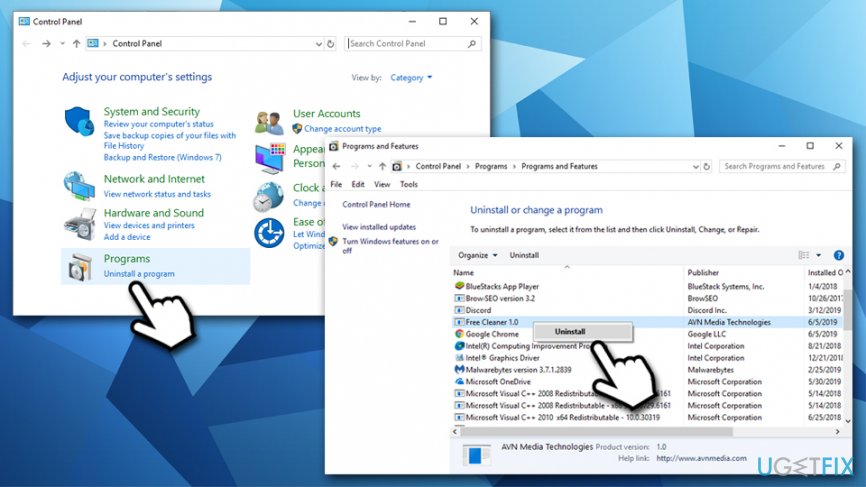
How to uninstall nowuseeit player via control panel
However, the app might sometimes return an error when trying to eliminate it. In such a case, proceed with the next step.
Step 2. Stop all the background processes related to NowUSeeIt Player
To enable and easy NowUSeeIt removal, you should first shut down all the processes that it might have running on your system:
- Press Ctrl + Shift + Esc to open the Task Manager
- Click More details if you can't see full list of running processes
- Find NowUSeeIt under Apps and Background Processes
- Right-click on each of the entries and select End task
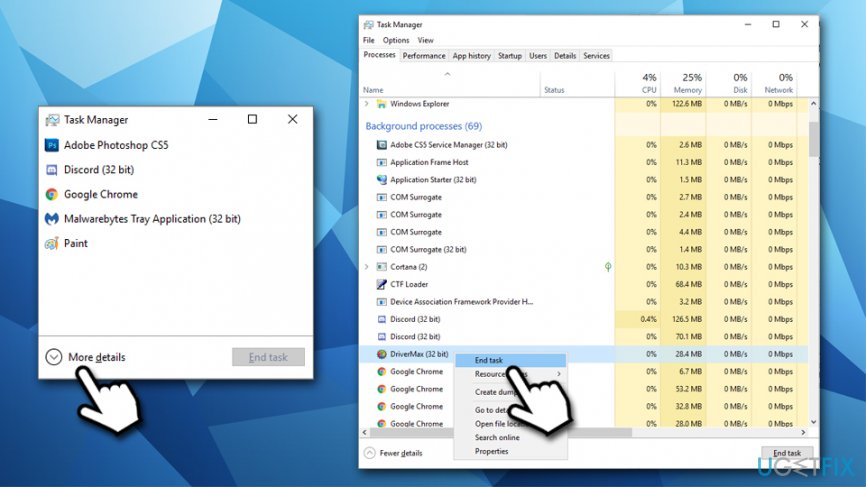
How to uninstall nowuseeit stop processes via task manager
If you are still unable to uninstall NowYouSeeIt Player, proceed to the next step to access Safe Mode.
Step 3. Access Safe Mode
Accessing Safe Mode will render all the third-party software non-functional, and none of their processes will be launched:
- Right-click on Start and select Settings
- Go to Update & Security and pick Recovery
- Locate Advanced startup section and click Restart now
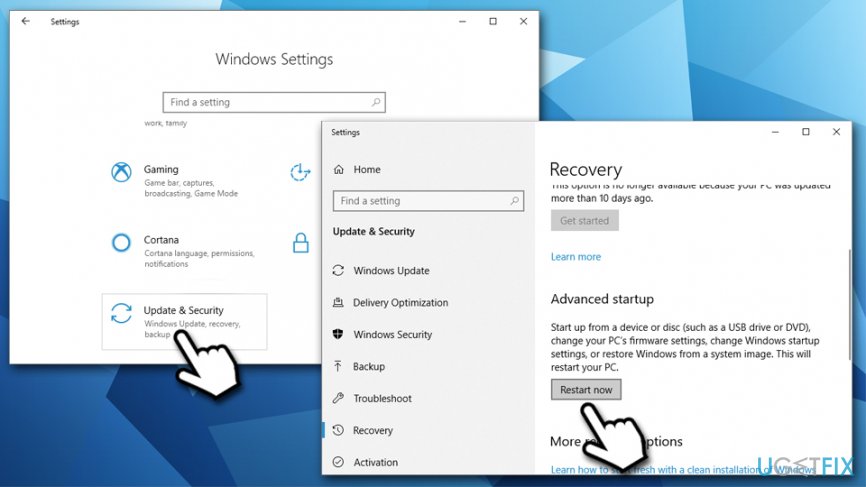
How to uninstall nowuseeit access safe mode - When Choose an option appears, select Troubleshoot > Advanced options > Startup Settings and Restart
- Once the PC restarts, press F4 or 4 to to enter Safe Mode
Step 4. Scan your machine with security and repair software
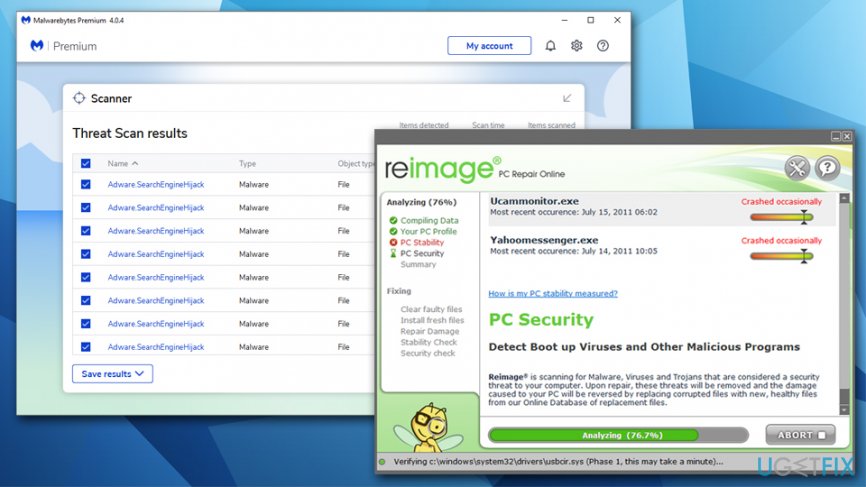
Due to the infection of NowYouSeeIt adware, there is a chance that your machine might be infected with other potentially unwanted programs or even malware. Just to be sure, you should scan your computer with anti-malware. There are plenty of free scanners available that would detect and remove various threats, although you would have to buy a full version if you want to protect your computer comprehensively in the future. Nevertheless, a good option is also a built-in Windows Defender(also known as Microsoft Defender) - it is free, as long as you use a legal version of Windows.
Note that NowUSeeIt sets a variety of registry entries. To get rid of them, you would have to enter Registry Editor. However, doing so is not recommended, as modifying registry incorrectly might lead to unforeseen consequences, and the system might start crashing or lead to other problems. To avoid that, we suggest you employ a PC repair tool [d1] to fix all damage done by PUPs and malware.
Step 5. Reset your browsers
This step is optional, but by resetting your browsers, you will make sure that NowYouSeeIt Player remnants are eliminated, and you are no longer tracked thanks to cookies[ref en-3] or other technologies.
Reset Google Chrome
- In Chrome, go to Menu > Settings
- Click Advanced
- In the Reset and clean up section, select Restore settings to their original defaults
- Confirm with Reset settings
Reset Mozilla Firefox
- In Firefox, go to Menu > Help
- Pick Troubleshooting Information
- Click Refresh Firefox…
- Press Refresh Firefox
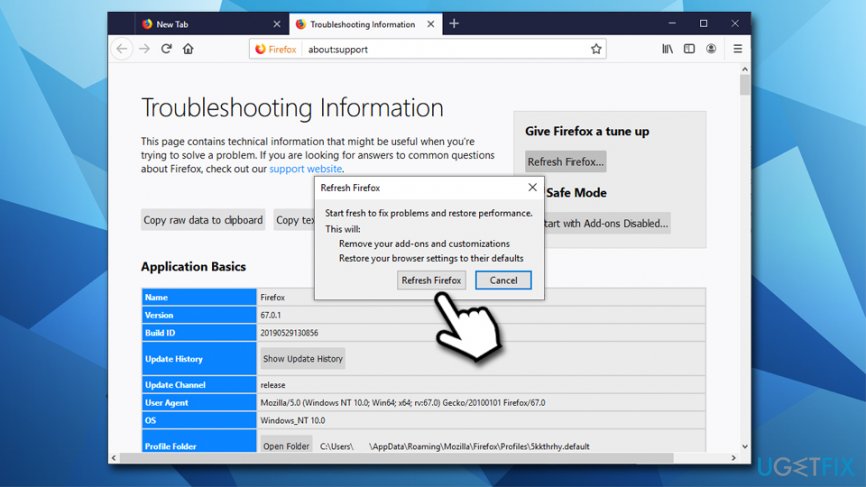
How to uninstall nowuseeit reset firefox
Reset MS Edge
- In MS Edge browser, click Menu > Privacy & security
- Under Clear browsing data, pick Choose what to clear
- Select all the boxes (you can leave passwords) and select Clear
Bottom line
To uninstall NowYouSeeIt Player, users should carefully check installation options, decline offers, and unmark pre-ticked boxes. If the application is still present, consider using the Control Panel or a dedicated uninstaller tool. If these methods do not work, further assistance may be required.
Frequently asked questions
To uninstall NowYouSeeIt Player from Windows 10, go to Settings > Apps, find NowYouSeeIt Player in the list, and click 'Uninstall.' Follow the on-screen instructions to complete the process.
Yes, in Windows 11, right-click the Start button, select 'Apps and Features,' locate NowYouSeeIt Player, click on it, and choose 'Uninstall' to remove it.
If you face issues, try using the Control Panel by navigating to 'Programs and Features,' or consider using a third-party uninstaller to ensure all components are removed.




Report an issue
What's wrong with this guide? We review every report and update or remove content.
Report received — thank you. We'll review and fix it.
You need a free account to submit a report.
Be the first to comment