How to remove
“Recommended” section
from Windows
Easily remove the "Recommended" section from your Windows 10 or Windows 11 Start menu for a cleaner look. Expert-tested tips inside!

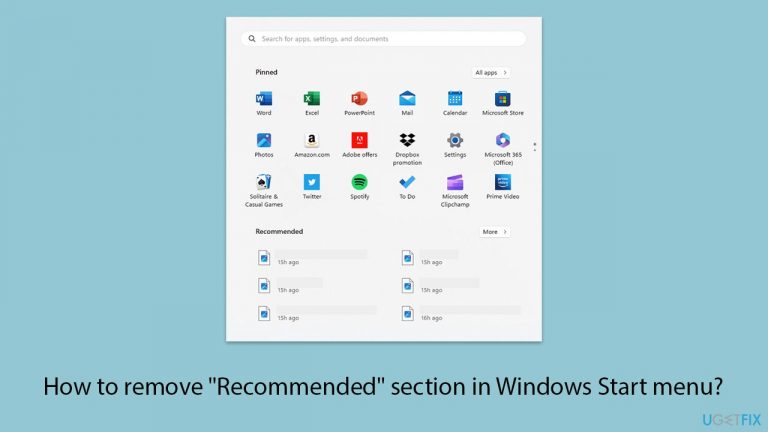
How does How to remove “Recommended” section in Windows Start menu end up on your PC?
- Users find the 'Recommended' section cluttered or unnecessary.
- Recent apps and files are displayed in the 'Recommended' section.
- Users may prefer a cleaner Start menu interface.
- Administrative access allows for more control over system settings.
- Incorrect registry changes can affect system stability.
Repairs Windows system files, removes malware, and restores a clean OS state — without reinstalling.
When I click on the Start button in Windows 11, I always see the "Recommended" section, which I don't want to see. Is there any way to remove it from the Start menu?
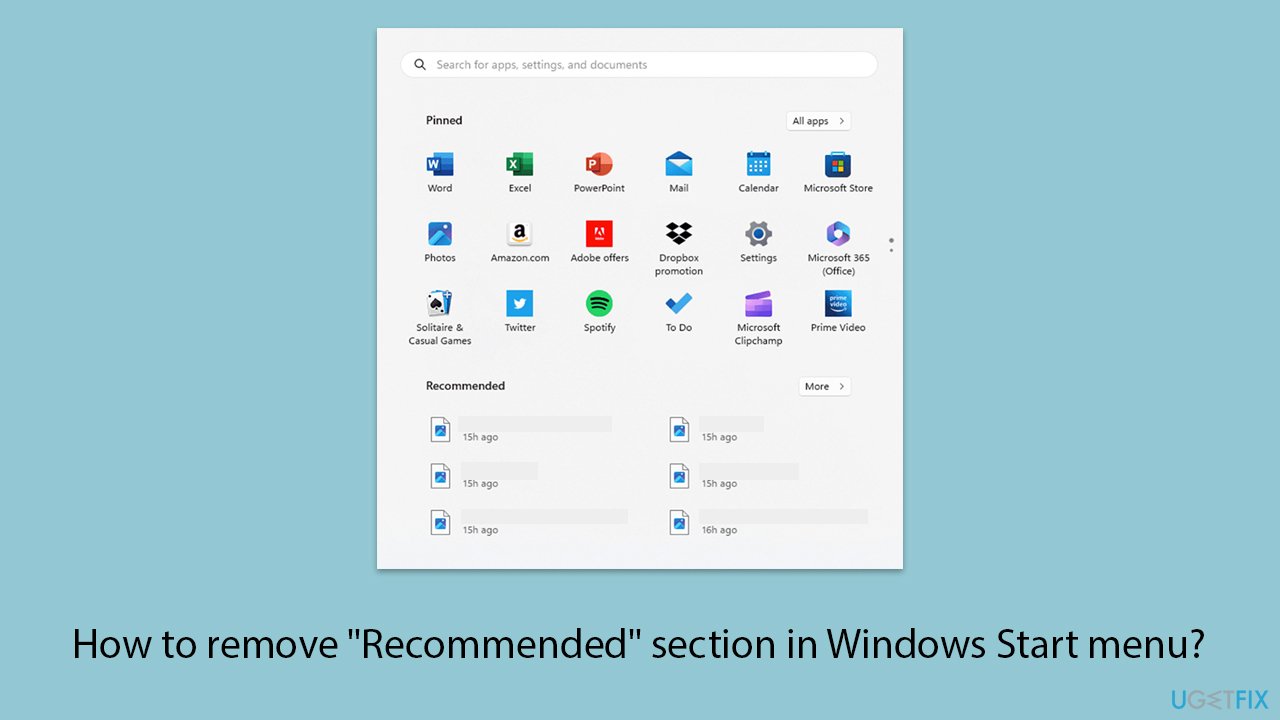
The "Recommended" section in the Windows Start menu displays recently opened apps and files, which some users find cluttered or unnecessary. To remove this section, you can use methods such as the Settings app, Group Policy Editor, Registry Editor, or third-party software solutions.
Using the Settings app to remove the "Recommended" section in Windows is probably the most straightforward and approachable way for most. Therefore, we recommend starting from it.
The Group Policy Editor provides another simple way to manage and configure system settings, including the Start menu. By navigating to specific policies within the editor, you can disable the "Recommended" section, ensuring it no longer appears in the Start menu. This method is efficient for users with administrative access and those familiar with Group Policy settings.
Alternatively, the Registry Editor allows for a more hands-on approach to customizing the Windows operating system. By making precise changes to the system registry, you can remove the "Recommended" section from the Start menu. This method requires caution, as incorrect changes to the registry can affect system stability.
Third-party software solutions are also available for users who prefer a more automated approach. These programs are designed to modify system settings, including Start menu configurations, without the need for manual adjustments in Group Policy or the registry. These tools can provide an easy and user-friendly way to customize your Windows experience.
Each method offers a different level of control and complexity, allowing you to choose the one that best fits your comfort level and expertise.
Method 1. Use the Settings app
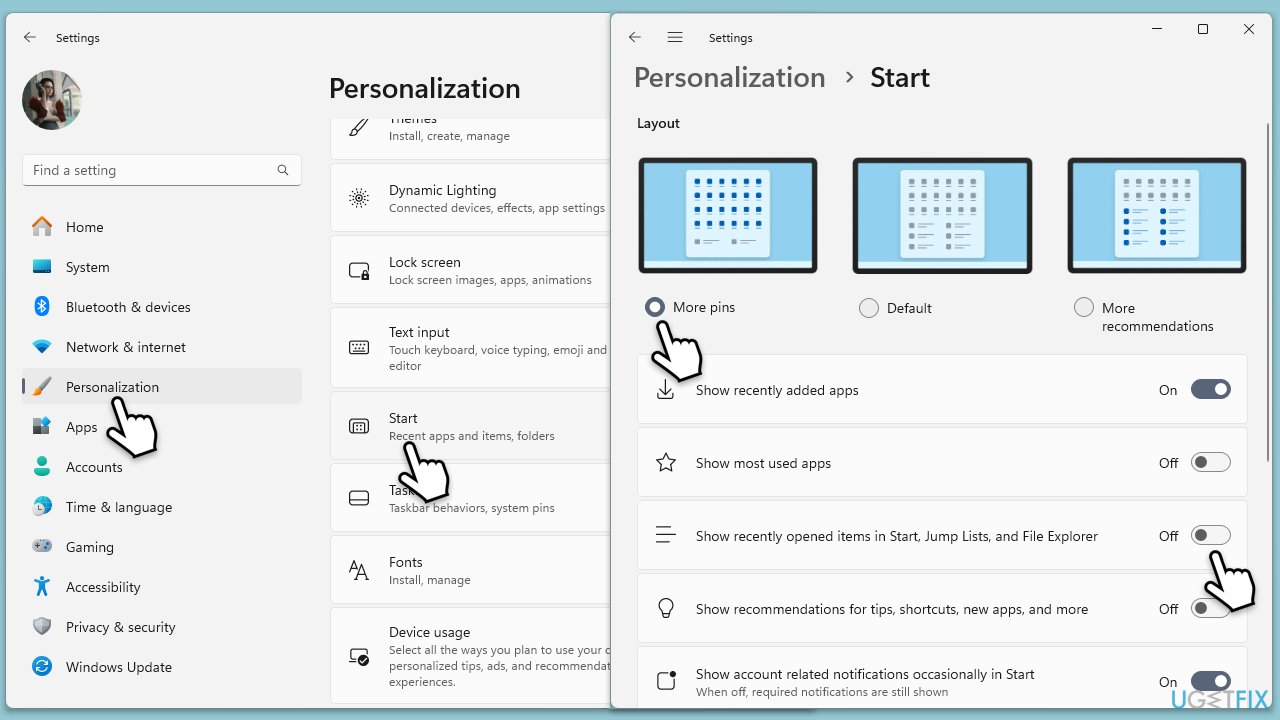
The Settings app provides an easy way to adjust various preferences, including the visibility of the "Recommended" section in the Start menu.
- Right-click on Start and pick Settings.
- Click on Personalization.
- Select Start from the left or right-hand menu (depending on the Windows version).
- Toggle off the Show recently added apps and Show recently opened items in Start, Jump Lists, and File Explorer options.
- Restart your computer to ensure the changes take effect.
Method 2. Use Group Policy
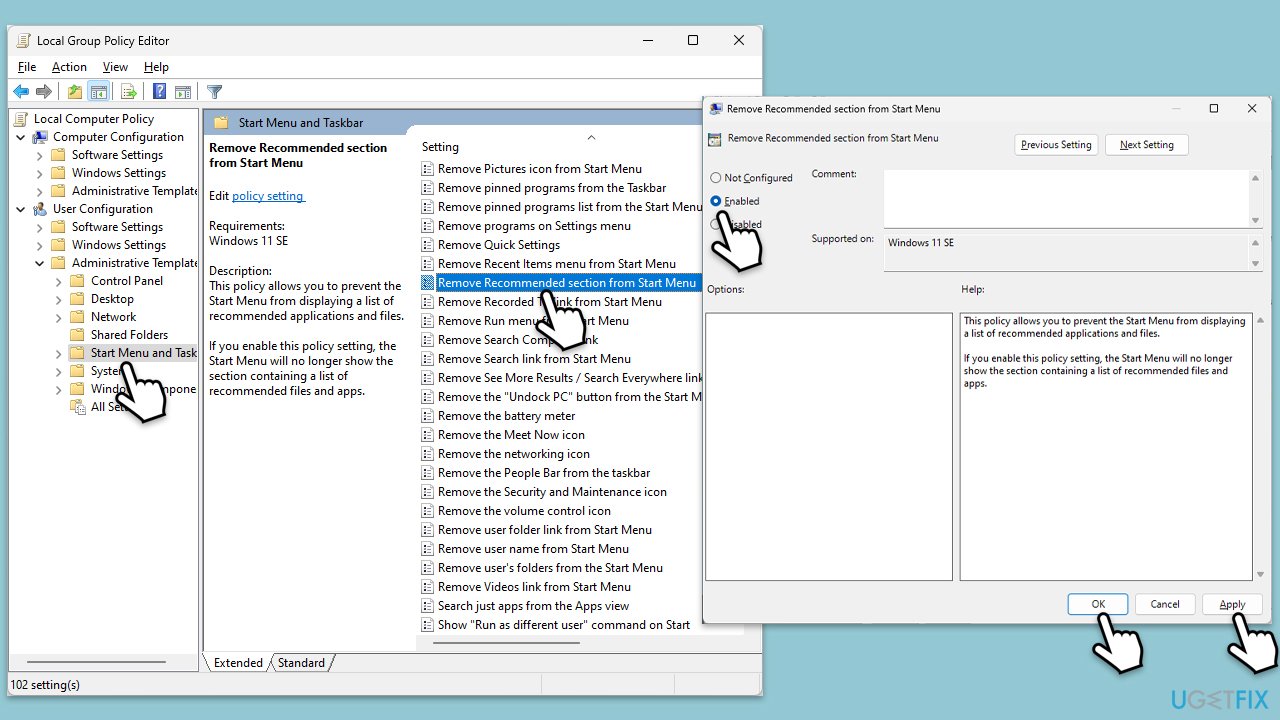
The Group Policy Editor allows you to configure settings for your Windows operating system, including removing the "Recommended" section from the Start menu.
- Type Group Policy in Windows search and press Enter to open the Group Policy Editor.
- Navigate to User Configuration > Administrative Templates > Start Menu and Taskbar.
- Find and double-click on the policy named Remove Recommended section from the Start menu.
- Select Enabled and click Apply, then OK.
- Restart your computer to apply the changes.
Fix 3. Use Registry Editor
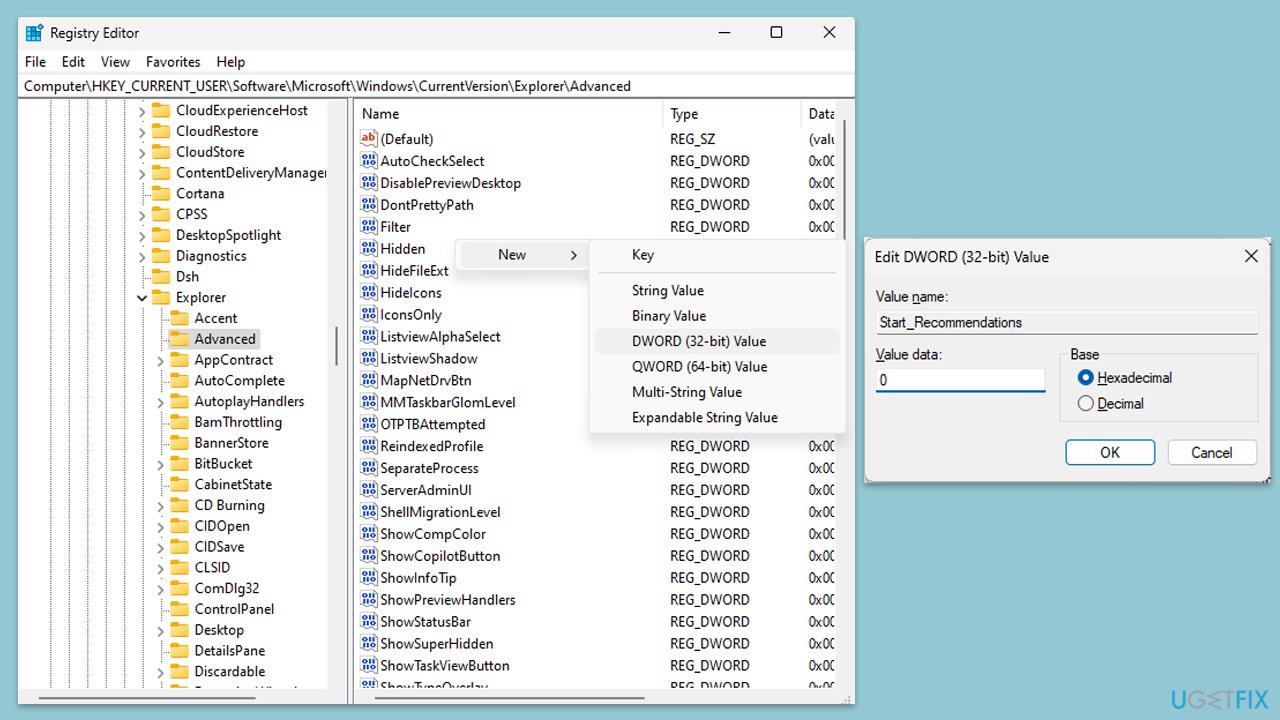
The Registry Editor lets you make precise changes to your Windows system registry, which can remove the "Recommended" section from the Start menu. Before proceeding, make sure you backup your registry database just in case.
- Type regedit in Windows search and press Enter to open the Registry Editor.
- Navigate to the following location:
HKEY_CURRENT_USER\Software\Microsoft\Windows\CurrentVersion\Explorer\Advanced - Right-click on the right pane and select New > DWORD (32-bit) Value.
- Name the new value Start_Recommendations.
- Double-click on Start_Recommendations and set its value data to 0.
- Click OK and close the Registry Editor.
- Restart your computer to apply the changes.
Fix 4. Use third-party software
There are several third-party software solutions designed to help you customize your Windows Start menu, including removing the "Recommended" section.
- Download and install a reputable third-party customization tool.
- Open the software and navigate to the Start menu customization options.
- Find and select the option to disable or remove the "Recommended" section.
- Apply the changes and restart your computer if necessary.
Bottom line
To remove the 'Recommended' section from the Start menu, you can use the Settings app, Group Policy Editor, or Registry Editor. Third-party software solutions are also available for a more automated approach. If none of these methods work, consider seeking additional technical support.
Frequently asked questions
To disable the 'Recommended' section in Windows 10, go to Settings > Personalization > Start and toggle off 'Show recently opened items in Jump Lists on Start or the taskbar.'
Yes, in Windows 11, you can remove the 'Recommended' section by right-clicking on items within that section and selecting 'Remove from list' or by turning off 'Show recently opened items' in the system settings.
If the 'Recommended' section keeps reappearing, ensure that your Windows 10 or Windows 11 is updated, and check your privacy settings to disable options that allow Windows to show recent activity.




Report an issue
What's wrong with this guide? We review every report and update or remove content.
Report received — thank you. We'll review and fix it.
You need a free account to submit a report.
Be the first to comment