A while ago I installed PC Smart Cleanup thinking that it will speed up my computer. I did not notice any improvement. I uninstalled the utility, but after rebooting the computer, the application is still visible in the startup menu. Is there any way to uninstall it permanently?
PC Smart Cleanup is presented as a seemingly useful PC optimization tool which repairs corrupted registry entries and generally improves the overall performance of the device.
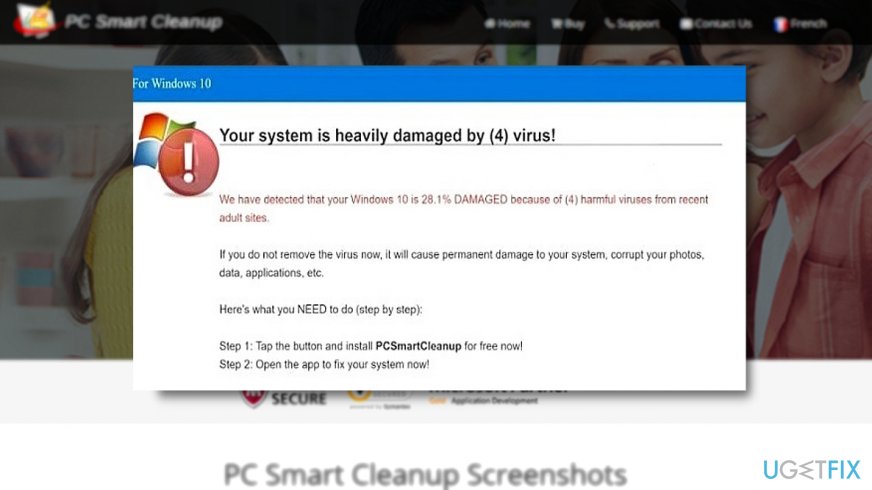
Recently, malware researchers discovered its dubious distribution campaign. Besides its official website, it is also promoted in the tech support scam – Your computer is heavily damaged by (4) virus! scam.
After installing the program, it will scan the system and display hundreds of issues detected. Purchasing the full version will “solve” the problems. Note that due to such marketing technique, your system might become more vulnerable. Such tools hardly improve the overall performance of the utility. More information about this tool can be found in this review.
Pc smart cleanup
In fact, PC optimization applications may cause troubles. Microsoft issued an official statement condemning these tools. According to the report, the software, which supposedly repairs damaged registry entries, may indeed corrupt or delete necessary ones.
Additionally, trusted security tools label this program as Rogue.PCSmartCleanup. Therefore, they reveal its deceptive origin. You can uninstall the program manually as well as automatically.
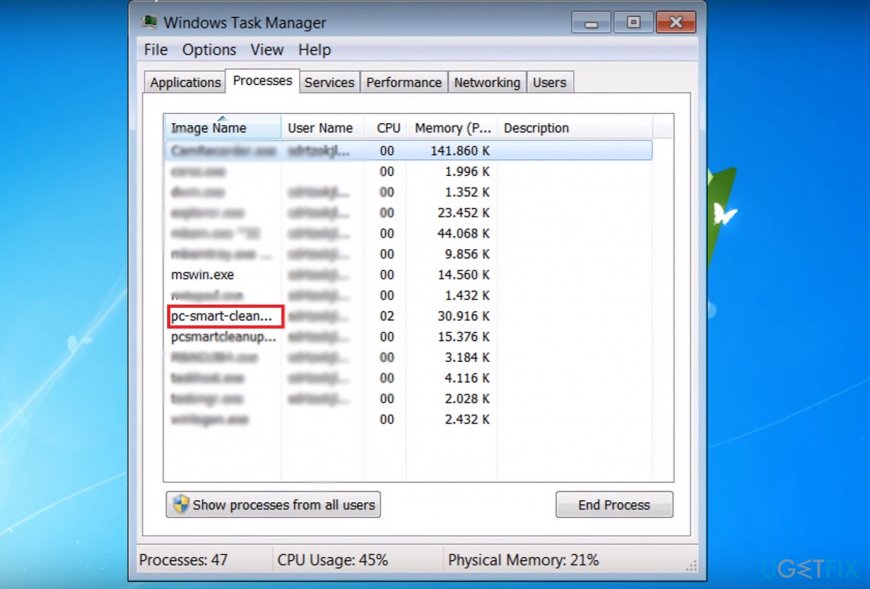
Option 1. Terminate PCSmartCleanup via the Task ManagerTask manager
Click ESC+CTRL+SHIFT to launch the program.
Locate pcsmartcleanup_popup.exe, right-click on it and choose End Task.
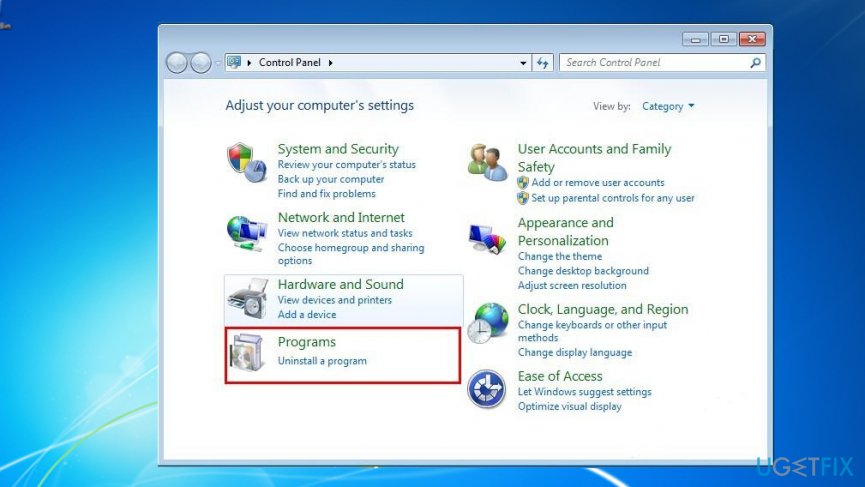
Option 2. Uninstall the program via the Control PanelUninstall a program
Click on the Start button and enter Control Panel.
Choose Programs and then Uninstall a program.
Locate PC Smart Cleanup and click the Uninstall option.
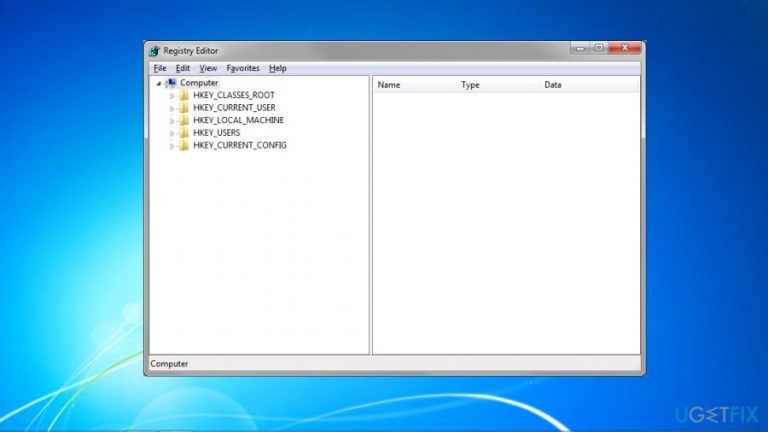
Note that after removal, you might notice its logo on the startup menu. It only indicates previously used applications. If you suspect that some of the files might have left, check for its registry files. Below steps indicate how you can launch Registry Editor.
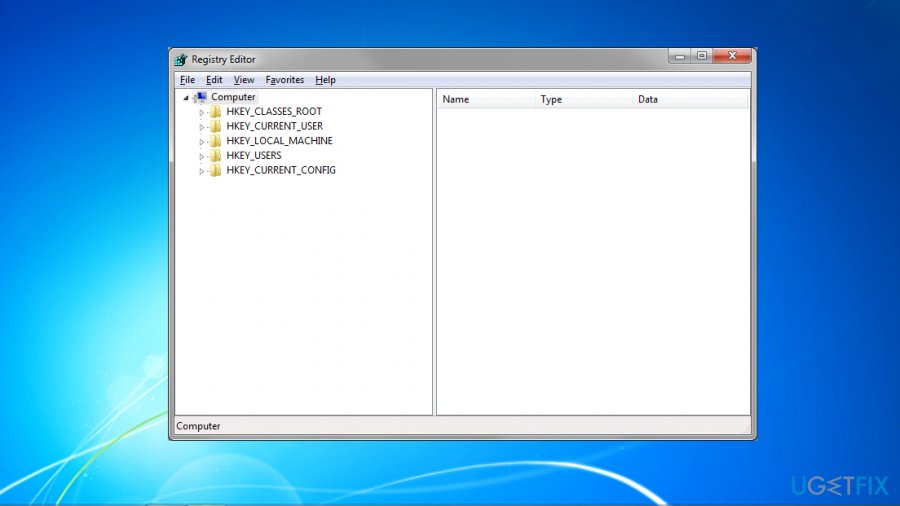
Option 3. Look for its remnants with the Registry EditorRegistry editor
Click Windows+X keys and type regedit. Hit Enter button.
Once the program opens, choose the Edit section and select Find Next function.
Type PC Smart Cleanup.
It if it finds any related files, delete them.
Option 3. Use malware elimination tool
If the previous removal attempts were unsuccessful, scan the device with [d1] or Malwarebytes Anti-Malware. The tool will eliminate all components of the program.
Bottom line
To uninstall PC Smart Cleanup, you can terminate it via Task Manager, uninstall it through the Control Panel, or check for remnants using the Registry Editor. If these methods do not work, consider seeking additional technical support.
Frequently asked questions
To uninstall PC Smart Cleanup from Windows 10, go to Settings > Apps > Apps & features, find PC Smart Cleanup in the list, and click 'Uninstall'.
Yes, you can remove PC Smart Cleanup by opening the Control Panel, selecting 'Programs and Features', finding it in the list, and clicking 'Uninstall'.
If PC Smart Cleanup won't uninstall, try using the built-in troubleshooter for programs in Windows 10 or consider using a third-party uninstaller tool.
Driver troubleshootingHardware conflictsDevice Manager errorsUSB and peripheral issuesAudio and video problems
Lucia Danes is a tech support specialist focused on driver conflicts, hardware recognition failures, and device-level troubleshooting on Windows. Her guides walk users through the full diagnostic process — from reading Device Manager error codes and identifying problematic drivers to performing clean driver installations and resolving hardware compatibility issues. Lucia covers a wide range of devices including printers, audio hardware, graphics cards, USB peripherals, and external storage. Her writing is valued for its step-by-step precision and the real-world testing behind every recommended fix.





Report an issue
What's wrong with this guide? We review every report and update or remove content.
Report received — thank you. We'll review and fix it.
You need a free account to submit a report.
Be the first to comment