How to remove
Uninstall Windows Insider Program
from Windows
Easily uninstall the Windows Insider Program from Windows 10 or Windows 11 with our expert-tested guide. Achieve a clean system in minutes!


How does How to Uninstall Windows Insider Program end up on your PC?
- Integrated into Windows 10
- User privacy concerns
- Interference with regular usage
- Desire to stop sending data to Microsoft
- Irritation from program presence
Repairs Windows system files, removes malware, and restores a clean OS state — without reinstalling.
I do not want my PC send any statistical data to Microsoft and want to remove this Windows Insider Program. Since it is already integrated into Windows 10, is there any way to uninstall or deactivate it?
Windows Insider Program is the official software created by Microsoft. The key essence of the utility is that it allows its participants to test the latest Windows builds before they are officially released. By acquiring users’ feedback, Microsoft works on improvements and repair reported bugs and issues.
If you are not Windows enthusiast or you find it interfering with your privacy, you might consider eliminating the program. Though the program requires signing up, some users might get irritated even by the presence of it.
On the other hand, previous Microsoft Windows 10 forceful introduction campaign had a resonance on the virtual community. If you are concerned about privacy, you might want to eliminate the program. As some of you already suspect, there is no official “uninstall” function when it comes to Windows Insider Program. Nonetheless, the following suggestions will help you get rid of it.
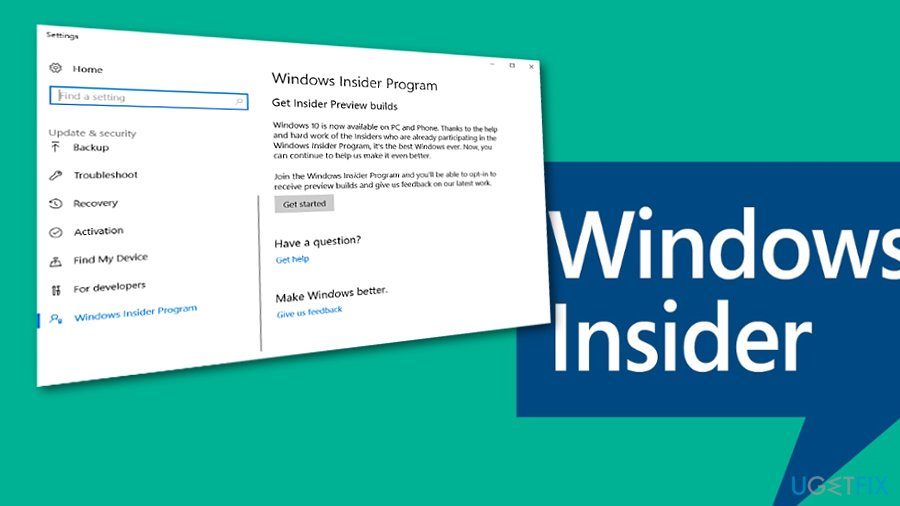
Option 1. Unregister
If you were a member and want to quit participating, naturally, you will need to sign out. You will find all necessary instructions in the official page.
Option 2. Deactivate Windows Insider
In order to cease the activity of the software, follow these steps:
- Click on the Start button, type update and select Check for Updates. Select and then choose Update & Security section.
- Select Windows Insider Program on the left side of the window. Then terminate the program by clicking on Stop Insider Preview Builds.
Option 3. Use Registry Editor to terminate the program
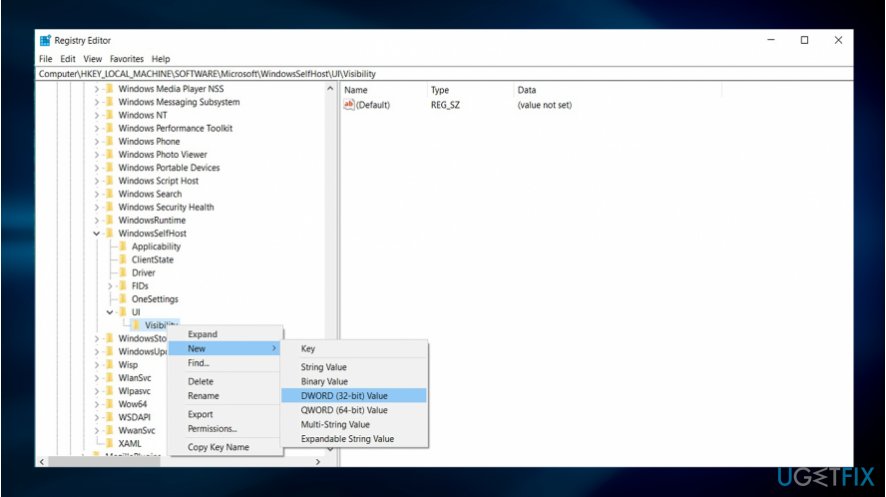
- Click on the Windows key+R keys simultaneously to launch Run command window.
- Enter regedit, and click OK. Registry Editor will open .
- Click on the address bar, type the following entry: HKEY_LOCAL_MACHINE\\SOFTWARE\\Microsoft\\WindowsSelfHost\\UI\\Visibility
- Right-click on the Visibility folder, choose New and then DWORD (32-bit) Value in the options list.
- Alter DWORD name to HideInsiderPage and press Enter.
- Double-click the newly created DWORD and change the value from 0 to 1.
- Click OK.
- Close the Registry Editor.
- Later on, go to Settings (Windows key+ I). Enter Update & security section. The entry of Windows Insider Program will vanish.
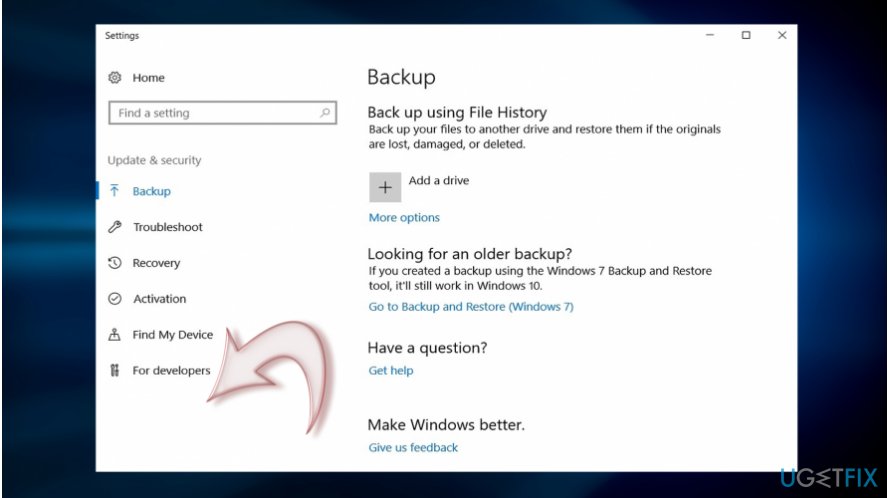
Windows insider removed
In case, you want to contribute to the program, you can activate it again by changing DWORD HideInsiderPage value from 1 to 0 in the step 6.
Windows 10 grants more users more freedom in managing security settings. Click on the Settings and then Privacy. There you will see an extensive list of options. Besides privacy options regarding your location, email accounts and apps, you can choose how much statistical data Microsoft collects about your PC. These settings are found under Feedback & Diagnostics.
Bottom line
To uninstall the Windows Insider Program, you can unregister from the program, deactivate it through the Update & Security settings, or use the Registry Editor to change specific values. If none of these methods work, consider seeking further assistance from Microsoft support.
Frequently asked questions
To remove your device, go to Settings > Update & Security > Windows Insider Program and click on 'Stop getting preview builds'. Follow the prompts to complete the process.
Yes, you can uninstall the Windows Insider Program by following the same steps in Settings, and it will not affect your personal files.
If you can't find the option, make sure your Windows 10 is fully updated, as the option may not appear until your system is on the latest version.




Report an issue
What's wrong with this guide? We review every report and update or remove content.
Report received — thank you. We'll review and fix it.
You need a free account to submit a report.
Be the first to comment